🏆 Achievements
Introduction
The Achievements page displays all types of achievements (badges) that users can earn. Each achievement type has sub-types with different levels. You can add new types and manually assign gifts to users.
How to Access
Sidebar ← Achievements ← Achievements
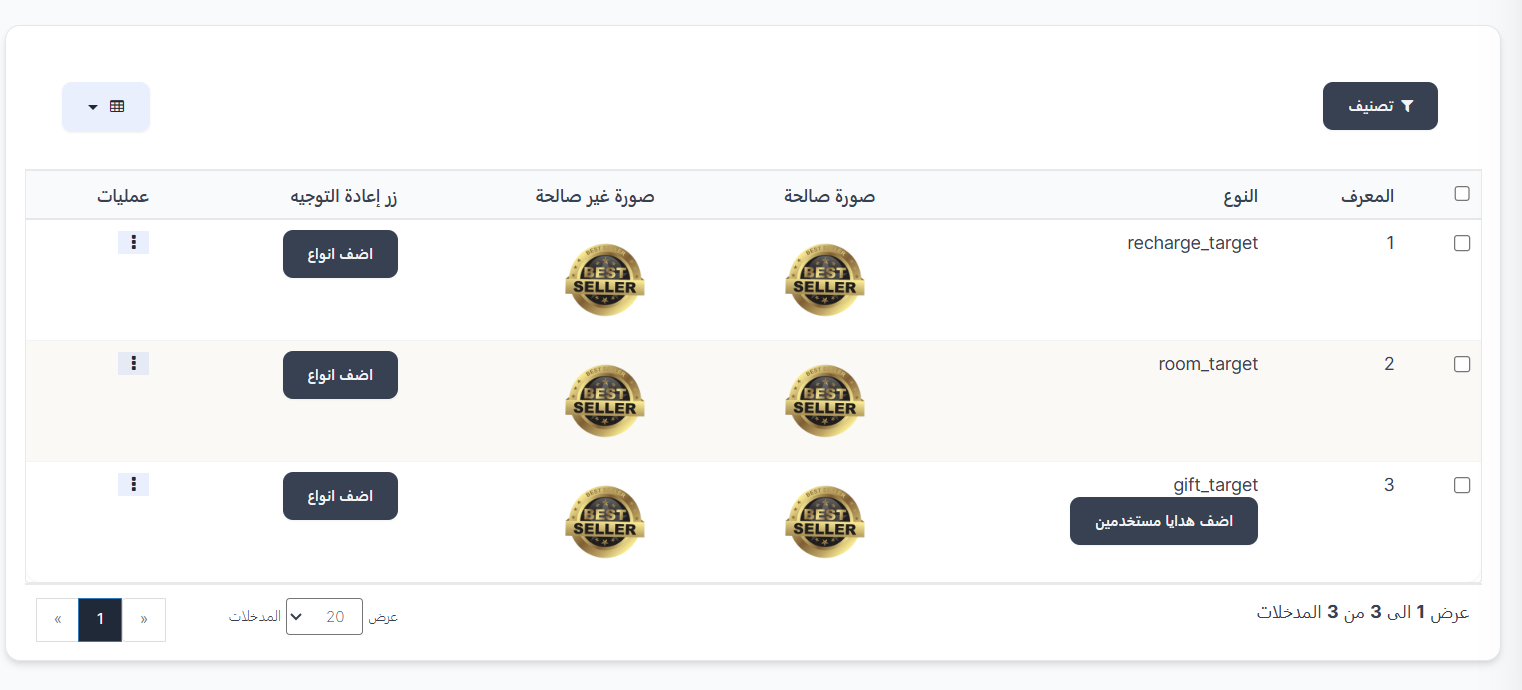
Main Achievements Table
The table displays the available achievement types:
| Column | Description |
|---|---|
| ID | Achievement identifier number (example: 1, 2, 3) |
| Type | Achievement type (recharge_target / room_target / gift_target) |
| Valid Image | Achievement image when the goal is achieved |
| Invalid Image | Achievement image before reaching the goal (greyed out) |
| Redirect Button | Add Types button to add sub-levels for the achievement |
| Operations | ⋮ menu with edit and delete options |
Achievement Types:
| Type | Description |
|---|---|
| recharge_target | Recharge achievement — awarded when reaching a specific recharge goal |
| room_target | Room achievement — awarded when reaching a room activity goal |
| gift_target | Gift achievement — awarded when reaching a specific gift goal |
Adding Sub-Types (Add Types)
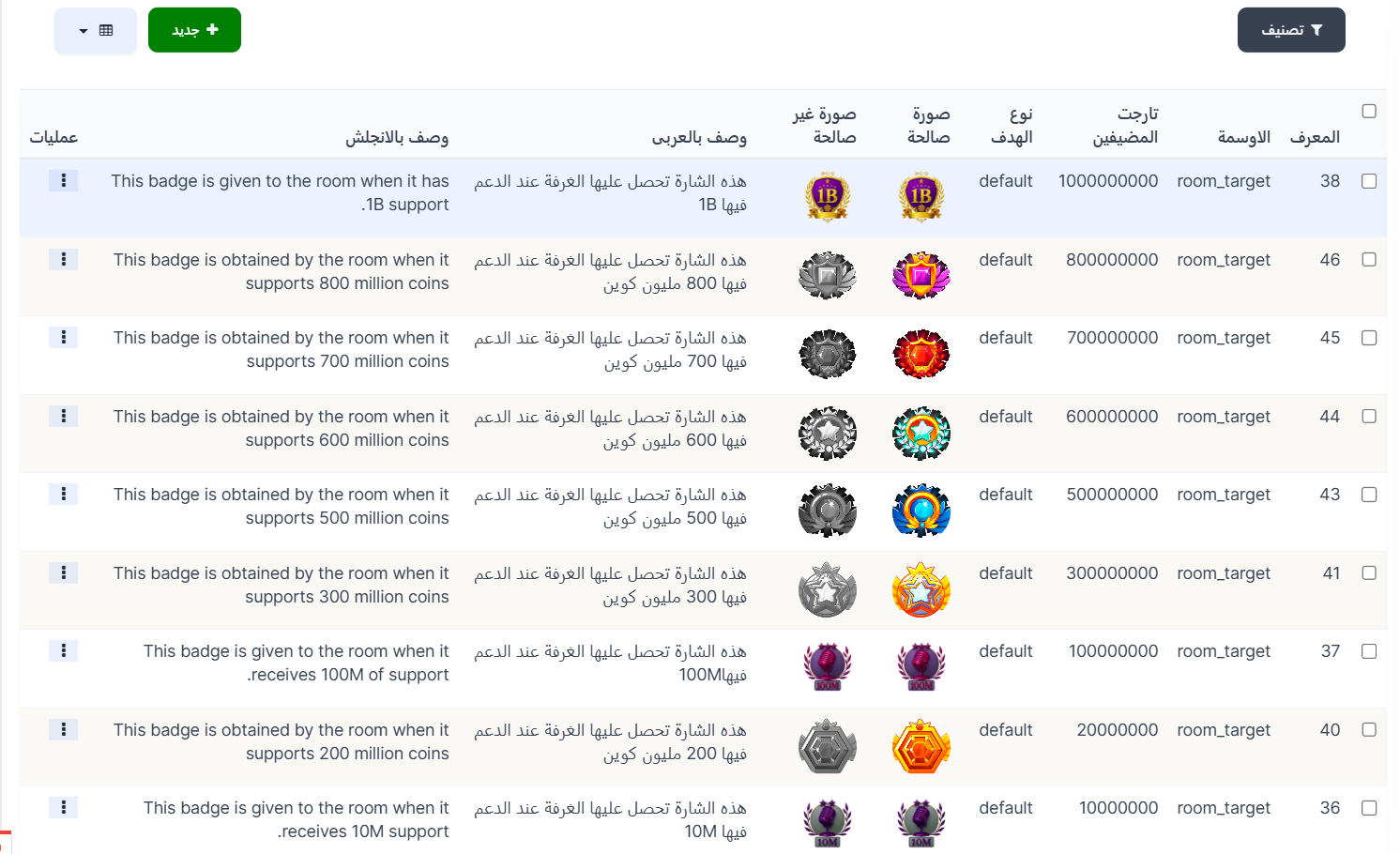
When clicking Add Types next to any achievement, a page appears showing the sub-levels for this achievement.
Sub-Types Table (Achievements-levels):
| Column | Description |
|---|---|
| ID | Level identifier number (example: 57, 56, 31, 20, 51) |
| Achievement | Parent achievement type (example: recharge_target) |
| Host Target | Required target value to achieve (example: 1000000000, 500000000, 100000000) |
| Goal Type | Type of goal (default) |
| Valid Image | Colored achievement image when achieved |
| Invalid Image | Greyed out achievement image before achievement |
| Arabic Description | Achievement description in Arabic (example: عندما تشحن الى 1B تحصل عليه) |
| English Description | Achievement description in English (example: When you charge to 1B you get it) |
| Operations | ⋮ menu with edit and delete options |
Creating a New Sub-Type
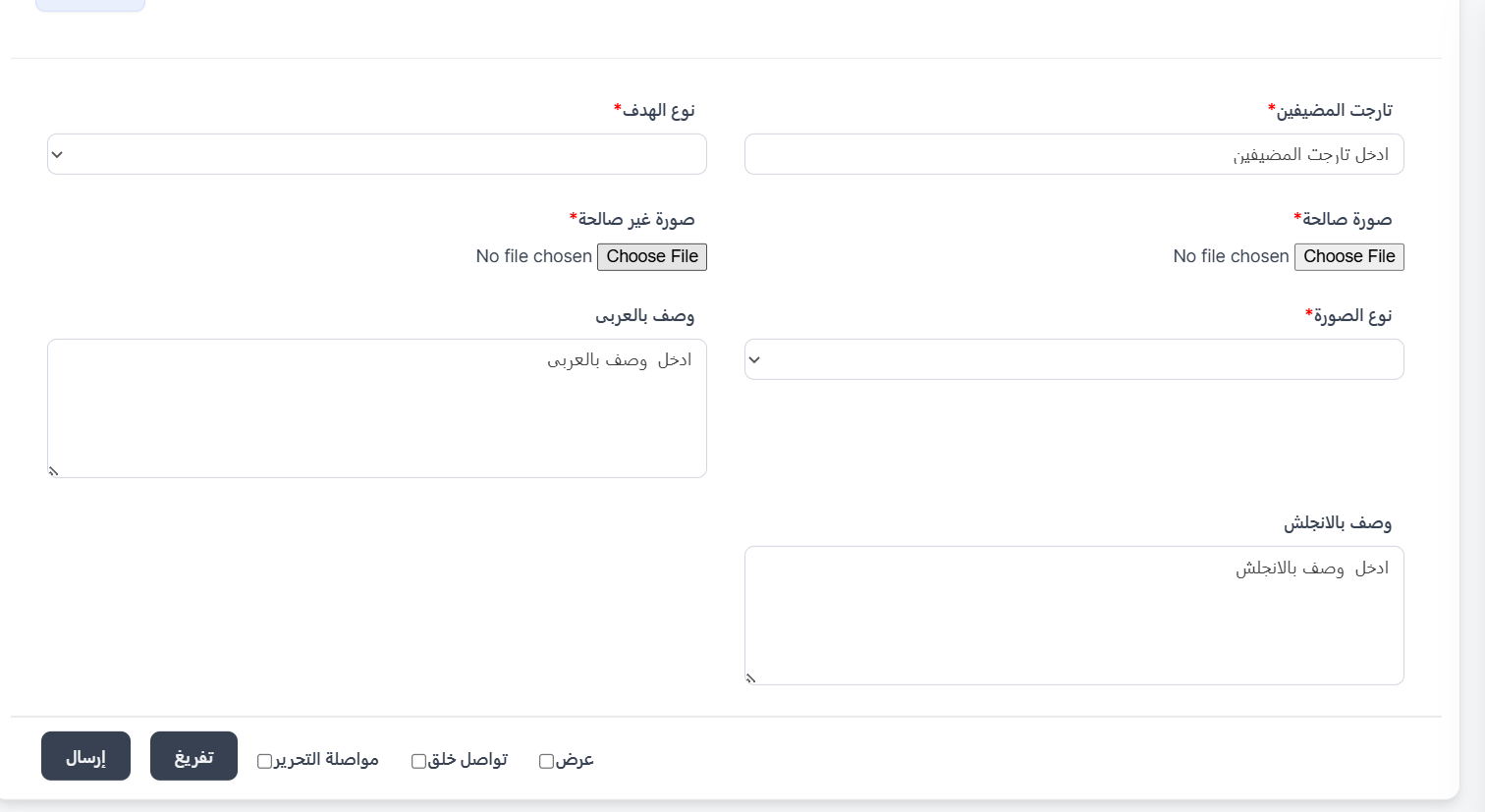
When clicking ➕ New on the sub-types page:
| Field | Description |
|---|---|
| Host Target ⭐ | Required target value (required) |
| Goal Type ⭐ | Goal type from dropdown (required) |
| Valid Image ⭐ | Upload colored achievement image (required) |
| Invalid Image ⭐ | Upload greyed out achievement image (required) |
| Image Type ⭐ | Image type (required) |
| Arabic Description | Achievement description in Arabic |
| English Description | Achievement description in English |
Creation Buttons:
| Button/Option | Description |
|---|---|
| Submit | Save the sub-type |
| Clear | Clear all fields |
| View | View the type after saving |
| Continue Creating | Continue creating other types |
| Continue Editing | Stay on the edit page after saving |
Add User Gifts (Assign Achievement)
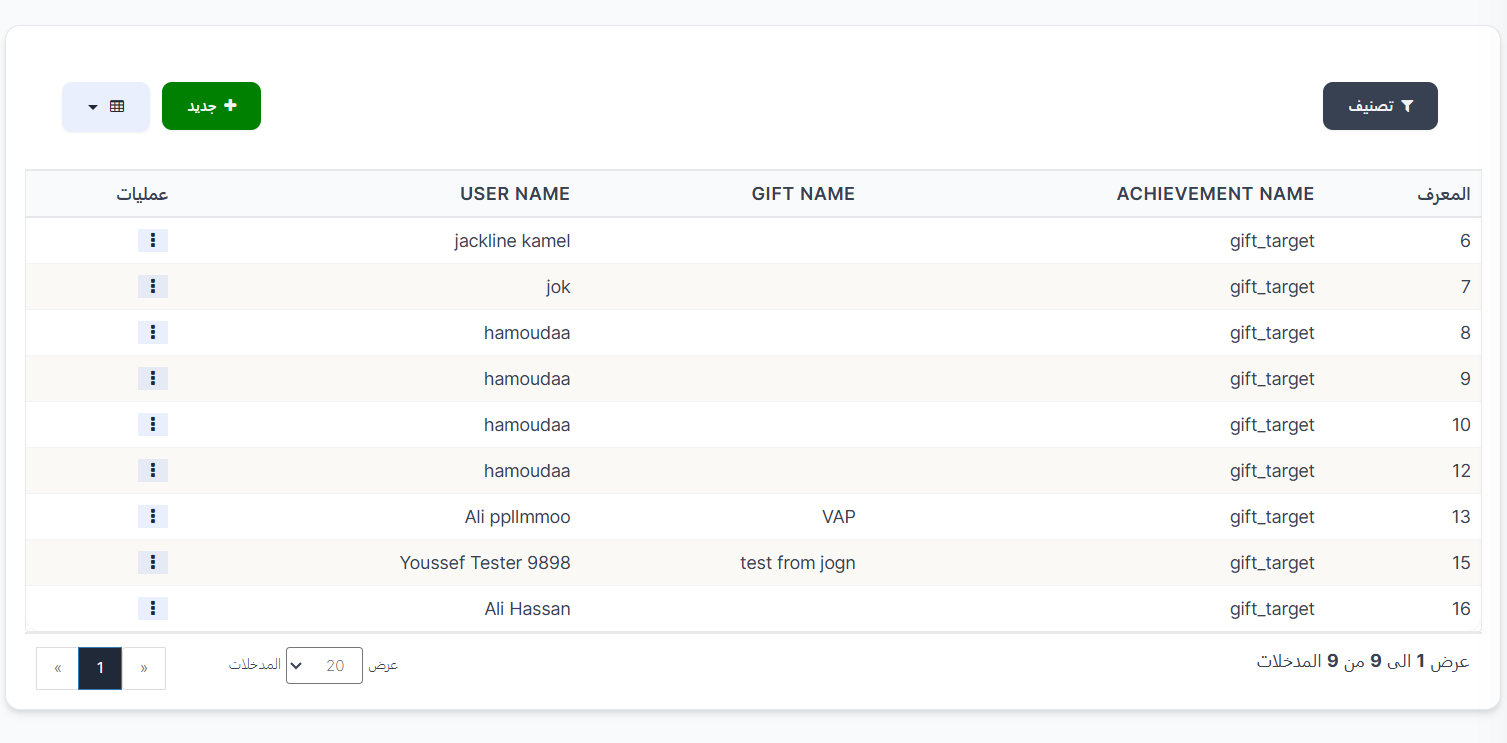
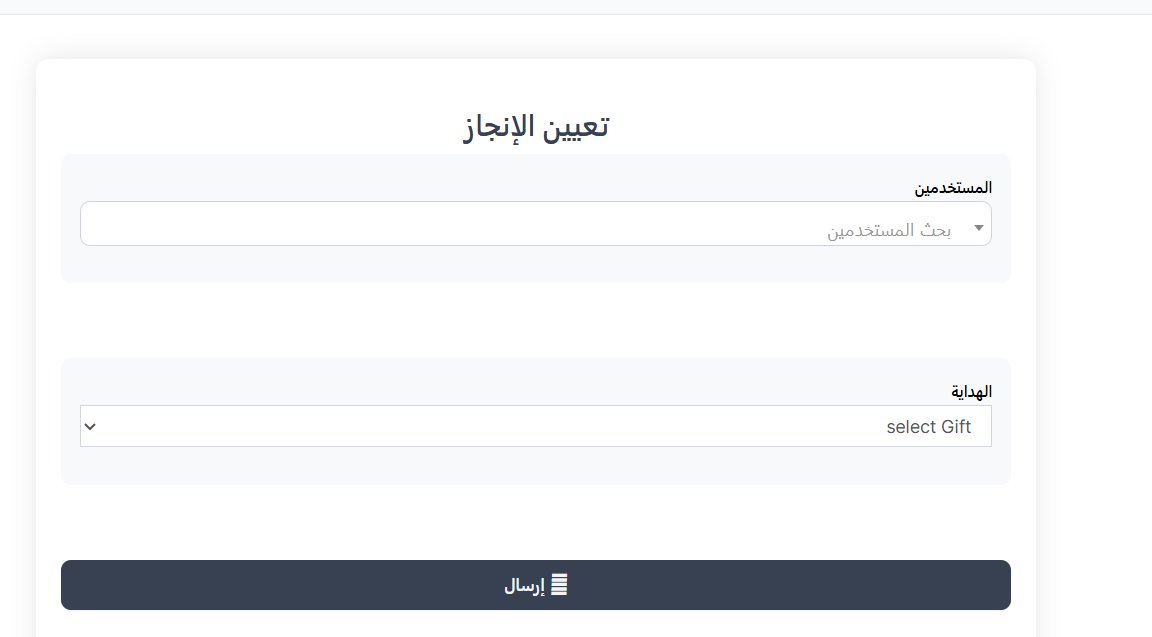
When clicking Add User Gifts (appears only for gift_target type), a page appears to manually assign an achievement to a user.
User Gifts Table:
| Column | Description |
|---|---|
| ID | Assignment identifier number |
| ACHIEVEMENT NAME | Achievement type name (example: gift_target) |
| GIFT NAME | Associated gift name |
| USER NAME | Username who received the achievement |
| Operations | ⋮ menu with edit and delete options |
Creating a New Achievement Assignment:
When clicking ➕ New on the user gifts page:
| Field | Description |
|---|---|
| Users | Search and select user (Search Users) |
| Gift | Select gift from dropdown (select Gift) |
| Button | Description |
|---|---|
| 📋 Submit | Save the achievement assignment for the user |
Quick Summary
| Action | Steps |
|---|---|
| View achievements | Achievements ← Achievements |
| View sub-types | Add Types next to the achievement |
| Create sub-type | ➕ New ← Target + Goal Type + Images + Description ← Submit |
| Assign achievement to user | Add User Gifts ← ➕ New ← User + Gift ← Submit |
🎨 Custom Achievements
Introduction
The Custom Achievements page allows you to upload special achievement images different from the default achievements. You can create custom achievements with unique names and images in multiple languages.
How to Access
Sidebar ← Achievements ← Custom Achievements
🎨 Open Custom Achievements Page
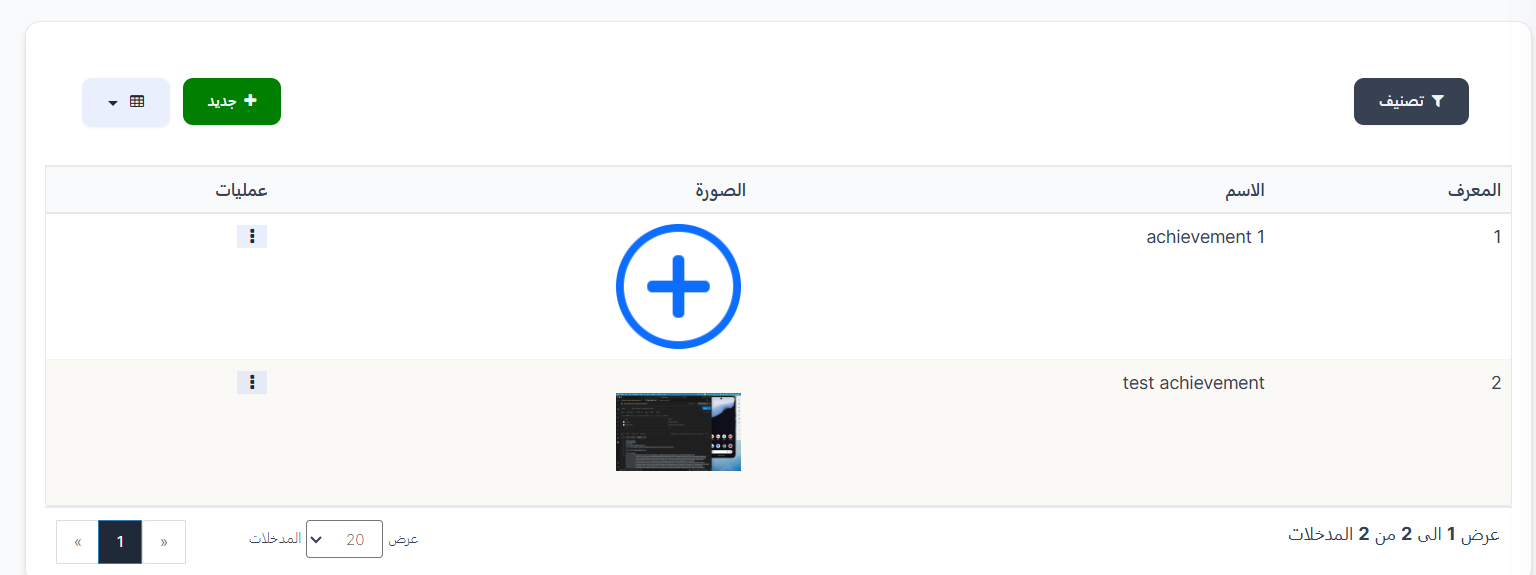
Custom Achievements Table
The table displays all custom achievements that have been created:
| Column | Description |
|---|---|
| ID | Achievement identifier number (example: 1, 2) |
| Name | Custom achievement name (example: achievement 1, test achievement) |
| Image | Uploaded custom achievement image |
| Operations | ⋮ menu with edit and delete options |
Top Buttons:
| Button | Description |
|---|---|
| 🔘 Filter | Open search filters |
| ➕ New | Create a new custom achievement |
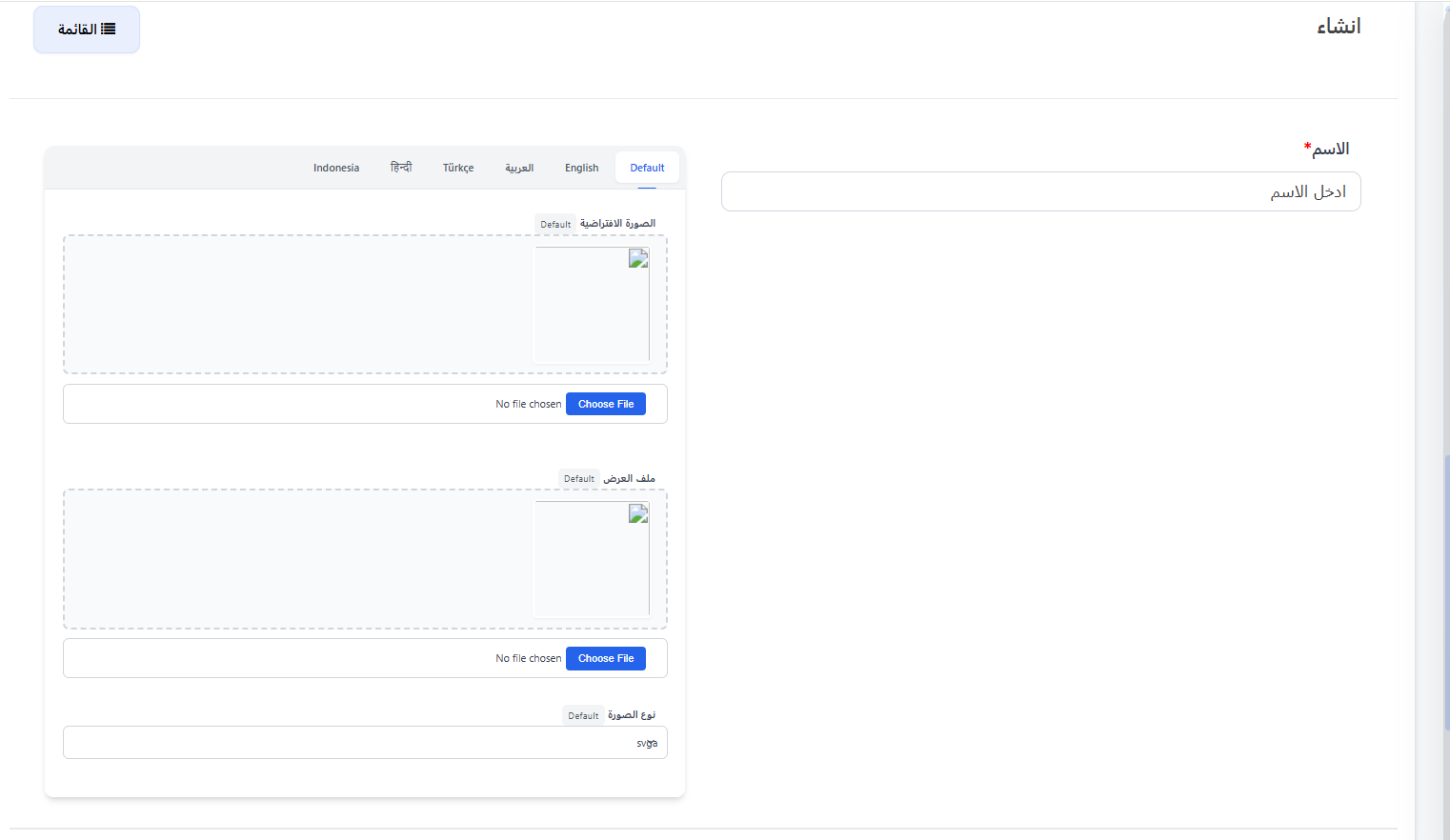
Creating a New Custom Achievement
When clicking ➕ New, the creation page appears with multiple language tabs (Default / English / العربية / Türkçe / हिन्दी / Indonesia):
| Field | Description |
|---|---|
| Name ⭐ | Custom achievement name (required) |
| Default Image | Upload achievement image (drag and drop or select file) |
| Display File | Upload achievement display file (drag and drop or select file) |
| Image Type | Image file type (example: svg) |
Language Tabs:
You can customize images for each language separately:
| Tab | Description |
|---|---|
| Default | Default images used for all languages |
| English | Custom images for English |
| العربية | Custom images for Arabic |
| Türkçe | Custom images for Turkish |
| हिन्दी | Custom images for Hindi |
| Indonesia | Custom images for Indonesian |
Creation Buttons:
| Button/Option | Description |
|---|---|
| Submit | Save the custom achievement |
| Clear | Clear all fields |
| View | View the achievement after saving |
| Continue Creating | Continue creating other achievements |
| Continue Editing | Stay on the edit page after saving |
Quick Summary - Custom Achievements
| Action | Steps |
|---|---|
| View custom achievements | Achievements ← Custom Achievements |
| Create custom achievement | ➕ New ← Name + Images + Image Type ← Submit |
| Edit achievement | ⋮ next to achievement ← Edit |
| Delete achievement | ⋮ next to achievement ← Delete |
📊 Achievement Reports
Introduction
The Achievement Reports page displays all users who have earned achievements, whether default or custom. You can search for a specific user and check the achievement activation status.
How to Access
Sidebar ← Achievements ← Achievement Reports
📊 Open Achievement Reports Page
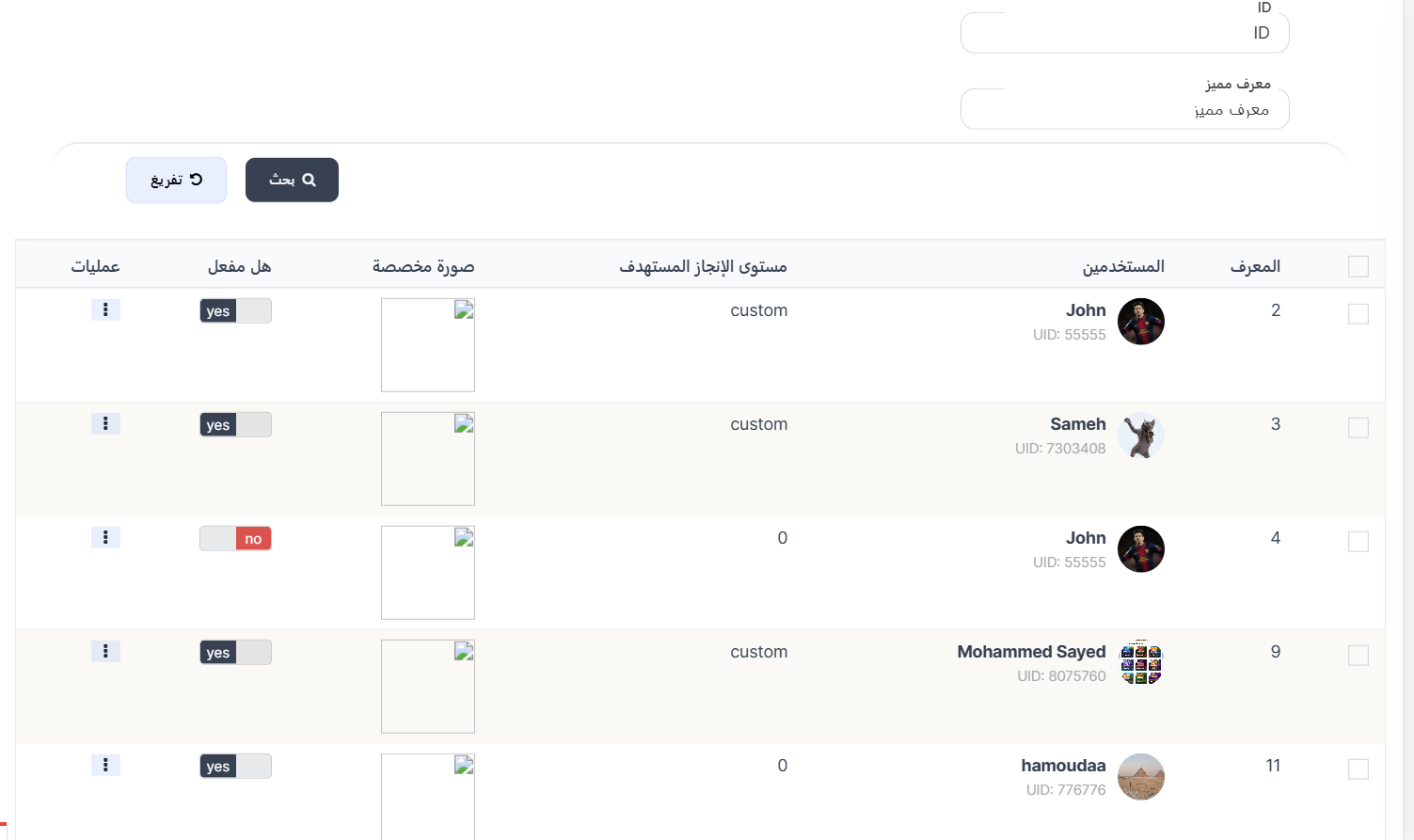
Search Filters
At the top of the page, filters are available to filter records:
| Filter | Description |
|---|---|
| ID | Search by record ID |
| Special ID | Search by user's unique identifier (UID) |
Search Buttons:
| Button | Description |
|---|---|
| 🔍 Search | Apply filters and display results |
| 🔄 Clear | Clear all filters |
Achievement Reports Table
The table displays all user achievement records:
| Column | Description |
|---|---|
| ID | Record identifier number (example: 2, 3, 4, 9, 11) |
| Users | User name and image with UID (example: John - UID: 55555) |
| Achievement Target Level | Achievement level (custom for custom / 0 for default) |
| Custom Image | User's custom achievement image |
| Is Active | Achievement activation status (yes ✅ / no ❌) |
| Operations | ⋮ menu with edit and delete options |
Activation States:
| State | Description |
|---|---|
| yes ✅ | Achievement is active and visible to the user |
| no ❌ | Achievement is inactive and not visible to the user |
Quick Summary - Achievement Reports
| Action | Steps |
|---|---|
| View all reports | Achievements ← Achievement Reports |
| Search by ID | Enter ID in search field ← Search |
| Search by Special ID | Enter UID in Special ID field ← Search |
| Edit record | ⋮ next to record ← Edit |