⚙️ Charging Settings
The Charging Settings page allows you to control the coin exchange rate for each category of users and managers on the platform. Through these settings, you can determine how many coins each US dollar ($1) converts to during charging.
How to Access:
Sidebar Menu ← Charging System ← Settings
Page Contents:
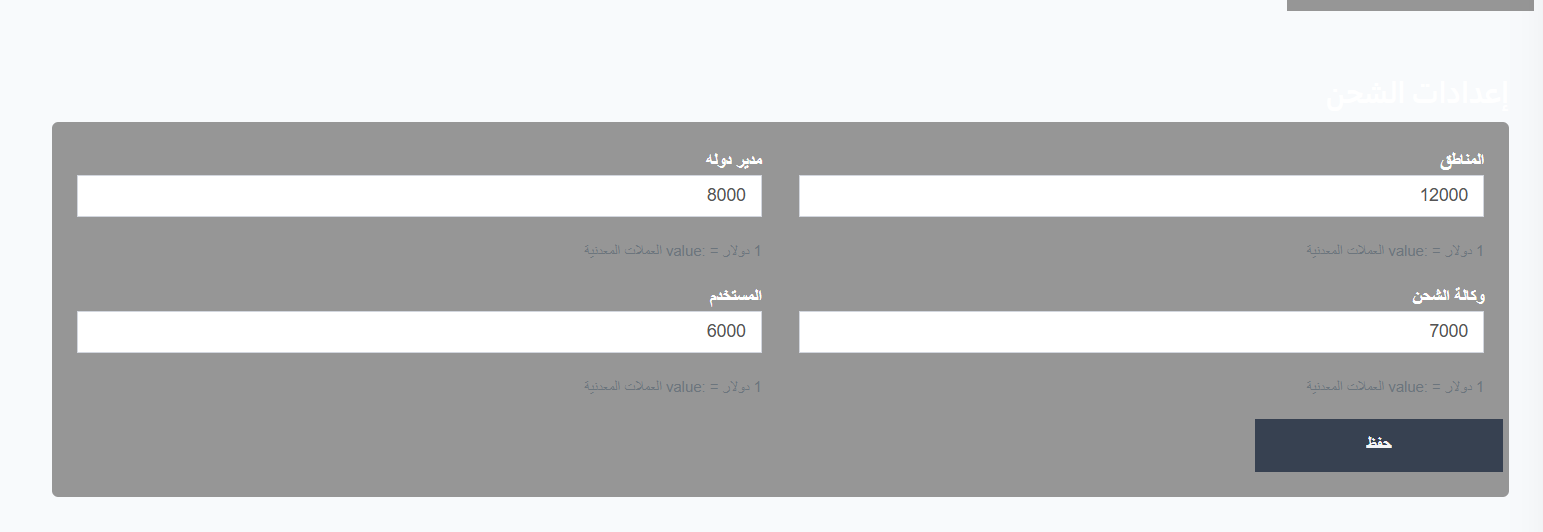
The charging settings page contains four fields to set the dollar-to-coins exchange rate for each category:
Exchange Rate Fields:
| Field | Description | Example |
|---|---|---|
| Areas | Number of coins an Area Manager receives per $1 when charging | 12,000 coins = $1 |
| Country Manager | Number of coins a Country Manager receives per $1 when charging | 8,000 coins = $1 |
| Shipping Agency | Number of coins a Shipping Agency receives per $1 when charging | 7,000 coins = $1 |
| User | Number of coins a regular User receives per $1 when charging | 6,000 coins = $1 |
How to Modify the Exchange Rate:
- Open the Charging Settings page from Sidebar ← Charging System ← Settings.
- Edit the desired value — Enter the number of coins per $1 in the appropriate field.
- Press Save to apply the changes.
Practical Example
If settings are:
- Areas: 12,000 ($1 = 12,000 coins for Area Manager)
- Country Manager: 8,000 ($1 = 8,000 coins for Country Manager)
- Shipping Agency: 7,000 ($1 = 7,000 coins for Shipping Agency)
- User: 6,000 ($1 = 6,000 coins for User)
When charging $10 to a regular user, they receive 60,000 coins (10 × 6,000). When charging $10 to an area manager, they receive 120,000 coins (10 × 12,000).
Important Warning
Changing the exchange rate affects all future charging operations only, and does not affect previous operations. Make sure to review values before saving.
Quick Summary:
| Action | Steps |
|---|---|
| Edit user exchange rate | Charging System ← Settings ← Edit "User" value ← Save |
| Edit shipping agency rate | Charging System ← Settings ← Edit "Shipping Agency" value ← Save |
| Edit country manager rate | Charging System ← Settings ← Edit "Country Manager" value ← Save |
| Edit area manager rate | Charging System ← Settings ← Edit "Areas" value ← Save |