🛍️ Store (Wares Management)
The Store page allows you to manage accessories and wares that users can purchase from within the app. These wares include profile picture frames, bubble frames, special effects, and profile frames. You can set each ware's price, validity period, and link it to a specific VIP level so only VIP users can purchase it.
How to Access:
Sidebar ← Store ← Store
Page Contents:
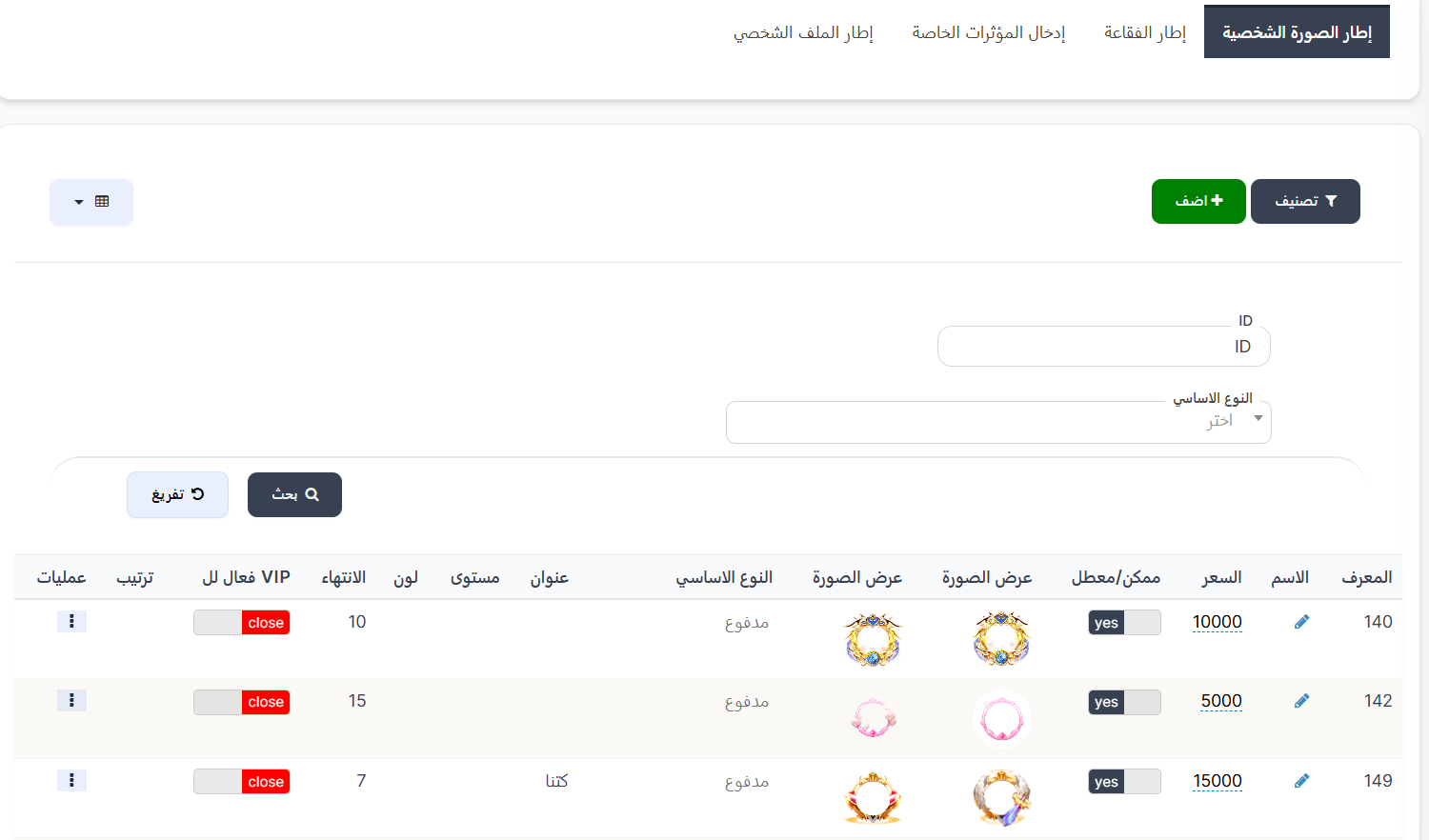
When opening the page, you'll find ware type tabs at the top, then search filters, and at the bottom the wares table with image previews.
Ware Type Tabs:
At the top of the page, tabs are available to classify wares by type:
| Tab | Description |
|---|---|
| Profile Picture Frame | Frames that appear around the user's profile picture inside rooms and chats |
| Bubble Frame | Frames that appear around the chat bubble when sending text messages |
| Special Effects Entry | Special visual effects that appear when the user enters a voice room |
| Profile Frame | Frames that appear on the user's profile page |
Note
The active tab appears with a dark background. Press any tab to display only the wares of that type.
Toolbar:
| Element | Description |
|---|---|
| 🔍 Filter | Filter button to filter wares |
| + Add | Green button to add a new ware |
| 📊 View | Toggle display mode (table or grid) |
Search Filters:
You can search for a specific ware using the following filters:
| Filter | Description |
|---|---|
| ID | Search by the ware's unique ID number |
| Base Type | Filter by purchase type — select from dropdown (paid, limited-time purchase) |
After entering search data, press the 🔍 Search button to display results, or the 🔄 Reset button to clear filters and show all wares.
Wares Table:
The table displays all available wares with the following information:
| Column | Description |
|---|---|
| ID | The ware's unique identification number in the system |
| Name | Ware name (can be edited by pressing the pencil icon ✏️) |
| Price | Ware price in coins — the amount the user pays to purchase this ware |
| Enabled/Disabled | Ware status — yes (enabled and available for purchase) or no (disabled and hidden from store) |
| Image Preview | Thumbnail preview of the ware image in two different views (normal and detailed) |
| Base Type | Purchase type — paid (permanent purchase) or limited-time purchase |
| Title | A short title or description of the ware |
| Level | Ware level (if applicable) |
| Color | A distinctive color associated with the ware (if applicable) |
| Expiry | Ware validity in days — number of days the ware remains active after purchase |
| VIP Active For | VIP level required to purchase this ware — close (no VIP required) or a VIP level number |
| Order | Display order number of the ware in the store |
| Operations | Options menu (⋮) to edit or delete the ware |
Understanding the Base Type Column:
| Type | Meaning |
|---|---|
| Paid | User purchases the ware with coins and it stays active for a specific period (based on expiry days) |
| Limited-time purchase | Ware is available for purchase for a limited time only (special offer) |
Understanding the VIP Active For Column:
This column determines whether the user needs a specific VIP level to purchase this ware or not:
| Value | Meaning |
|---|---|
| close 🔴 | Ware does not require VIP — any user can purchase it with coins |
| Number (e.g., 6) | Ware requires the user to be VIP level 6 or higher to purchase it |
Example
- A ware priced at 10,000 coins with VIP = close ← Any user with 10,000 coins can purchase it.
- A ware priced at 5,000 coins with VIP = 6 ← Only VIP level 6 or higher users can purchase it.
Creating a New Ware:
When pressing the green + Add button, the Create new ware form opens:
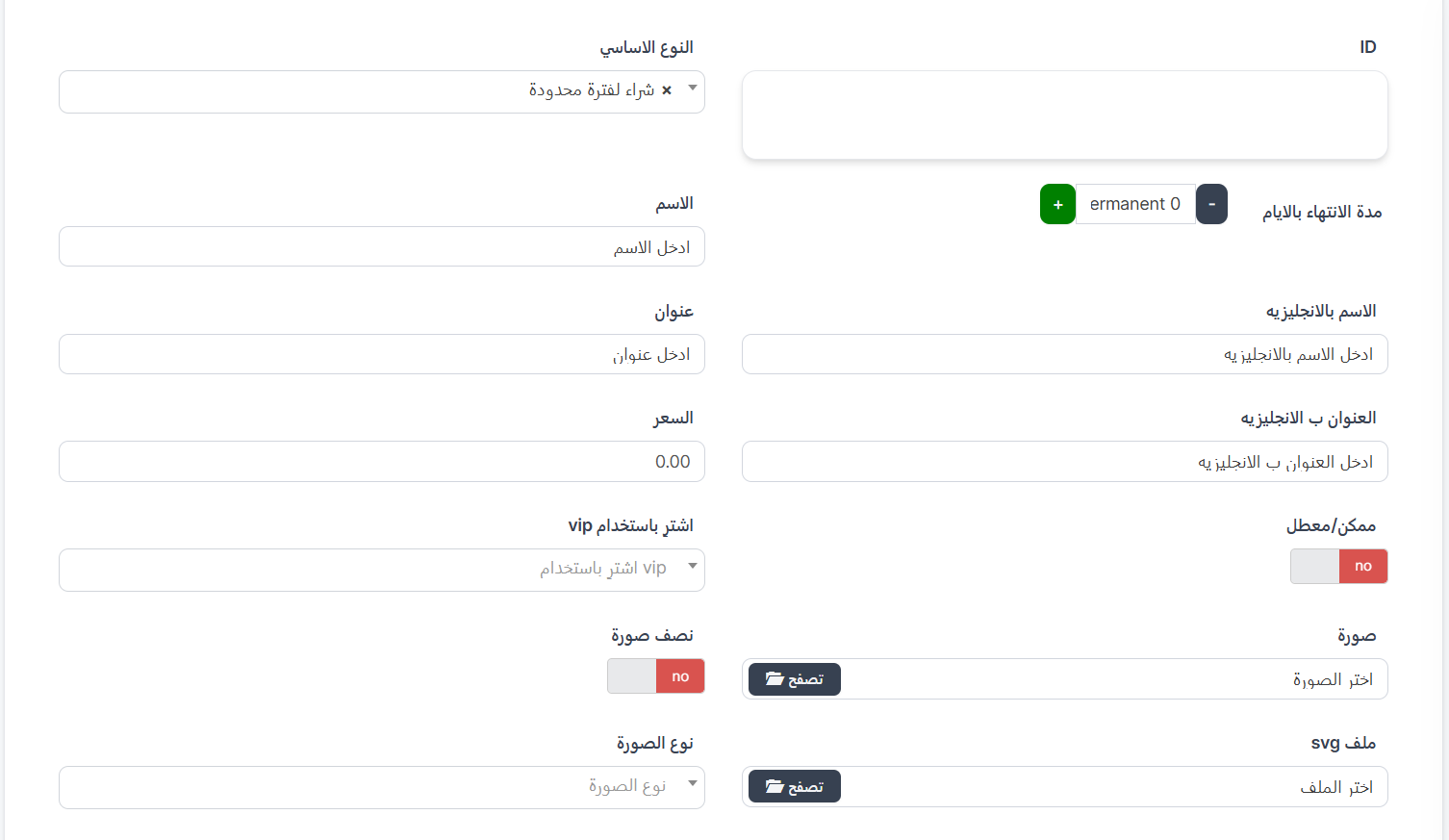
Creation Form Fields:
| Field | Description |
|---|---|
| ID | The ware's unique ID — you can enter it manually or leave it to be auto-generated |
| Base Type ⭐ | Purchase type — select from dropdown: paid or limited-time purchase |
| Expiry in Days | Number of days the ware remains active after purchase — use (+) and (-) buttons to change. Value permanent 0 means the ware is permanent and never expires |
| Name ⭐ | Ware name in Arabic |
| English Name | Ware name in English |
| Title | Short title or description in Arabic |
| English Title | Short title or description in English |
| Price ⭐ | Ware price in coins (e.g., 10000) — the amount the user will pay |
| Enabled/Disabled | Toggle switch — yes (ware is enabled and appears in store) or no (disabled and hidden). Default is no |
| Buy Using VIP | Select the VIP level required to purchase this ware — choose from dropdown (4, 5, 6, 7, 8, 9, 20...). Leave empty if available to everyone |
| Image ⭐ | Main ware image — press 📁 Browse to select an image from your device |
| Half Image | Toggle switch — when enabled, the image is displayed at half size |
| SVG File | SVG file for the ware (vector image) — press 📁 Browse to select an SVG file |
| Image Type | Image format type — select from dropdown |
Padding Fields:
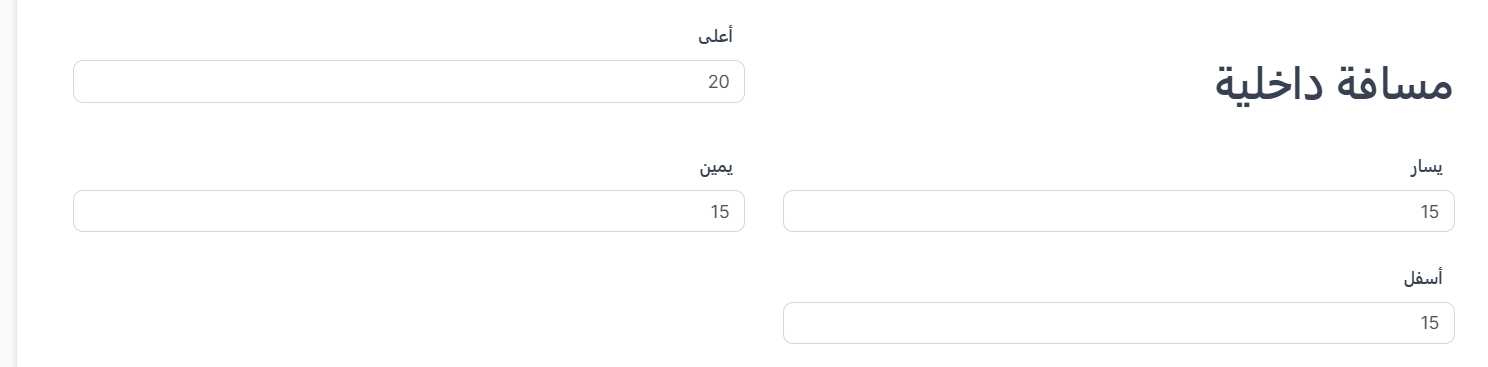
These fields control the internal padding around the ware image when displayed in the app:
| Field | Description | Default Value |
|---|---|---|
| Top | Padding from top (in pixels) | 20 |
| Left | Padding from left (in pixels) | 15 |
| Right | Padding from right (in pixels) | 15 |
| Bottom | Padding from bottom (in pixels) | 15 |
Note about Padding
Padding determines the space between the frame border and image content. You can adjust these values to precisely position the image inside the frame.
Base Type Options:
When pressing the Base Type dropdown, the following options appear:
| Option | Description |
|---|---|
| Paid | Ware is available for purchase permanently in the store — user pays the set price and gets it for a specific duration (based on expiry) |
| Limited-time purchase | Ware is available for purchase for a limited time only (special time-limited offer) |
Buy Using VIP Options:
When pressing the dropdown, the available VIP levels appear:
| Value | Meaning |
|---|---|
| Empty | Ware is available to all users without VIP restrictions |
| 4 | Requires VIP level 4 or higher |
| 5 | Requires VIP level 5 or higher |
| 6 | Requires VIP level 6 or higher |
| 7 | Requires VIP level 7 or higher |
| 8 | Requires VIP level 8 or higher |
| 9 | Requires VIP level 9 or higher |
| 20 | Requires VIP level 20 or higher |
Tip
Use the VIP option to create exclusive wares for VIP users — this encourages users to subscribe to VIP to get exclusive accessories not available to others.
Form Buttons:
| Button | Function |
|---|---|
| Submit | Save the new ware and return to the wares list |
| Reset | Clear all fields and reset to default values |
| Continue Editing ☐ | When enabled, save and stay on the edit page |
| Continue Creating ☐ | When enabled, after saving a new form opens to create another ware |
| View ☐ | When enabled, after saving show the ware details |
| 📋 List | Return to the full wares list |
Available Operations:
When pressing the operations menu (⋮) next to any ware:
| Operation | Description |
|---|---|
| Edit | Edit ware settings (name, price, image, VIP, status) |
| Delete | Permanently delete the ware from the system |
Quick Summary:
| Action | Steps |
|---|---|
| View all wares | Store ← Store |
| Filter by type | Press the desired tab (picture frame, bubble, effects, profile) |
| Add a new ware | Press + Add ← Enter data ← Upload image ← Submit |
| Make a ware VIP-exclusive | When creating/editing ← Select VIP level from "Buy Using VIP" field |
| Edit a ware | Press ⋮ next to the ware ← Edit |
| Enable/Disable a ware | Press ⋮ next to the ware ← Edit ← Change Enabled/Disabled ← Submit |
| Delete a ware | Press ⋮ next to the ware ← Delete |