🎙️ Voice Rooms
The Rooms page allows you to view and manage all active voice rooms in the app. You can monitor currently open rooms, see how many users are in each room, and view who is currently on the microphone in real-time.
How to Access:
Sidebar ← Rooms ← Rooms
Page Contents:
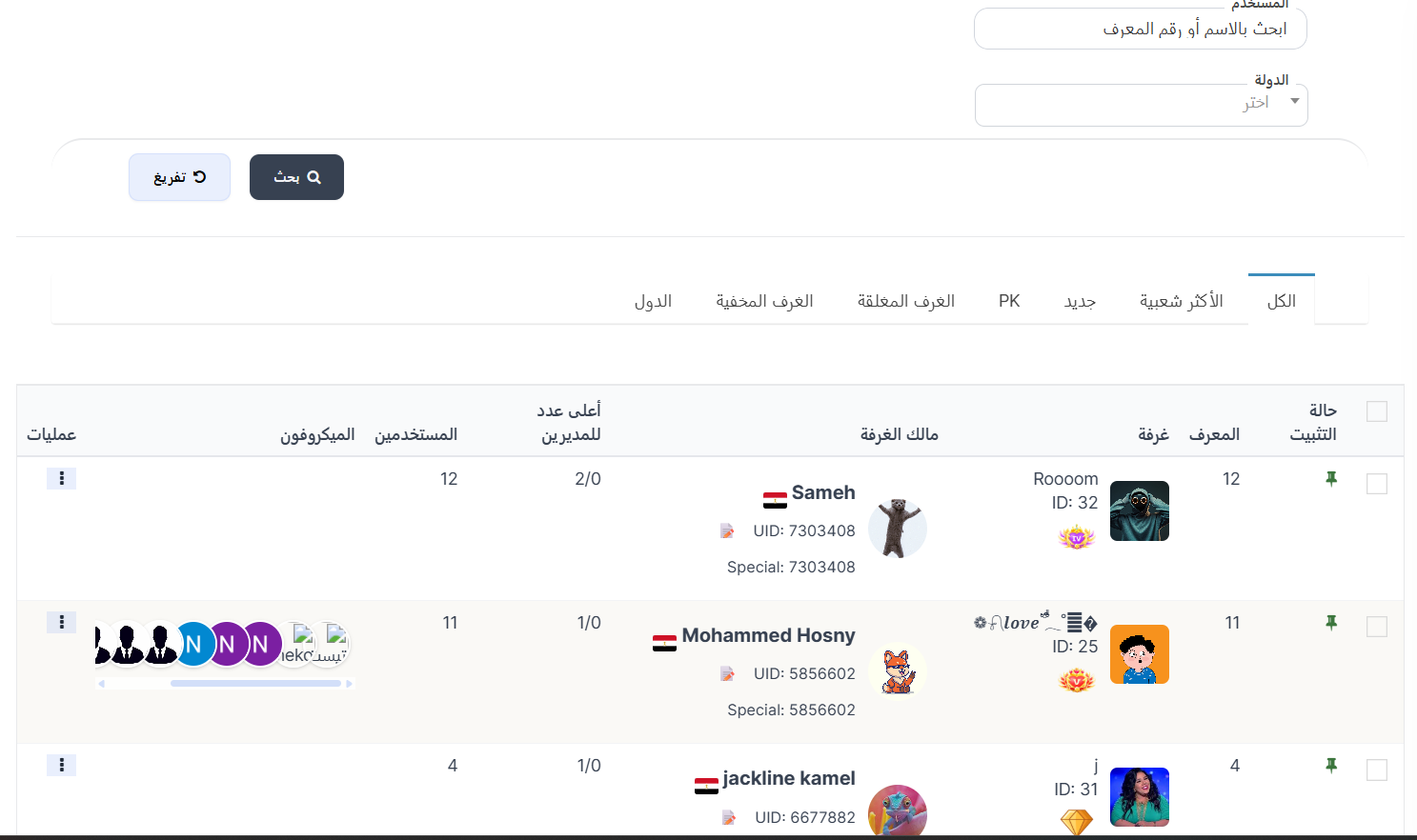
The page contains search filters at the top, classification tabs below them, and the rooms table with details for each room.
Search Filters:
| Filter | Description |
|---|---|
| User | Search by user name (room owner) or ID number |
| Country | Select country from dropdown to filter rooms by country |
Press 🔍 Search to display results, or 🔄 Clear to reset filters.
Classification Tabs:
| Tab | Description |
|---|---|
| All | Display all active voice rooms |
| Most Popular | Rooms with the most users and activity |
| New | Recently created rooms |
| PK | Rooms with active PK challenges (user-vs-user battles) |
| Suspended Rooms | Temporarily suspended rooms |
| Hidden Rooms | Rooms hidden from users in the app |
| Countries | Rooms classified by country |
Note
The active tab appears with a blue underline. Click any tab to switch between classifications.
Rooms Table:
| Column | Description |
|---|---|
| Pin Status | 📌 icon indicates a pinned room (always shown at top). Checkbox ☐ to control pinning |
| ID | Room's unique system identifier |
| Room | Room image, name, ID, and special badges (VIP badges, etc.) |
| Room Owner | Owner info: name, country flag 🏳️, UID, and Special ID |
| Max Admins | Current admins / maximum allowed (e.g., 2/0 or 1/0) |
| Users | Number of users currently in the room in real-time |
| Microphone | Shows users currently on microphone seats — these are people speaking or sitting on microphone seats right now. Their profile pictures and IDs are displayed |
| Operations | Options menu (⋮) for additional room actions |
Understanding the Microphone Column:
The Microphone column is one of the most important columns on this page. It shows you in real-time the people sitting on microphone seats in the voice room:
- Profile Pictures — Shows photos of users currently on the microphone.
- Seat Count — Each photo represents an occupied microphone seat.
- Real-Time — This data updates automatically and reflects the current room state.
Practical Example
In the image above, the second room (love - ID: 25) shows several user photos in the microphone column — these are the people currently sitting on microphone seats in this voice room. The total number of users in the room is 11.
Note
- These are voice rooms — group voice chat rooms where users can enter to listen or speak via the microphone.
- The Users column shows the total count of everyone in the room (listeners + speakers).
- The Microphone column shows only those sitting on microphone seats (speakers or those waiting on seats).
Pin Status:
You can pin a room so it always appears at the top of the rooms list in the app:
- 📌 Pinned — Room always appears at the top (green icon).
- ☐ Unpinned — Room appears in its natural position.
To pin or unpin a room, use the checkbox in the "Pin Status" column.
Actions:
At the top of the page there is an Actions section containing:
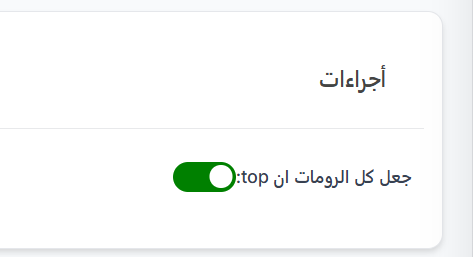
| Action | Description |
|---|---|
| Make all rooms on top | Toggle switch 🟢 — When enabled, all rooms are pinned to the top of the list. When disabled, rooms return to their natural order |
Note
This toggle affects all rooms at once. To pin a single room, use the checkbox in the "Pin Status" column next to the specific room.
Available Operations:
When you press the operations menu (⋮) next to any room, you can access additional options to control the room such as Edit Room.
Edit Voice Room:
When you select Edit from the operations menu (⋮) next to any room, the room edit form opens allowing you full control over all voice room settings.
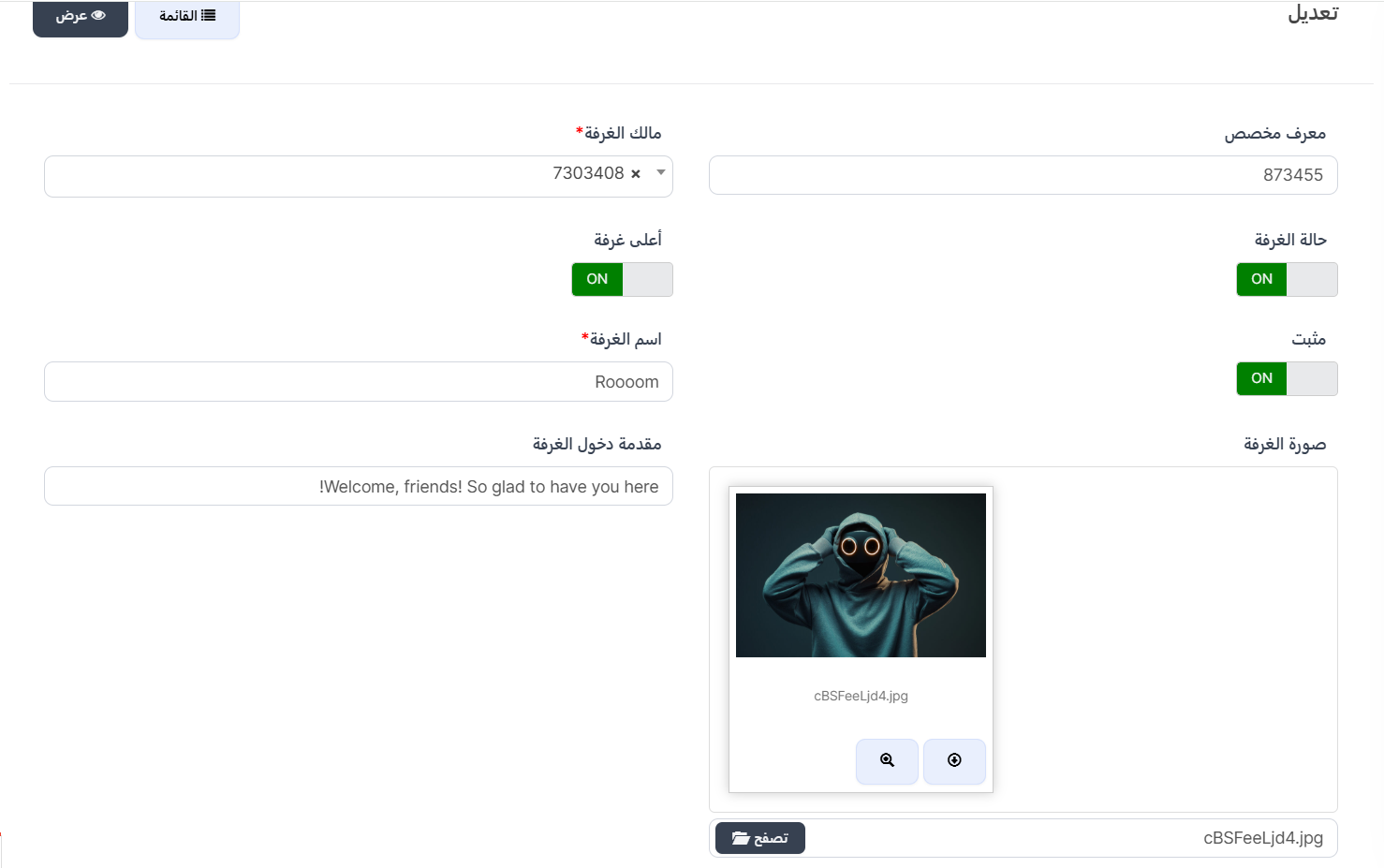
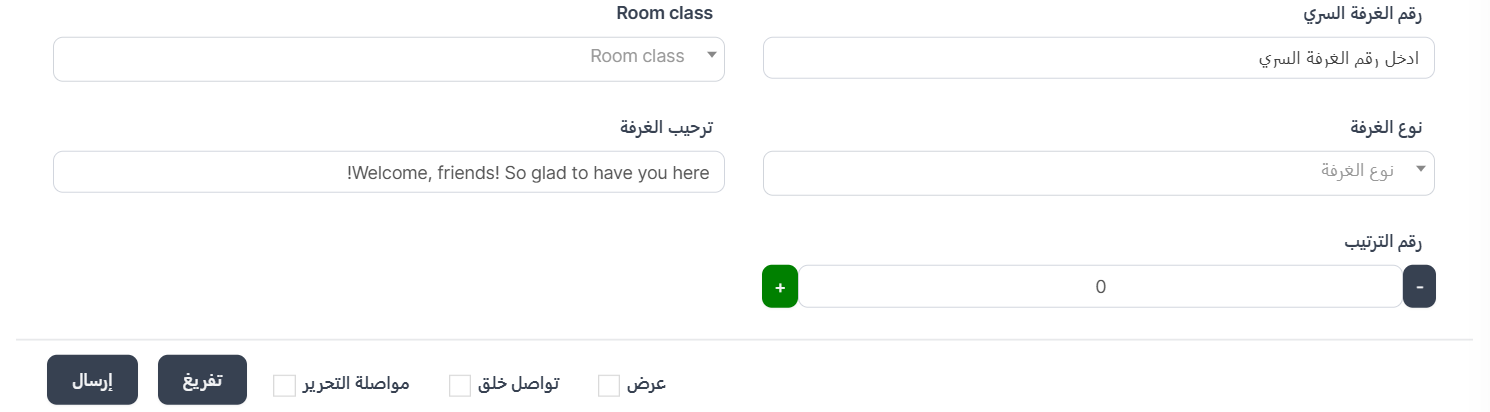
Edit Form Fields:
| Field | Description |
|---|---|
| Room Owner ⭐ | Select room owner from the dropdown — you can search by name or ID. Required field |
| Custom ID | Custom ID number for the room (e.g., 873455) |
| Room Name ⭐ | Room name displayed to users in the app (e.g., "Roooom"). Required field |
| Room Status | Toggle switch 🟢 — to enable or disable the room. When OFF, the room becomes inactive |
| Top Room | Toggle switch 🟢 — when ON, the room appears at the top of the list |
| Pinned | Toggle switch 🟢 — to permanently pin the room at the top of the rooms list |
| Room Image | Upload or change the room image — press 📁 Browse to select a new image. You can preview the current image by pressing 🔍 or download it by pressing ⬇️ |
| Room Entry Introduction | Welcome message displayed when a user enters the room (e.g., "Welcome, friends! So glad to have you here!") |
| Room Secret Number | Secret password for the room — when set, no one can enter the room without entering this number. Leave empty if the room is open to everyone |
| Room Class | Room classification — select from the dropdown |
| Room Welcome | Additional welcome message displayed inside the room |
| Room Type | Select room type from the dropdown |
| Sort Number | Number determining the room's display order in the list — use (+) and (-) buttons to change. Higher number means higher position |
Toggle Switches:
| Switch | ON (Enabled) | OFF (Disabled) |
|---|---|---|
| Room Status | Room is active and running | Room is disabled and hidden |
| Top Room | Room appears at the top | Room in its natural position |
| Pinned | Room is permanently pinned at top | Room is not pinned |
Room Secret Number:
Note about Secret Number
- When you enter a secret number in the "Room Secret Number" field, the room becomes private and no user can enter without entering this number.
- If you leave the field empty, the room is open and any user can enter without a password.
- This is useful for creating private rooms for a specific group of users.
Save Buttons:
| Button | Function |
|---|---|
| Submit | Save changes and return to the rooms page |
| Reset | Clear all fields and reset to default values |
| Continue Editing ☐ | When enabled, save and stay on the edit page |
| Continue Creating ☐ | When enabled, after saving, open a new form to create another room |
| View ☐ | When enabled, after saving, display room details |
View Voice Room Details:
When you select View from the operations menu (⋮) next to any room, the room details page opens showing all information and statistics for the room.
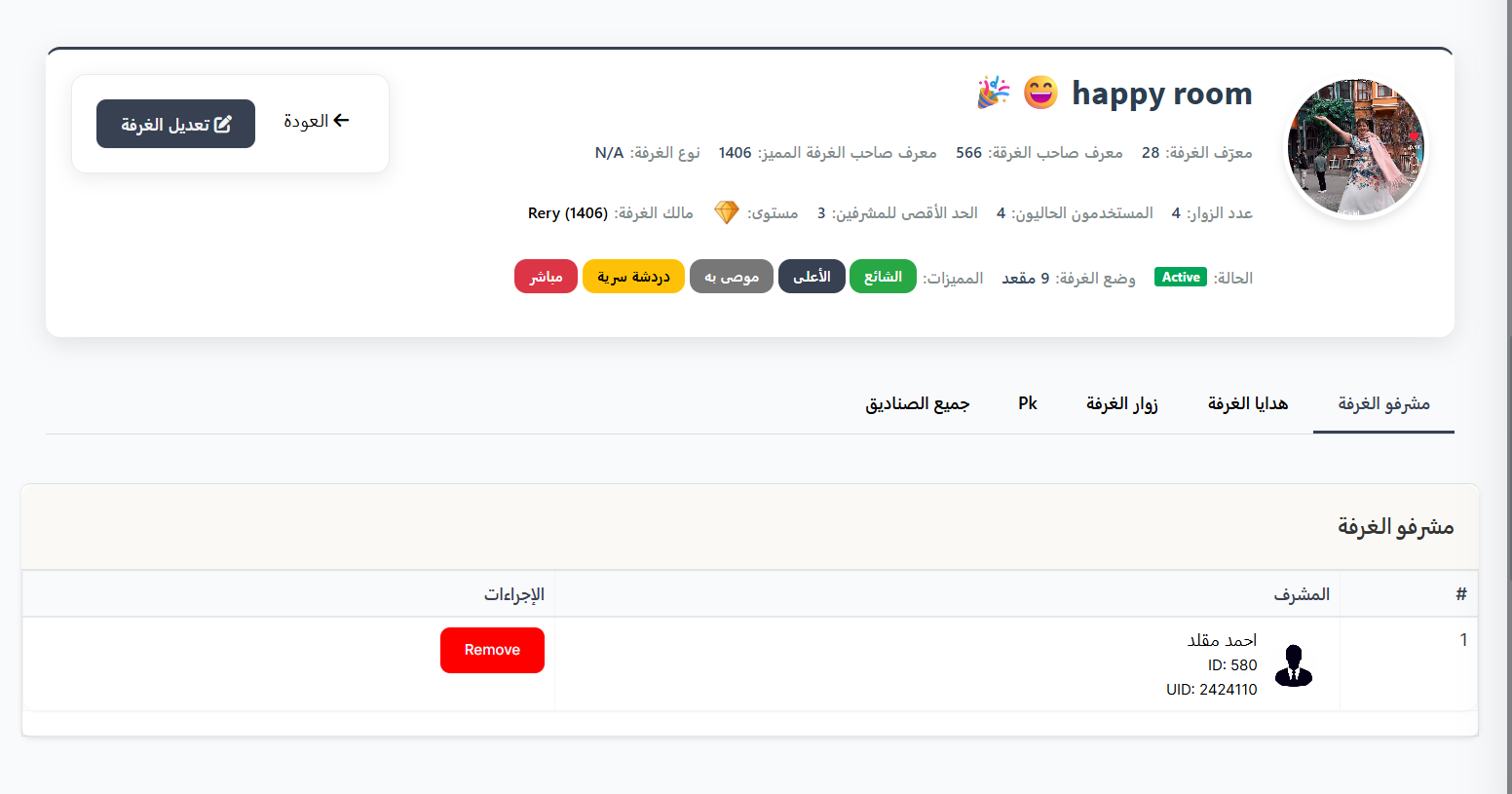
Room Info Card:
At the top of the page, a comprehensive card displays all basic information:
| Info | Description |
|---|---|
| Room Image | Circular room image with name and special icons |
| Room ID | Room's unique identifier (e.g., 28) |
| Owner ID | Room owner's ID (e.g., 566) |
| Owner UID | Room owner's unique identifier (e.g., 1406) |
| Room Type | Room type (e.g., N/A if not specified) |
| Visitors Count | Total number of visitors who entered the room |
| Current Users | Number of users currently in the room in real-time |
| Max Moderators | Maximum number of moderators allowed |
| Level | Room level with level icon (💎) |
| Room Owner | Owner name and ID (e.g., Rery (1406)) |
Status & Features Bar:
| Element | Description |
|---|---|
| Status | Room status — green Active badge if active |
| Room Mode | Number of available microphone seats (e.g., 9 seats) |
| Features | Colored badges showing active room properties |
Feature Badges:
| Badge | Color | Meaning |
|---|---|---|
| Popular | 🟡 Yellow | Room is classified as popular |
| Top | 🔵 Blue | Room is at the top of the list |
| Recommended | 🟢 Green | Room is recommended to users |
| Secret Chat | ⚫ Dark | Room supports secret chat |
| Live | 🔴 Red | Room has active live streaming |
Detail Tabs:
Below the info card, several tabs are available for additional details:
| Tab | Description |
|---|---|
| Room Moderators | View list of assigned moderators |
| Room Gifts | View gift reports sent within the room |
| Room Visitors | View list of all users who visited the room |
| PK | View PK challenge (battle) history |
| All Boxes | View all boxes related to the room |
Room Moderators Tab:
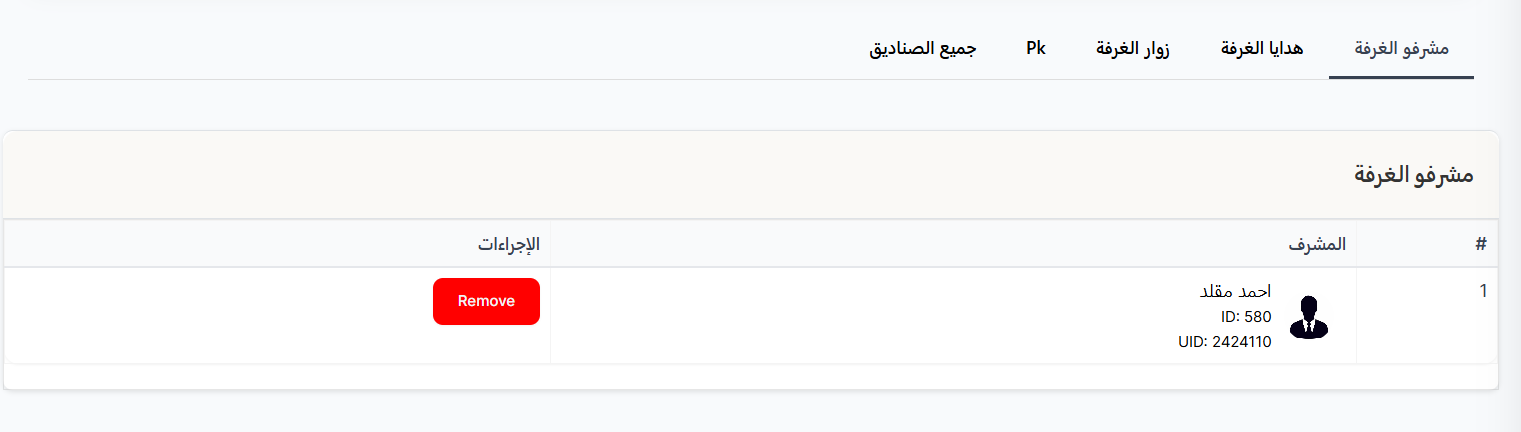
This tab displays all moderators assigned to the voice room.
| Column | Description |
|---|---|
| # | Moderator's order number |
| Moderator | Moderator info: profile picture, name, ID, and UID |
| Actions | Red Remove button to remove the moderator from the room |
Room Gifts Tab:
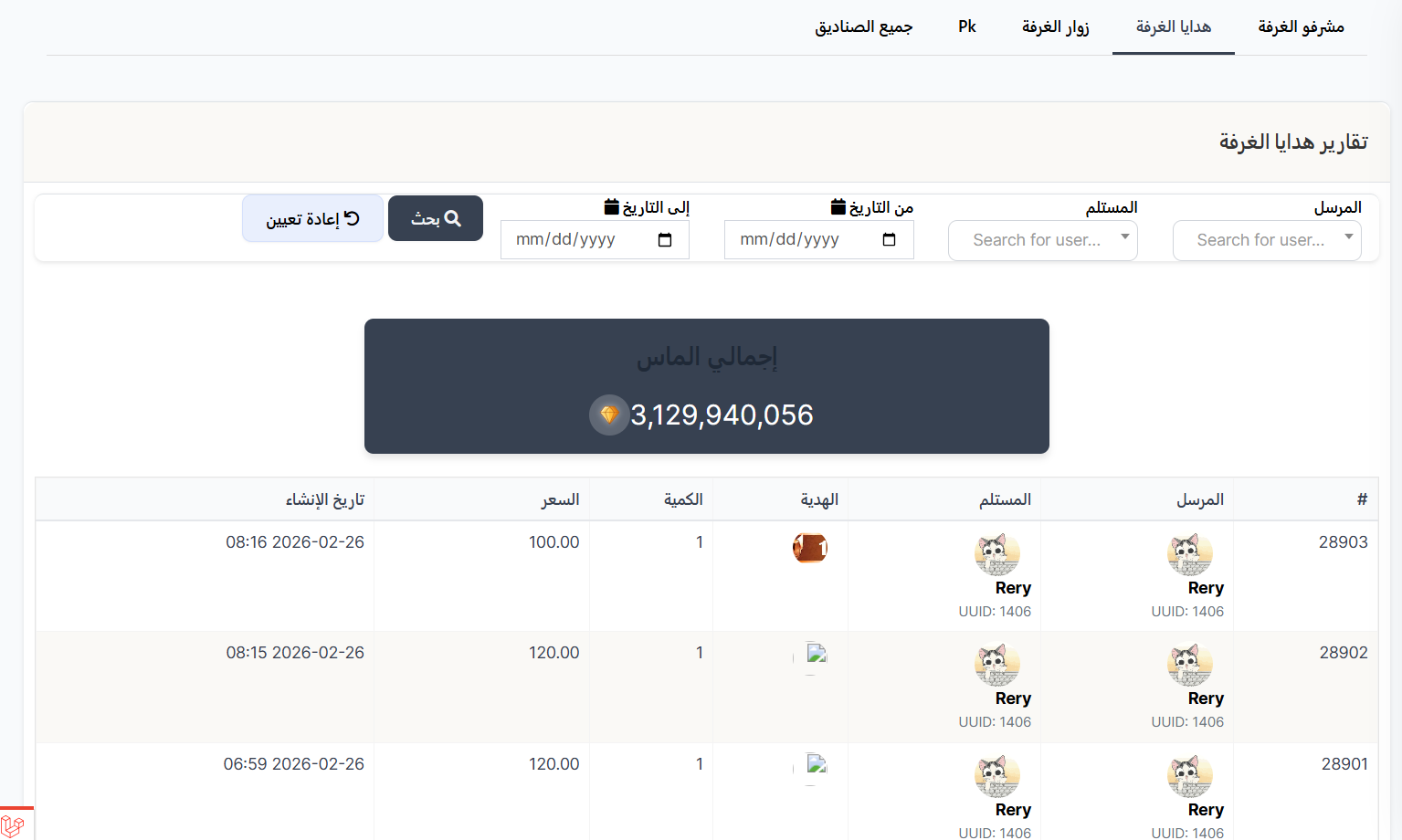
This tab displays room gift reports — all gifts sent within the voice room with details for each gift.
Gift Search Filters:
| Filter | Description |
|---|---|
| Sender | Search for a specific user who sent the gift |
| Receiver | Search for a specific user who received the gift |
| From Date | Set the start date for the search period |
| To Date | Set the end date for the search period |
Total Diamonds: At the top of the table, the Total Diamonds 💎 box shows the total value of all gifts sent in the room.
Gift Table Columns:
| Column | Description |
|---|---|
| # | Unique gift sequence number |
| Sender | User who sent the gift: photo, name, and UUID |
| Receiver | User who received the gift: photo, name, and UUID |
| Gift | Image of the gift sent |
| Quantity | Number of times this gift was sent |
| Price | Price per gift (in diamonds) |
| Created At | Date and time the gift was sent |
Room Visitors Tab:
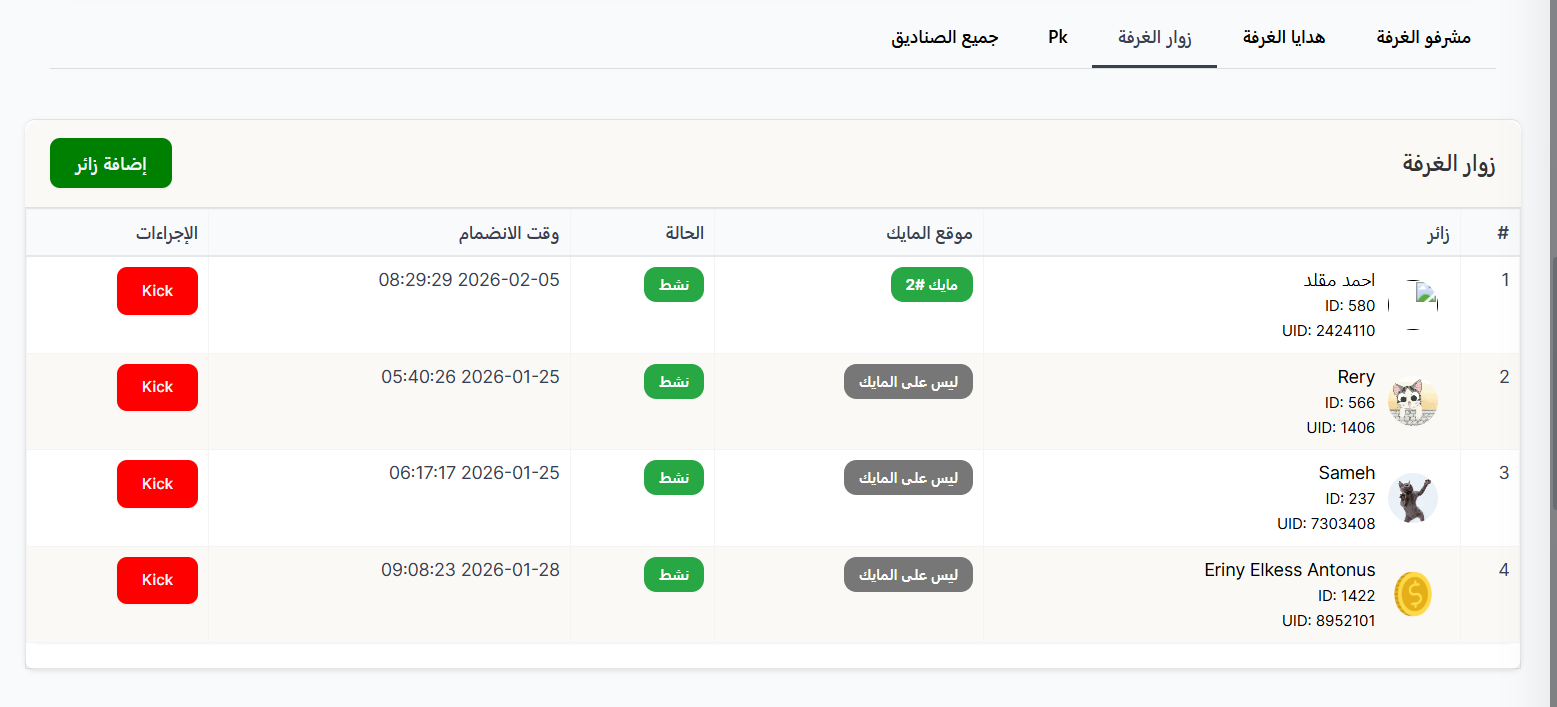
This tab displays all users currently inside the voice room, showing each user's status and microphone position.
Add Visitor Button: Green Add Visitor button to manually add a user to the room.
| Column | Description |
|---|---|
| # | Visitor's order number |
| Visitor | User info: profile picture, name, ID, and UID |
| Mic Position | Whether the user is on a microphone seat or not |
| Status | User's status in the room (active or inactive) |
| Join Time | Date and time the user entered the room |
| Actions | Red Kick button to remove the user from the room |
Mic Position Values:
| Value | Color | Meaning |
|---|---|---|
| Mic #2 (or other number) | 🟢 Green | User is on the microphone at the specified seat |
| Not on mic | ⚫ Gray | User is not on the microphone — listening only |
PK Tab (Room Challenge):
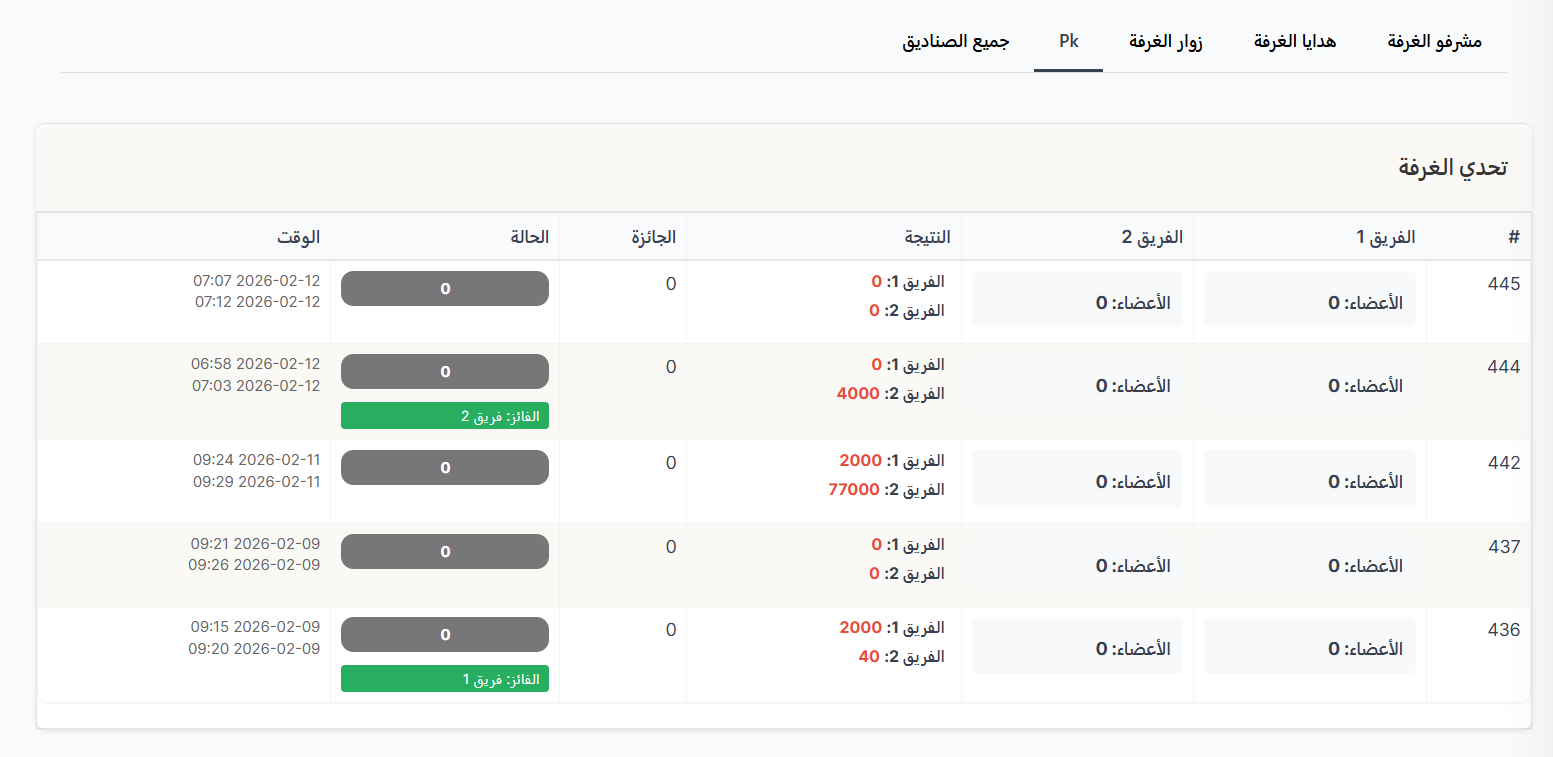
This tab displays all PK challenges that took place in the room. A PK challenge is a battle between two teams where each team competes to collect the most points (usually via gifts) within a set time period.
| Column | Description |
|---|---|
| # | Unique challenge sequence number |
| Team 1 | First team members — shows member count |
| Team 2 | Second team members — shows member count |
| Score | Challenge score for each team — higher score appears in green |
| Prize | Prize value for the challenge |
| Status | Challenge status with winning team identification |
| Time | Challenge start and end time |
All Boxes Tab:
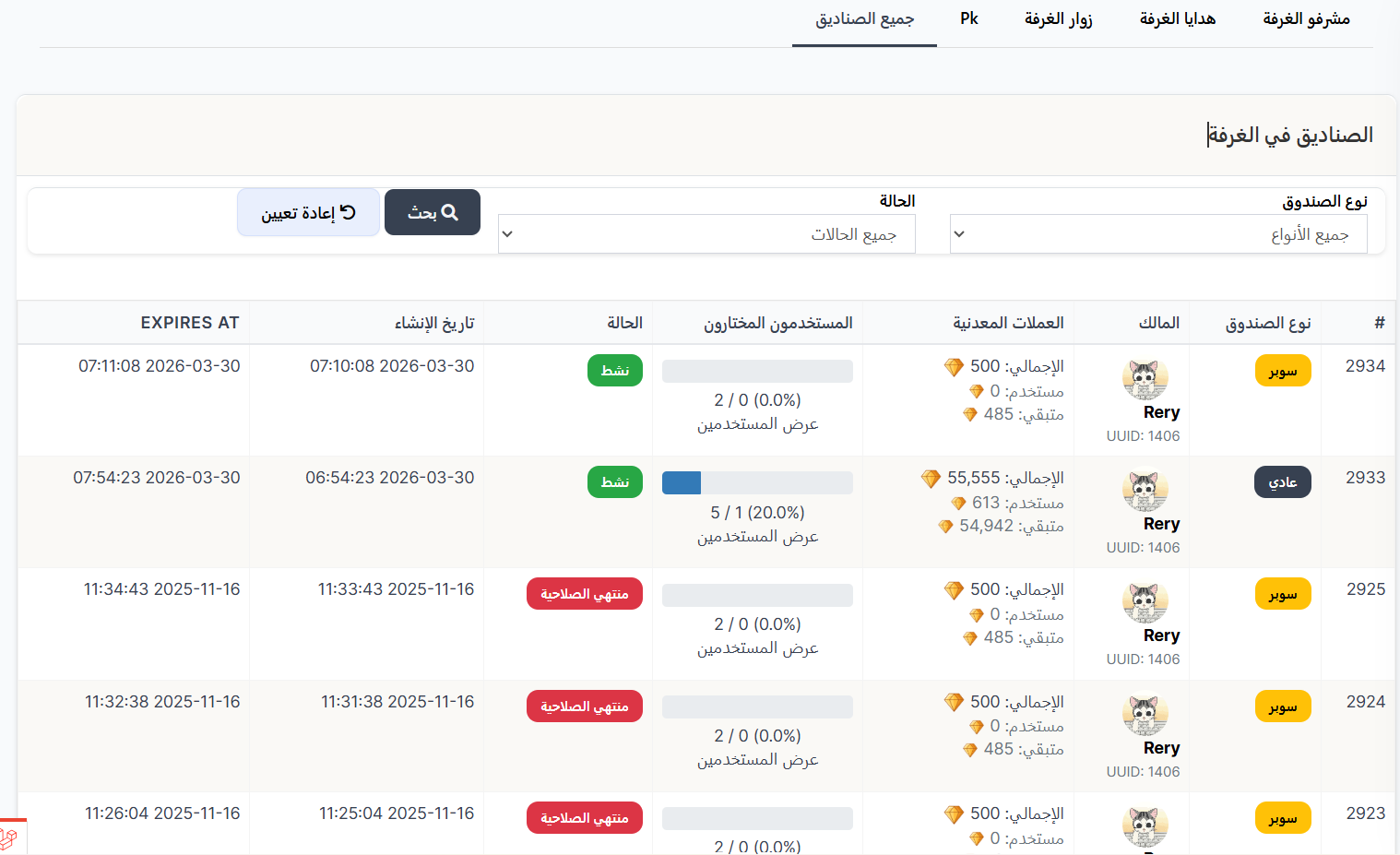
This tab displays all boxes dropped inside the voice room. Boxes are group gifts dropped by a user for room visitors to pick up.
| Column | Description |
|---|---|
| # | Unique box sequence number |
| Box Type | Box type — Super (gold badge) or Normal (dark badge) |
| Owner | User who dropped the box |
| Coins | Coin details: Total, Used, Remaining |
| Picked Users | Number of people who picked up the box with progress bar |
| Status | Current box status — Active 🟢 or Expired 🔴 |
| Created At | Date and time the box was dropped |
| Expires At | Box expiration date and time |
---
📺 Live Streaming (Live Rooms)
The Live Streaming page allows you to view and manage all active live rooms (live broadcasts) in the app. You can monitor who is broadcasting live, see how many users are currently inside each broadcast room, and track gifts sent.
How to Access:
Sidebar ← Rooms ← Live Streaming
Page Contents:
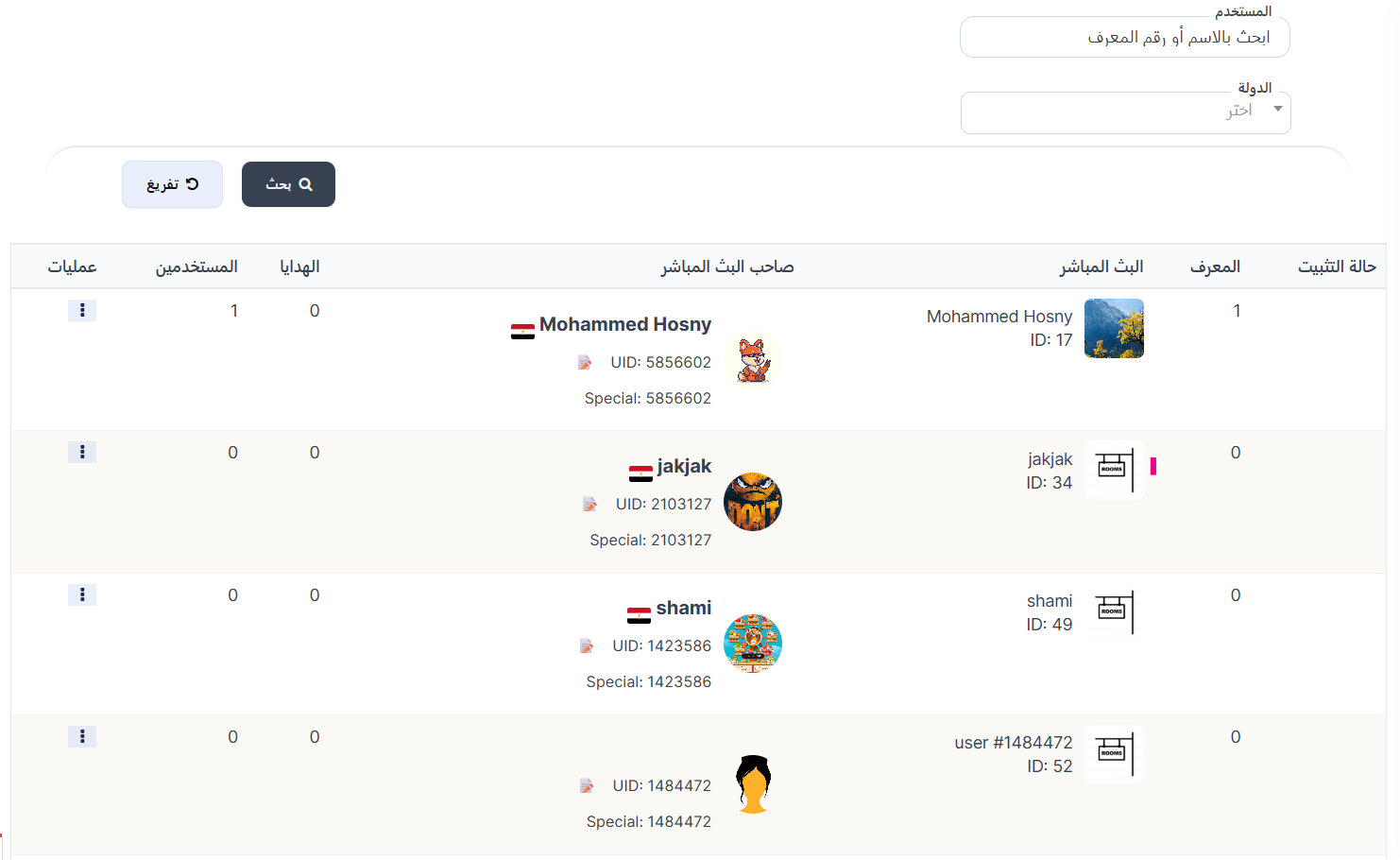
The page contains search filters at the top and the live broadcasts table below.
Search Filters:
| Filter | Description |
|---|---|
| User | Search by user name (broadcaster) or ID number |
| Country | Select country from dropdown to filter broadcasts by country |
Live Streaming Table:
| Column | Description |
|---|---|
| Pin Status | Number indicating pin order — if greater than 0, the broadcast is pinned to the top |
| ID | Broadcast's unique system identifier |
| Live Stream | Broadcaster's name, ID, and thumbnail image |
| Broadcaster | Detailed broadcaster info: name, country flag, photo, UID, and Special ID |
| Gifts | Number of gifts sent in this live broadcast |
| Users | Number of viewers currently inside the broadcast room in real-time |
| Operations | Options menu (⋮) for additional actions |
Difference Between Live Streaming and Voice Rooms:
| Feature | Live Streaming (Live Rooms) | Voice Rooms |
|---|---|---|
| Type | Live video/audio broadcast from one person | Group voice chat room |
| Presenter | Only the broadcaster | Multiple people on microphone seats |
| Viewers | Watch and send gifts | Listen or speak via microphone |
| Users Column | Current viewer count | People in room (listeners + speakers) |
---
🏆 Voice Room Levels
The Room Levels page allows you to manage the level system for voice rooms. Each room gets a level determined by experience points collected from gifts sent inside it — the more gifts sent in the room, the more experience points and the higher the room level.
How to Access:
Sidebar ← Rooms ← Room Levels
Page Contents:
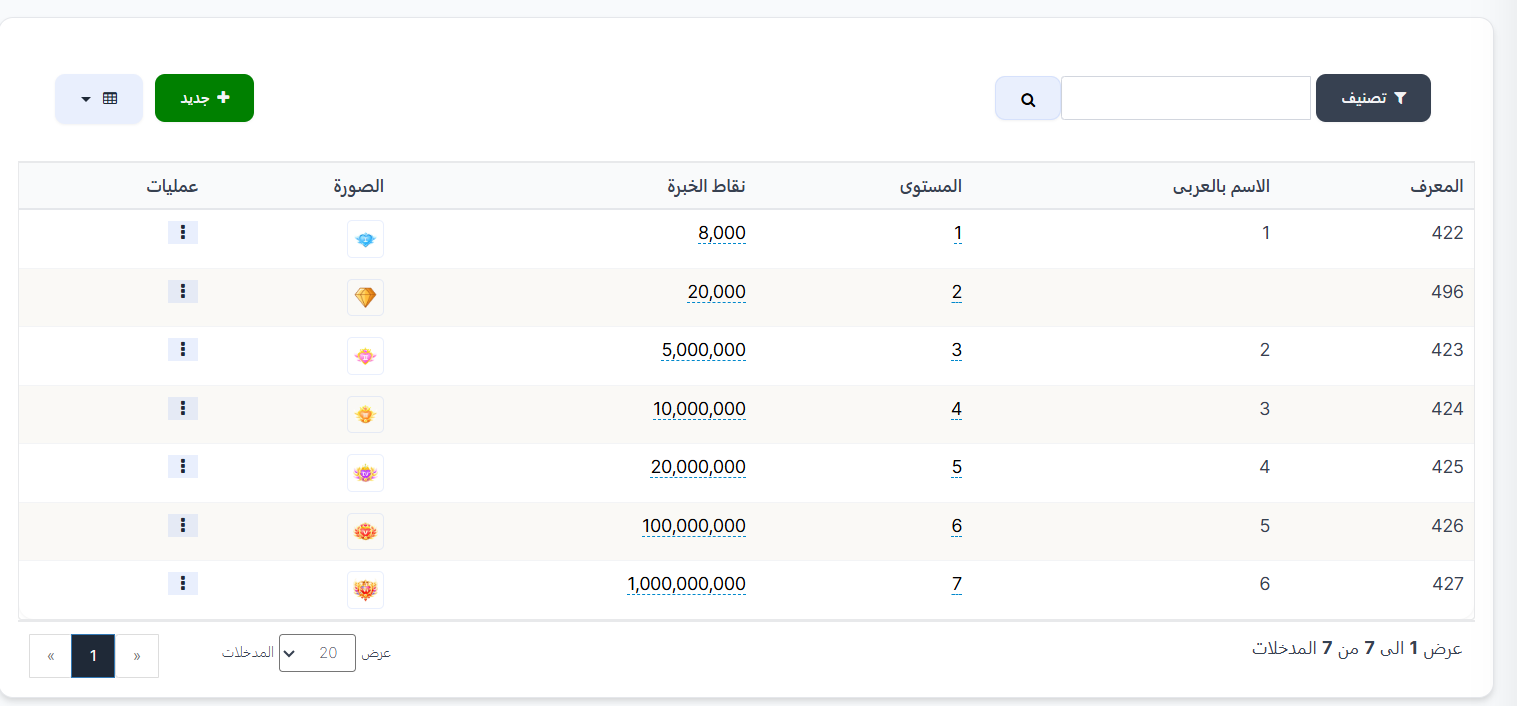
Levels Table:
| Column | Description |
|---|---|
| ID | Level's unique system identifier |
| Arabic Name | Level name in Arabic (optional) |
| Level | Level number (1, 2, 3, etc.) — higher number = higher level |
| Experience Points | Number of XP required to reach this level |
| Image | Level icon/badge displayed next to the room name in the app |
| Operations | Options menu (⋮) to edit or delete the level |
Level System and Experience Points:
Voice rooms automatically progress through levels based on total experience points collected from gifts sent inside:
| Level | XP Required | Icon |
|---|---|---|
| Level 1 | 8,000 | 💎 Blue Diamond |
| Level 2 | 20,000 | 💎 Gold Diamond |
| Level 3 | 5,000,000 | 🌸 Pink Gem |
| Level 4 | 10,000,000 | 🌟 Gold Gem |
| Level 5 | 20,000,000 | 💖 Special Pink Gem |
| Level 6 | 100,000,000 | 👑 Royal Gem |
| Level 7 | 1,000,000,000 | 👑 Special Royal Gem |
XP Formula
- Sender: 1 coin = 1 XP
- Receiver: 1 coin = 1 XP
---
🏆 Room Cup
The Room Cup page manages the goals and rewards system for voice rooms. The Room Cup is an incentive system where gifts (diamonds) and visitors are counted toward reaching a target. When the target is achieved, the room owner and admins earn coin profits.
How to Access:
Sidebar ← Rooms ← Room Cup Target ← Room Cup Target
Page Contents:
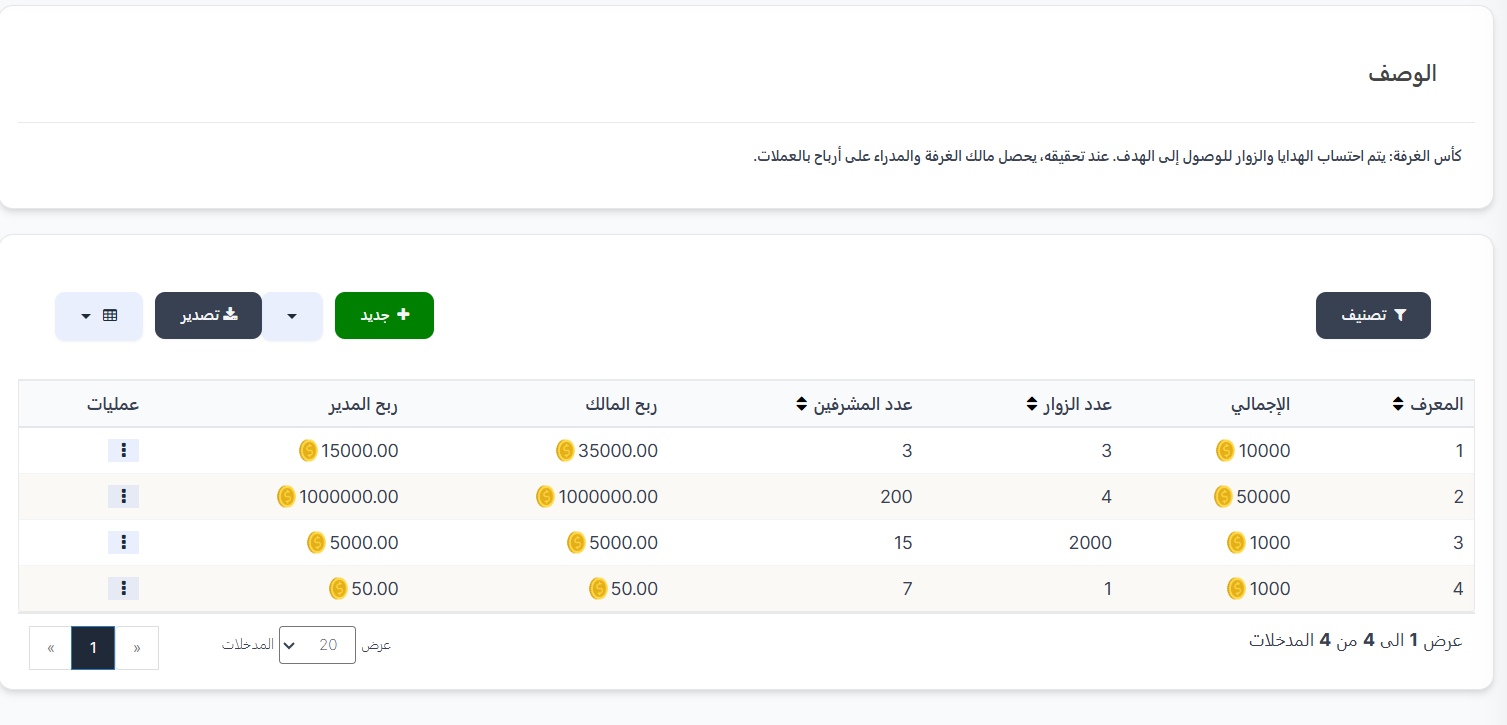
Cup Targets Table:
| Column | Description |
|---|---|
| ID | Target's unique system identifier |
| Total | 💰 Total diamonds (gifts) required to achieve this target |
| Visitor Count | Number of visitors required as an additional condition |
| Moderator Count | Number of moderator seats opened when target is achieved |
| Owner Profit | 💰 Coin profit amount for the room owner upon achievement |
| Admin Profit | 💰 Coin profit amount for each admin upon achievement |
| Operations | Options menu (⋮) to edit or delete the target |
Room Cup Settings:
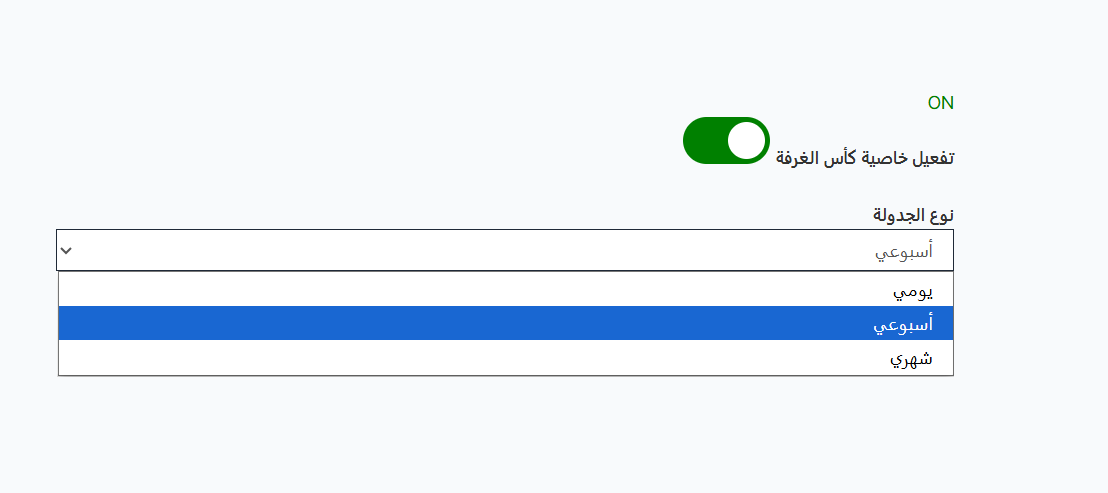
| Element | Description |
|---|---|
| Enable Room Cup Feature | Toggle switch 🟢 — ON enables the system, OFF disables it completely |
| Schedule Type | Dropdown to set the time period: Daily, Weekly, or Monthly |
| Save | Green button to save changes |
---
⚙️ Room Settings
The Room Settings page controls general settings for all voice rooms in the app. The page contains 5 main tabs, each controlling a different aspect of room settings.
How to Access:
Sidebar ← Rooms ← Room Settings
Available Tabs:
| Tab | Description |
|---|---|
| Paid Room | Control enabling/disabling the paid rooms system |
| Custom Background Settings | Set cost and validity of voice room backgrounds |
| Additional Settings | Various settings like room rules, YouTube key, PK background |
| Moderator Settings | Set the number of moderators allowed per room |
| Room Display | Control room visibility on the home screen |
1. Paid Room Tab:
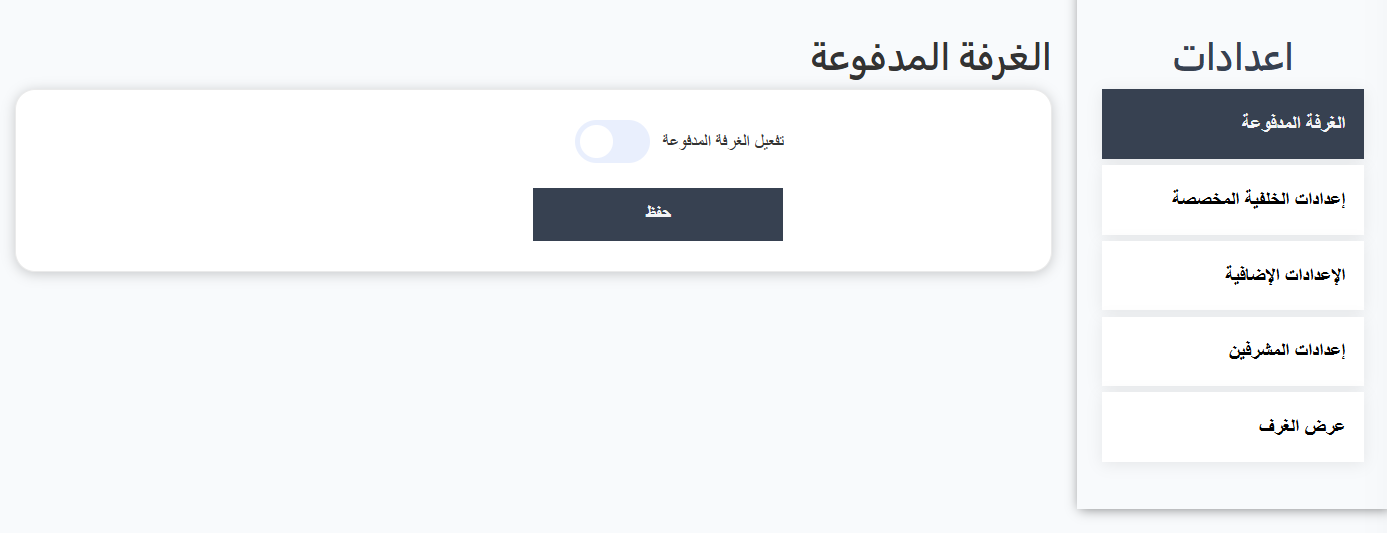
Controls the paid rooms system. When enabled, room creation costs are deducted from the owner's coin balance.
| Element | Description |
|---|---|
| Enable Paid Room | Toggle — when enabled, room creation requires coin payment. When disabled, rooms are free |
| Save | Save button |
2. Custom Background Settings Tab:
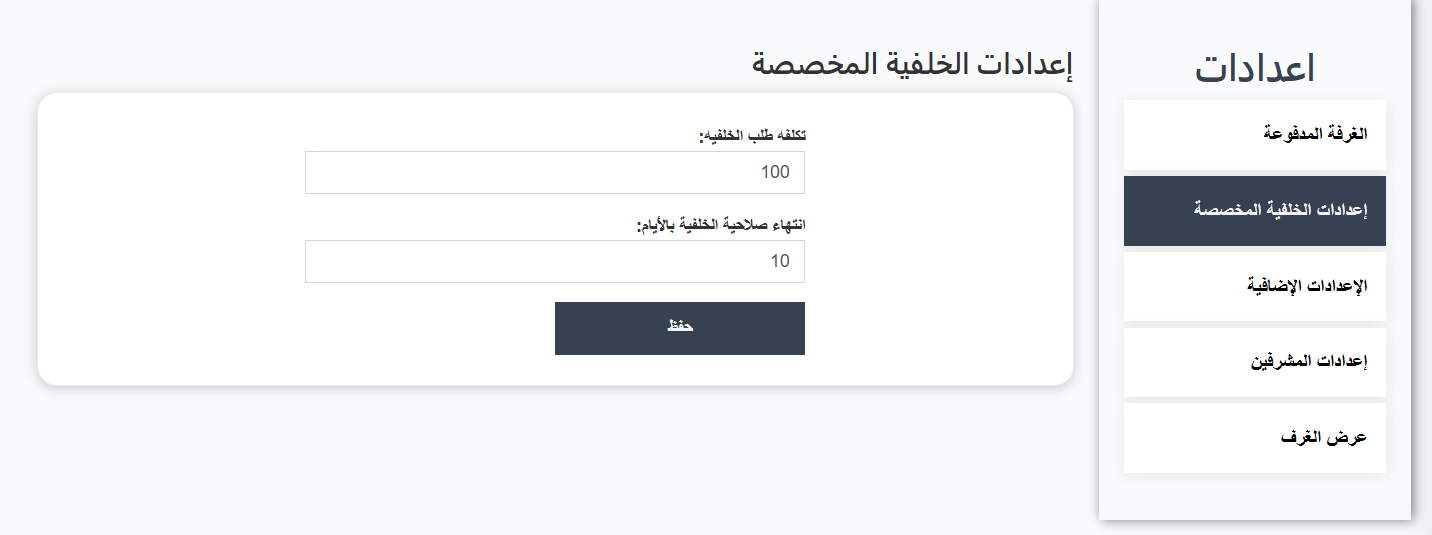
Controls the cost and validity of custom backgrounds for voice rooms.
| Field | Description |
|---|---|
| Background Request Cost | Number of coins required for a custom background (e.g., 100 coins) |
| Background Expiry in Days | Number of days the background stays active (e.g., 10 days) |
| Save | Save button |
3. Additional Settings Tab:
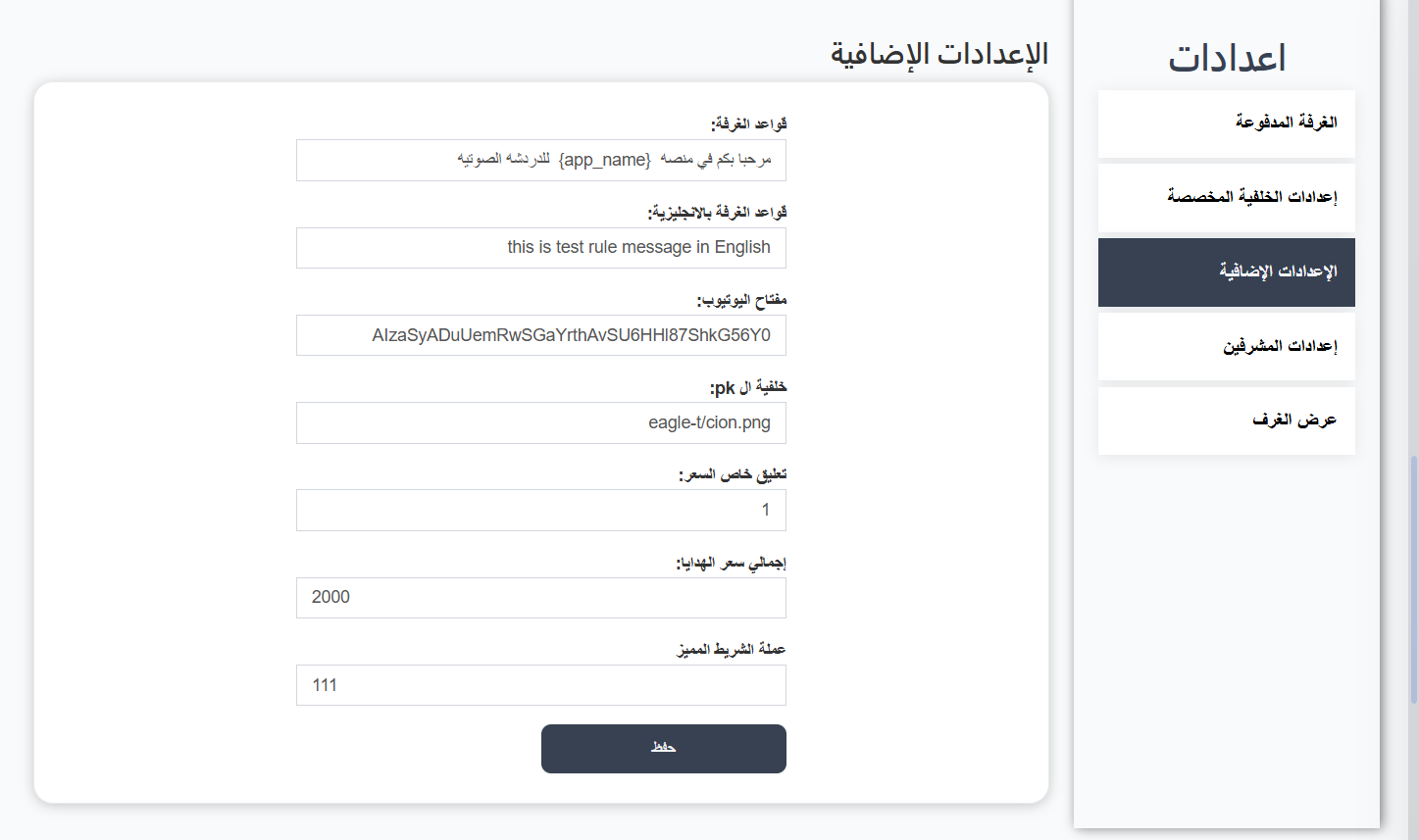
| Field | Description |
|---|---|
| Room Rules | Room rules message in Arabic — shown when users enter |
| Room Rules (English) | Room rules message in English |
| YouTube Key | YouTube API key for YouTube integration |
| PK Background | PK challenge background image path |
| Special App Price | Special app price number |
| Total Gift Price | Total gift price value |
| Special Ribbon Coins | Coins for the special ribbon in the room |
| Save | Save button |
4. Moderator Settings Tab:
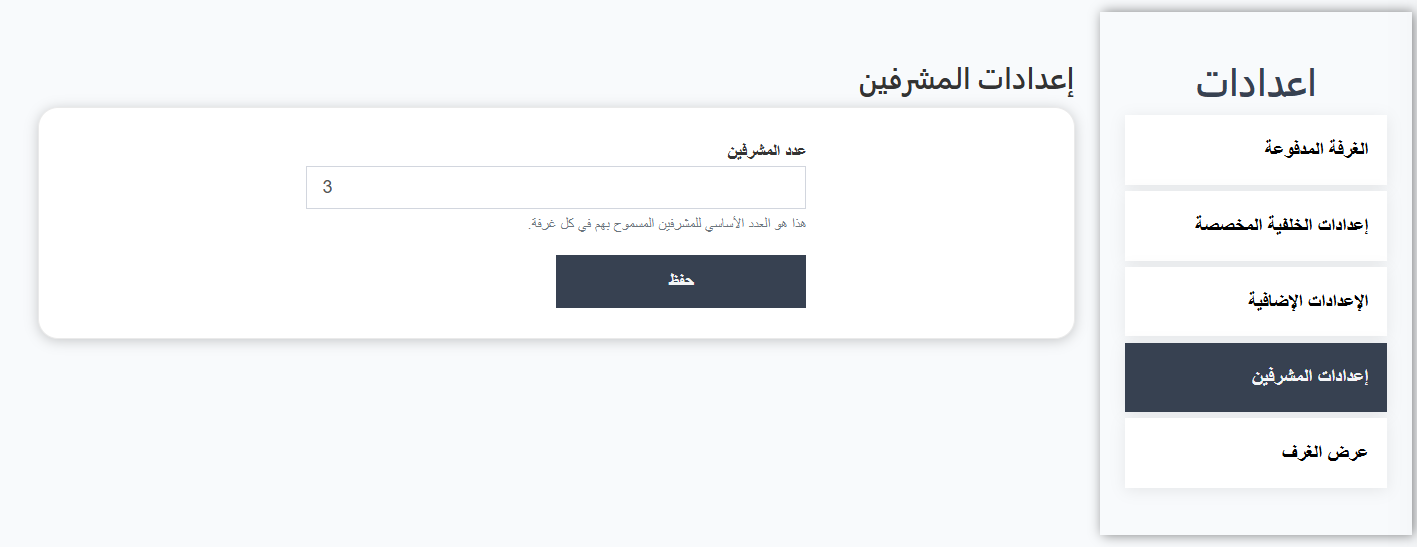
| Field | Description |
|---|---|
| Number of Moderators | Base limit for moderators allowed per room (e.g., 3) |
| Save | Save button |
5. Room Display Tab:
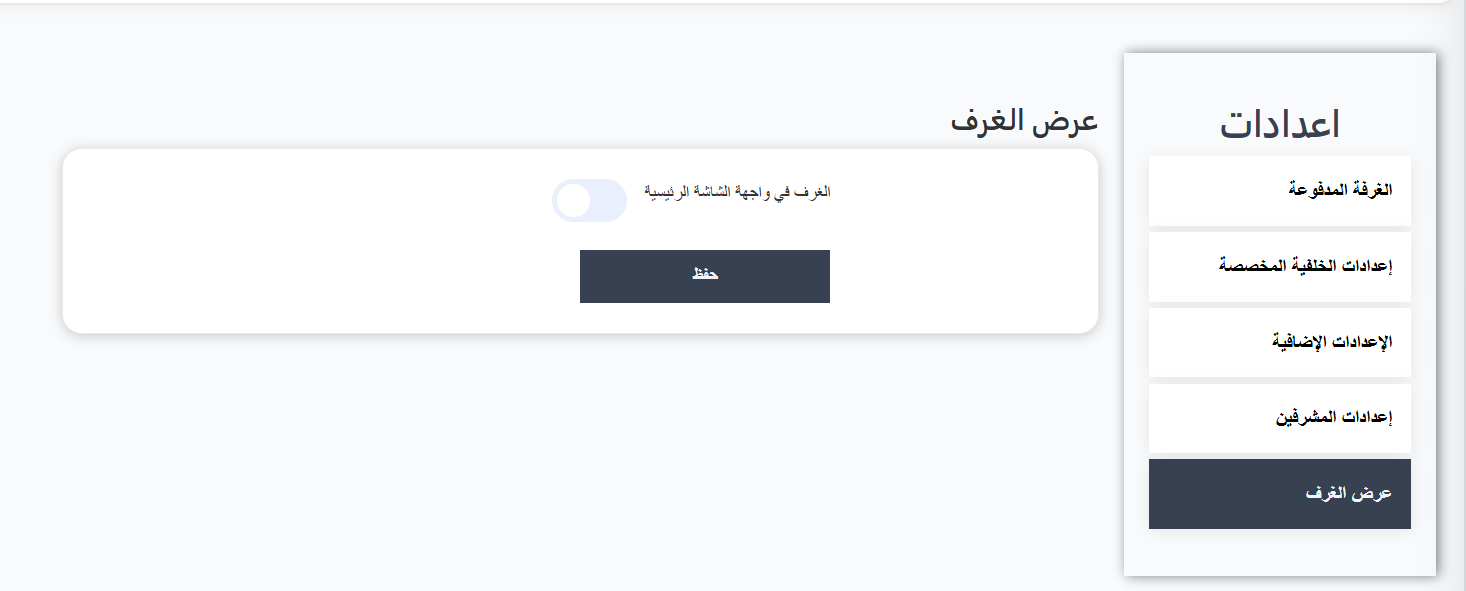
| Element | Description |
|---|---|
| Rooms on Home Screen | Toggle — when enabled, voice rooms appear on the app's home screen |
| Save | Save button |
Quick Summary:
| Setting | Function |
|---|---|
| Paid Room | Enable/disable coin deduction for room creation |
| Custom Background Settings | Set background cost and validity |
| Additional Settings | Room rules, YouTube key, PK background, prices |
| Moderator Settings | Set moderator limit per room |
| Room Display | Control room visibility on home screen |