🖼️ Voice Room Backgrounds
The Backgrounds page allows you to manage background images that users can choose from to change the background of their voice rooms. You can upload new images, enable or disable any background, and control which backgrounds are available to users in the app.
How to Access:
Sidebar ← Rooms ← Room Backgrounds
Page Contents:
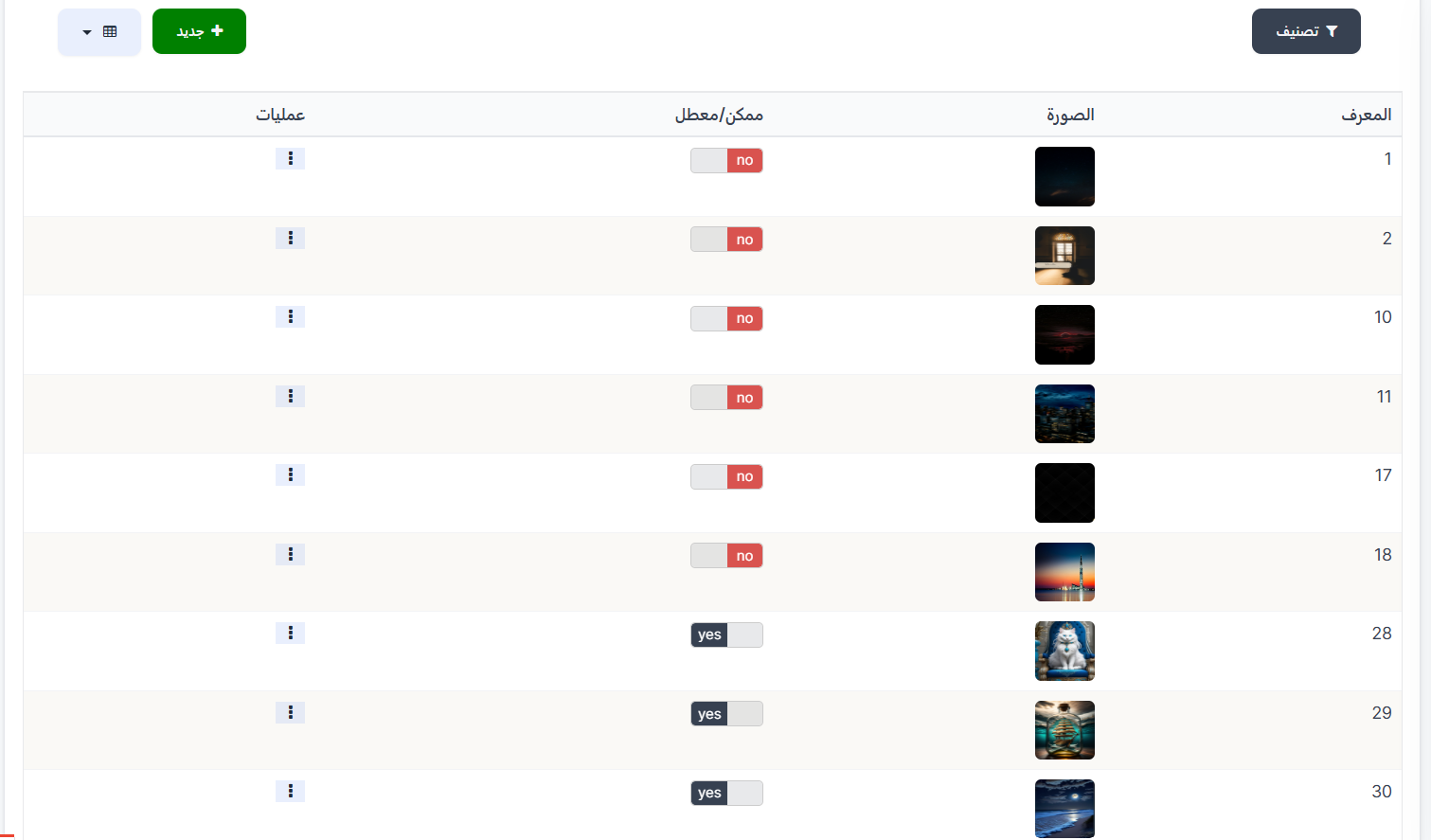
The page contains a toolbar at the top with a filter button and a button to add a new background, and the backgrounds table below with a preview of each image.
Toolbar:
| Element | Description |
|---|---|
| 🔍 Filter | Filter button to filter backgrounds |
| + New | Green button to add a new background |
| 📊 View | Toggle display mode (table or grid) |
Backgrounds Table:
The table displays all available room backgrounds with the following information:
| Column | Description |
|---|---|
| ID | Background's unique system identifier |
| Image | Thumbnail preview of the background image — shows the image users will see when selecting it as their room background |
| Enabled/Disabled | Background status — yes (enabled and visible to users in the app) or no (disabled and hidden) |
| Operations | Options menu (⋮) to edit or delete the background |
Background Status (Enabled/Disabled):
| Status | Color | Meaning |
|---|---|---|
| yes | 🟢 Green | Background is enabled — visible in the app and users can select it as their voice room background |
| no | 🔴 Red | Background is disabled — not visible in the app and users cannot use it |
Note
You can temporarily disable a background without deleting it — when disabled, it won't appear in the available backgrounds list for users, and you can re-enable it at any time.
Create a New Background:
When you press the green + New button, the Create background form opens:
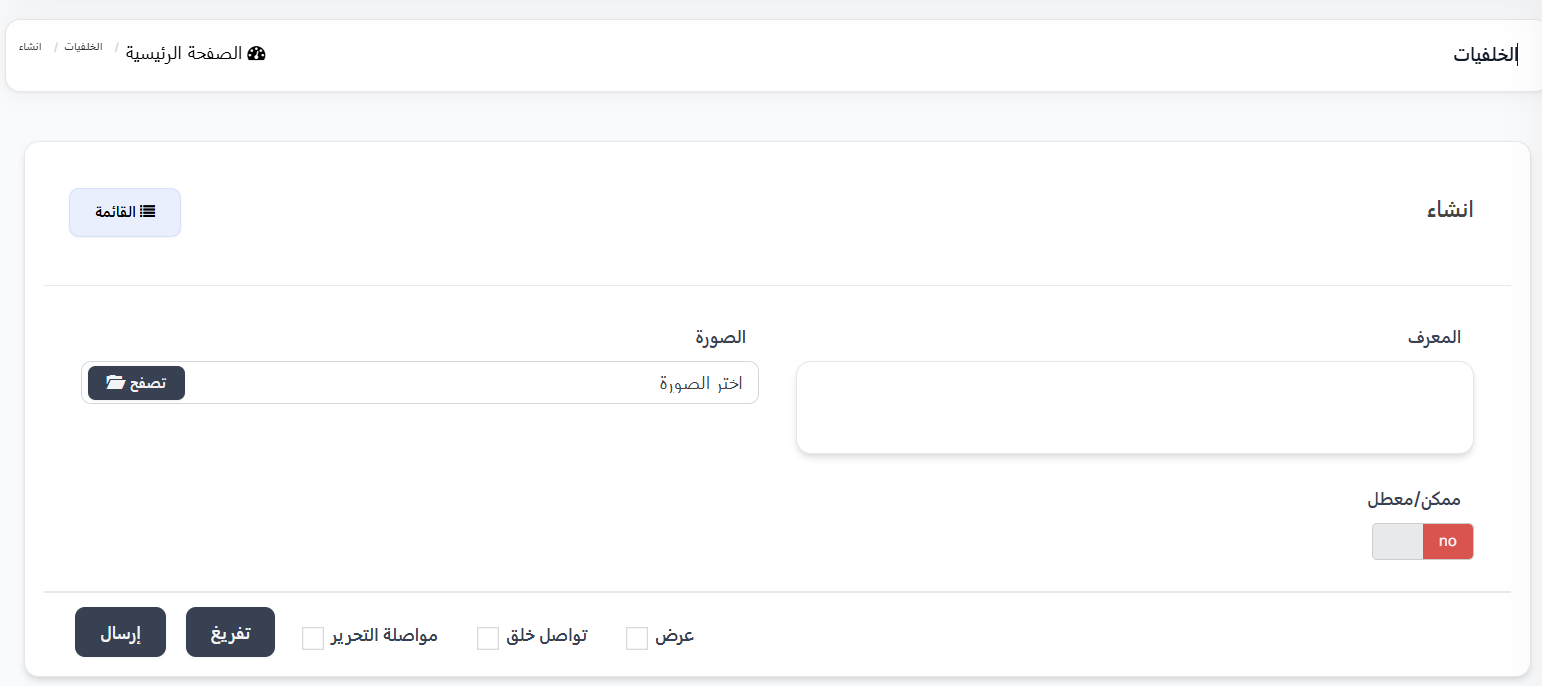
Form Fields:
| Field | Description |
|---|---|
| ID | Background's unique identifier — you can enter it manually or leave it to be auto-generated |
| Image ⭐ | Background image — press 📁 Browse to select an image from your device. This field is required |
| Enabled/Disabled | Toggle switch — yes (background is enabled and visible to users) or no (background is disabled and hidden). Default value is no |
Tips for Choosing Images
- Choose high-quality images suitable for voice room backgrounds.
- It's preferable that the image dimensions are appropriate to display well on various screen sizes.
- Make sure the image does not contain content that violates app policies.
Form Buttons:
| Button | Function |
|---|---|
| Submit | Save the new background and return to the backgrounds list |
| Reset | Clear all fields and reset to default values |
| Continue Editing ☐ | When enabled, save and stay on the edit page |
| Continue Creating ☐ | When enabled, after saving, a new form opens to create another background |
| View ☐ | When enabled, after saving, display the background details |
| 📋 List | Return to the full backgrounds list |
Example: Uploading Multiple Backgrounds Quickly
If you want to upload several backgrounds at once, enable the Continue Creating ☐ option before pressing Submit. After saving each background, a new form will automatically open to upload another background without needing to return to the list and press + New each time.
Available Operations:
When you press the operations menu (⋮) next to any background:
| Operation | Description |
|---|---|
| Edit | Edit background settings (change image, enable/disable) |
| Delete | Permanently delete the background from the system |
Warning
When deleting a background currently in use by voice rooms, those rooms will revert to the default background. It's recommended to disable the background instead of deleting it if you only want to hide it temporarily.
How Do Users Use Backgrounds?
After uploading and enabling backgrounds from the dashboard, voice room owners can:
- Open room settings from within the app.
- Choose a background from the list of available (enabled) backgrounds.
- Apply the background so it appears as the voice room background for all visitors.
Note on Background Cost
The cost and validity of custom backgrounds are controlled from the Room Settings page ← Custom Background Settings tab. You can set the number of coins required to request a background and its validity period in days.
Quick Summary:
| Action | Steps |
|---|---|
| View all backgrounds | Rooms ← Room Backgrounds |
| Add a new background | Press + New ← Upload image ← Enable background ← Submit |
| Upload multiple backgrounds | Press + New ← Enable Continue Creating ← Upload images one by one |
| Enable a background | Press ⋮ next to background ← Edit ← Change status to yes ← Submit |
| Disable a background | Press ⋮ next to background ← Edit ← Change status to no ← Submit |
| Delete a background | Press ⋮ next to background ← Delete |