💳 Payment Settings
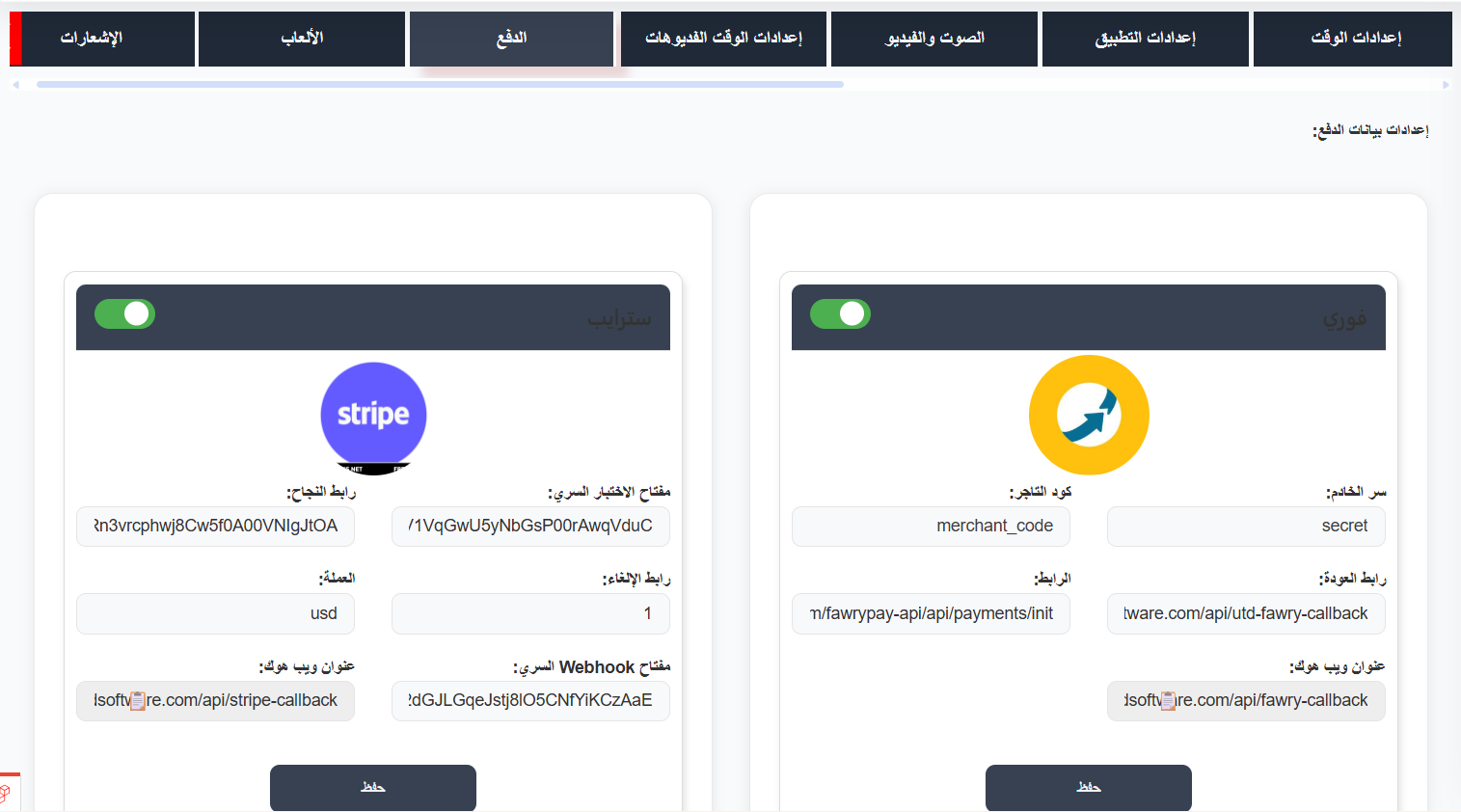
Payment settings allow you to configure the payment gateways that your application supports. Users use these gateways to purchase coins and diamonds within the app, which they then use to send gifts, access premium features, and more.
How to Access
Settings ← Payment
Supported Payment Gateways
The system supports the following payment gateways. Each gateway can be independently activated or deactivated:
1. Stripe
Stripe is a global payment platform that supports credit/debit cards and various payment methods across most countries.
| Field | Description | Required |
|---|---|---|
| Secret Test Key | Your Stripe secret key (starts with sk_test_ for testing or sk_live_ for production) |
✅ Yes |
| Success URL | The URL users are redirected to after a successful payment | ✅ Yes |
| Cancel URL | The URL users are redirected to if they cancel the payment | ✅ Yes |
| Currency | The currency for transactions (e.g., usd, eur, sar) |
✅ Yes |
| Webhook Secret Key | The webhook signing secret from Stripe (starts with whsec_) for verifying webhook events |
✅ Yes |
| Webhook URL | Your server endpoint that receives Stripe payment events: BASE_URL/api/stripe-callback |
✅ Yes |
How to Get Stripe Credentials
- Go to https://dashboard.stripe.com and create an account or log in.
- Navigate to Developers → API Keys to find your Secret Key.
- Navigate to Developers → Webhooks to set up your webhook endpoint and get the Webhook Secret Key.
- Use test keys (
sk_test_...) during development and switch to live keys (sk_live_...) for production.
2. Fawry
Fawry is a popular payment gateway in Egypt and the Middle East, supporting various local payment methods including Fawry reference numbers, credit cards, and mobile wallets.
| Field | Description | Required |
|---|---|---|
| Server Secret | Your Fawry server secret key for authenticating API requests | ✅ Yes |
| Merchant Code | Your unique merchant identifier provided by Fawry | ✅ Yes |
| URL | The Fawry API endpoint for initiating payments (e.g., https://atfawry.fawrypay.com/fawrypay-api/api/payments/init) |
✅ Yes |
| Return URL | The URL users are redirected to after payment completion: BASE_URL/api/utd-fawry-callback |
✅ Yes |
| Webhook URL | Your server endpoint for Fawry payment notifications: BASE_URL/api/fawry-callback |
✅ Yes |
How to Get Fawry Credentials
- Sign up for a Fawry merchant account at https://atfawry.fawrypay.com.
- Once approved, you will receive your Merchant Code and Server Secret.
- Use the staging URL for testing and the production URL for live payments.
Activating a Payment Gateway
- Go to the Payment tab in Settings.
- Find the payment gateway you want to activate.
- Toggle the switch to ON (green) to activate it.
- Fill in all the required credentials and URLs for the gateway.
- Click "Save" to apply the configuration.
Deactivating a Payment Gateway
- Toggle the switch to OFF for the gateway you want to disable.
- Click "Save".
Warning
Deactivating a payment gateway will immediately prevent users from making payments through that gateway. Make sure at least one gateway remains active.
Testing After Configuration
After configuring a payment gateway, it is recommended to:
- Make a small test payment through the app to verify the gateway works correctly.
- Check that the payment appears in your gateway's dashboard (Stripe Dashboard or Fawry Dashboard).
- Verify that coins/diamonds are correctly credited to the test user's account.
- Check the webhook endpoint is receiving payment confirmations.
Tips
- Always use test/staging credentials during initial setup, then switch to production credentials when ready to go live.
- Keep your secret keys and webhook secrets confidential — never share them publicly.
- Ensure your webhook URLs are accessible from the internet (not behind a firewall or VPN).
- Monitor your payment gateway dashboards regularly to track transactions and detect any issues.