🗑️ Delete Account
Introduction
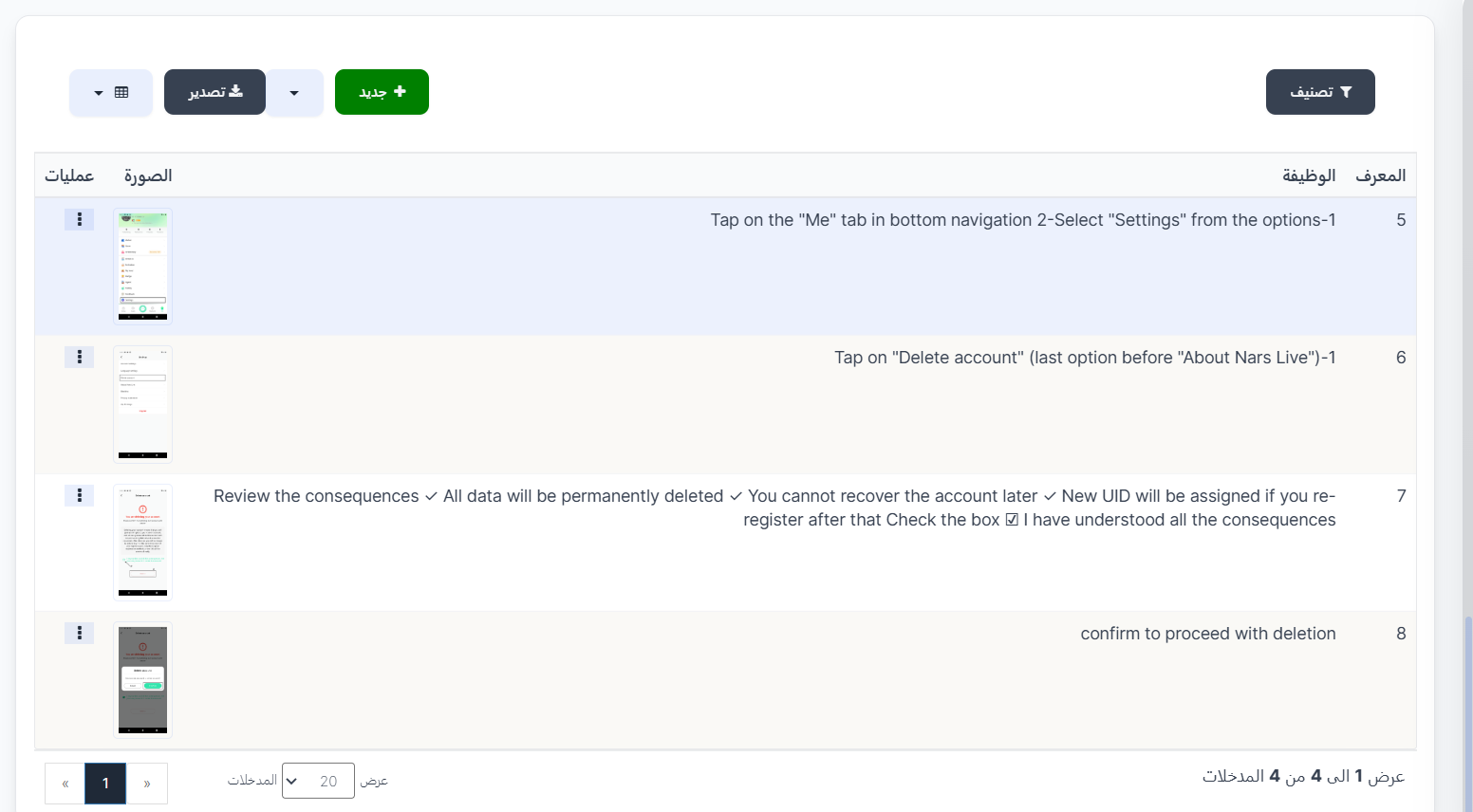
The Delete Account page is used to manage the steps of the account deletion guide that appears to users in the app. You can add or edit explanatory steps with images to explain how to delete an account.
How to Access
Sidebar Menu → Settings → Work Settings → Delete Account
Or via direct link:
Steps List
The page displays a table containing the account deletion steps:
| Column | Description |
|---|---|
| ID | Unique identifier for each step |
| Function | Description of the step the user should follow |
| Image | Illustrative image for the step (screenshot from the app) |
| Operations | Edit or delete the step |
Create New Step
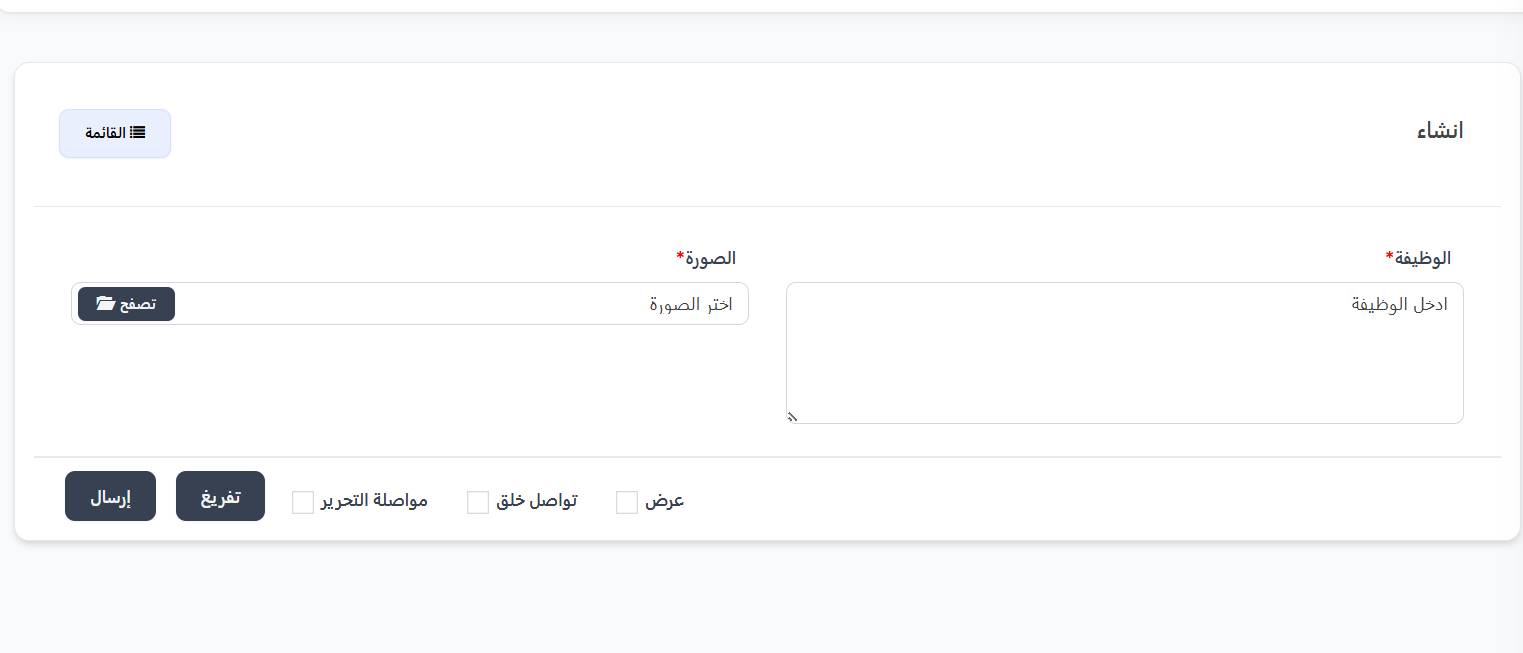
To add a new step in the account deletion guide:
- Click the "+ New" button
- Fill in the required fields:
| Field | Description | Required |
|---|---|---|
| Function | Text describing the step the user should perform | ✅ Yes |
| Image | Illustrative image (screenshot) from the app explaining the step | ✅ Yes |
- Click "Submit" to save the step
Practical Example
Standard Account Deletion Steps:
| Step | Description |
|---|---|
| 5 | 1- Tap on the "Me" tab in the bottom navigation bar. 2- Choose "Settings" from the options |
| 6 | 1- Tap on "Delete Account" (last option before "About the App") |
| 7 | Review the consequences: ✔ All data will be permanently deleted ✔ The account cannot be recovered later ✔ A new ID will be assigned if you re-register. Then check ✅ "I understand all the consequences" |
| 8 | Confirm to proceed with deletion |
Important Notes
Tip
- Arrange steps in a sequential and logical order to make them easy for users to follow.
- Use clear and up-to-date screenshots from the app.
Warning
- Make sure the steps reflect the actual current app interface.
- When updating the app interface, the images and descriptions here should also be updated.
Information
- These steps appear to users in the app as a guide to deleting their account.
- You can add or remove steps as needed.