💰 Area Manager Charges
This page allows you to manage the charges and balance of area managers, where you can add balance to each area manager and track their charging reports.
How to Access:
Sidebar ← Area System ← Area Manager Charges
Page Contents:
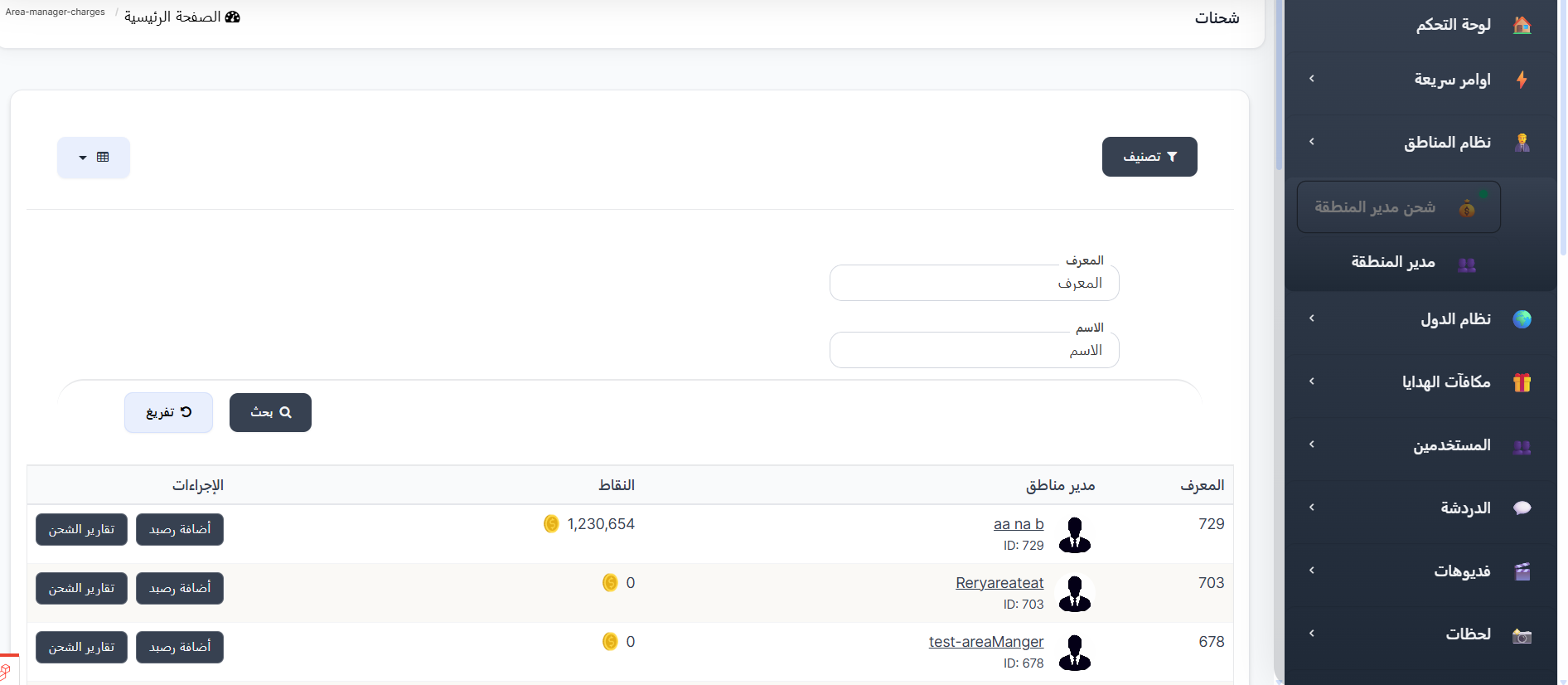
Area Managers Table:
The table displays the following information for each area manager:
| Column | Description |
|---|---|
| ID | The area manager's identification number |
| Area Manager | The area manager's name with their photo and ID number |
| Points | The area manager's current points balance 💰 |
| Actions | Available control buttons |
Available Actions:
For each area manager in the table, you can perform the following actions:
- Add Balance 🟢 - To add points/balance to the area manager's account.
How to Add Balance:
When you click the Add Balance 🟢 button, a "Currency Charging" form will appear with the following fields:
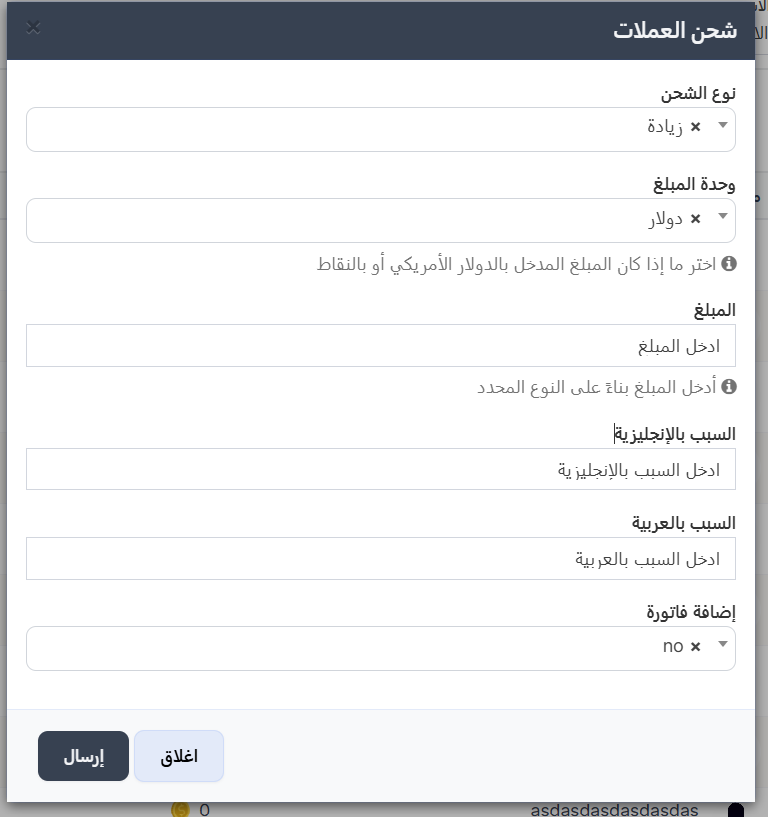
Steps to Add Balance:
- Choose Charge Type: Select Increase to add balance or Decrease to deduct balance from the area manager's account.
- Select Amount Unit: Choose Dollar or Coins if you want to enter the amount in US Dollars, or if you want to enter it in coins.
- Enter the Amount: Type the required value in the amount field.
- Enter the Reason: Write the reason for the operation in both English and Arabic to document the charge or deduction.
- Attach Invoice (Optional): If you have an invoice, select yes from the "Add Invoice" field, then upload the invoice image.
- Click the "Submit" button to confirm the operation, or "Close" to cancel and go back.
Tip
It is always recommended to attach an invoice image when performing charging operations to document the transaction for future reference.
Warning
Make sure to select the correct charge type (Increase or Decrease) before submitting, as the Increase operation will add balance to the manager's account while the Decrease operation will deduct from it.
- Charge Reports 🔵 - To view the history of all previous charging operations for this manager.
Charge Reports (Transaction History):
When you click the Charge Reports 🔵 button, you will be taken to the charge history page for the selected area manager.
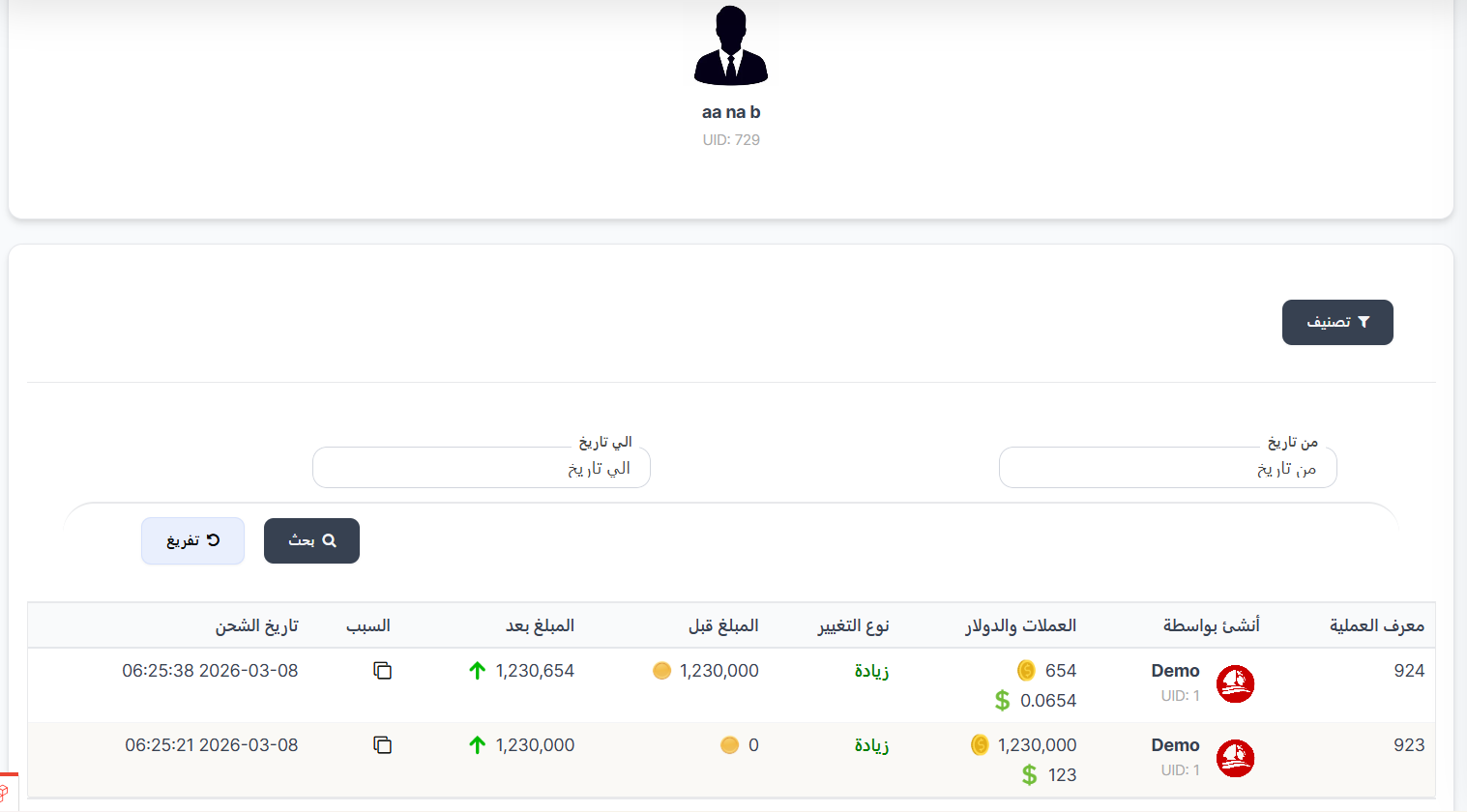
Manager Information:
At the top of the page, the area manager's name, photo, and UID number are displayed.
Transaction History Table:
The table displays the details of each charging operation performed on the area manager's account:
| Column | Description |
|---|---|
| Transaction ID | The unique identification number for each charging operation |
| Created By | The name of the user who performed the charging operation, with their photo and UID |
| Coins and Dollar | Displays the operation value in coins (🪙) and its equivalent in dollars ($) |
| Change Type | The operation type: Increase (in green) for adding balance, or Decrease for deducting balance |
| Amount Before | The area manager's balance before the operation was executed (🟡) |
| Amount After | The area manager's balance after the operation was executed (⬆️ for increase / ⬇️ for decrease) |
| Reason | The reason entered during charging, with the ability to copy the reason (📋) |
| Charge Date | The detailed date and time when the charging operation was executed |
Note
You can use the date filter (From Date - To Date) to view operations that occurred within a specific time period, making it easier to track and review charges.