👝 Application Wallets
Introduction
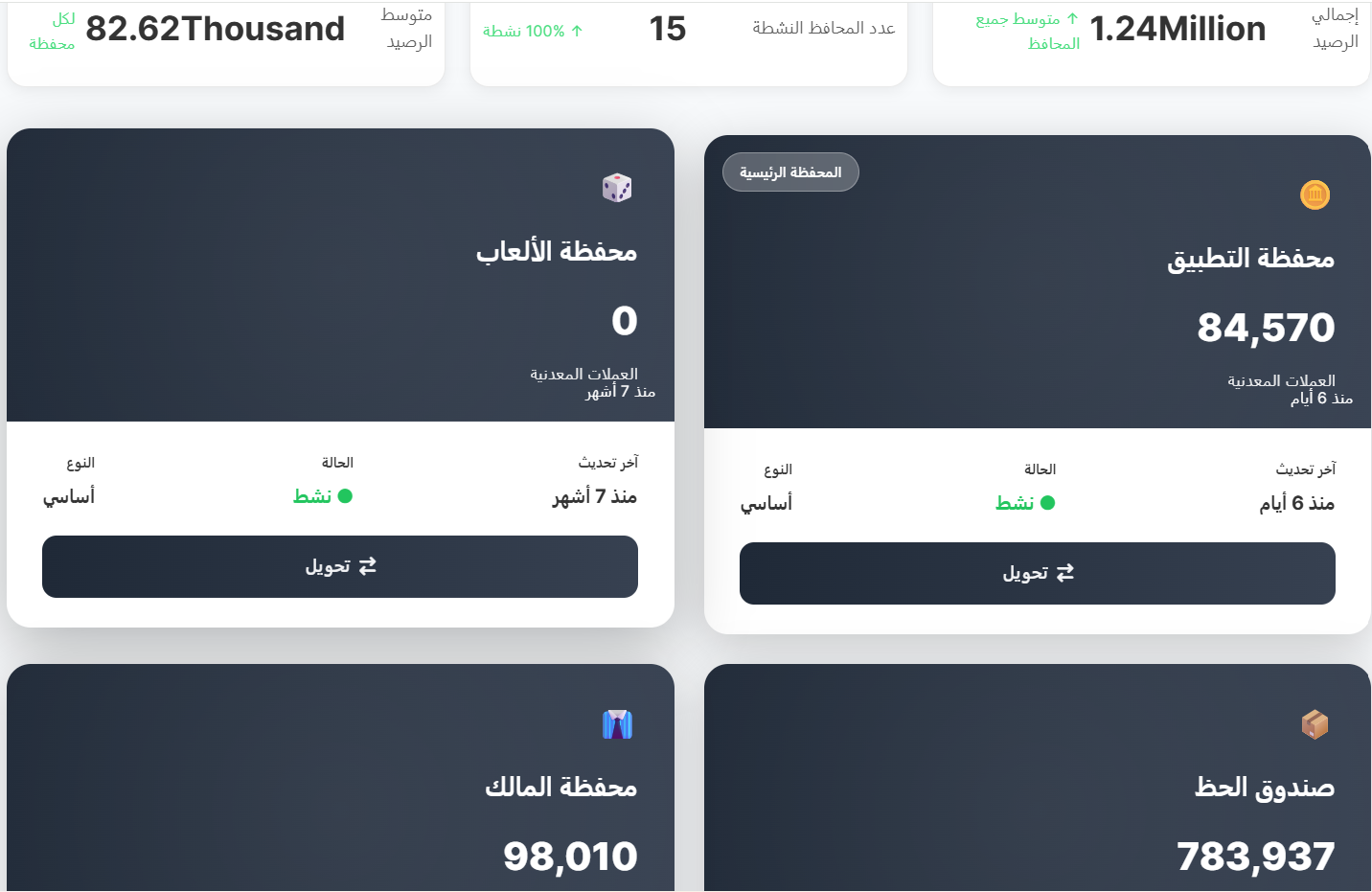
The Application Wallets page displays the financial wallets dedicated to different features in the application. Each wallet represents a financial balance for a specific feature or section (such as: Games, Main Application, Owner, Lucky Box, etc.). Through this page, you can monitor wallet balances and transfer amounts from one wallet to another.
How to Access
Sidebar ← Wallet ← Application Wallets
👝 Open Application Wallets Page
Overall Statistics
At the top of the page, three statistical cards appear displaying a general summary of all wallets:
| Card | Description |
|---|---|
| Total Balance | Total sum of all wallet balances (example: 1.24 Million) with ⬆️ average of all wallets indicator |
| Active Wallets Count | Number of currently active wallets with activity percentage (example: 15 wallets, 100% active ⬆️) |
| Average Balance | Average balance per single wallet (example: 82.62 Thousand per wallet) |
Wallet Cards
The page displays wallets as Cards, each card represents a wallet dedicated to a specific feature in the application.
Card Contents:
| Element | Description |
|---|---|
| Wallet Icon | Distinctive icon for each wallet (🎲 Games, 🪙 App, 📊 Owner, 📦 Lucky) |
| Wallet Name | Name of the wallet (example: Games Wallet, App Wallet) |
| Main Wallet | Label that appears only on the main wallet (App Wallet) |
| Balance | Current coin balance (example: 84,570) |
| Coins | Type of currency used |
| Last Updated | Last time the wallet balance was updated (example: 6 days ago) |
| Type | Wallet type: Basic |
| Status | Wallet status: 🟢 Active |
| ↔ Transfer Button | Button to transfer an amount from this wallet to another wallet |
Wallet Examples
| Wallet | Balance | Status | Last Updated |
|---|---|---|---|
| App Wallet 🪙 (Main Wallet) | 84,570 coins | 🟢 Active | 6 days ago |
| Games Wallet 🎲 | 0 coins | 🟢 Active | 7 months ago |
| Owner Wallet 📊 | 98,010 coins | 🟢 Active | - |
| Lucky Box 📦 | 783,937 coins | 🟢 Active | - |
Note
App Wallet carries the "Main Wallet" label and is the primary wallet representing the application's general balance.
Transferring Between Wallets
You can transfer an amount from any wallet to another by clicking the ↔ Transfer button at the bottom of the wallet card.
Transfer Form Fields:
| Field | Description |
|---|---|
| Transfer From | Source wallet name (appears automatically in the form header) |
| To Wallet | Choose the target wallet from the dropdown list |
| Amount | Enter the number of coins to transfer |
Form Buttons:
| Button | Description |
|---|---|
| ✅ Execute Transfer | Confirm and execute the transfer operation |
| ❌ Cancel | Cancel the operation and close the form |
Transfer Steps:
- Click the ↔ Transfer button on the wallet card you want to transfer from.
- Choose the target wallet from the "To Wallet" dropdown.
- Enter the amount — type the number of coins to transfer.
- Click ✅ Execute Transfer to confirm the operation.
Important Warning
- Ensure the source wallet has sufficient balance before transferring.
- Transfer operations are recorded and documented in the system.
- Transfers cannot be reversed after execution.
Quick Summary
| Action | Steps |
|---|---|
| View all wallets | Sidebar ← Wallet ← Application Wallets |
| View wallet balance | Open the page ← View the relevant wallet card |
| Transfer between wallets | Click "↔ Transfer" ← Choose target wallet ← Enter amount ← Execute Transfer |
| Check last update | View the "Last Updated" field in the wallet card |
📋 Transaction Log
Introduction
The Transaction Log page displays all transfer operations made from one wallet to another in the system. Through it, you can track every transfer and know its details including source wallet, target wallet, transferred amount, who performed the operation, and when.
How to Access
Sidebar ← Wallet ← Transaction Log
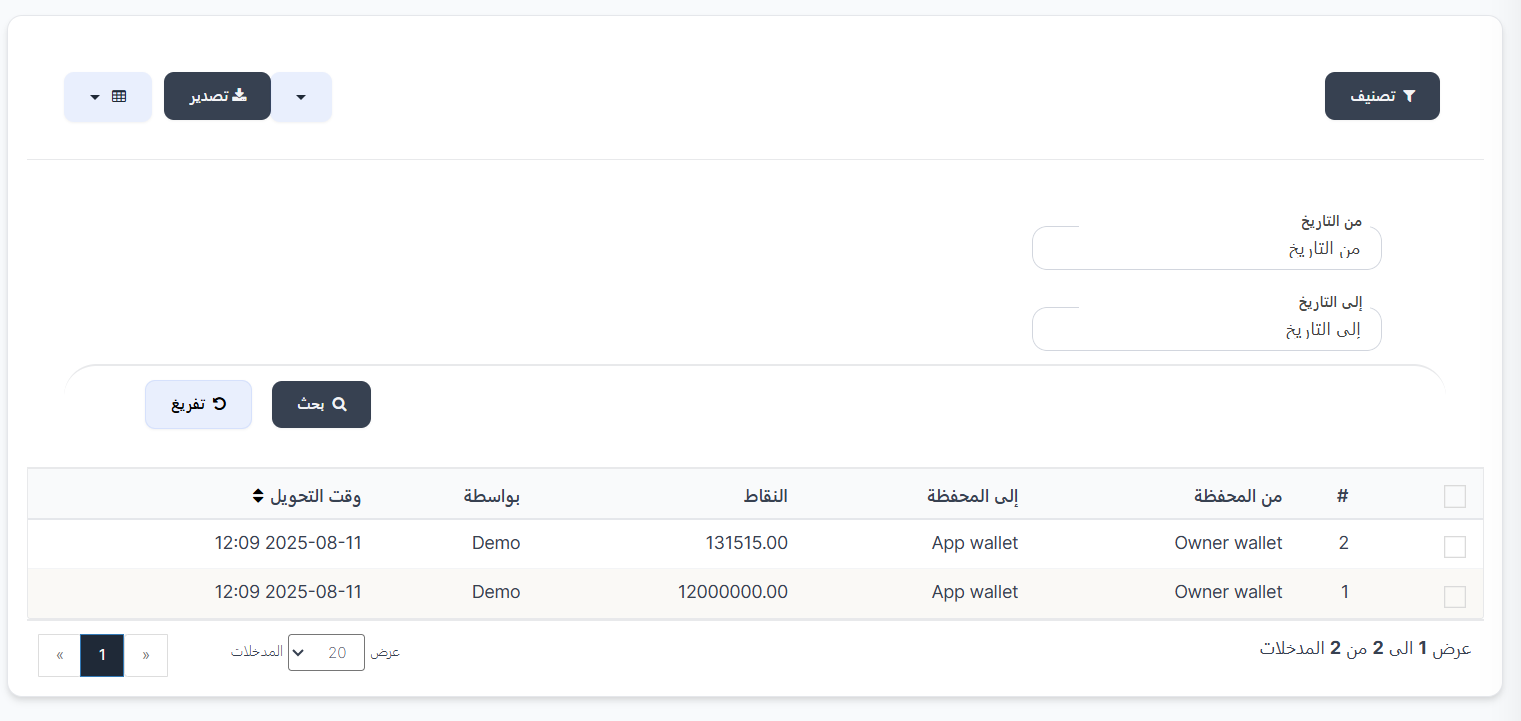
Top Page Buttons
| Button | Description |
|---|---|
| 🔘 Filter | Open search and filter options |
| 📤 Export | Export transaction data |
Search Filters
You can filter transactions by time period:
| Filter | Description |
|---|---|
| From Date | Start date of the period to view transactions |
| To Date | End date of the period to view transactions |
| Button | Description |
|---|---|
| 🔍 Search | Apply filters and display results |
| 🔄 Clear | Clear filters and re-display all transactions |
Transactions Table
The table displays details of each transfer between wallets:
| Column | Description |
|---|---|
| # | Transaction sequential number |
| From Wallet | Name of the source wallet transferred from (example: Owner wallet) |
| To Wallet | Name of the target wallet transferred to (example: App wallet) |
| Points | Number of coins transferred (example: 131,515.00 or 12,000,000.00) |
| By | Name of the user who executed the transfer (example: Demo) |
| Transfer Time | Date and time of transfer execution (example: 2025-08-11 12:09) — sortable ⇕ |
Quick Summary
| Action | Steps |
|---|---|
| View all transactions | Wallet ← Transaction Log |
| Search by date | Set "From Date" and "To Date" ← Click "Search" |
| Export transactions | Click "📤 Export" |
| Clear filters | Click "🔄 Clear" |