🤬 Sensitive Words
Introduction
The Sensitive Words page allows you to manage a list of words and phrases that are not allowed within the application. This list is used to automatically monitor content written by users — whether in messages, names, or any text-containing area — and take immediate action when any inappropriate word is detected.
How to Access
Side Menu ← Sensitive Words
Main Page (Word List)
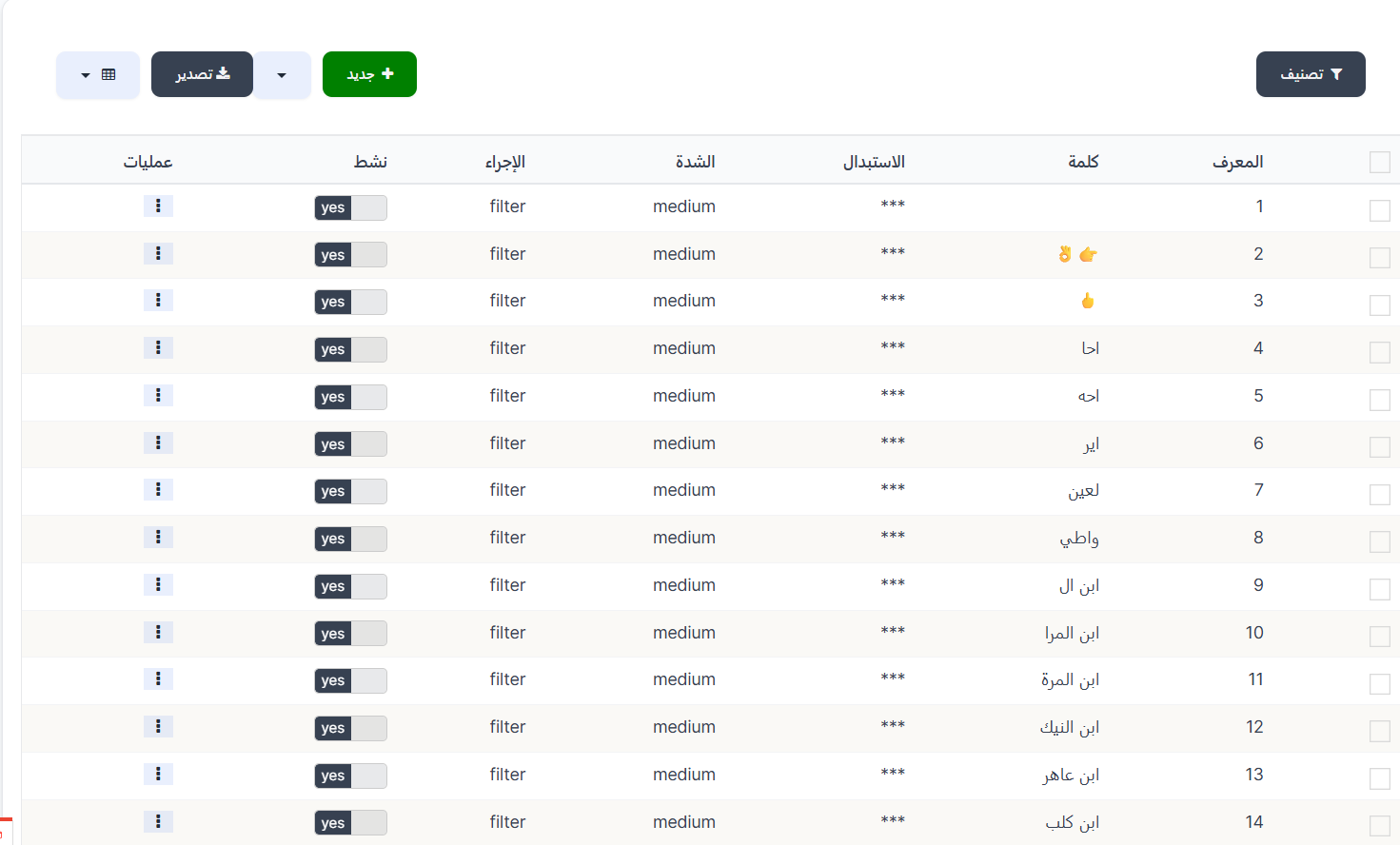
When you open the page, a table displays all added sensitive words with their details.
Top Page Buttons
| Button | Description |
|---|---|
| 🔽 Filter | Filter and sort the word list by various criteria |
| + New | Open the form to add a new sensitive word |
| ⬇️ Export | Export the sensitive words list |
Table Columns
| Column | Description |
|---|---|
| ID | Unique identifier for each word (auto-generated) |
| Word | The sensitive word or phrase added |
| Replacement | The text that replaces the sensitive word when detected (e.g., ***) |
| Severity | The danger level of the word (Low, Medium, High, Critical) |
| Action | The action taken when the word is detected (Filter, Warning, Ban) |
| Active | The activation status of the word (yes/no) |
| Operations | Edit, delete, and other action buttons |
Adding a New Sensitive Word
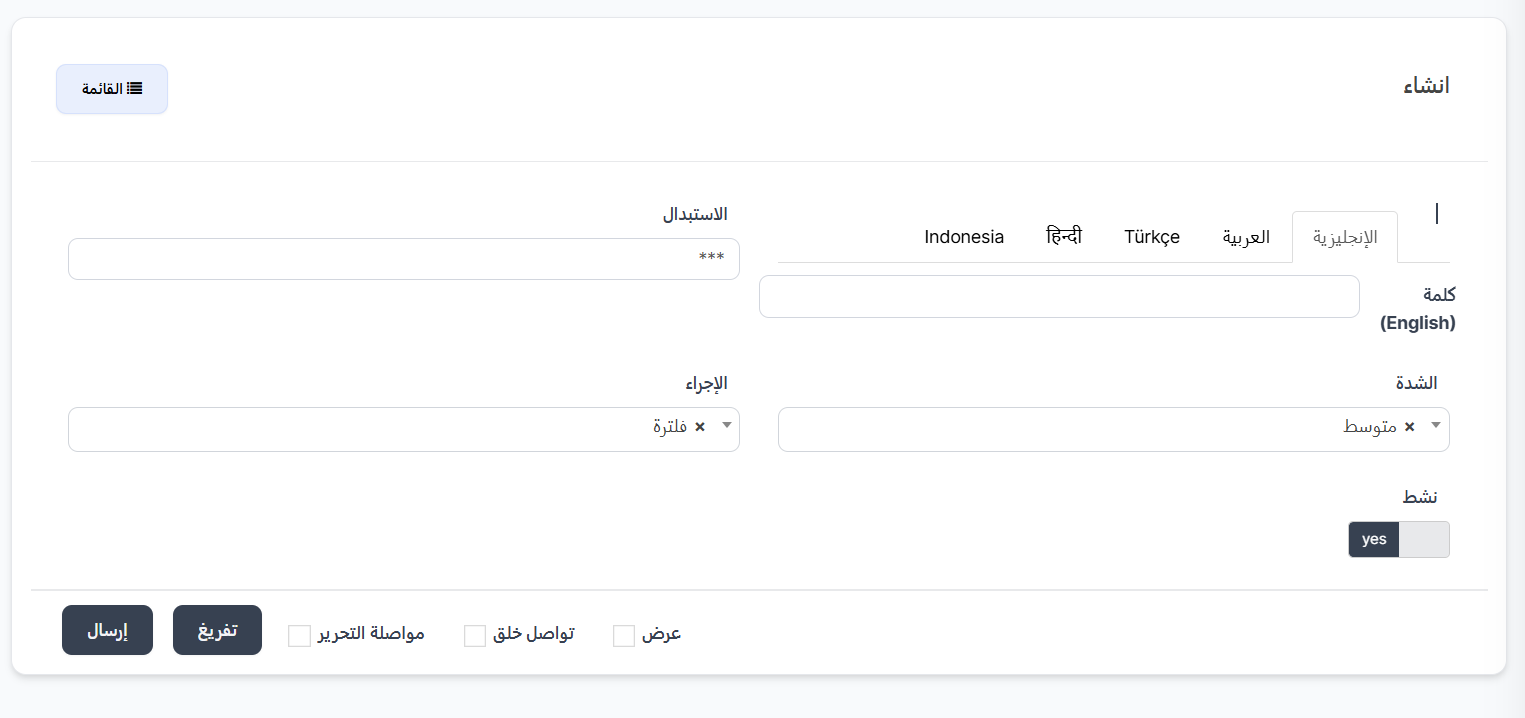
When you click the "+ New" button, a page opens to create a new sensitive word.
Form Fields
| Field | Description | Required |
|---|---|---|
| Word | The sensitive word or phrase to add (supports multiple languages) | ✅ |
| Replacement | The replacement text that appears instead of the sensitive word (default: ***) |
✅ |
| Severity | The danger level of the word | ✅ |
| Action | The action to be taken when the word is detected | ✅ |
| Active | Enable or disable the word (yes/no) | ✅ |
Supported Languages
You can enter the sensitive word in multiple languages to ensure comprehensive coverage. The following tabs are available:
| Tab | Language |
|---|---|
| English | English |
| العربية | Arabic |
| Türkçe | Turkish |
| हिन्दी | Hindi |
| Indonesia | Indonesian |
Tip
It is recommended to enter the word in all available languages if possible, to ensure the word is filtered regardless of the user's language.
Severity Levels
Determines the danger level of the sensitive word and is used to classify words by their severity:
| Level | Description |
|---|---|
| Low | Simple or mildly inappropriate words |
| Medium | Clearly offensive words |
| High | Highly offensive words |
| Critical | Extremely dangerous words requiring immediate and strict action |

Action Types
The action determines what happens when a sensitive word is detected in user content:
| Action | Description | Effect |
|---|---|---|
| Filter | Replace the word with the replacement text | The sensitive word is replaced with *** (or the specified replacement text) and the content appears normally without the word |
| Warning | Send a warning to the user | The user is notified that they used a prohibited word |
| Ban | Ban the user | The user is automatically banned when using this word |

Warning
Use the Ban action with caution — only for extremely dangerous words (Critical level). The user will be automatically banned as soon as they use the word.
Steps to Add a Sensitive Word
Step 1: Open the Creation Form
Click the "+ New" button at the top of the list page.
Step 2: Enter the Word
Select the appropriate language tab (Arabic, English, etc.) and type the sensitive word or phrase in the "Word" field.
Step 3: Set the Replacement Text
In the "Replacement" field, enter the replacement text that will appear instead of the word (default ***).
Step 4: Choose Severity
From the "Severity" dropdown, choose the word's danger level:
- Low — for simple words
- Medium — for offensive words
- High — for severely offensive words
- Critical — for extremely dangerous words
Step 5: Choose the Action
From the "Action" dropdown, choose what happens when the word is detected:
- Filter — replace the word only
- Warning — alert the user
- Ban — automatically ban the user
Step 6: Activation
Make sure the "Active" toggle is set to yes to activate the word immediately.
Step 7: Save
Click "Submit" to save the sensitive word.
Additional Save Options
| Option | Description |
|---|---|
| View | View the word details after saving |
| Continue Creating | Continue adding new words after saving |
| Continue Editing | Stay on the editing page after saving |
Tip
When adding a large number of words, enable the "Continue Creating" option before clicking Submit so you don't return to the list each time.
Editing an Existing Word
- From the list page, click the ⋮ (three dots) icon in the "Operations" column next to the word you want to edit.
- Select "Edit" from the dropdown menu.
- Modify the required fields (word, severity, action, etc.).
- Click "Submit" to save the changes.
Disabling / Enabling a Word
You can temporarily disable a word without deleting it by changing the "Active" status from yes to no. This is useful if you want to temporarily stop filtering a specific word without losing the settings.
Important Tips
Best Practices
- Start with the Filter action — Use filtering as the default action for most words, and reserve banning for critical cases only.
- Add the word in all its forms — Add the word with and without diacritics, and with common misspellings.
- Review the list regularly — Make sure to update the list regularly to add new words that may appear.
- Use severity levels wisely — Classify words correctly to make managing and filtering them easier later.
- Support all languages — Enter words in all available languages to ensure comprehensive coverage for all users.
Warning
- The Ban action automatically bans the user — use it only for extremely dangerous words.
- Make sure not to add normal words that may appear within other words by mistake (e.g., adding "hell" might affect the word "hello").