🖼️ Banners
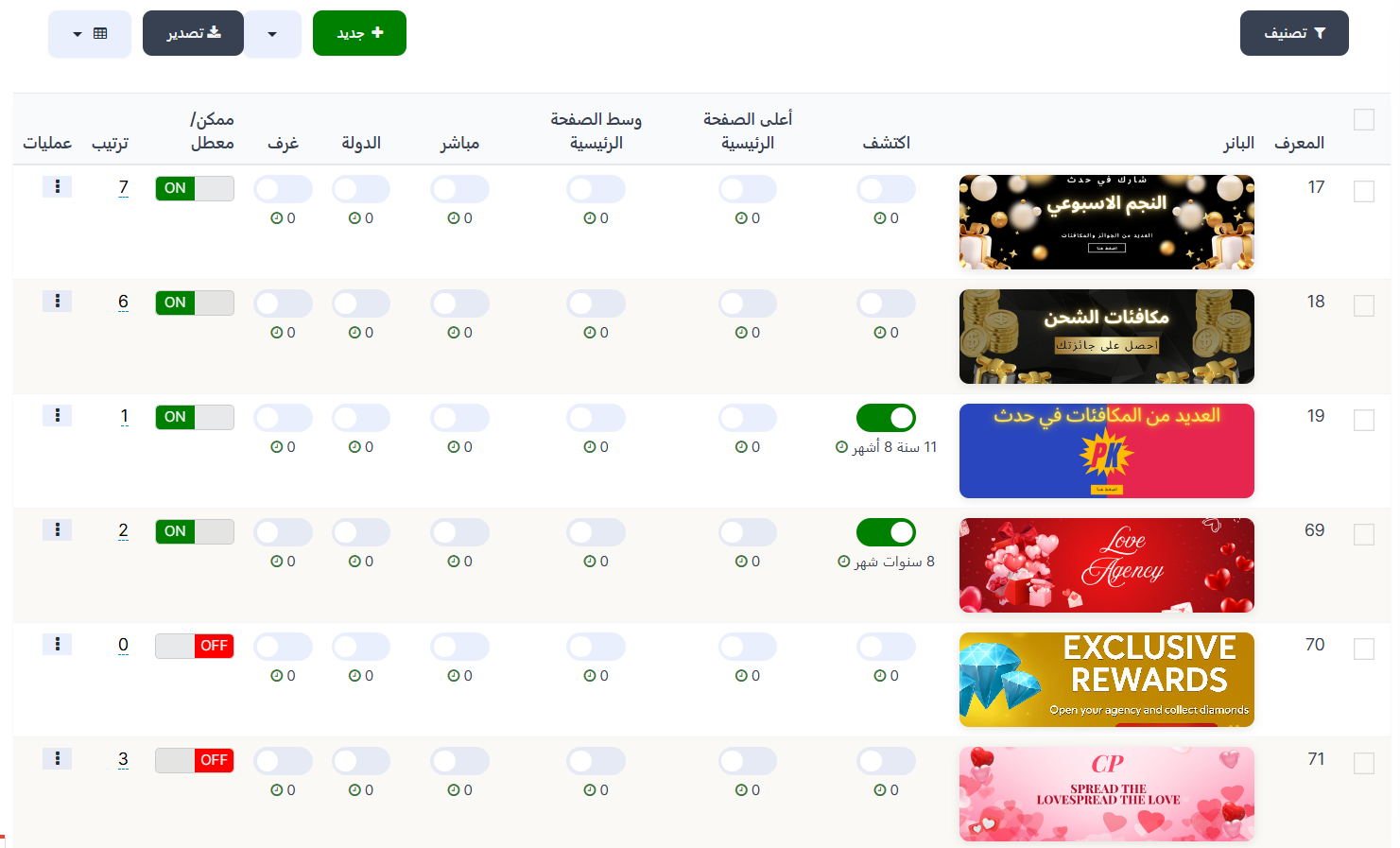
The Banners page displays all banners (image advertisements) that appear in different locations within the app. You can control where each banner appears, its display duration, order, and enable or disable it.
Access:
Sidebar → Advertisements → Banner
Top Buttons:
| Button | Description |
|---|---|
| 🔽 Filter | Sorting and filtering options |
| ➕ New | Create a new banner |
| 📊 Export | Export data |
Banners Table:
| Column | Description |
|---|---|
| ID | Unique banner identifier |
| Banner | Banner advertisement image |
| Discover | 🔘 Enable/disable banner display on Discover page — remaining duration shown next to it |
| Home | 🔘 Enable/disable banner display on Home page |
| Top of Home | 🔘 Enable/disable banner display at the top of the Home page |
| Middle of Home | 🔘 Enable/disable banner display in the middle of the Home page |
| Live | 🔘 Enable/disable banner display on Live page |
| Country | 🔘 Enable/disable banner display on Country page |
| Rooms | 🔘 Enable/disable banner display in Rooms — count shown next to it |
| Enabled/Disabled | Banner status: ON (green = enabled) or OFF (red = disabled) |
| Order | Banner display order — lower number appears first |
| Actions | Additional actions (⋮) |
Remaining Duration
- When a duration appears next to the toggle (e.g., 11 years 8 months) it means the banner is still active.
- When the count is 0 it means the banner has expired and is no longer displayed.
- To reactivate an expired banner, open it and update the duration.
Create a New Banner:
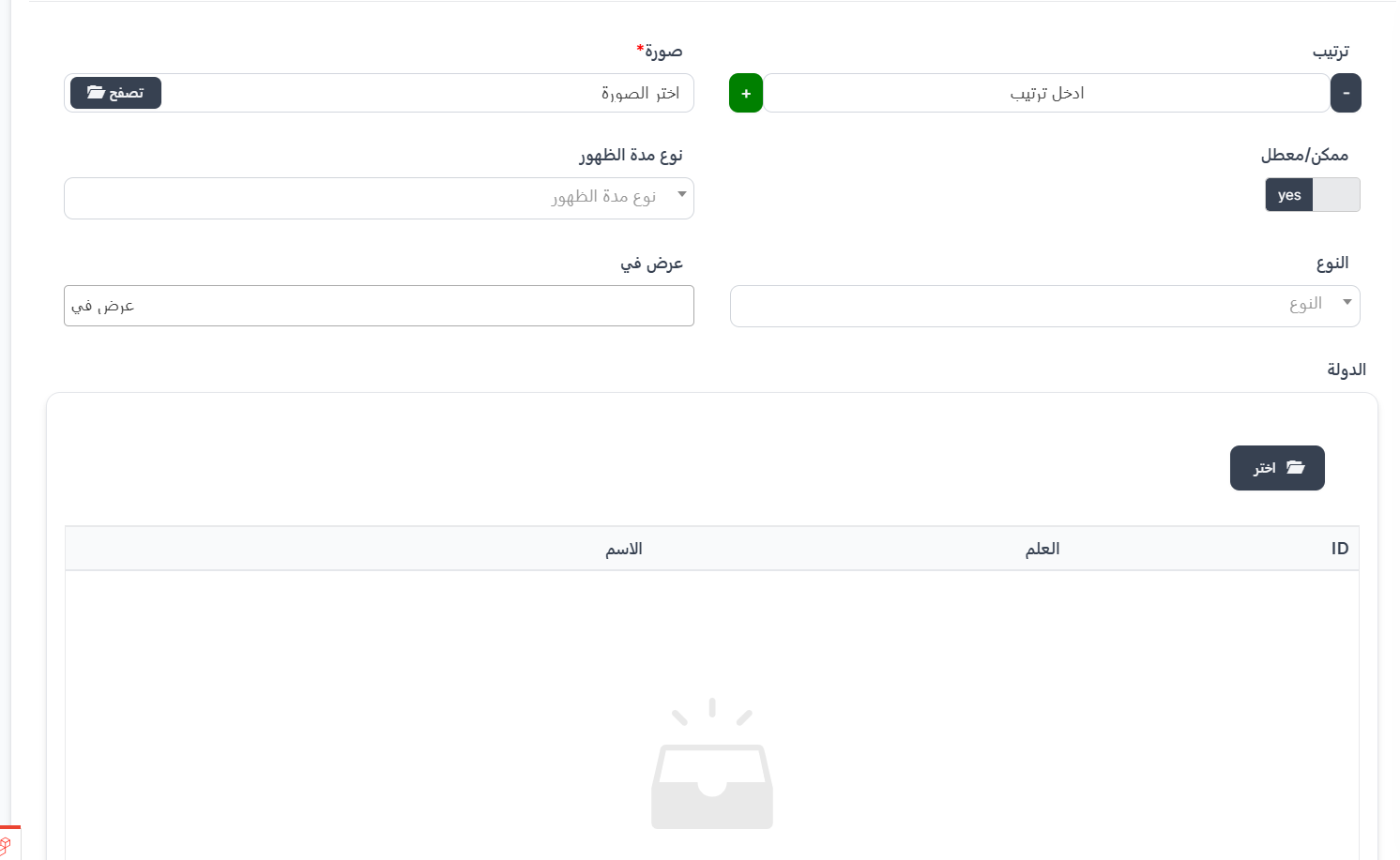
Click ➕ New to create a new banner.
Basic Fields:
| Field | Description | Required |
|---|---|---|
| Order | Banner display order (use +/- to increase or decrease) | ❌ No |
| Image | Banner image — click 📂 Browse to select | ✅ Yes |
| Enabled/Disabled | Enable or disable the banner (yes = enabled) | ❌ No |
| Duration Type | Define the banner display duration type | ❌ No |
| Type | Banner type (determines behavior when clicked) | ❌ No |
| Display In | Define where the banner appears in the app | ❌ No |
| Country | Define which countries the banner appears in — click 📂 Select | ❌ No |
Duration Type:
| Option | Description |
|---|---|
| Hours | Set duration in hours — enter number of hours in Input field |
| Days | Set duration in days — enter number of days in Input field |
| Months | Set duration in months — enter number of months in Input field |
| Lifetime | Banner stays displayed without expiration |
Duration Example
- Entering 1 with type Days = Banner displays for one day
- Entering 2 with type Months = Banner displays for two months
- Selecting Lifetime = Banner displays permanently
Type:
Determines what happens when a user clicks the banner:
| Option | Description |
|---|---|
| Normal | Normal banner with no action on click |
| Rooms | Clicking opens a specific room |
| URL | Clicking opens an external link — Link field appears for input |
| Events | Clicking opens a specific event — Events field appears for selection |
Available Event Types:
| Event | Description |
|---|---|
| Events | General events |
| pk_event | PK event |
| weekly_star | Star of the Week |
| charge_event | Charge event |
| event_period | Period event |
| weekly_cp | Weekly CP |
Display In:
Define where the banner appears in the app — you can select multiple locations:
| Location | Description |
|---|---|
| Discover | Discover page |
| Top of Home | Top of the Home page |
| Middle of Home | Middle of the Home page |
| Live | Live page |
| Country | Country page |
| Rooms | Inside rooms |
Quick Summary:
| Action | Steps |
|---|---|
| View Banners | Advertisements → Banner |
| Create Banner | ➕ New → Upload image → Set duration and type → Select display locations → Submit |
| Enable/Disable Banner | Click ON/OFF in Enabled/Disabled column |
| Change Order | Edit the order number (lower appears first) |
| Renew Expired Banner | Open banner → Update duration |
| Enable/Disable Location | Click the toggle in the appropriate column (Discover/Home/Middle/etc.) |