🔤 Language Settings
Introduction
Language settings allow you to control the languages available within the app. Based on the activated languages, the Dashboard can be translated and displayed in the language chosen by the user from the activated languages.
Note: The default language is set from the Settings page in the "Time" tab under the "Default Language" option.
Language Management Page
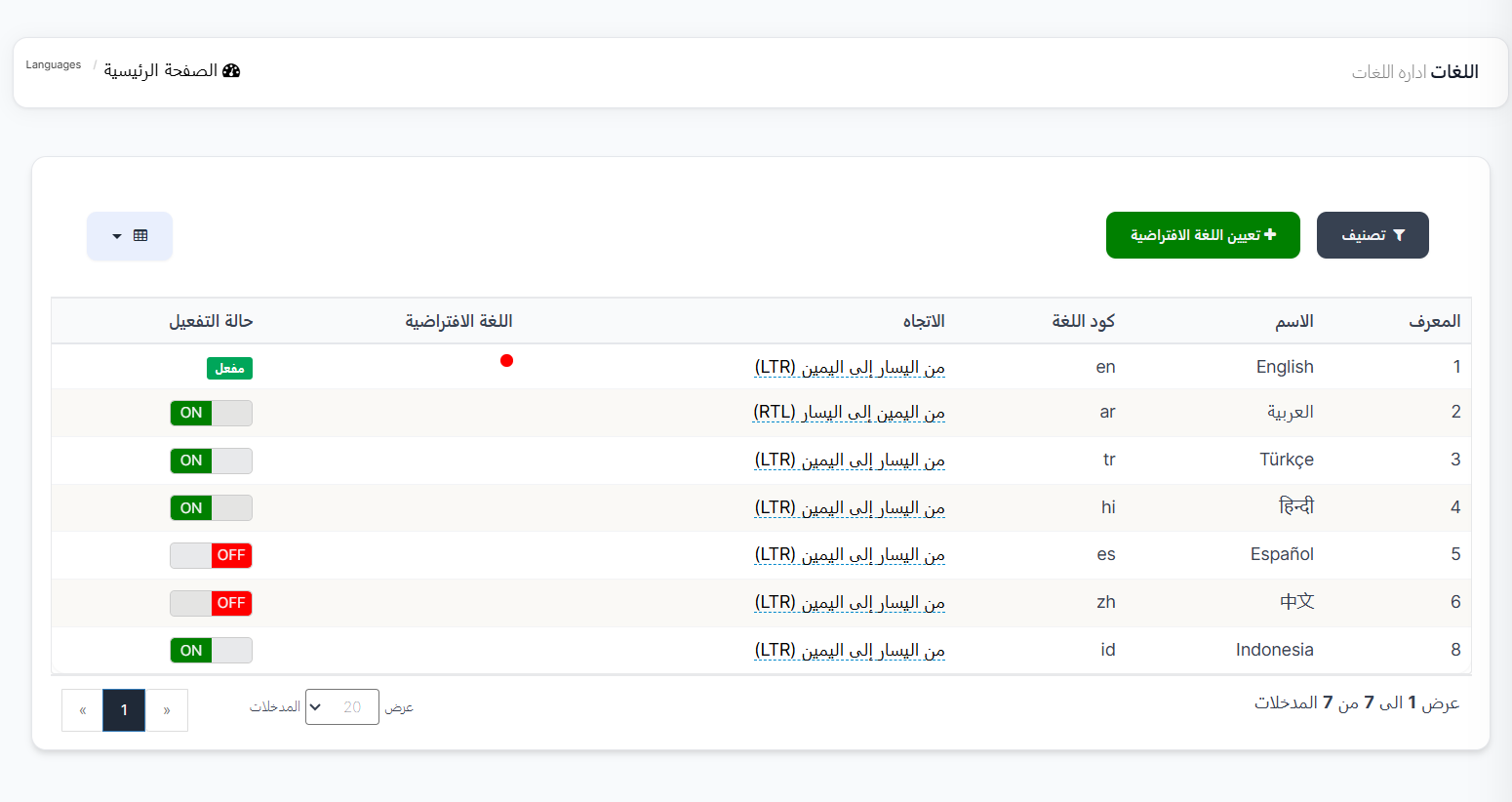
When accessing the "Languages" page, a list of all available languages will appear containing:
| ID | Name | Language Code | Direction | Default Language | Activation Status |
|---|---|---|---|---|---|
| 1 | English | en | Left to Right (LTR) | 🔴 | Activated |
| 2 | العربية | ar | Right to Left (RTL) | ON | |
| 3 | Türkçe | tr | Left to Right (LTR) | ON | |
| 4 | हिन्दी | hi | Left to Right (LTR) | ON | |
| 5 | Español | es | Left to Right (LTR) | OFF | |
| 6 | 中文 | zh | Left to Right (LTR) | OFF | |
| 8 | Indonesia | id | Left to Right (LTR) | ON |
Column Descriptions:
- ID: Language identification number
- Name: Language name
- Language Code: Language abbreviation code (e.g., en for English, ar for Arabic)
- Direction: Writing direction - Left to Right (LTR) or Right to Left (RTL) like Arabic
- Default Language: A 🔴 mark appears next to the selected default language
- Activation Status: ON = activated, OFF = deactivated
Activating or Deactivating a Language
- To activate a language: Change the activation status to ON
- To deactivate a language: Change the activation status to OFF
Note: Only activated languages will appear to users in the app to choose their preferred language.
Setting the Default Language
Click the "+ Set Default Language" button to choose the language that will be the app's default language. The default language is the language the app displays on first use before the user selects their preferred language.
Note: Make sure the default language set here matches the "Default Language" setting in the Settings page → Time tab.