👤 User Profile
Introduction
The user profile is a comprehensive multi-tab interface for viewing and editing all user information. It provides a detailed look at user data including personal information, VIP levels, transaction history, gifts, badges, and wallet balance.
How to Access
Sidebar ← Users ← Select User ← View
Or from the ACTION column in the users table ← View
Profile Header
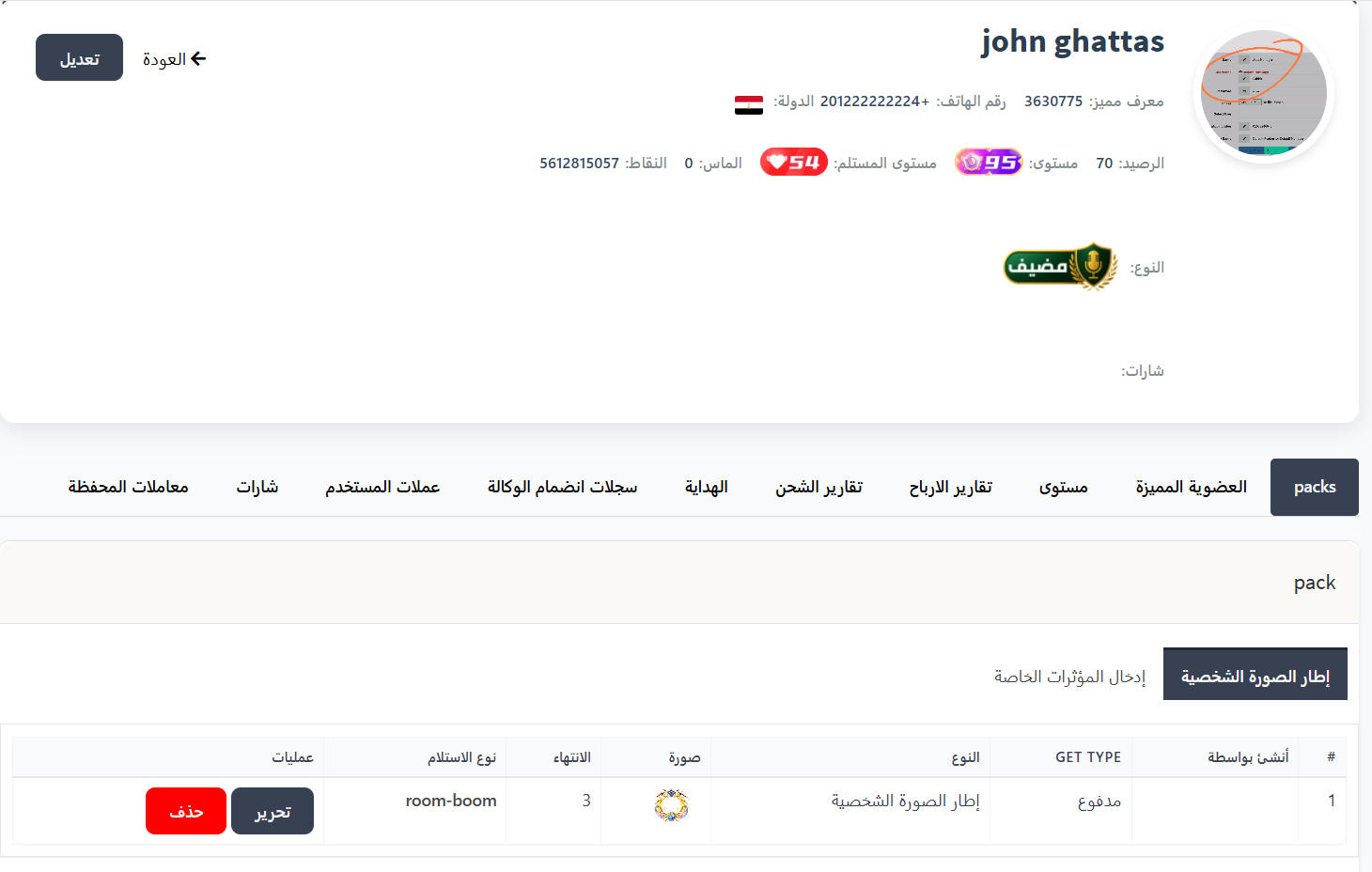
At the top of the page, the user's basic information is displayed:
Control Buttons:
| Button | Description |
|---|---|
| ← Back | Return to the users page |
| Edit | Open user data editing page (see Edit User Data below) |
Basic Information:
| Info | Description |
|---|---|
| User Photo | Avatar with level frame |
| Name | Full username (e.g., john ghattas) |
| Unique ID | User's unique identifier (UID) (e.g., 3630775) |
| Phone Number | User's registered phone number (e.g., +201222222224) |
| Country | User's country with flag 🇪🇬 |
| Balance | Current coin balance |
| Level | User's sending level (e.g., 95) with level icon |
| Receiver Level | User's receiving level (e.g., 54) with level icon |
| Diamonds | Current diamond balance |
| Points | Total user points (e.g., 5612815057) |
| Type | User type in the app (e.g., Host 🎙️) |
| Badges | Badges earned by the user |
Edit User Data
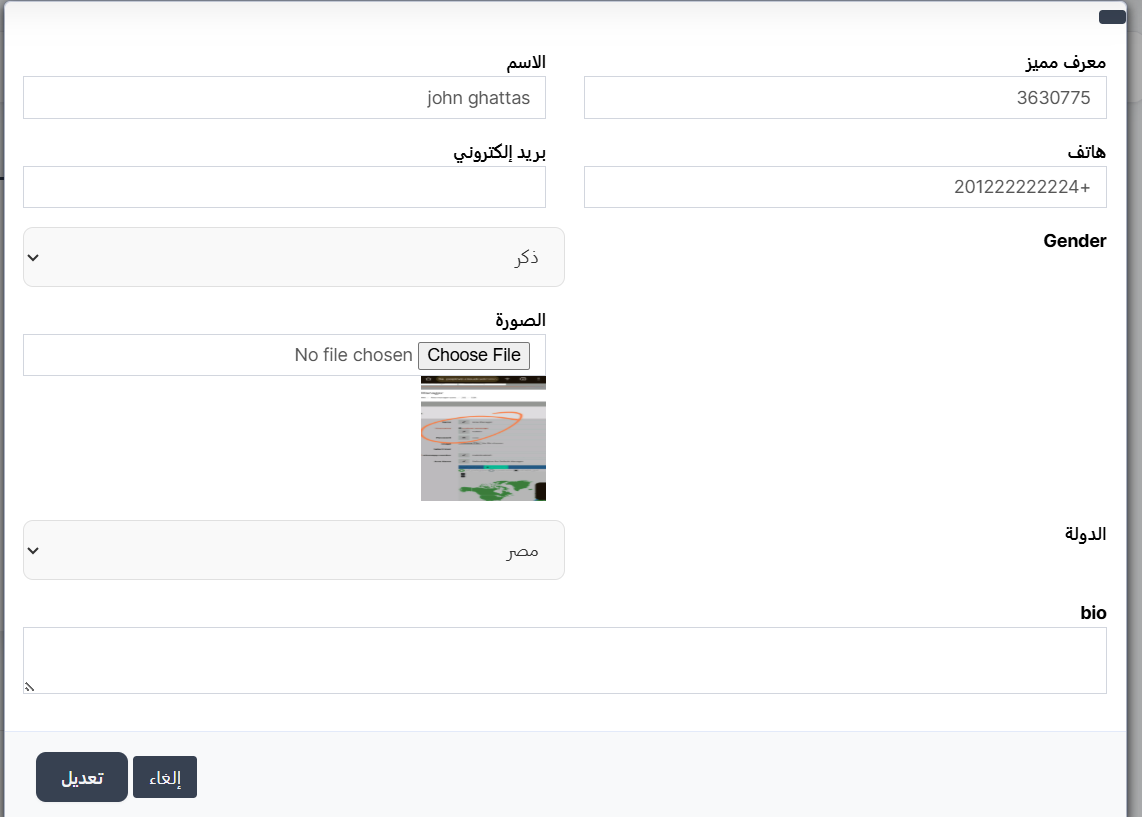
When clicking the "Edit" button at the top of the profile, the edit page appears with the following fields:
| Field | Description | Editable |
|---|---|---|
| Unique ID | User's unique identifier (UID). Display only, cannot be changed | ❌ |
| Name | Username displayed in the app. You can change it here | ✅ |
| Phone | User's registered phone number (e.g., +201222222224) | ✅ |
| User's email (optional) | ✅ | |
| Gender | User's gender - dropdown (Male / Female) | ✅ |
| Photo | User's profile photo. Click Choose File to upload new photo | ✅ |
| Country | User's country - dropdown to select country | ✅ |
| Bio | User's bio/description shown in their in-app profile | ✅ |
Save Buttons:
| Button | Description |
|---|---|
| Edit | Save changes and apply to user account |
| Cancel | Discard changes and return to profile without saving |
Tip
- Changing Country will affect user's visibility when filtering by country.
- Changing Photo takes effect immediately after saving.
- Bio field supports long text and appears in the in-app profile.
Warning
Changing Phone Number may affect the user's ability to log in. Verify the new number before saving.
Available Tabs
The profile contains 11 tabs for viewing different aspects of user data:
1. 📦 Packs
The Packs tab displays special items owned by the user. It's divided into two sections:
Gift Store Items to User
You can grant store items to users for free (frames, special effects, etc.) through Fast Orders in the sidebar:
Sidebar ← Fast Orders ← Gift Store Items
Tip
- Use this feature to compensate users for failed purchases or as promotional gifts.
- Verify the item appears in the Packs tab after gifting.
Profile Frame
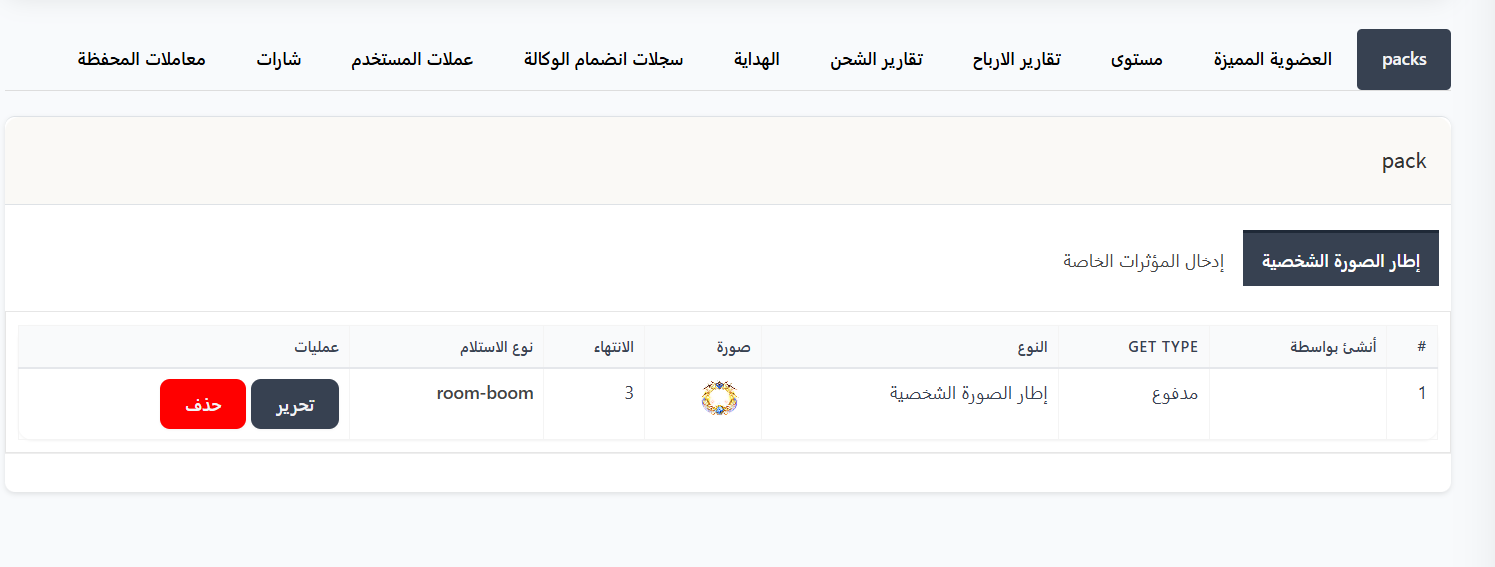
Premium frames the user owns for their profile picture.
| Column | Description |
|---|---|
| # | Serial number |
| Created By | Who created/added this frame |
| GET TYPE | How the frame was obtained (paid, free, reward) |
| Type | Item type (Profile Frame) |
| Image | Frame image preview |
| Expiry | Remaining validity or expiry date |
| Receipt Type | How the user obtained the frame (e.g., room-boom) |
| Operations | Edit and Delete buttons |
Special Effects Entry
Special effects the user owns for room entries.
Managing Pack Items:
From the Operations column in the table, you can:
| Button | Function |
|---|---|
| Edit | Edit the item — you can extend the validity period (expiry) for items like profile frames or special effects |
| Delete 🔴 | Permanently delete the item from the user's account — it will disappear from the app immediately |
Tip
- Use Edit to extend an expired or nearly expired item instead of deleting and re-granting it.
- The Expiry column shows the remaining days of item validity.
Warning
Deletion is permanent and cannot be undone. Make sure before deleting any item from a user's account.
2. 💎 VIP Membership
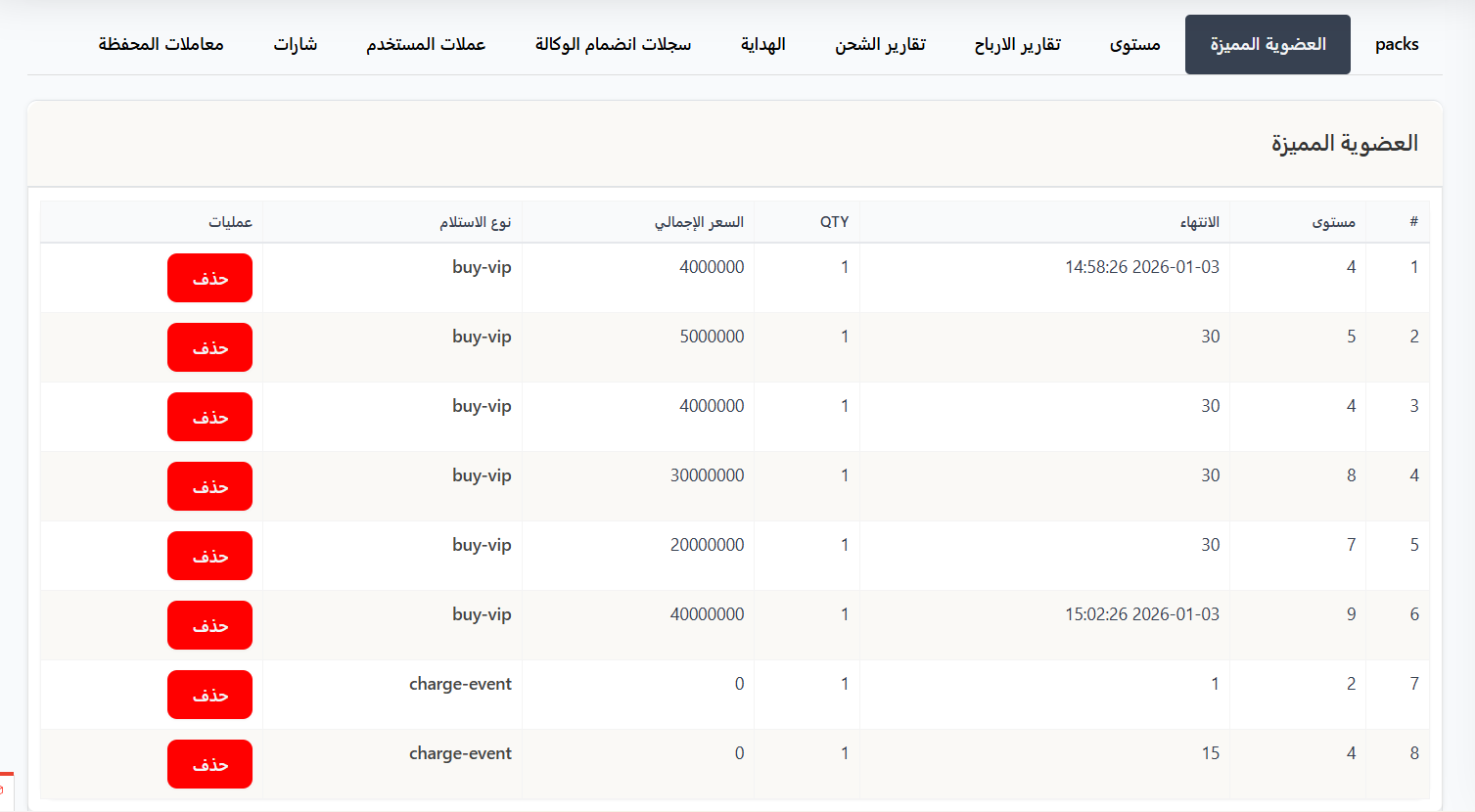
This tab displays all VIP subscriptions for the user in a table with the following columns:
| Column | Description |
|---|---|
| # | Serial number |
| Level | VIP level (e.g., 4, 5, 7, 8, 9) |
| Expiry | Subscription expiry date (e.g., 2026-01-03 14:58:26) or remaining days (e.g., 30) |
| QTY | Quantity |
| Total Price | Subscription price in coins (e.g., 4000000) |
| Receipt Type | How VIP was obtained (e.g., buy-vip purchase, charge-event charge event) |
| Operations | Delete 🔴 button to cancel VIP subscription |
Delete VIP Subscription
You can delete any VIP subscription from the user by clicking the Delete 🔴 button next to the subscription to cancel.
Warning
Deleting a VIP subscription is permanent and cannot be undone. The user will lose all privileges of the deleted VIP level immediately.
Gift Free VIP Membership
You can grant free VIP membership to users through Fast Orders in the sidebar:
Sidebar ← Fast Orders ← Gift VIP
Tip
- Use this for promotions, compensation, or special cases.
- Specify VIP level and duration precisely when gifting.
- Useful for resolving VIP payment issues — if payment failed but amount was deducted.
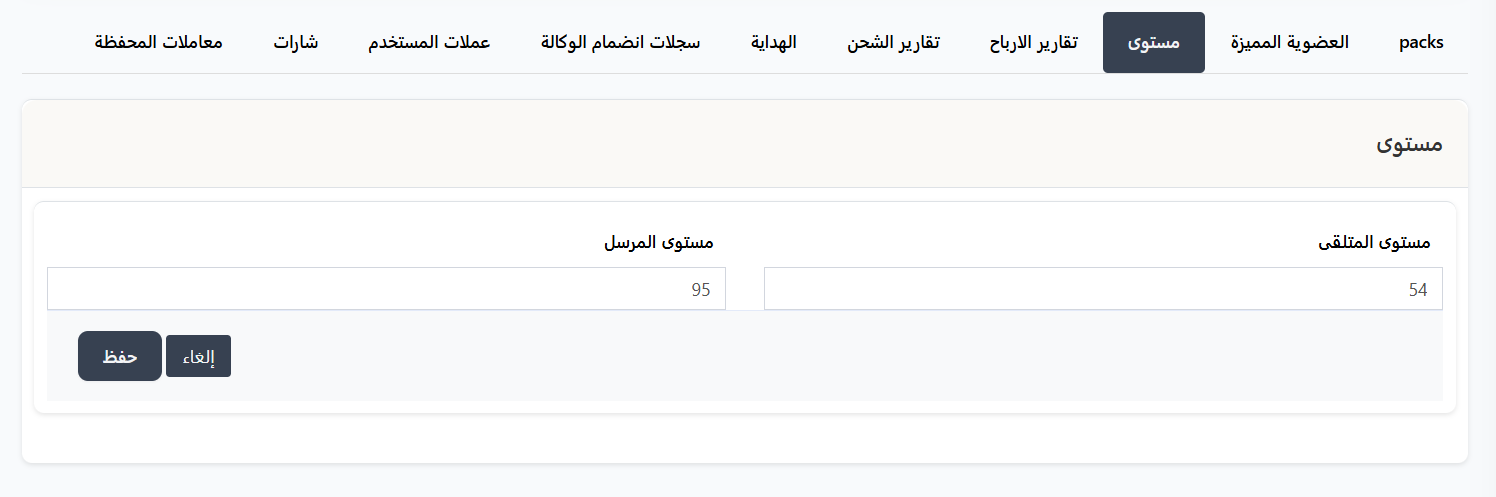
3. 📊 Level
Displays user's progress in the levels system:
- Current sending and receiving levels
Manual Level Editing
You can manually edit a user's level (increase or decrease) through Fast Orders in the sidebar:
Sidebar ← Fast Orders ← Edit Level
✏️ Open User Level Editing Page
Tip
- Use + and - buttons to increase or decrease the sender (Wealth) and receiver (Charm) levels.
- For more details, see the User Levels page.
4. 📈 Earnings Reports
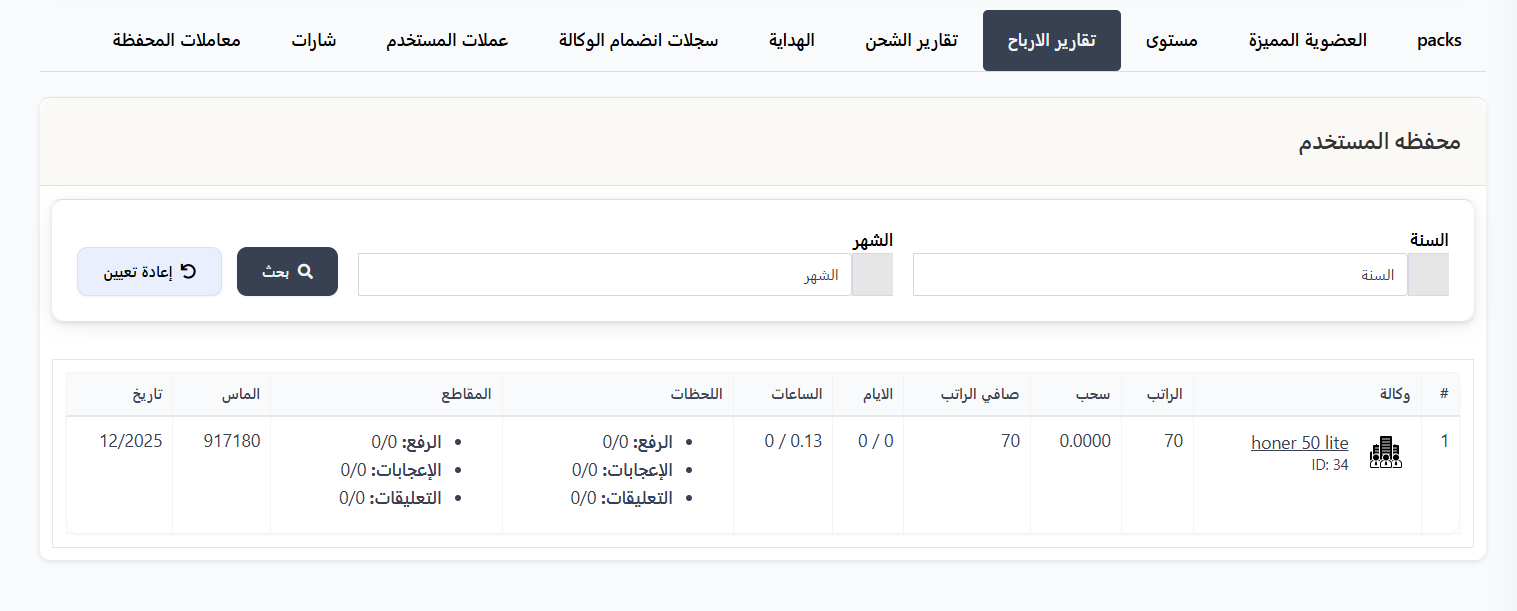
Displays detailed reports on user earnings:
- Daily, weekly, and monthly earnings
- Total earnings achieved
- Details of each earning transaction
5. 💳 Charge Reports
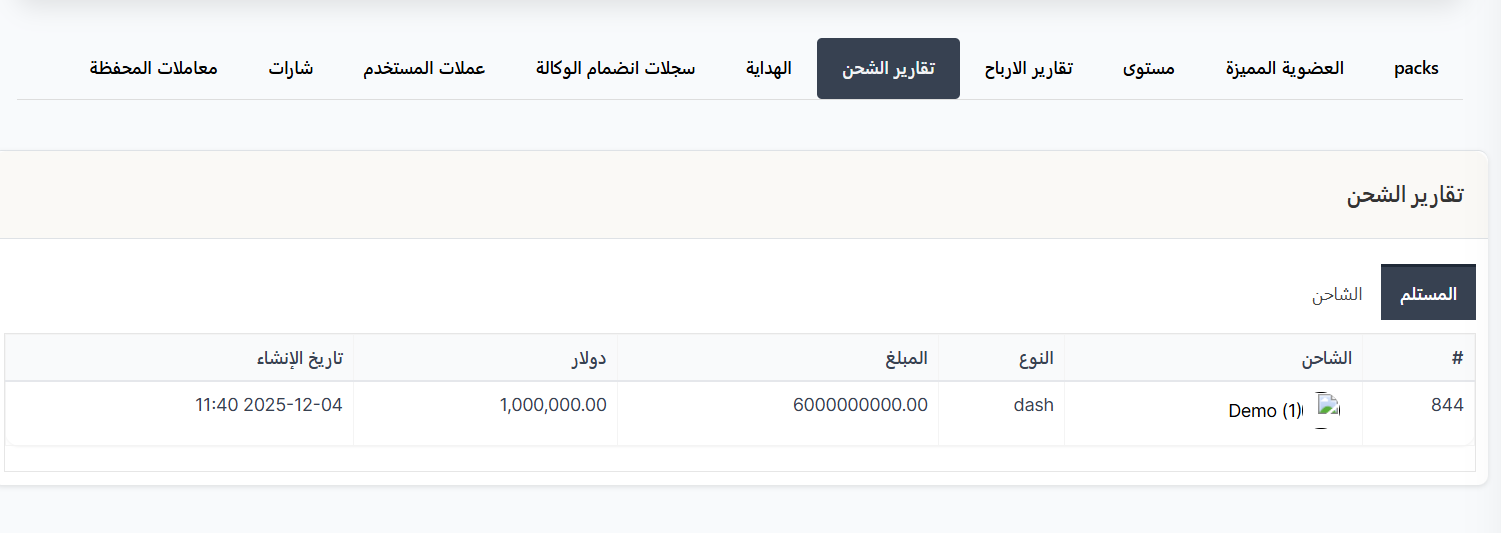
Displays user's charge transaction history:
- Coin charge operations
- Date and time of each charge
- Amount charged
- Payment method used
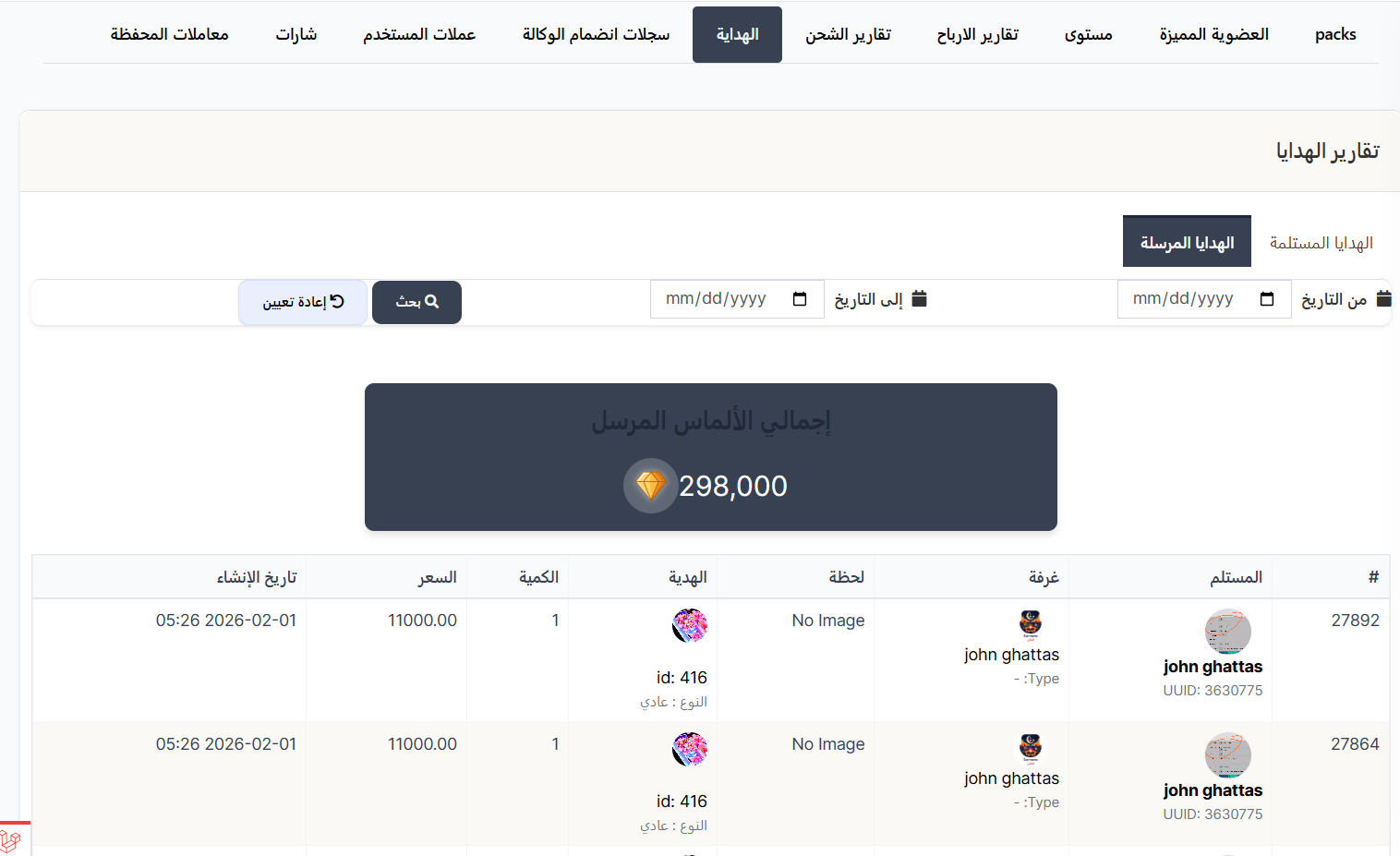
6. 🎁 Gifts
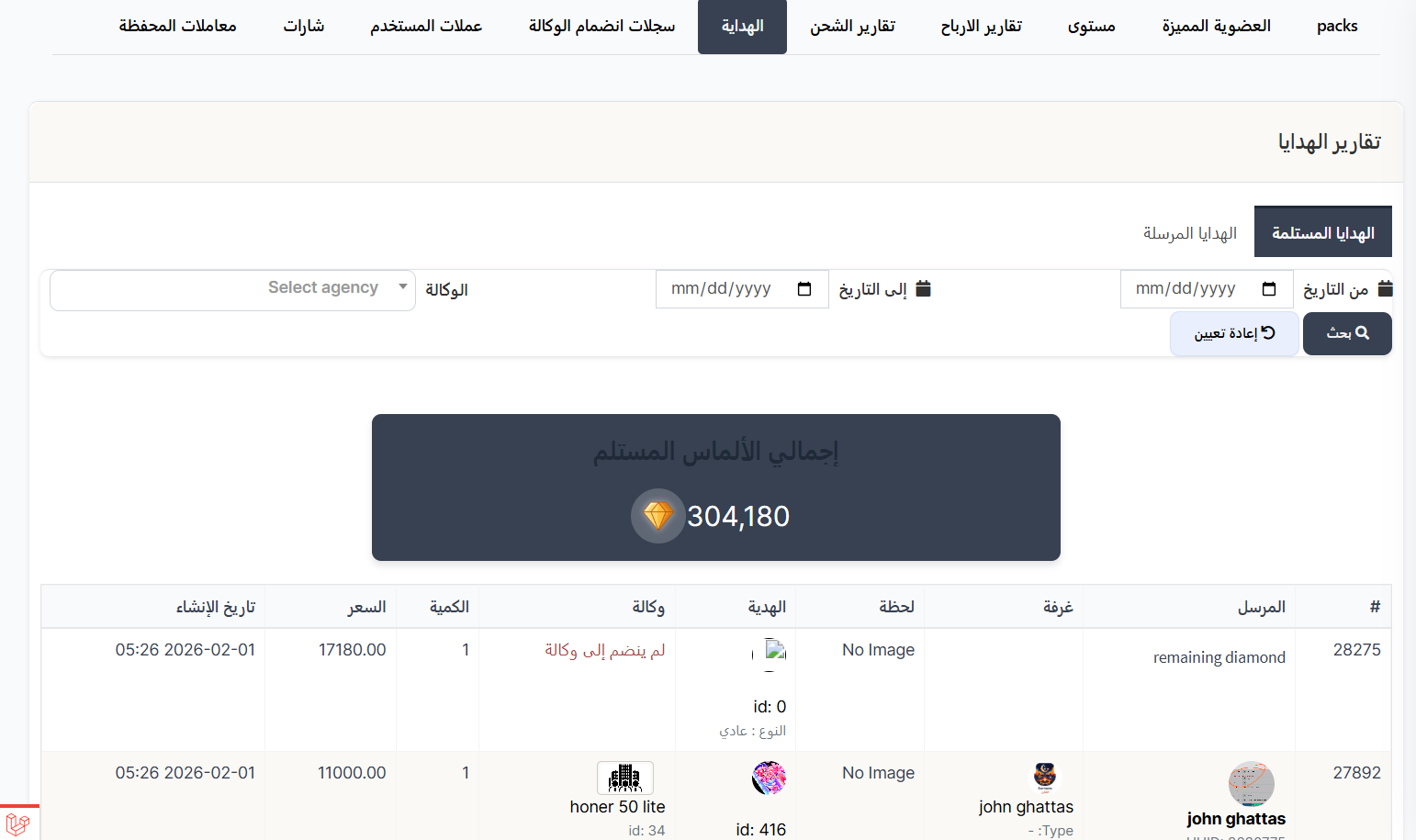
Displays sent and received gift history:
- Gifts sent by the user to others
- Gifts received from other users
- Type and value of each gift
- Date and time of each send/receive
- Sender and receiver names
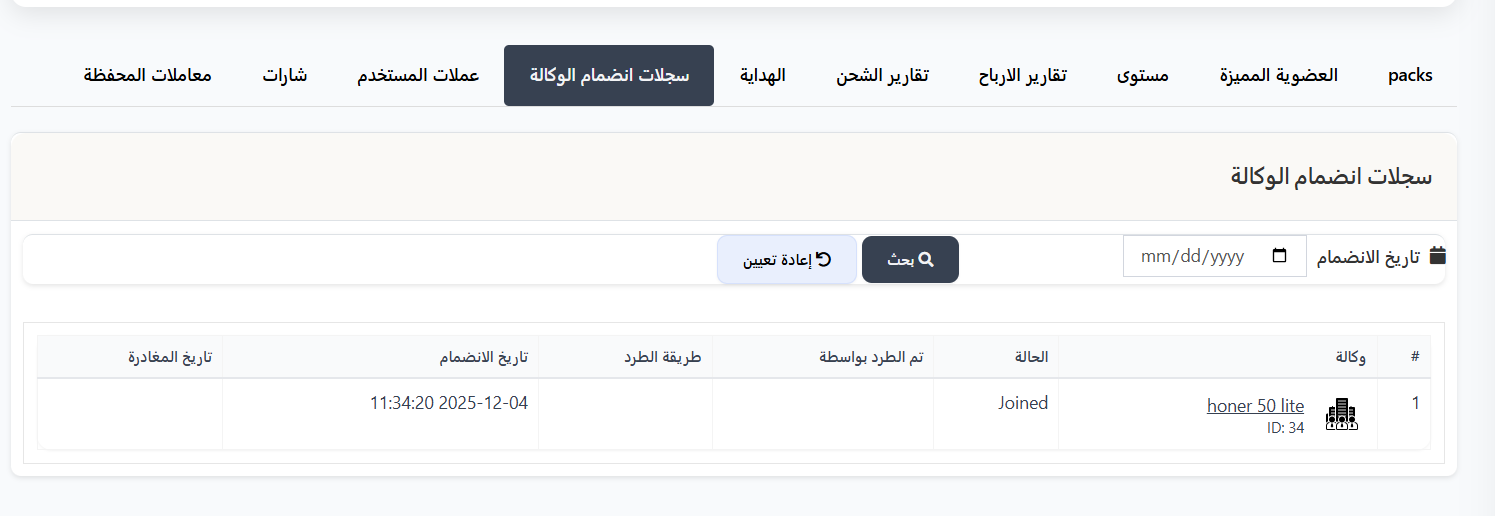
7. 🏢 Agency Join Records
Displays user's agency membership history:
- Current and previous agencies
- Join date for each agency
- Exit date (if applicable)
- Exit reason (kicked, left, etc.)
- Achievements in each agency
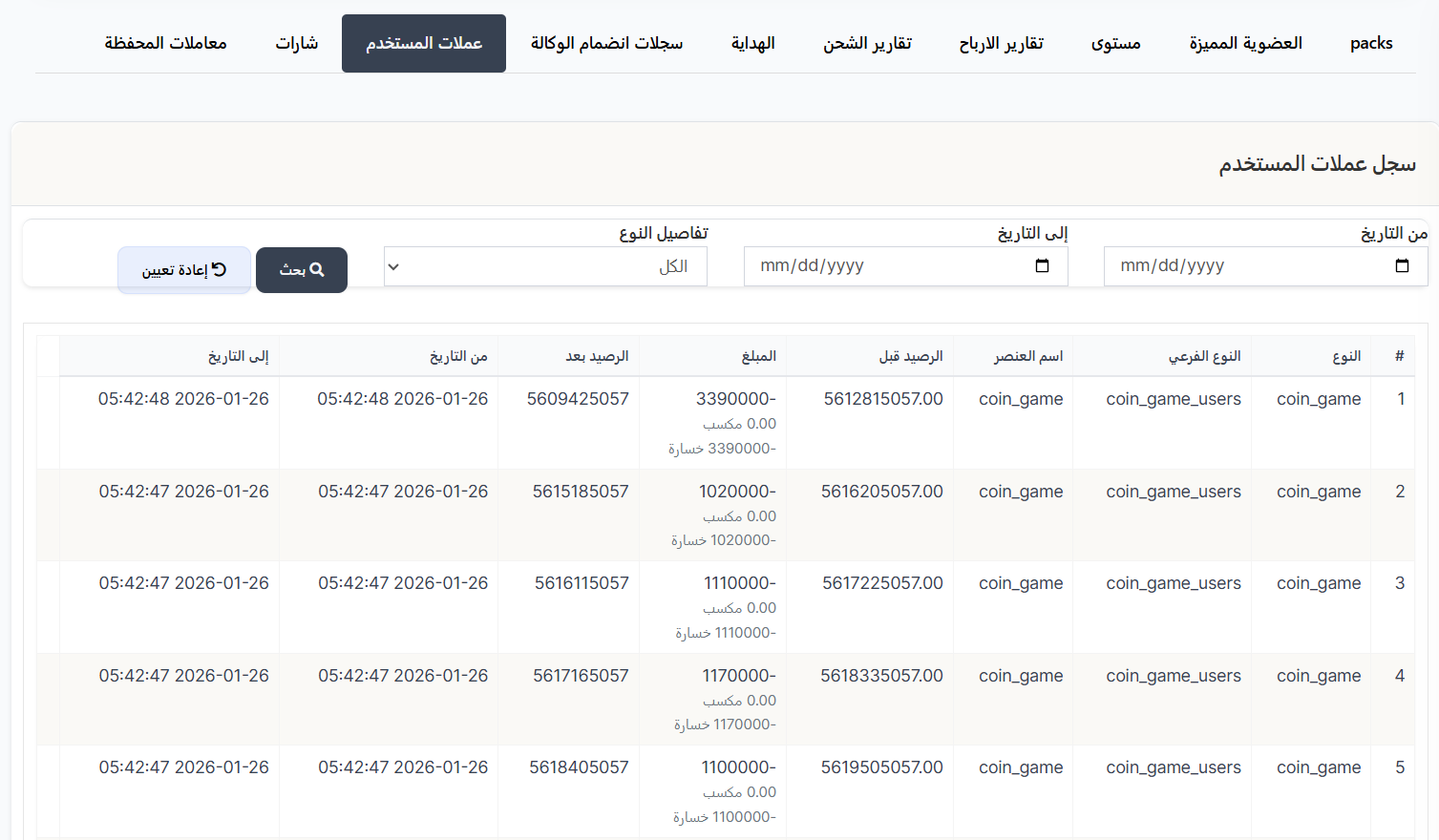
8. 🪙 User Coins
Displays coin balance details:
- Coin transaction history (additions and deductions)
- Sources of coins
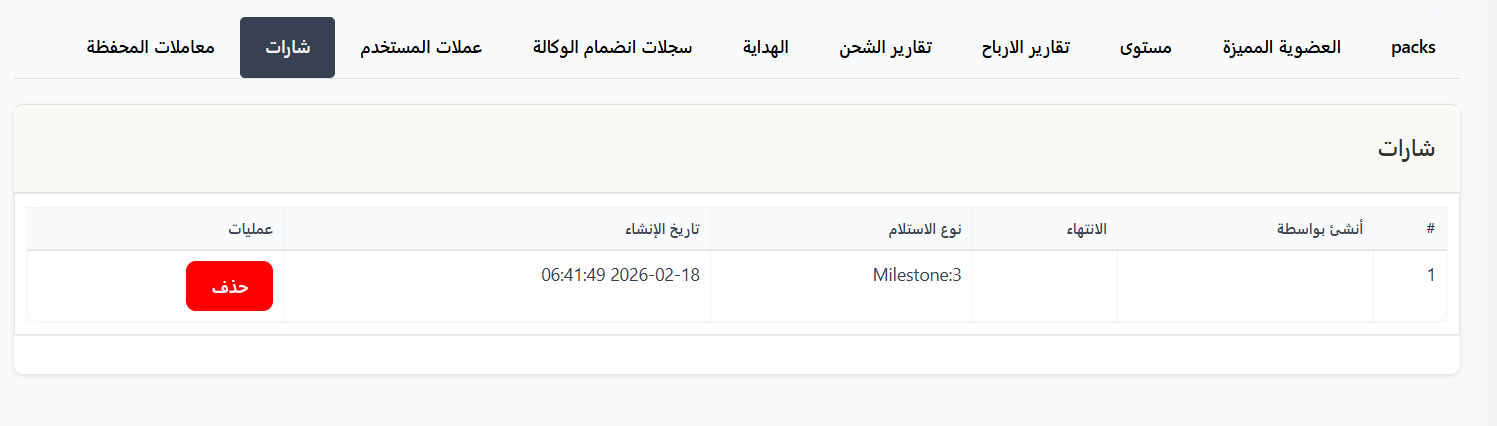
9. 🏅 Badges
Displays badges earned by the user:
- All earned badges
- Date each badge was earned
- Badge type and description
- Badge earning conditions
Manually Add Badges to User
You can manually add badges to users through Fast Orders in the sidebar:
Sidebar ← Fast Orders ← Gift Badges
Tip
- Use this to award special badges for events, occasions, or as compensation.
- If a user reports a missing badge, check the Badges tab in their profile first, then add manually if needed.
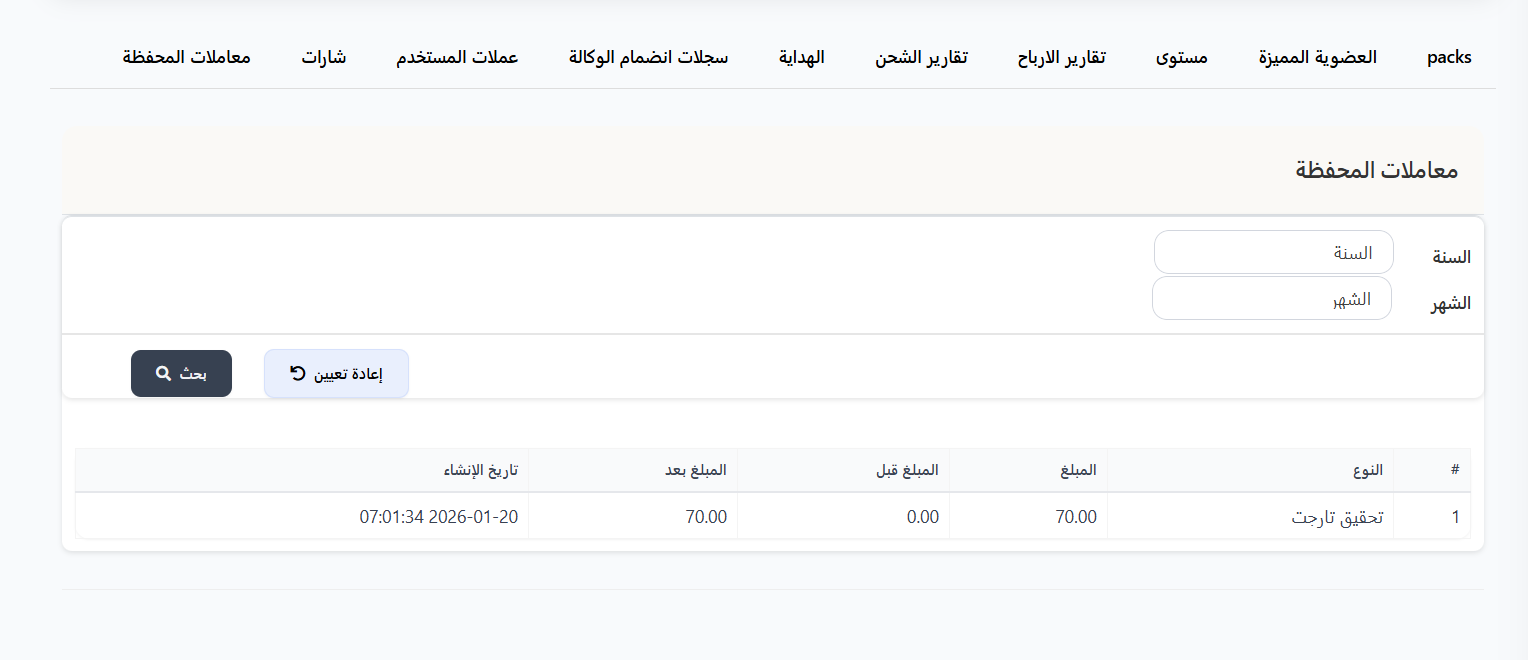
10. 💰 Wallet Transactions
Displays all financial transactions in the user's wallet:
- Deposits and withdrawals
- Salary transfers (dollars)
- Date and time of each transaction
- Amount and status
- Transaction details (from/to)
Tabs Summary
| Tab | Brief Description |
|---|---|
| Packs | Profile frames and special effects |
| VIP Membership | VIP subscription info |
| Level | User's level progress |
| Earnings Reports | Detailed earnings reports |
| Charge Reports | Charge transaction history |
| Gifts | Sent and received gift history |
| Agency Join Records | Agency membership history |
| User Coins | Coin balance and transactions |
| Badges | Earned badges |
| Wallet Transactions | Financial wallet transactions |