🎬 Reels
Introduction
The Reels page is the management interface for short videos (Reels) published by users in the application. Through this page, you can view all published reels, search for a specific reel, and watch videos with their complete details such as likes, comments, and views count.
How to Access
Sidebar ← Videos ← Videos
Main Reels Page
Upon entering the Reels page, an interface appears displaying all published reels in a Grid format with a total reels counter.
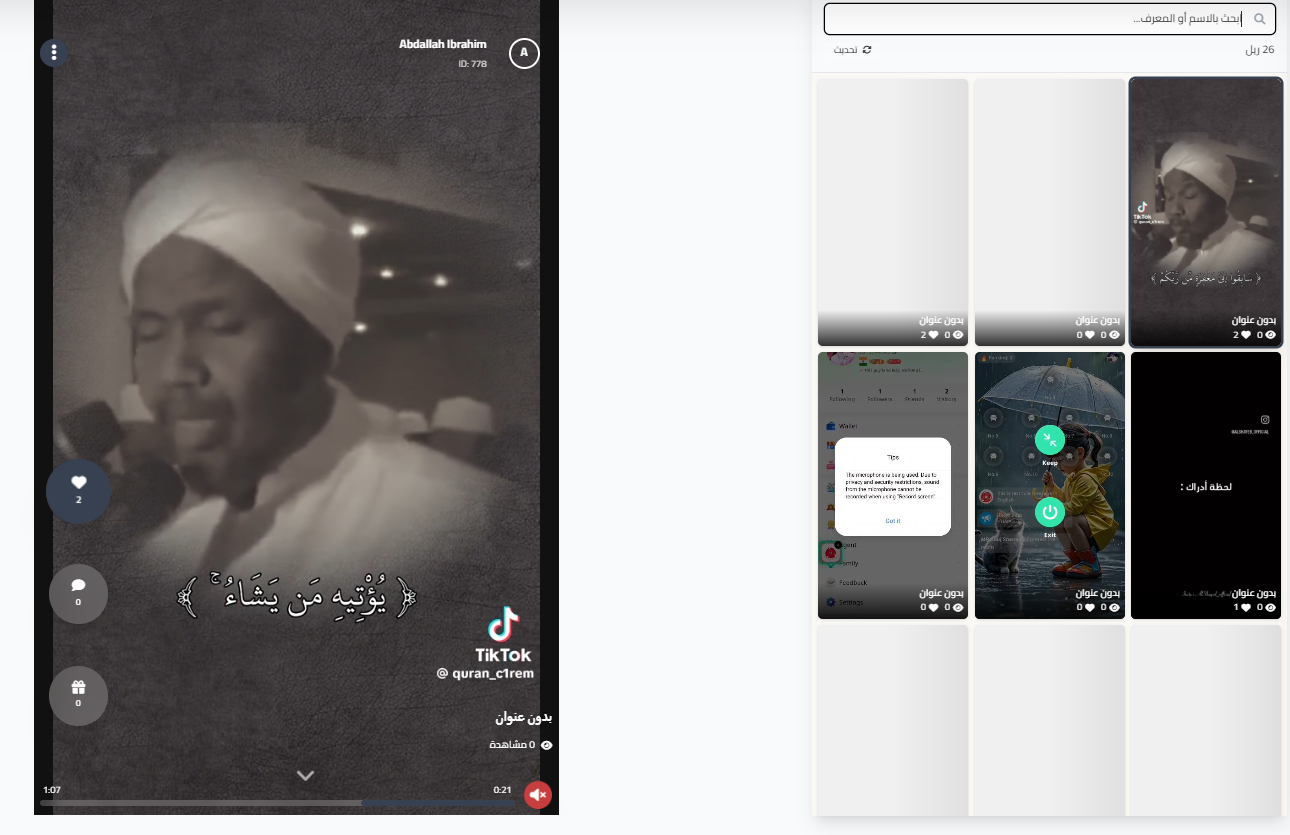
Top Buttons:
| Element | Description |
|---|---|
| Reels Count | Displays the total number of published reels (example: 26 reels) |
| 🔄 Refresh | Button to refresh the page and load the latest reels |
| 🔍 Search | Search field by name or ID for quick access to a specific user's reel |
Search and Filtering
At the top of the page, there is a search field that allows you to search for a specific user's reels:
| Field | Description |
|---|---|
| Search by name or ID | Enter the username or ID number to search for a specific user's reels |
Tip
You can search by username or their ID number to quickly access all reels they've published.
Reels Display Grid
The page displays reels in card format with a grid layout. Each card contains:
| Element | Description |
|---|---|
| Thumbnail | Small preview of the video (Thumbnail) |
| Title | Reel title (example: "Untitled" if the user didn't specify a title) |
| ❤️ Likes Count | Number of likes the reel received |
| 💬 Comments Count | Number of comments on the reel |
| 👁️ Views Count | Number of reel views |
Note
Reels are displayed arranged in a 3-column grid, and you can scroll down to view more reels.
Watching a Reel (Video Player)
When clicking on any reel card, the video player opens on the left side and displays the full reel with all details.
User Information (Top of Player):
| Element | Description |
|---|---|
| User Image | Avatar of the reel owner |
| Username | Name of the user who published the reel (example: Abdallah Ibrahim) |
| ID | Unique user identifier (example: ID: 778) |
| ⋮ Options Menu | Dropdown menu with reel management options |
Interaction Buttons (Side of Player):
| Button | Description |
|---|---|
| ❤️ Like | Number of likes on the reel (example: 2) |
| 💬 Comments | Number of comments on the reel (example: 0) |
| 🎁 Gifts | Number of gifts sent on the reel (example: 0) |
Video Information (Bottom of Player):
| Element | Description |
|---|---|
| Title | Reel title (example: "Untitled") |
| 👁️ Views | Number of reel views (example: 0 views) |
| Progress Bar | Bar showing video duration and current position |
| ⏱️ Time | Total video duration and elapsed time (example: 1:07 / 0:21) |
| 🔊 Sound | Button to mute/unmute video audio |
| ⬇️ Next | Arrow to navigate to the next reel |
Reel Options Menu
When clicking the three dots icon ⋮ at the top of the video player, a menu appears with reel management options:
| Action | Description |
|---|---|
| Delete | Permanently delete the reel from the application |
Warning
Deleting a reel is permanent and cannot be undone. The video will be removed from the application immediately and neither the user nor anyone else will be able to view it after deletion.
Navigating Between Reels
You can navigate between reels in several ways:
| Method | Description |
|---|---|
| Click on a card | Click on any reel card in the grid to watch it |
| ⬇️ Down Arrow | In the video player, click the down arrow to go to the next reel |
Quick Summary
| Action | Steps |
|---|---|
| View all reels | Sidebar ← Reels |
| Search for a user's reel | Enter name or ID in the search field |
| Watch a reel | Click on the reel card in the grid |
| Delete a reel | Open the reel ← ⋮ ← Delete |
| Refresh the list | Click the refresh button 🔄 |
Useful Tips
- Use the search field for quick access to a specific user's reels instead of scrolling through the list.
- Monitor views and likes counts to identify the most popular content.
- In case of inappropriate content, use the delete option from the ⋮ menu to remove it immediately.