📅 Weekly CP Report
Introduction
The Weekly CP Report is a weekly event system for CP relationships. A weekly period is defined, and during this period, CP pairs compete to exchange gifts in rooms. The top 3 pairs who throw the most gifts win the week's prizes. You can create new weekly events and choose gifts for each winner (first, second, and third).
How to Access
Sidebar ← CP ← Weekly CP Report
Rules
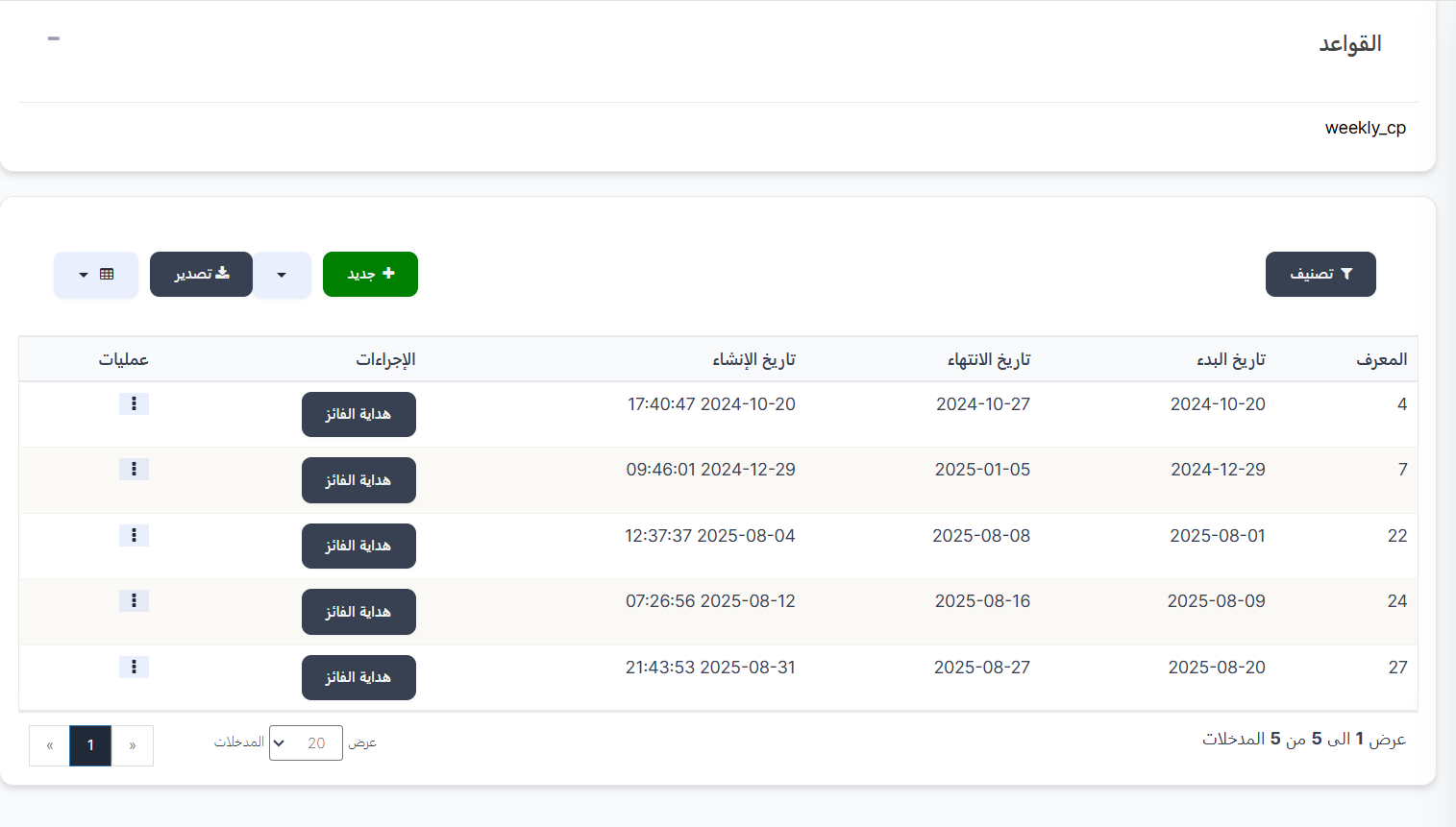
At the top of the page, a Rules section appears explaining the event rules:
| Element | Description |
|---|---|
| Rules | Description of the weekly event rules |
| weekly_cp | Event name/identifier |
Top Buttons
| Button | Description |
|---|---|
| 🔘 Filter | Open search and filter options |
| ➕ New | Create a new weekly event |
| 📤 Export | Export event data |
Weekly Events Table
The table displays all created weekly events:
| Column | Description |
|---|---|
| ID | Event identifier number (example: 4, 7, 22, 24, 27) |
| Start Date | Week start date (example: 2024-10-20) |
| End Date | Week end date (example: 2024-10-27) |
| Creation Date | Event creation date and time (example: 17:40:47 2024-10-20) |
| Actions | Winner Gift button to view and manage winner prizes |
| Operations | ⋮ menu with edit and delete options |
Creating a New Weekly Event
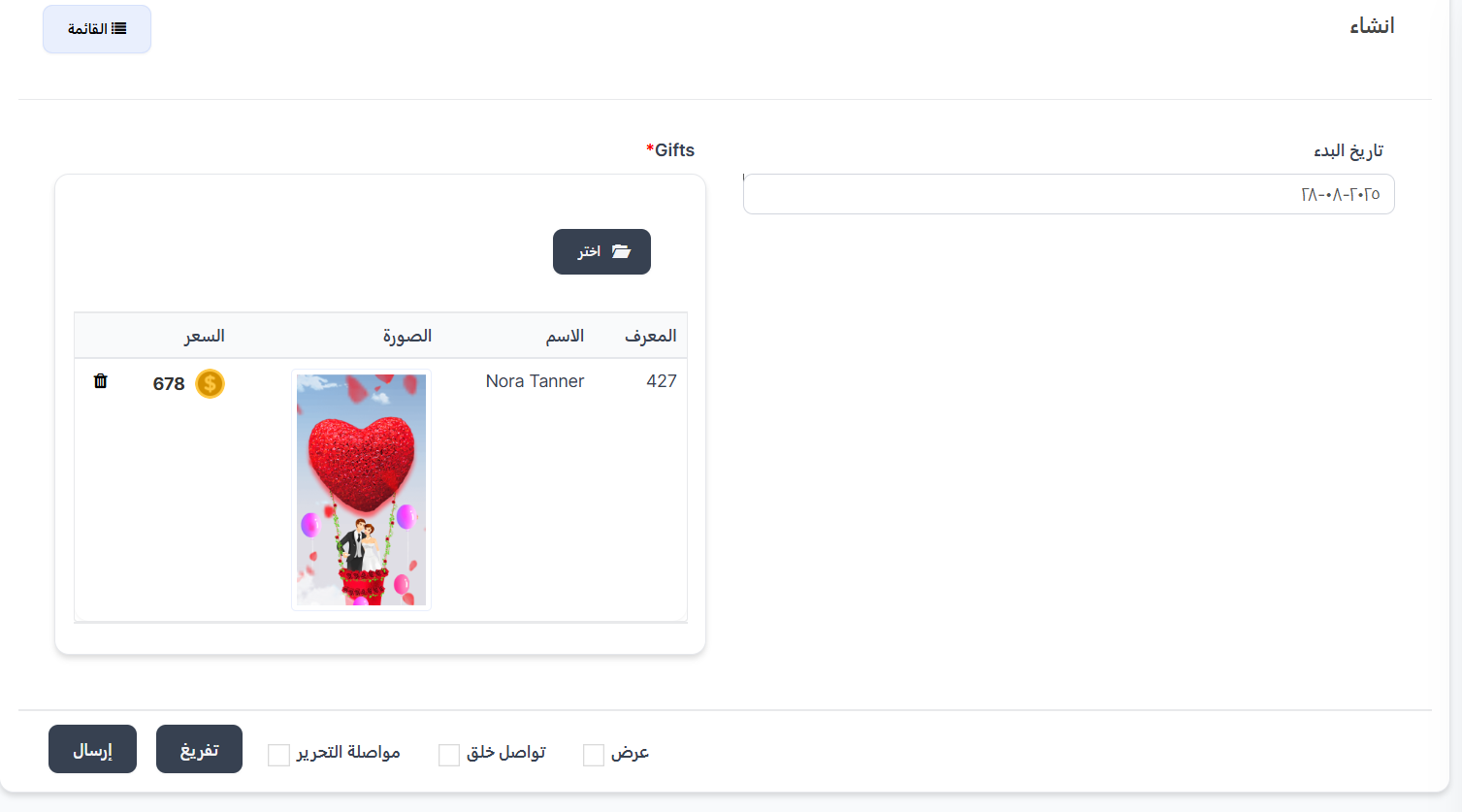
When clicking ➕ New, the creation page appears:
| Field | Description |
|---|---|
| Start Date | Week start date (example: 2025-08-28) |
| Gifts ⭐ | Select available gifts for the event (required) |
Selected Gifts Table:
When clicking 🗂️ Select, a table appears for choosing gifts:
| Column | Description |
|---|---|
| ID | Gift identifier number |
| Name | Gift name |
| Image | Gift image |
| Price | Gift price |
Creation Buttons:
| Button/Option | Description |
|---|---|
| Submit | Save the weekly event |
| Clear | Clear all fields |
| View | View the event |
| Continue Creating | Continue creating other events |
| Continue Editing | Stay on the edit page after saving |
Winner Gifts (Winner Prizes)
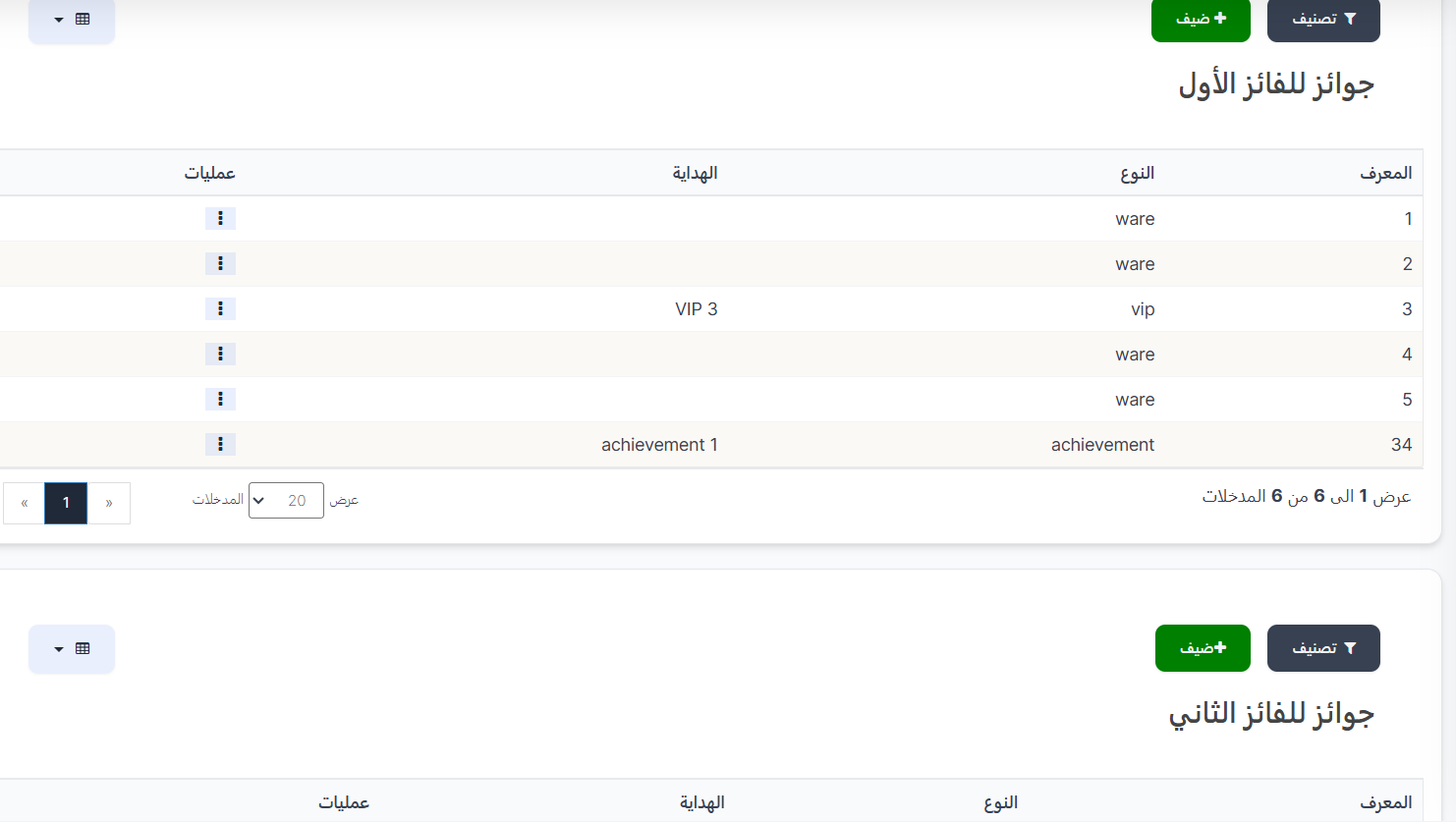
When clicking the Winner Gift button next to any weekly event, a page opens showing prizes for the top three winners.
First Place Prizes 🥇
The top CP pair with the most exchanged gifts during the week.
| Button | Description |
|---|---|
| 🔘 Filter | Search filters |
| ➕ Guest | Add a new gift for the first place winner |
| Column | Description |
|---|---|
| ID | Prize identifier number |
| Type | Prize type (ware / vip / achievement) |
| Gift | Gift details (example: VIP 3, achievement 1) |
| Operations | ⋮ menu with edit and delete options |
Second Place Prizes 🥈
The second highest CP pair.
| Button | Description |
|---|---|
| 🔘 Filter | Search filters |
| ➕ Guest | Add a new gift for the second place winner |
| Column | Description |
|---|---|
| ID | Prize identifier number |
| Type | Prize type |
| Gift | Gift details |
| Operations | ⋮ menu |
Third Place Prizes 🥉
The third highest CP pair.
Same table structure as first and second place.
Adding a Gift for a Winner
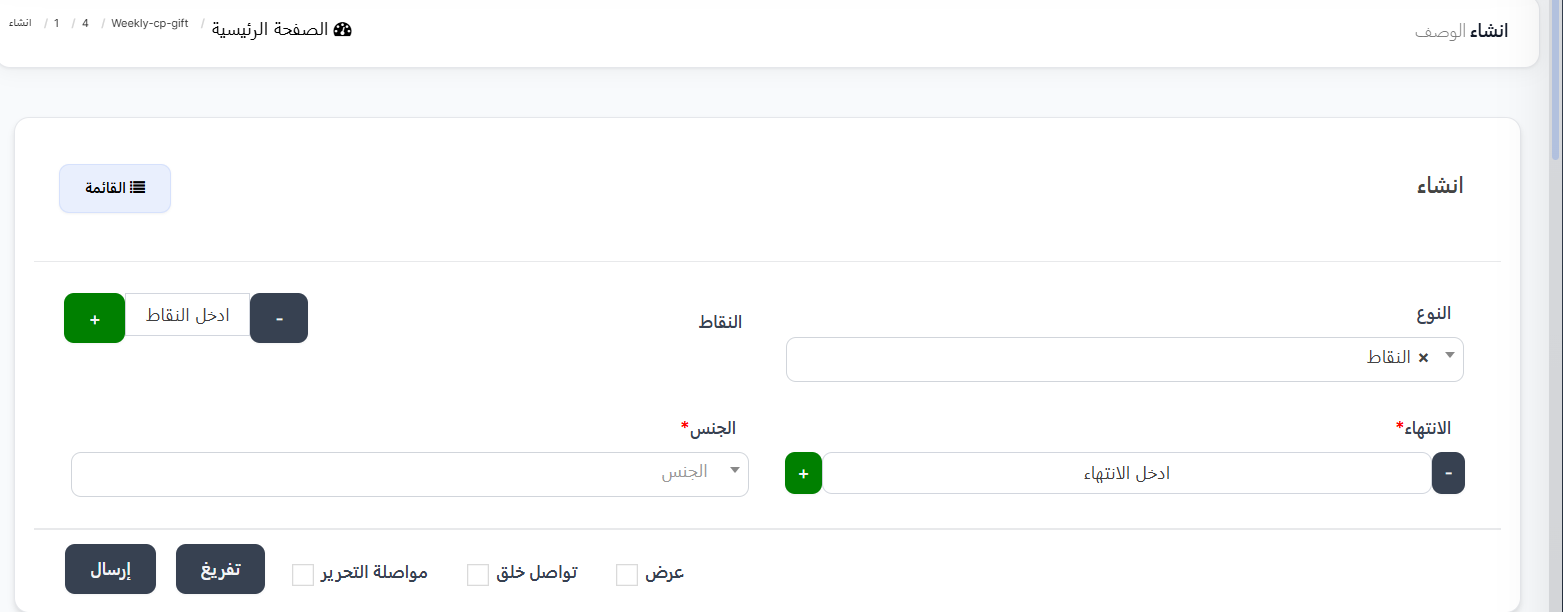
When clicking ➕ Guest in any winner section:
| Field | Description |
|---|---|
| Type | Gift type from dropdown (Points / Ware / VIP Membership / Achievement) |
| Points | Number of points (if type is "Points") |
| Expiry ⭐ | Gift validity duration in days (required) |
| Gender ⭐ | Target gender (All / Male / Female) (required) |
Creation Buttons:
| Button/Option | Description |
|---|---|
| Submit | Save the gift |
| Clear | Clear all fields |
| View | View the gift |
| Continue Creating | Continue creating other gifts |
| Continue Editing | Stay on the edit page after saving |
How Does the Weekly Event Work?
┌──────────────────────────────────────────────────┐
│  1. Create a weekly event with start date & gifts │
│  2. During the week: CP pairs exchange gifts      │
│  3. End of week: Pairs are ranked                 │
│  4. Top 3 pairs receive the designated prizes     │
│     🥇 First Place ← First place prizes           │
│     🥈 Second Place ← Second place prizes         │
│     🥉 Third Place ← Third place prizes           │
└──────────────────────────────────────────────────┘
Quick Summary
| Action | Steps |
|---|---|
| View weekly events | CP ← Weekly CP Report |
| Create new event | ➕ New ← Start date + Select gifts ← Submit |
| View winner prizes | Winner Gift next to the event |
| Add gift for winner | ➕ Guest in winner section ← Type + Expiry + Gender ← Submit |
📊 CP Reports
Introduction
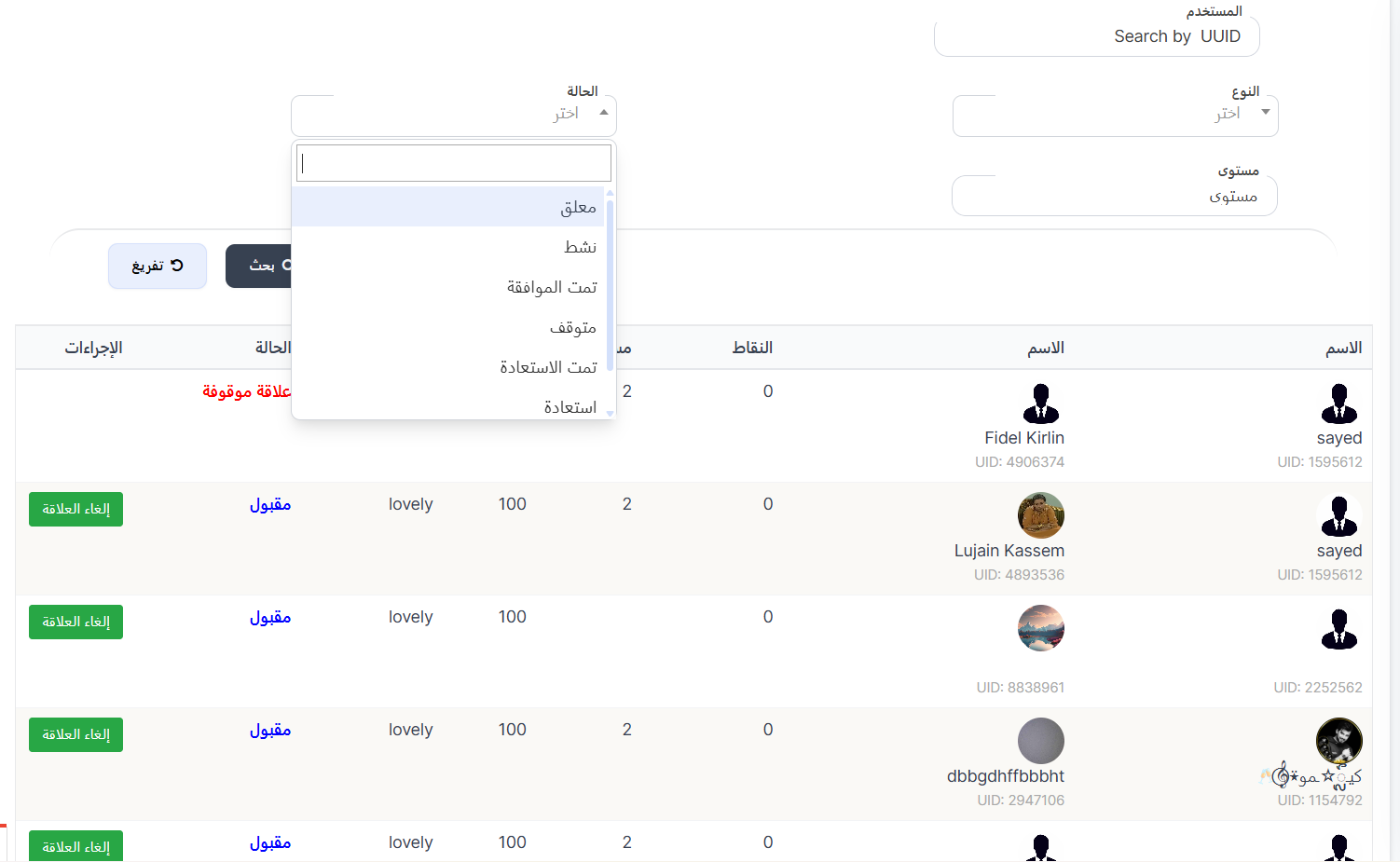
The CP Reports page displays records of all CP relationships between users — whether active, ended, or suspended. It allows you to search for any relationship, track its details, and cancel it when needed.
How to Access
Sidebar ← CP ← CP Reports
Search Filters
At the top of the page, filters are available to filter records:
| Filter | Description |
|---|---|
| User | Search by user ID (Search by UUID) |
| Type | Relationship type from dropdown (friend / bro / lovely / solution) |
| Level | Filter by relationship level |
| Status | Relationship status from dropdown |
Relationship Statuses:
| Status | Description |
|---|---|
| Pending | Relationship is awaiting approval |
| Active | Relationship is currently active |
| Approved | Relationship request has been approved |
| Stopped | Relationship is temporarily stopped |
| Restored | Relationship has been restored after stopping |
| Restore | Restore relationship request |
Search Buttons:
| Button | Description |
|---|---|
| 🔍 Search | Apply filters and display results |
| 🔄 Clear | Clear all filters |
CP Records Table
The table displays all CP relationship records:
| Column | Description |
|---|---|
| Name (right) | First user's name and image with UID |
| Name (left) | Second user's name and image with UID |
| Points | Experience points earned in the relationship |
| Level | Current relationship level |
| Type | Relationship type (lovely / friend / bro / solution) |
| Status | Relationship status (Accepted / Pending / Stopped / Suspended) |
| Actions | Cancel Relationship button |
Actions
Cancel Relationship
- The green Cancel Relationship button next to each record allows ending the relationship between users.
- When clicked, the relationship is cancelled and its status is changed.
Warning
Cancelling a relationship is an irreversible action. Make sure before cancelling.
Quick Summary - CP Reports
| Action | Steps |
|---|---|
| View all records | CP ← CP Reports |
| Search for user | Enter UUID in User field ← Search |
| Filter by type | Select type from dropdown ← Search |
| Filter by status | Select status (Pending/Active/Stopped...) ← Search |
| Cancel relationship | Press "Cancel Relationship" next to the record |
⚙️ CP Settings
Introduction
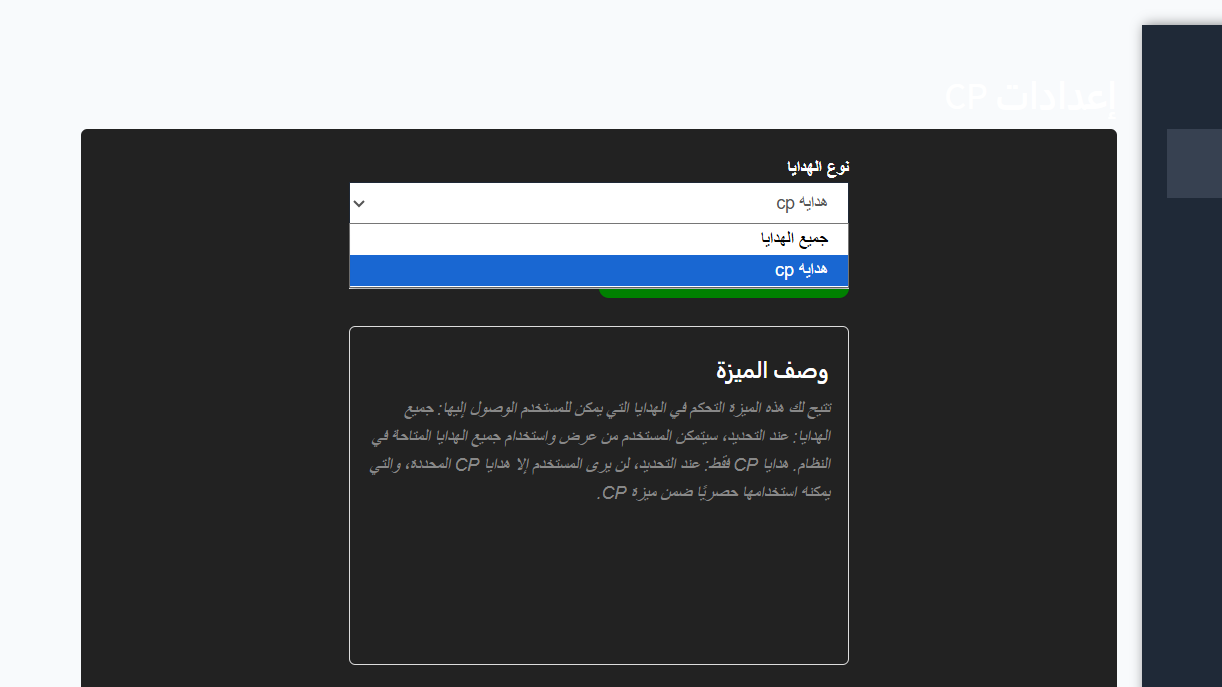
The CP Settings page allows you to control the type of gifts that count within the CP system. You can choose whether all gifts count or only specific CP gifts.
How to Access
Sidebar ← CP ← CP Settings
Gift Type
A dropdown to select the type of gifts that count in CP relationships:
| Option | Description |
|---|---|
| All Gifts | When selected, the user can view and use all available gifts in the system |
| CP Gifts | When selected, the user will only see CP-specific gifts, which can be used exclusively within the CP feature |
Feature Description
This feature allows you to control the gifts that users can access:
- All Gifts: When selected, the user can view and use all available gifts in the system.
- CP Gifts Only: When selected, the user will only see CP-specific gifts, which can be used exclusively within the CP feature.
Quick Summary - CP Settings
| Action | Steps |
|---|---|
| View settings | CP ← CP Settings |
| Change gift type | Select "All Gifts" or "CP Gifts" from dropdown |