🎁 Level Gifts
How to Access:
Menu ← Level ← Level Gifts
Level Gifts are rewards that users automatically receive when they reach a specific level. You can define level ranges (from minimum to maximum) and link gifts to them, so every user who reaches any level within this range receives the specified gift.
Main Level Gifts Page
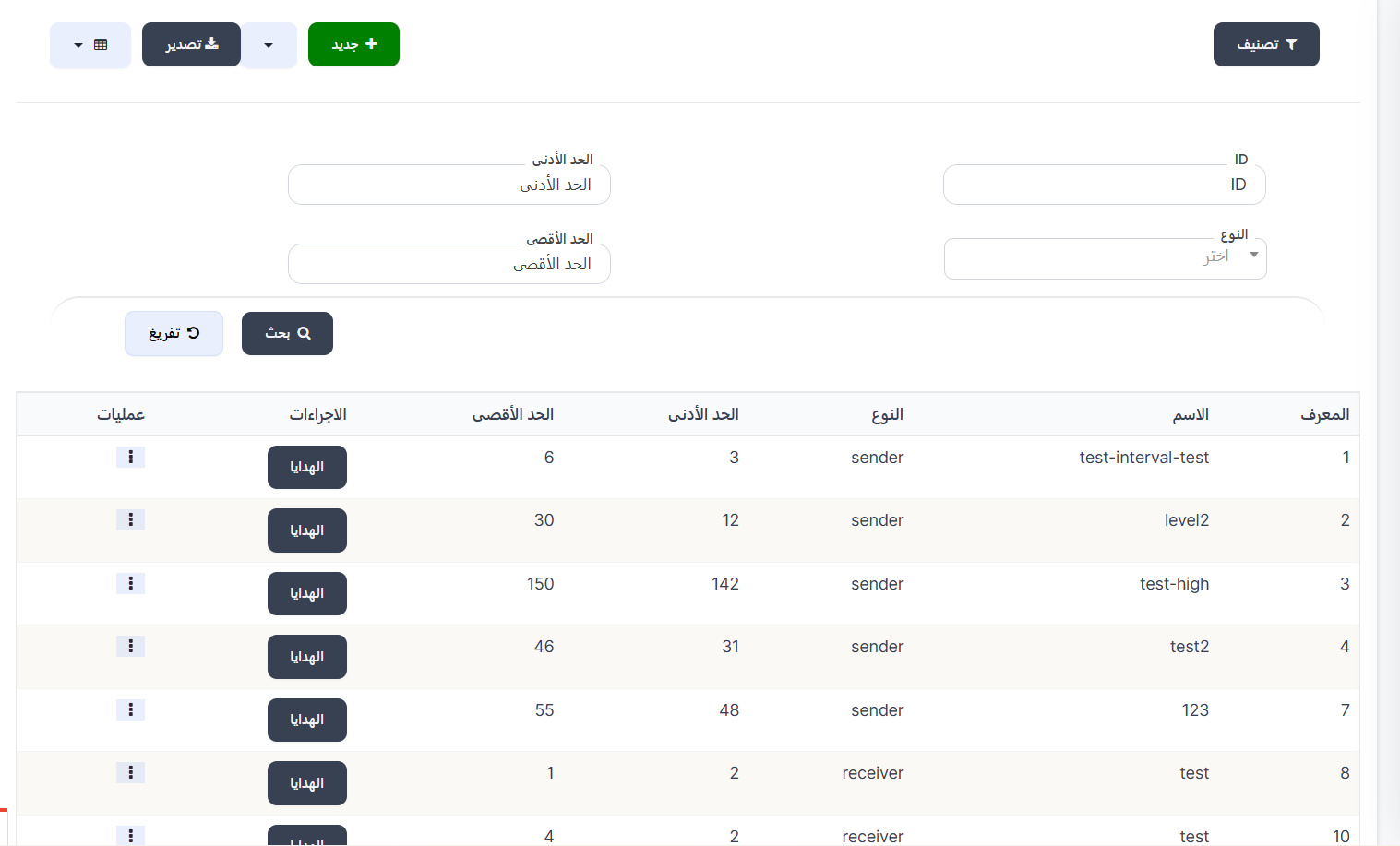
Table Columns:
| Column | Description |
|---|---|
| ID | Unique identifier for the level range |
| Name | Level range name (e.g., test-interval-test, level2) |
| Type | Target user type: sender (Wealth) or receiver (Charm) |
| Minimum | Lowest level number in the range |
| Maximum | Highest level number in the range |
| Actions | "Gifts" button to view and add gifts linked to this range |
| Operations | Actions menu (⋮) to edit or delete the range |
Create New Level Range
How to Access:
Menu ← Level ← Level Gifts ← + New
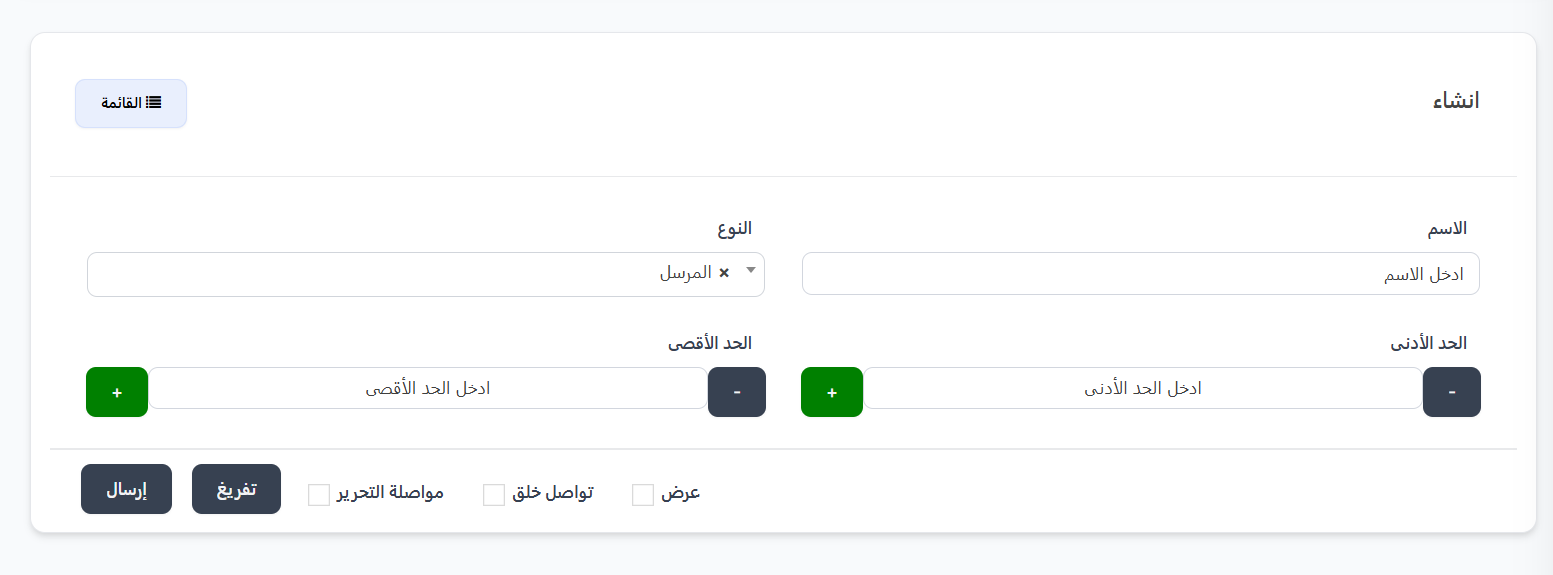
Creation Fields:
| Field | Description | Required |
|---|---|---|
| Name | Descriptive name for the level range | ✅ Yes |
| Type | Select target user type from dropdown: Sender or Receiver | ✅ Yes |
| Minimum | Lowest level number in the range (use + and - to adjust) | ✅ Yes |
| Maximum | Highest level number in the range (use + and - to adjust) | ✅ Yes |
Creation Steps:
- Click the "+ New" button.
- Enter the descriptive Name for the range.
- Choose the Type: Sender (for Wealth) or Receiver (for Charm).
- Set the Minimum level (e.g., 3).
- Set the Maximum level (e.g., 6).
- Click "Submit" to save the range.
Example
If you create a range with minimum 3 and maximum 6 of type Sender, then every user whose Wealth level reaches 3, 4, 5, or 6 will receive the gifts linked to this range.
Adding Gifts to a Range
After creating the range, you need to add the gifts that users will receive when they reach the specified level.
Step 1: Access Range Gifts Page
From the main Level Gifts page, click the "Gifts" button in the Actions column next to the desired range.
Range Gifts Page:
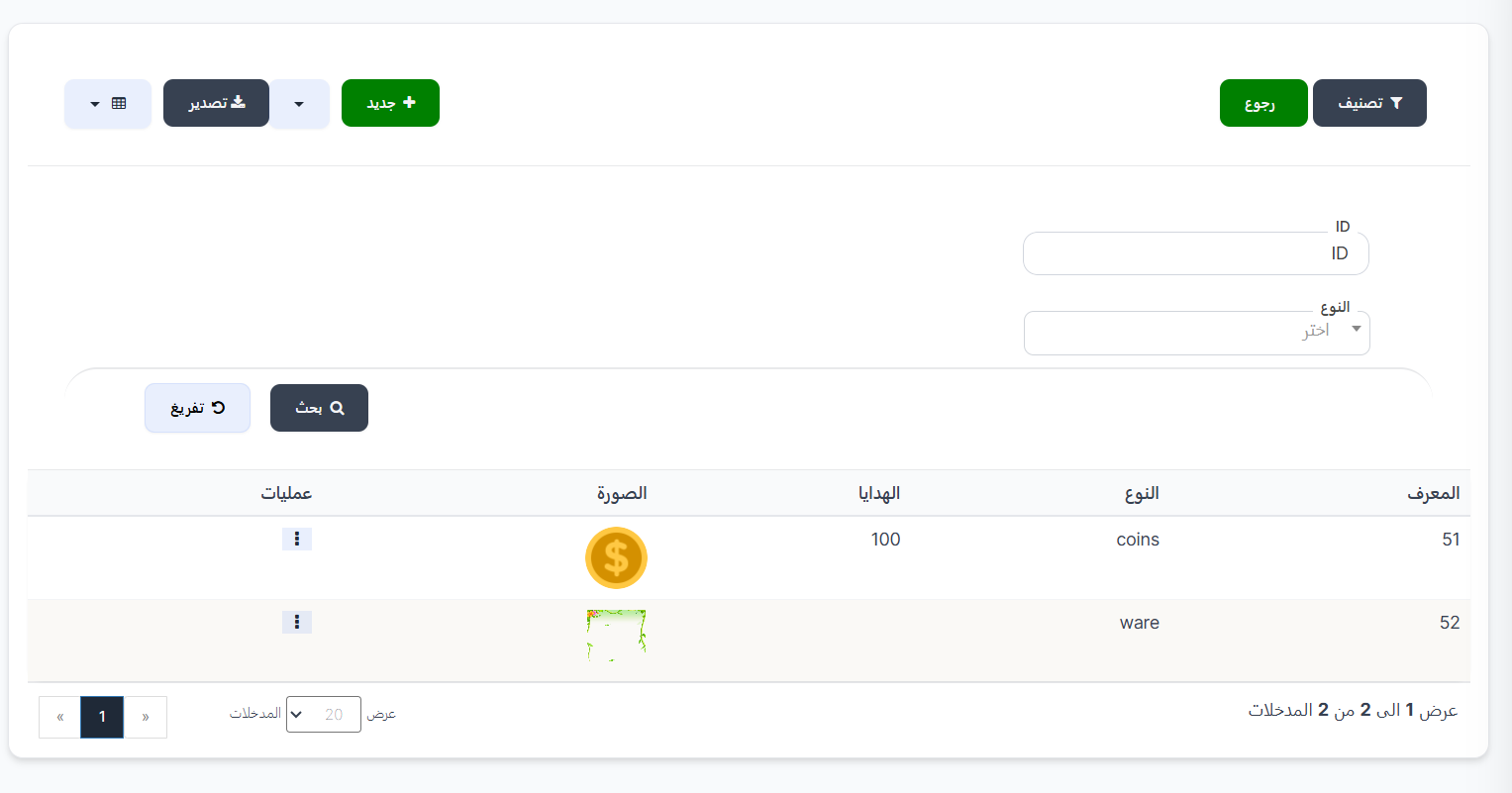
This page displays gifts linked to the selected range:
| Column | Description |
|---|---|
| ID | Unique identifier for the gift |
| Type | Gift type (e.g., coins, ware) |
| Gifts | Gift value or quantity (e.g., 100 coins) |
| Image | Gift image |
| Operations | Actions menu (⋮) to edit or delete the gift |
Step 2: Add New Gift
Click the "+ New" button on the range gifts page.
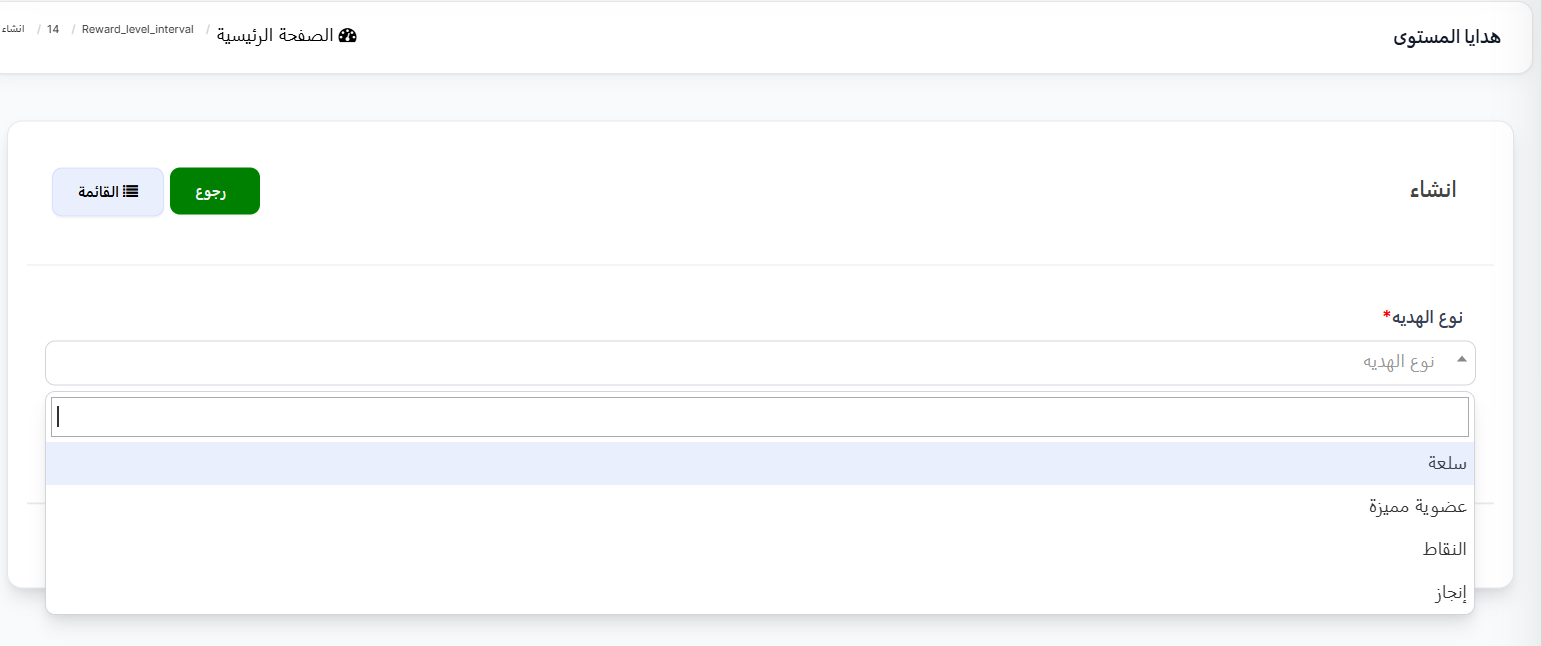
Gift Addition Fields:
| Field | Description | Required |
|---|---|---|
| Gift Type* | Select gift type from dropdown | ✅ Yes |
Available Gift Types:
| Type | Description |
|---|---|
| Item | An item or product within the app |
| VIP Membership | Grant user VIP membership |
| Points | Grant user additional points or coins |
| Achievement | Grant user an achievement badge |
Gift Addition Steps:
- From the range gifts page, click "+ New".
- Select the Gift Type from the dropdown (Item, VIP Membership, Points, or Achievement).
- Complete additional fields based on the selected gift type.
- Click "Submit" to save the gift.
Tips
- You can add multiple gifts to the same range, so the user receives multiple rewards when reaching the level.
- Choose ranges carefully to avoid overlap between level ranges.
- Use diverse gift types (coins + item for example) to motivate users more.
- You can edit or delete any gift from the Operations menu (⋮).