📟 App Default Screen Settings
Introduction
Default screen settings allow you to choose the first screen/page that will appear to the user when opening the app. This feature determines the main app interface that the user sees immediately upon entry, setting the tone for their experience.
How to Access
Side Menu ← App Default Screen Settings
⚙️ Open Default Screen Settings
Available Default Screen Options
A dropdown menu titled "App Default Screen" will appear with the following screen options:
| Screen Option | Description | Best Used When |
|---|---|---|
| Explore | Shows the discovery/explore page with trending rooms, popular users, and featured content | You want users to discover new content and rooms immediately |
| Following | Shows content and rooms from users the person follows | Your app has an established user base with active follow relationships |
| Live | Shows currently active live streaming rooms | Live streaming is the primary feature of your app |
| Messages | Opens the chat/messaging screen | Private messaging and social interaction are the primary focus |
| Profile | Opens the user's own profile page | You want users to review and complete their profile first |
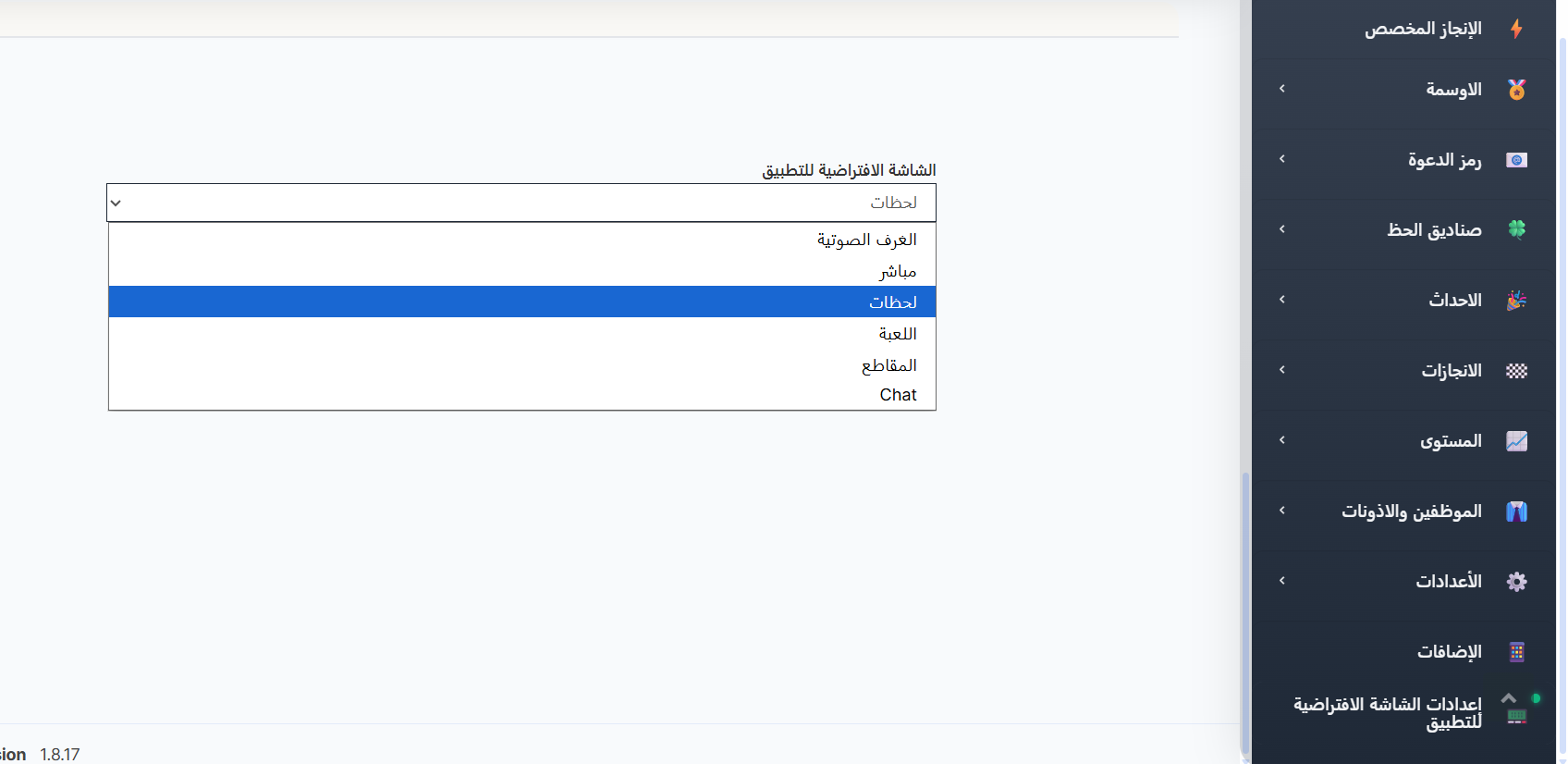
How to Change the Default Screen
- Navigate to App Default Screen Settings from the side menu.
- Click on the "App Default Screen" dropdown menu.
- Select the screen you want as the default.
- The selection is saved automatically.
Impact on User Experience
The default screen significantly affects how users perceive and engage with your app:
- Explore/Live: Encourages content discovery and increases room participation. Recommended for new apps looking to grow engagement.
- Following: Encourages users to follow more people to populate this screen. Works best for apps with active social networks.
- Messages: Prioritizes direct communication. Good for apps focused on private chat and social connections.
- Profile: Useful during onboarding periods when you want users to complete their profile setup.
Tip
For most social/live streaming apps, Explore or Live is recommended as the default screen, as it immediately shows active content and encourages engagement.
Note
The selected screen will be the first thing all users see when opening the app. Users can still navigate to any other screen using the bottom navigation bar.