⚙️ Charging Agency Settings
The Charging Agency Settings page allows you to manage payment methods available for charging agencies. You can view registered payment methods, add new payment methods, edit or delete existing ones.
Access:
Sidebar → Agency System → Charging Agencies → Charging Agency Settings
🔗 Open Charging Agency Settings Page
Page Content:
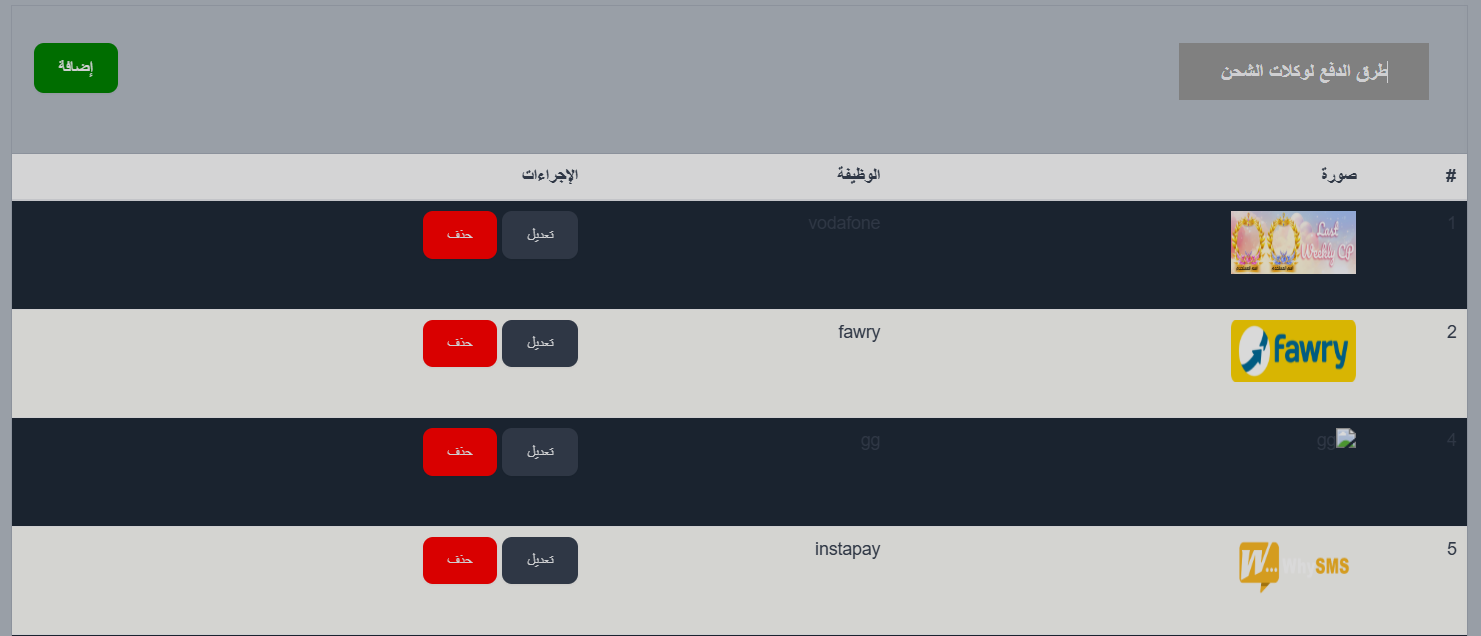
When opening the page, you'll find the title Charging Agency Payment Methods with an Add button (green) to add a new payment method, and below the payment methods table.
Payment Methods Table:
| Column | Description |
|---|---|
| # | Sequence number |
| Image | Payment method image/logo |
| Function | Payment method name (e.g., vodafone, fawry, instapay) |
| Actions | Edit and Delete buttons |
Add New Payment Method:
To add a new payment method, click the Add button at the top of the page.
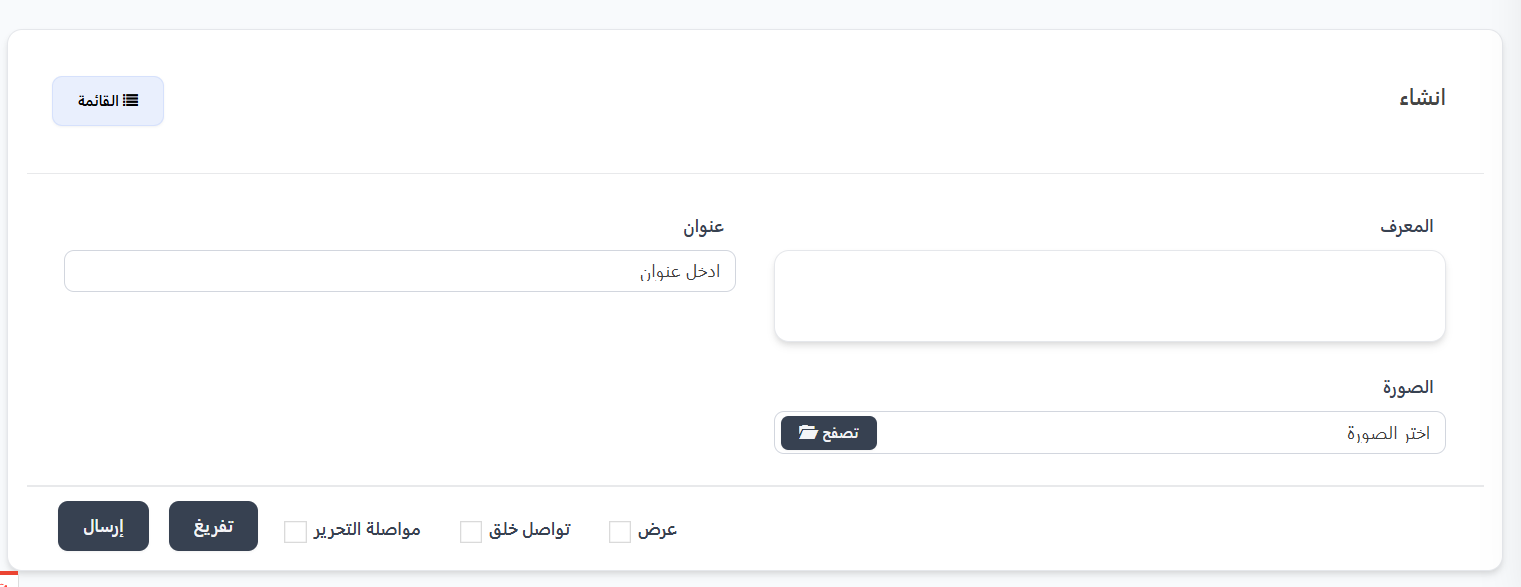
Creation Fields:
| Field | Description | Required |
|---|---|---|
| ID | Payment method ID | No |
| Title | Payment method name | ✅ Yes |
| Image | Payment method image/logo (file upload) | ✅ Yes |
Creation Steps:
- Click the Add button
- Enter the ID (optional)
- Enter the payment method Title (e.g., vodafone, fawry)
- Click 📁 Browse to select the payment method image/logo
- Click Submit to save the payment method
Available Actions:
From the Actions column in the table:
| Action | Description |
|---|---|
| Edit | Edit payment method name or image |
| Delete | Permanently delete the payment method (red button) |
Quick Summary:
| Action | Steps |
|---|---|
| View payment methods | Agency System → Charging Agencies → Charging Agency Settings |
| Add new payment method | Click Add → Enter title → Upload image → Submit |
| Edit payment method | Click Edit next to the desired method |
| Delete payment method | Click Delete next to the desired method |
🔗 Open Charging Agency Settings Page