❓ FAQ (Frequently Asked Questions)
Introduction
The FAQ page is used to manage questions and answers that appear to users in the help section within the app. You can add new questions with their answers and control their visibility status.
How to Access
Sidebar Menu → Settings → Work Settings → FAQ
Or via direct link:
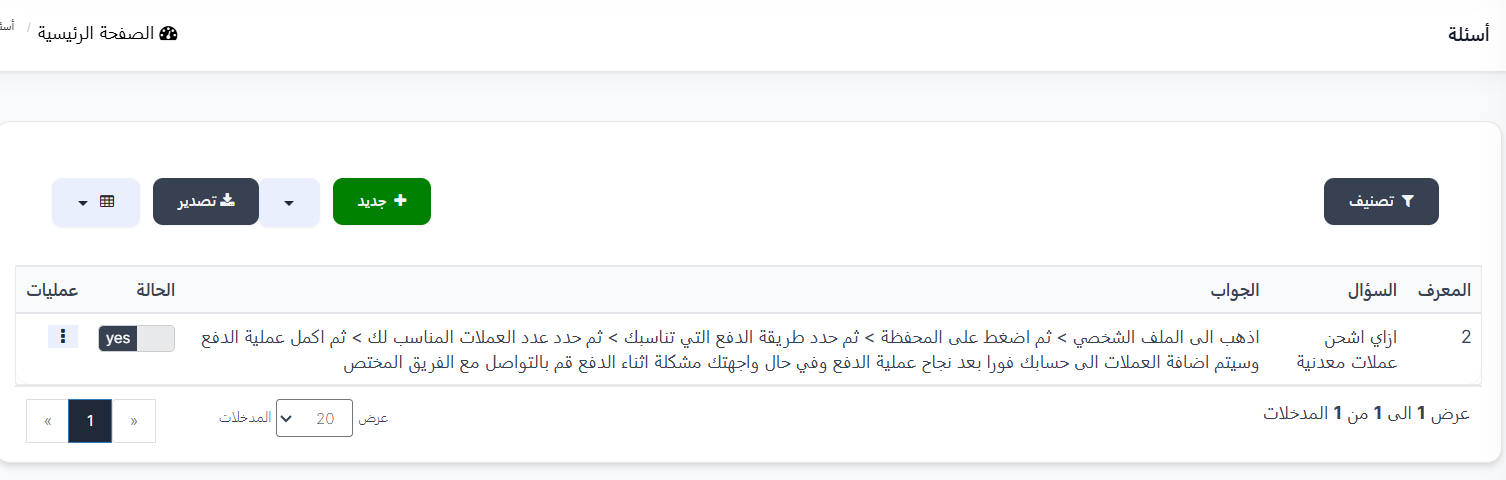
FAQ Table
The table displays all added questions:
| Column | Description |
|---|---|
| ID | Unique question identifier (e.g., 2) |
| Question | Question text (e.g., How do I recharge coins?) |
| Answer | Detailed answer text for the question |
| Status | Question status: yes 🟢 = active and visible to users, no 🔴 = disabled and hidden |
| Operations | Actions menu (⋮) to edit or delete the question |
Control Buttons
| Button | Description |
|---|---|
| + New 🟢 | Add a new question |
| Filter 🔘 | Filter and sort questions |
| Export 📤 | Export data |
Add New Question
To add a new FAQ:
- Click the "+ New" 🟢 button
- The creation page will appear with the following fields:
| Field | Description | Required | Example |
|---|---|---|---|
| Question ★ | Question text that will appear to users | ✅ Yes | How do I recharge coins? |
| Answer ★ | Detailed answer text | ✅ Yes | Go to your profile > tap on Wallet > select payment method... |
| Status | Enable or disable the question (yes/no) | No | yes |
- Click "Submit" to save the question
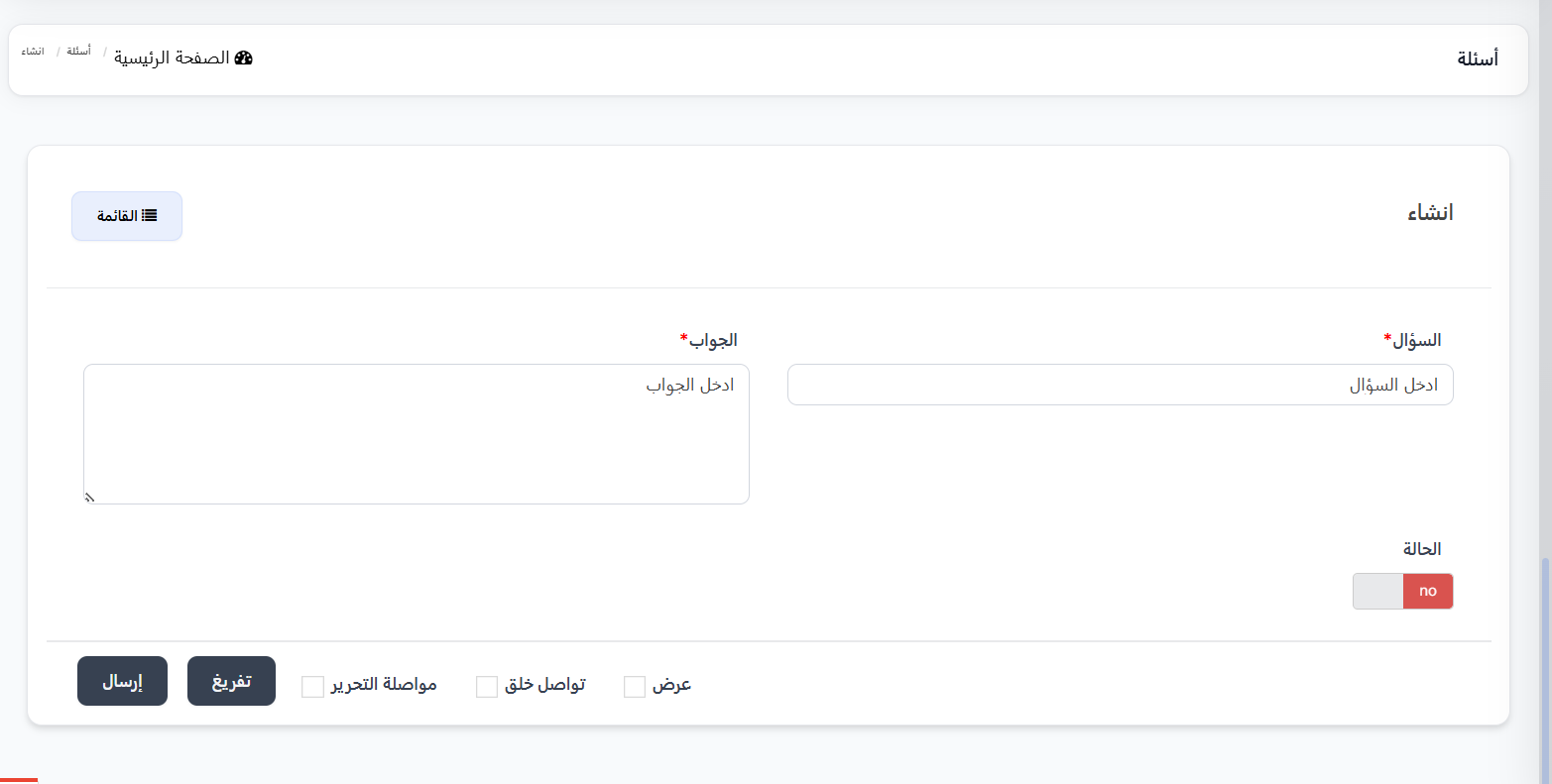
Additional Options
| Option | Description |
|---|---|
| View | View the question after saving |
| Continue Creating | Continue adding more questions after saving |
| Continue Editing | Stay on the editing page after saving |
| Clear | Clear all fields |
Practical Example
Scenario: Adding a Question About Recharging
| Field | Value |
|---|---|
| Question | How do I recharge coins? |
| Answer | Go to your profile > tap on Wallet > select a payment method > choose the number of coins > complete the payment. Coins will be added to your account immediately after successful payment. If you encounter any issues, contact the support team. |
| Status | yes ✅ |
Result: The question appears to users in the help section within the app.
Important Notes
Tip
- Add the most commonly asked questions to reduce support ticket volume.
- Write answers clearly and in a step-by-step format.
Warning
- Disabled questions (Status = no) are not visible to users in the app.
- Review answers before activating to ensure accuracy.
Information
- You can temporarily disable a question by changing the status to no instead of deleting it.
- Questions appear to users in the help or support section within the app.