💬 Group Chat
The Group Chat feature allows viewing and managing group conversations across the entire application. This chat is visible to all users in the app and serves as a public communication channel open to everyone.
How to Access:
Sidebar ← Chat ← Group Chat
Group Chat Page:
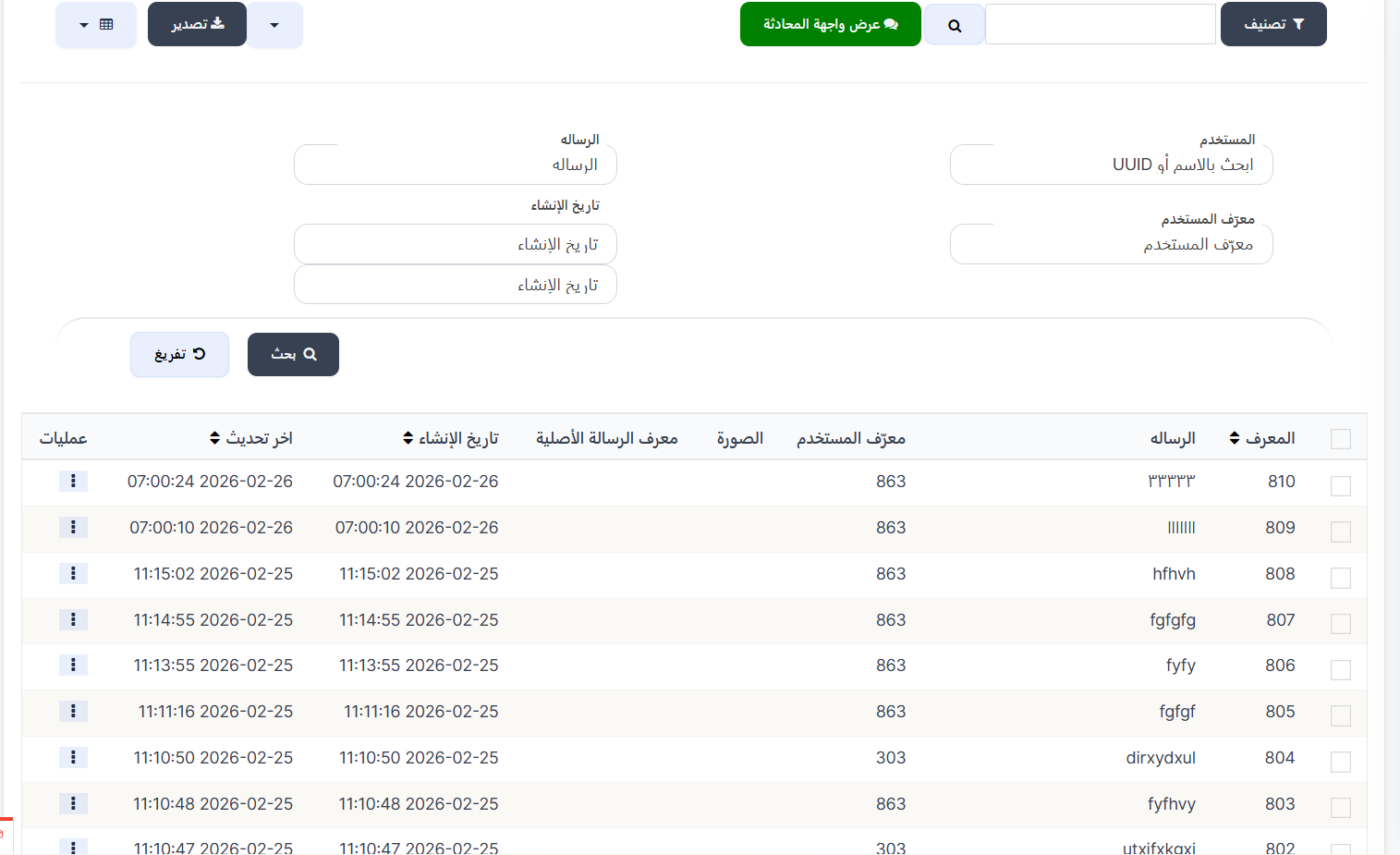
The group chat page displays all messages sent in the public chat with the ability to search, filter, and manage.
Top Buttons:
| Button | Description |
|---|---|
| 🔽 Filter | Open/close the filter and search panel |
| 🔍 Search | Quick search field in messages |
| 💬 View Chat Interface | Green button to open the interactive chat interface (view messages as they appear in the app) |
| 📤 Export | Export message data |
Search Filter:
You can filter messages using the following fields:
| Field | Description |
|---|---|
| User | Search by name or UUID of the user |
| Message | Search in message text |
| User ID | Search by user ID number |
| Creation Date | Filter by creation date range (from - to) |
Filter Buttons:
| Button | Description |
|---|---|
| 🔍 Search | Apply the filter and display results |
| ↺ Clear | Clear all filter fields and reload |
Messages Table:
| Column | Description |
|---|---|
| ID | Unique identifier for the message |
| Message | The sent message text |
| User ID | ID of the user who sent the message |
| Image | Sender's profile image (if available) |
| Original Message ID | ID of the message being replied to (in case of replies) |
| Creation Date | Date and time the message was sent |
| Last Update | Date and time of the last modification |
| Actions | Options menu (⋮) for message actions (delete, edit, ...) |
Note
Messages can be sorted by ID, creation date, or last update by clicking the sort arrows (⇅) next to the column header.
Chat Interface:
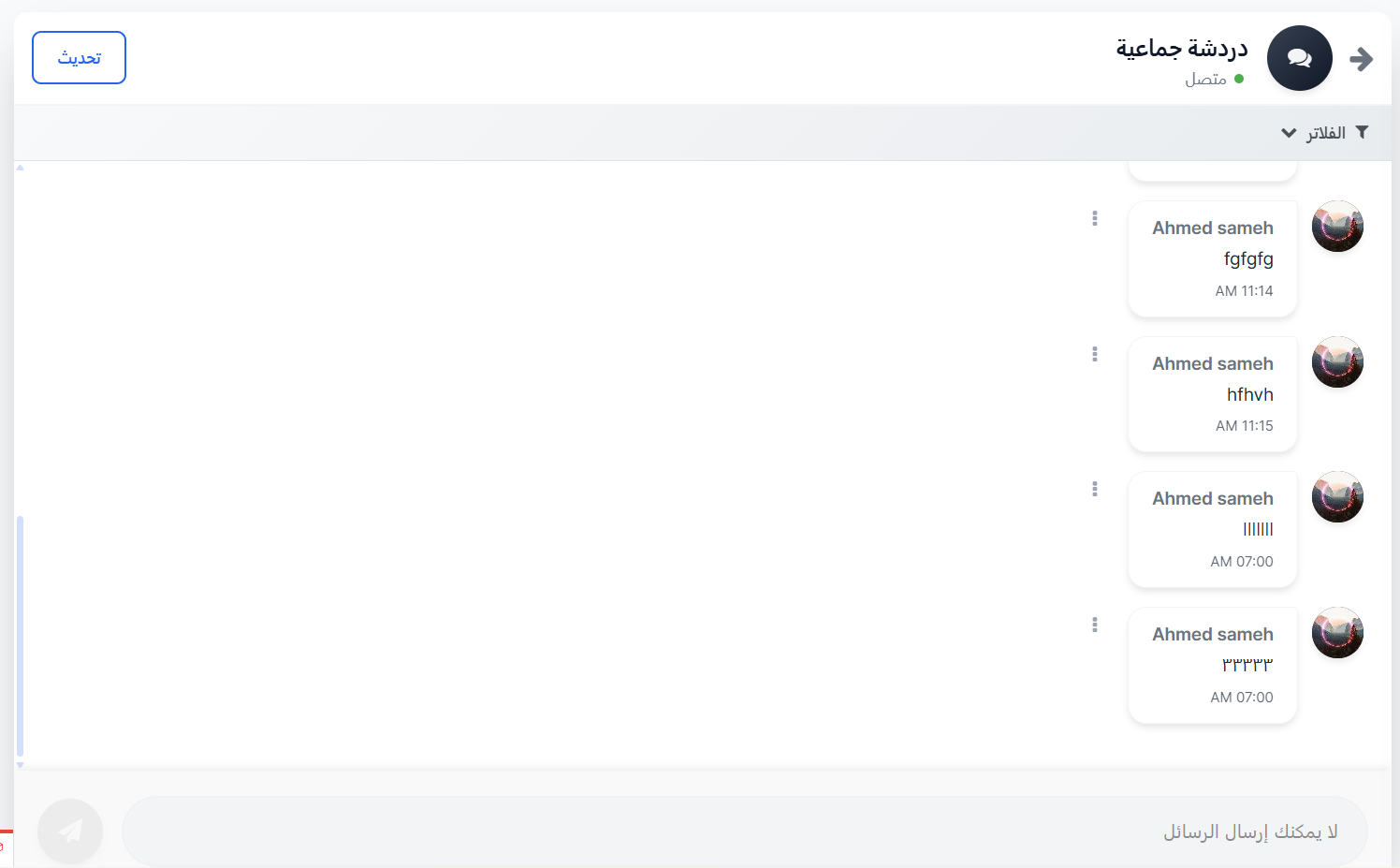
When clicking the green 💬 View Chat Interface button, you navigate to a page that displays the chat interactively as it appears in the app.
Chat Interface Components:
| Element | Description |
|---|---|
| Chat Title | Shows "Group Chat" with connection status (🟢 Connected) |
| 🔙 Back Button | Return to the messages table page |
| Refresh | Button to refresh the chat and load new messages |
| 🔽 Filters | Filter to sort messages within the chat interface |
| Messages | Display messages as chat bubbles with sender name, time, and image |
| Message Options | Menu (⋮) next to each message for additional options |
Message Format in the Interface:
Each message displays:
- Sender Image — User's profile picture
- Sender Name — Username (example: Ahmed sameh)
- Message Text — Message content
- Time — Send time (example: AM 11:14)
Important Note
At the bottom of the chat interface, the message "You cannot send messages" appears — meaning the admin can only view and manage messages from the dashboard and cannot send directly from here.
Quick Summary:
| Action | Steps |
|---|---|
| View all messages | Chat ← Group Chat |
| Search for a message | Filter ← Enter filter ← Search |
| View chat as interactive interface | 💬 View Chat Interface |
| Manage a message | Actions (⋮) next to the message |
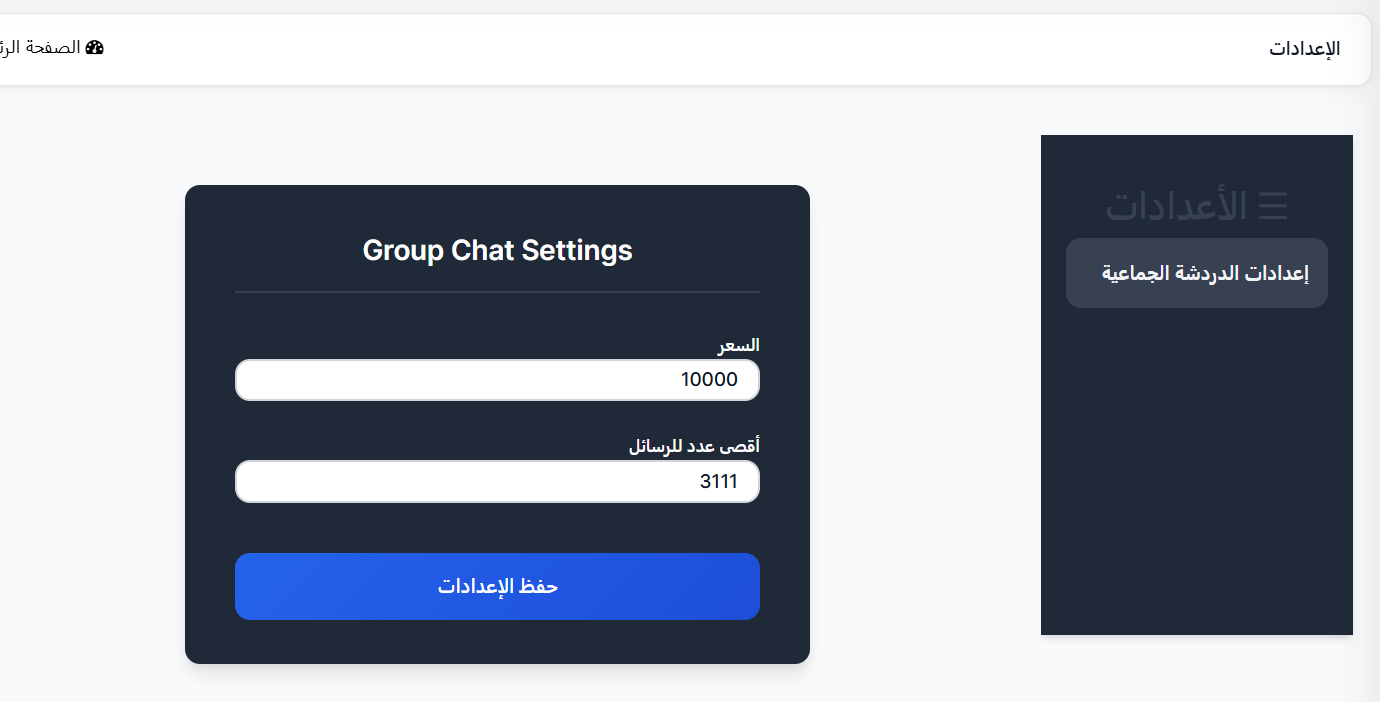
⚙️ Group Chat Settings
The settings page allows you to control group chat behavior in terms of cost and maximum number of messages.
How to Access:
Sidebar ← Chat ← Settings
Settings Fields:
| Field | Description | Example |
|---|---|---|
| Price | Cost of sending a message in the group chat (in coins). This amount is deducted from the user's balance for each message sent. | 10000 |
| Maximum Messages | Maximum number of messages allowed in the group chat. When this limit is reached, older messages are automatically deleted or sending is prevented. | 3111 |
Save Settings:
After modifying the values, press the blue Save Settings button to apply changes.
Tip
- Price: Set an appropriate price to prevent spam while maintaining user engagement.
- Maximum Messages: Set an appropriate number to ensure app performance and avoid overloading the database with large amounts of messages.