🛒 Store (Item Management)
Introduction
The Store page is used to manage all items and features that users can purchase from the in-app store. These items include avatar frames, bubble frames, special entrance effects, and profile frames.
How to Access
Sidebar Menu → Store → Store
Or via direct link:
Store Sections (Tabs)
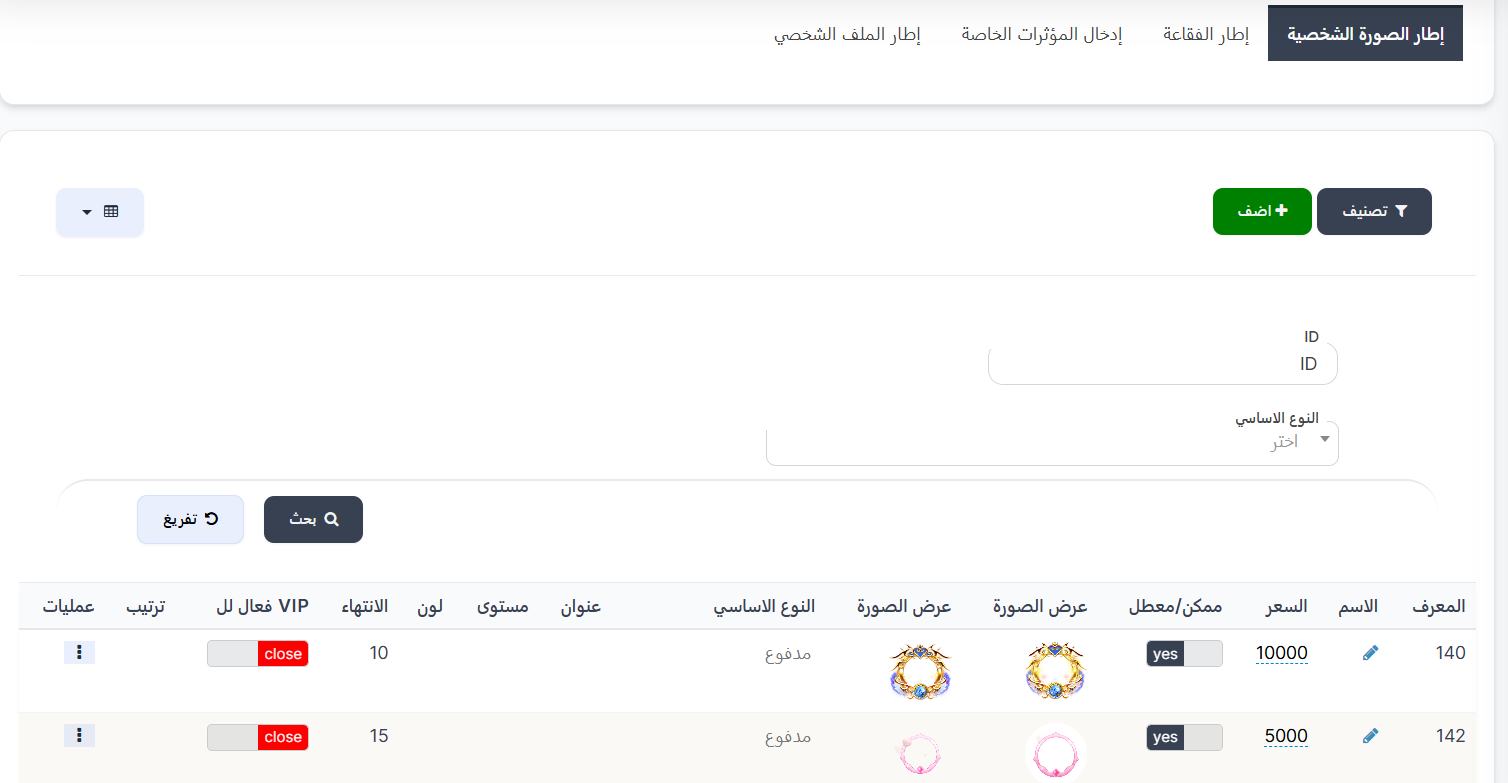
When entering the store, you'll find several tabs at the top, each representing a different type of item:
| Tab | Description |
|---|---|
| Avatar Frame | Frames that surround the user's profile picture (avatar) |
| Bubble Frame | Frames that surround the chat bubble when sending messages |
| Special Entrance Effects | Motion effects that appear when a user enters a room |
| Profile Frame | Frames that surround the user's profile |
Click any tab to view and manage items of that type.
Search and Filter Tools
| Field | Description |
|---|---|
| ID | Search by unique item identifier |
| Basic Type | Filter by item type (paid, limited-time purchase) |
| Search 🔍 | Execute search with specified criteria |
| Clear 🔄 | Clear search criteria and reset |
Items Table
The table displays all available items in the selected section:
| Column | Description |
|---|---|
| ID | Unique item identifier (e.g., 140, 142, 149) |
| Name | Item name (editable by clicking the pen icon ✏️) |
| Price | Item price in coins (e.g., 10000, 5000, 15000) |
| Enabled/Disabled | Item status: yes 🟢 = available for purchase, no 🔴 = disabled |
| Image Preview | Two images of the item (preview image and display image) |
| Basic Type | Item type (paid, limited-time purchase) |
| Title | Item title displayed to users |
| Level | Item level (if applicable) |
| Color | Item color (if applicable) |
| Expiry | Item validity period in days (e.g., 10, 15, 7) |
| VIP Active For | Whether the item is available only for VIP subscribers (close = unrestricted) |
| Sort Order | Item display order in the store |
| Operations | Actions menu (⋮) to edit or delete the item |
Main Control Buttons
| Button | Description |
|---|---|
| + Add 🟢 | Add a new item |
| Filter 🔘 | Filter and sort displayed items |
Create New Item
To add a new item:
- Click the "+ Add" 🟢 button
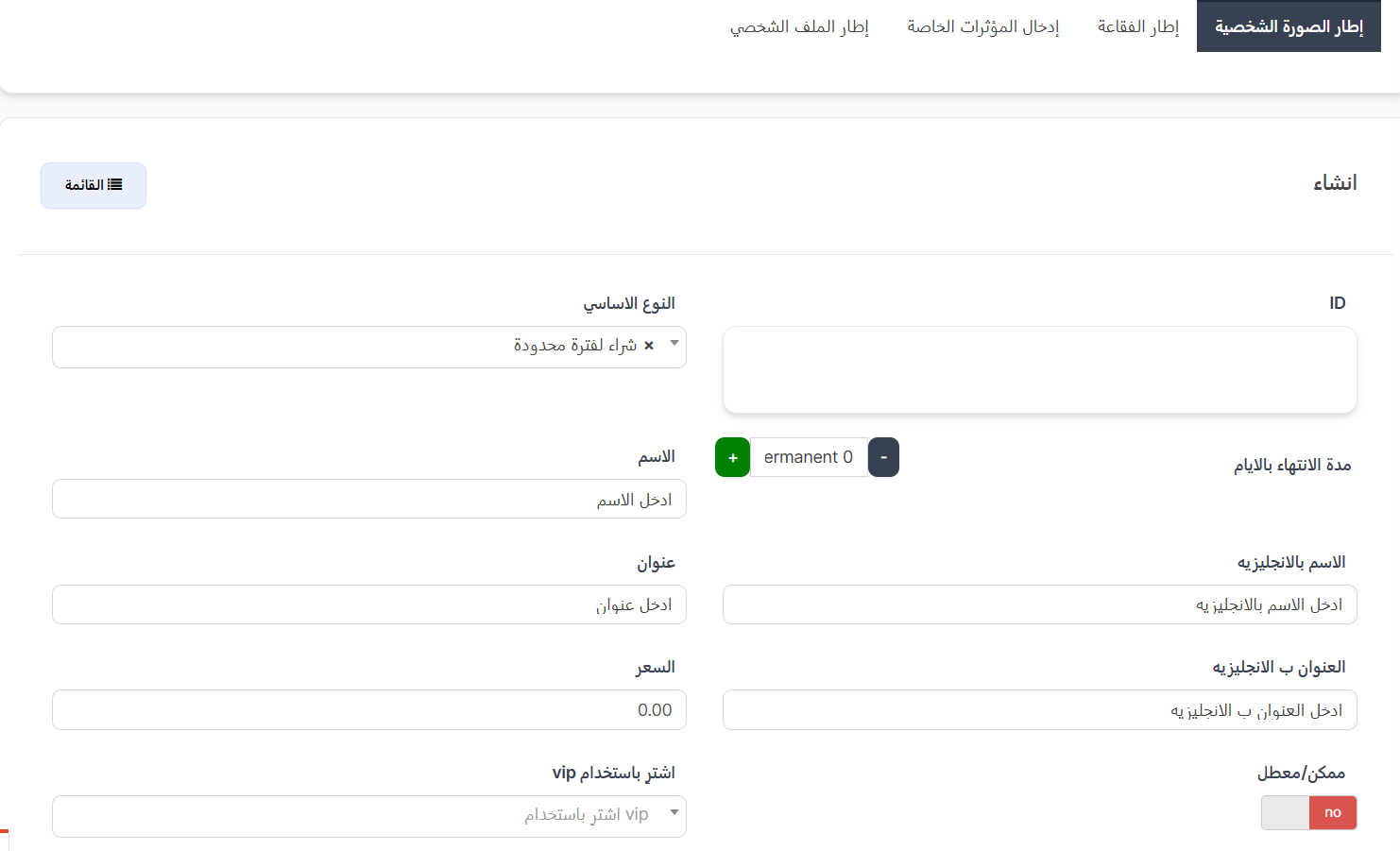
- The creation page will appear with the following fields:
Basic Fields
| Field | Description | Example |
|---|---|---|
| ID | Identifier (auto-generated or manually entered) | 150 |
| Basic Type ★ | Item type from dropdown | Paid |
| Expiry in Days | Item validity period in days. Value 0 = permanent | 10 |
Basic Type Options
| Type | Description |
|---|---|
| Paid | Item purchased with coins permanently or for a set period |
| Limited-Time Purchase | Item available for purchase during a specific time period only |
Name and Title Fields
| Field | Description |
|---|---|
| English Name | Item name in English |
| Title | Item title (in Arabic) |
| English Title | Item title in English |
Price and Settings Fields
| Field | Description |
|---|---|
| Price | Item price in coins (e.g., 10000) |
| Enabled/Disabled | Enable or disable the item in the store (yes/no) |
| Buy with VIP | Specify VIP level required to purchase the item (optional) |
Image Fields
| Field | Description |
|---|---|
| Image | Upload main item image (click "Browse" 📁 to select image) |
| Half Image | Enable/disable half image display (yes/no) |
| SVG File | Upload SVG file for the item (optional - click "Browse" 📁) |
| Image Type | Select image type/format from dropdown |
- Click "Submit" to save the item
Practical Example
Scenario: Adding a New Avatar Frame
| Field | Value |
|---|---|
| Basic Type | Paid |
| Expiry in Days | 10 |
| English Name | Golden Crown Frame |
| Title | كتنا |
| Price | 15000 |
| Enabled/Disabled | yes ✅ |
| Image | (upload frame image) |
How It Appears to the User?
🛒 User enters the in-app store
    ↓
🖼️ Selects "Avatar Frame" section
    ↓
💰 Sees the frame priced at 15,000 coins
    ↓
🛍️ Clicks "Buy" → Amount deducted from balance
    ↓
✨ Frame activated on profile picture for 10 days
    ↓
⏰ After 10 days → Frame expires automatically
Important Notes
Tip
- Use Expiry = 0 for permanent items that don't expire.
- Disable the item (Enabled/Disabled = no) instead of deleting it if you want to hide it temporarily.
Warning
- Make sure to upload clear, high-quality images for each item.
- Price should be appropriate for the item's value and validity period.
- Disabled items (no) are not visible to users in the store.
Information
- You can edit item names directly from the table by clicking the pen icon ✏️ next to the name.
- Each tab (Avatar Frame, Bubble Frame, Effects, Profile Frame) displays only its own items.
- The "Buy with VIP" option allows restricting some items to be exclusive for VIP subscribers.
🎁 Store Gifting
Introduction
The Store Gifting page allows the admin to gift store items directly to a specific user without needing to purchase them. Any available item (avatar frame, bubble frame, special effects, profile frame) can be gifted to any user by specifying the number of days and the user's ID.
How to Access
Sidebar Menu → Quick Commands → Store Gifting
Or via direct link:
Store Gifting Page
Gifting Sections (Tabs)
When entering the page, you'll find the same store tabs at the top:
| Tab | Description |
|---|---|
| Avatar Frame | Gift avatar frames |
| Bubble Frame | Gift chat bubble frames |
| Special Entrance Effects | Gift entrance effects |
| Profile Frame | Gift profile frames |
Available Items Table
| Column | Description |
|---|---|
| ID | Unique item identifier (e.g., 911, 888, 841) |
| Name | Item name (e.g., Test Alpha frame, TOP 3) |
| Price | Item price in coins (e.g., 10000, 0) |
| Image Preview | Two images of the item (preview and display) |
| Type | Item type (e.g., Avatar Frame) |
| Gift | "Gift" 🔵 button to gift the item to a specific user |
How to Gift an Item
To gift an item to a specific user:
- Select the appropriate tab (Avatar Frame, Bubble Frame, Effects, Profile Frame)
- Click the "Gift" 🔵 button next to the desired item
- A "Gift" dialog will appear with the following fields:
| Field | Description | Example |
|---|---|---|
| Days | Number of days the gift will remain active for the user | 30 |
| User Large ID | The UID number of the user to receive the gift | 55555 |
- Click "Submit" to send the gift, or "Close" to cancel
Practical Example
Scenario: Gifting an Avatar Frame to a User
| Step | Details |
|---|---|
| 1 | Enter "Store Gifting" page |
| 2 | Select "Avatar Frame" tab |
| 3 | Click "Gift" next to "Test Alpha frame" (ID: 911) |
| 4 | Enter Days: 30 |
| 5 | Enter User Large ID: 55555 |
| 6 | Click "Submit" |
Result: User (UID: 55555) receives "Test Alpha frame" for 30 days for free.
Important Notes
Tip
Use this page to reward distinguished users or as compensation for issues they encountered.
Warning
- Make sure to enter the correct user UID before submitting.
- Gifting is immediate and cannot be undone after submission.
- The "Days" field determines how long the item will remain active for the user.
Information
- Gifting is free and no amount is deducted from the admin's or user's balance.
- You can gift the same item to multiple users.
- Items with a price of 0 are exclusive items not available for purchase in the regular store.