🎁 Gift Rewards
The Gift Rewards feature allows gifting various rewards to users, area managers, or country managers. You can choose the reward type, specify the recipient, number of rewards, and their validity period, then send them directly from the dashboard.
Description:
The country manager reward feature allows selecting a country manager and granting them rewards with an expiration date and a specific number of rewards. The country manager can then gift these rewards to users in the same country, according to the specified number of rewards.
How to Access:
Sidebar ← Gift Rewards ← Gifts
Reward Types (Tabs):
The gift rewards page is divided into 4 main tabs, each displaying a different type of reward:
| Tab | Description |
|---|---|
| Premium Membership | Gift VIP memberships at various levels (VIP 1, VIP 2, VIP 3, ...) |
| Ware | Gift store items (gems, swipe cards, profile frames, bubble frames, special effects, microphone slots, ...) |
| Badge | Gift badges such as bd, shipping, agency_owner and others |
| Package | Gift packages containing a collection of different rewards (wares + badges + VIP + coins) |
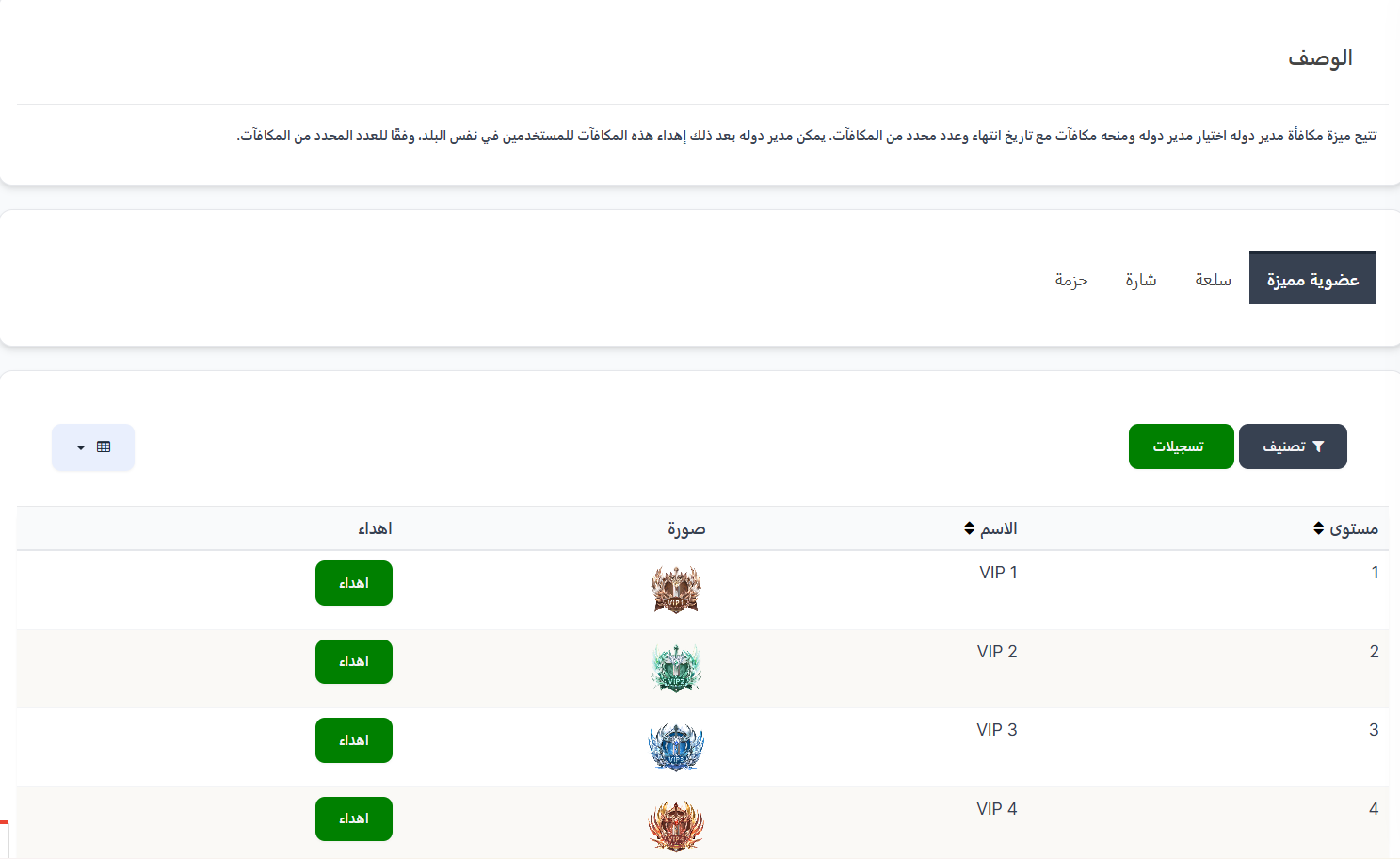
① Premium Membership Tab (VIP):
Displays all VIP levels available for gifting:
| Column | Description |
|---|---|
| Level | VIP level number |
| Name | Level name (VIP 1, VIP 2, ...) |
| Image | VIP level icon/image |
| Gift | Green Gift button — click to open the gifting dialog |
Top Buttons:
| Button | Description |
|---|---|
| 🔽 Filter | Filter to sort rewards |
| Records | Green button to view gift history — who gifted and who received |
② Ware Tab (Store):
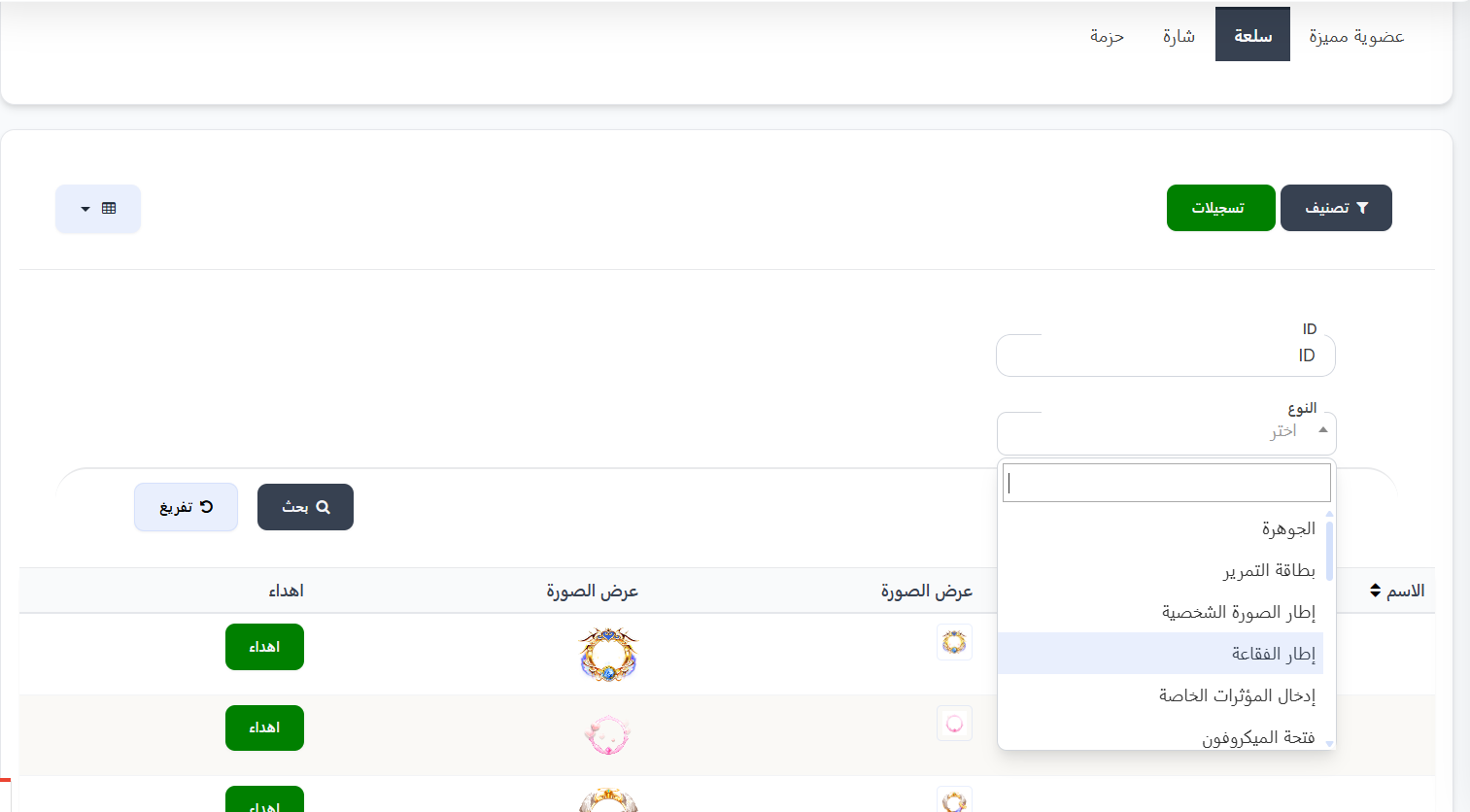
Displays all store wares available for gifting:
| Column | Description |
|---|---|
| Name | Ware name |
| View Image | Small preview of the ware |
| View Image | Large preview of the ware |
| Gift | Green Gift button — click to open the gifting dialog |
Ware Filter:
You can filter wares via:
| Field | Description |
|---|---|
| ID | Search by ID number |
| Type | Filter by ware type — list includes: gem, swipe card, profile frame, bubble frame, special effects, microphone slot |
③ Badge Tab:
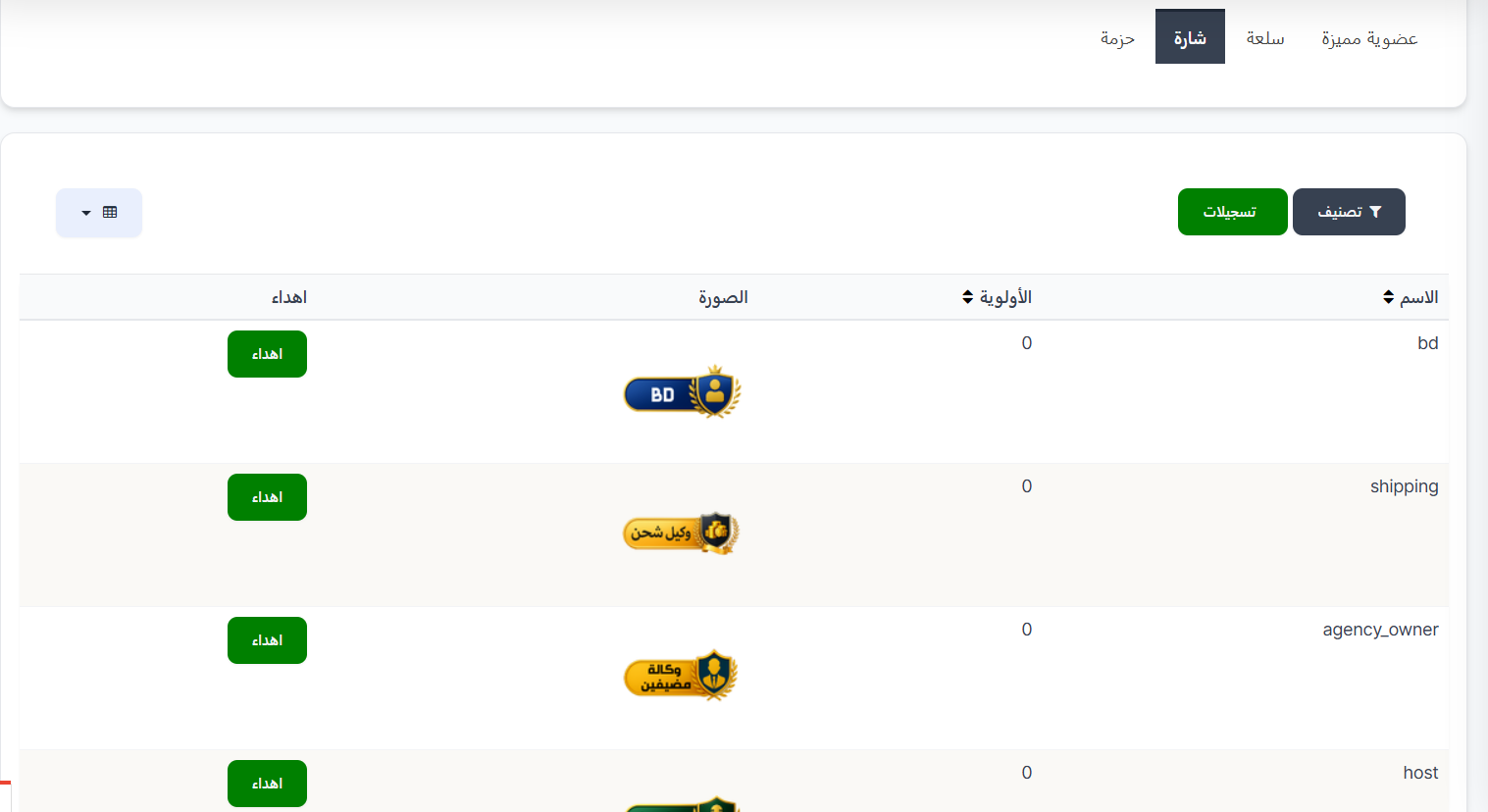
Displays all badges available for gifting:
| Column | Description |
|---|---|
| Name | Badge name (example: bd, shipping, agency_owner) |
| Priority | Badge priority order |
| Image | Badge icon/image |
| Gift | Green Gift button — click to open the gifting dialog |
④ Package Tab:
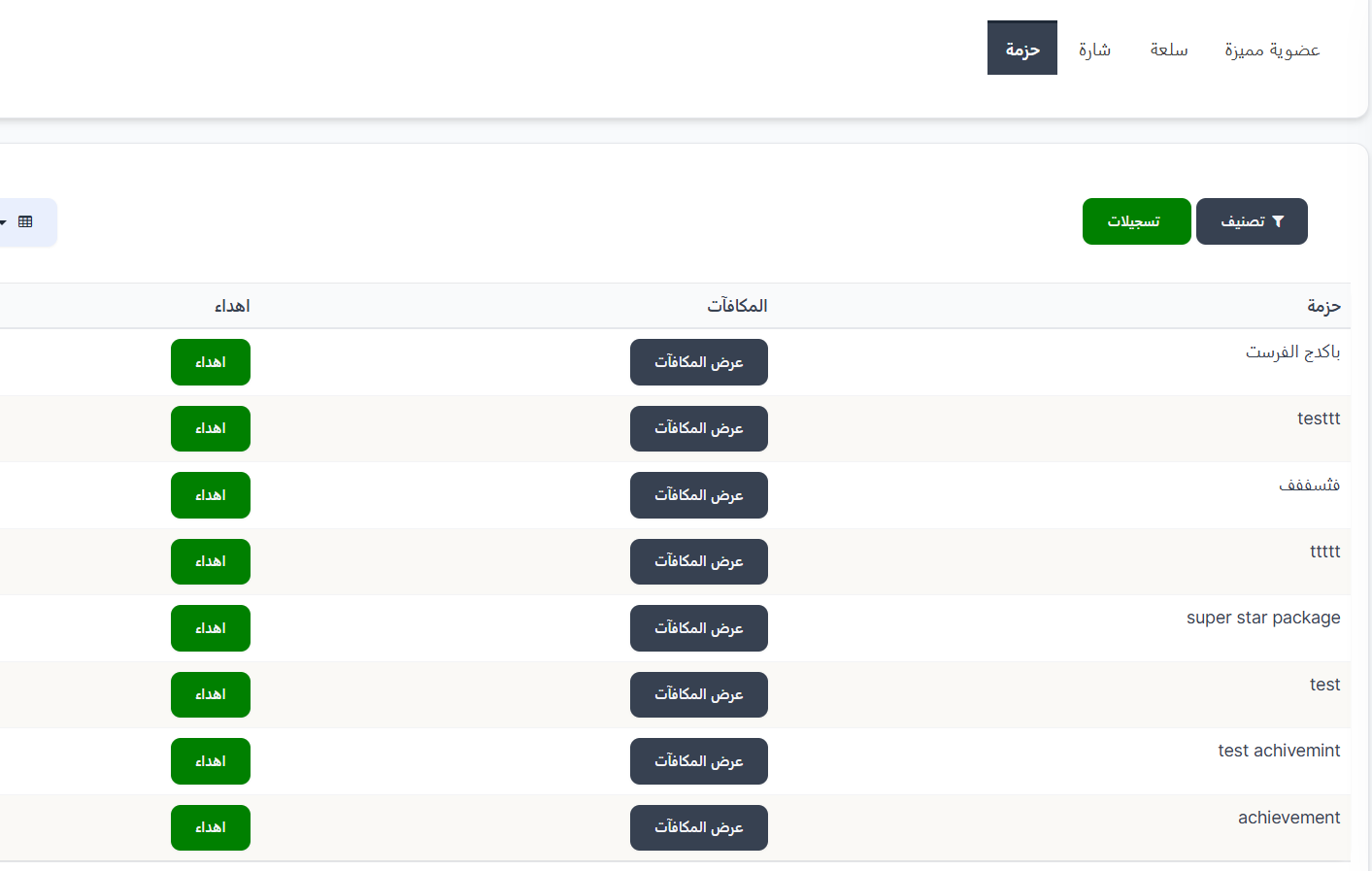
Displays packages which are collections of various rewards (wares + badges + VIP + coins) grouped together:
| Column | Description |
|---|---|
| Package | Package name (example: super star package, test, achievement) |
| Rewards | View Rewards button — click to view reward details inside the package |
| Gift | Green Gift button — click to open the gifting dialog |
View Rewards (Package Contents):
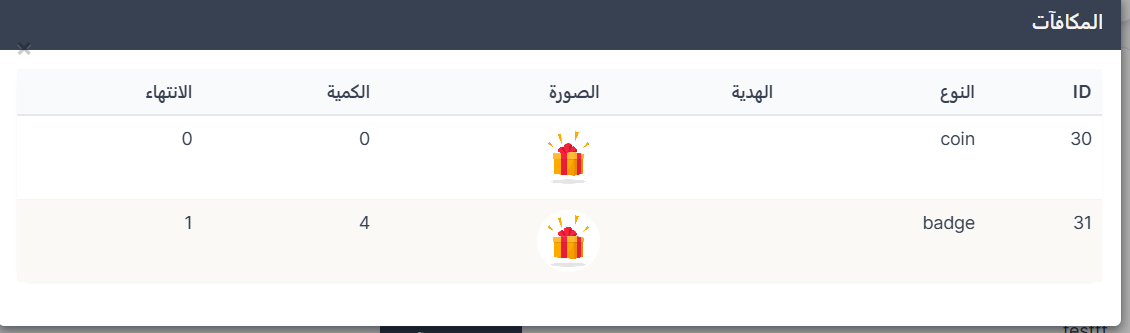
When clicking View Rewards next to any package, a popup appears showing all rewards inside the package:
| Column | Description |
|---|---|
| ID | Reward identifier |
| Type | Reward type (ware, badge, vip, coin) |
| Gift | Gift name (example: VIP 1, VIP 2) |
| Image | Reward icon/image |
| Quantity | Number of units of this reward |
| Expiry | Reward validity period |
Package Contents Example
A single package may contain:
- 🛒 ware (item) × 3 — duration 3 days
- 🏅 badge × 0
- 💎 vip (VIP 1) × 3 — duration 2 days
- 💎 vip (VIP 2) × 3 — duration 2 days
- 🪙 coin × 0
- 🛒 ware (item) × 1 — duration 1 day
Gifting Dialog:
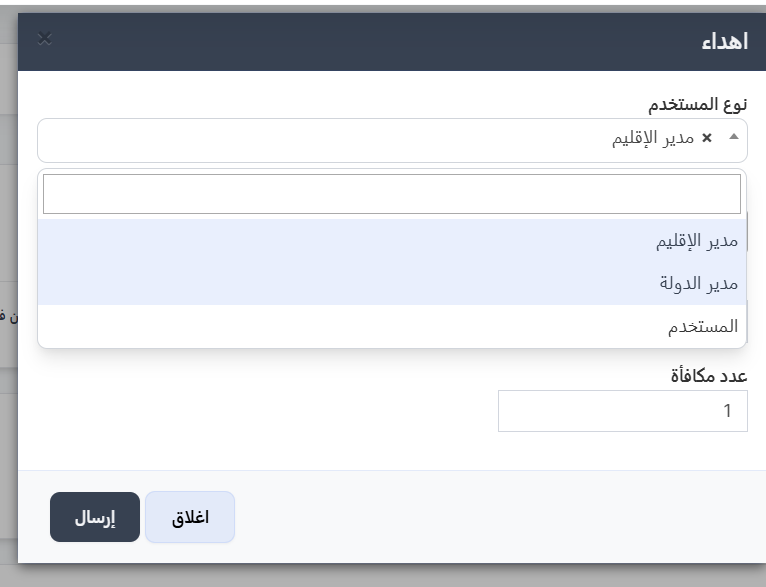
When clicking the Gift button next to any reward, a Gift dialog appears containing:
Gifting Dialog Fields:
| Field | Description | Required |
|---|---|---|
| User Type | Dropdown to select recipient type | ✅ Yes |
| Choose Recipient | Search field to select the recipient (changes based on user type) | ✅ Yes |
| Days | Reward validity period in days | ❌ No |
| Reward Count | Number of rewards to gift (default: 1) | ✅ Yes |
Recipient Types:
| Type | Description |
|---|---|
| Area Manager | Gift the reward to an area manager — Choose Area Manager field appears |
| Country Manager | Gift the reward to a country manager — Choose Country Manager field appears |
| User | Gift the reward to a regular user — Choose User field appears |
Dialog Buttons:
| Button | Description |
|---|---|
| Send | Confirm and send the reward to the recipient |
| Close | Close the dialog without sending |
Tip
- When selecting Area Manager, additional fields appear: Choose Area Manager + Days + Reward Count.
- When selecting User, the user search field appears directly.
- Country managers can re-gift received rewards to users in their country after receiving them.
Gift History (Records):
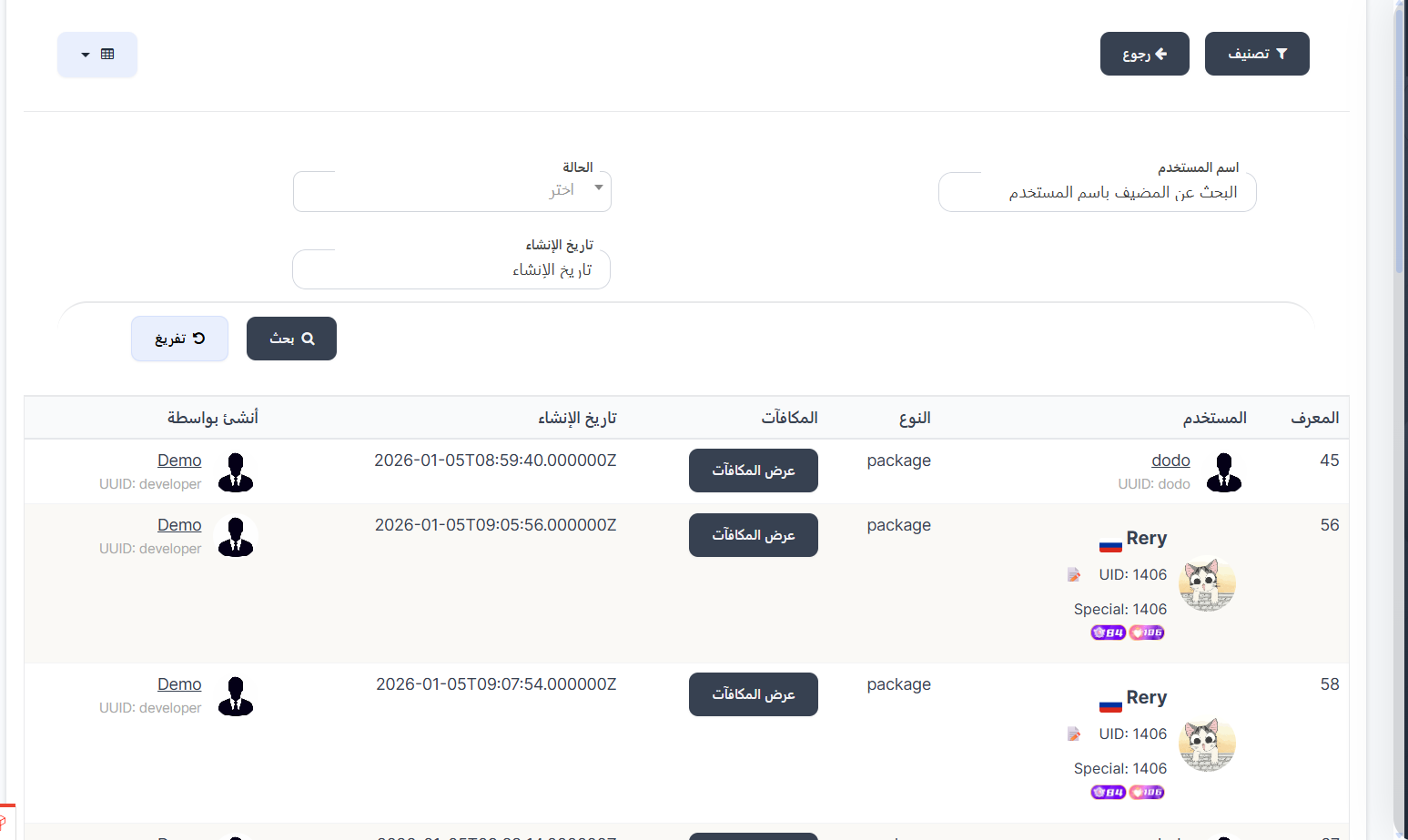
When clicking the green Records button, you navigate to the all gifts history page:
Search Filter:
| Field | Description |
|---|---|
| Username | Search for host by username |
| Status | Filter by gift status (dropdown) |
| Creation Date | Filter by gift date |
Records Table:
| Column | Description |
|---|---|
| ID | Unique identifier for the gift operation |
| User | Recipient data (name, UUID, image, UID, badges) |
| Type | Reward type (package, vip, ware, badge) |
| Rewards | View Rewards button — to view details of gifted rewards |
| Creation Date | Date and time of the gift operation |
| Created By | Name of the person who gifted (example: Demo, UUID: developer) |
Note
The View Rewards button in the records opens a window showing details of the gifted rewards, including type, image, quantity, and expiry duration.
Package Management (Creating Packages):
To create and manage packages, navigate to the Packages page from:
Sidebar ← Gift Rewards ← Packages
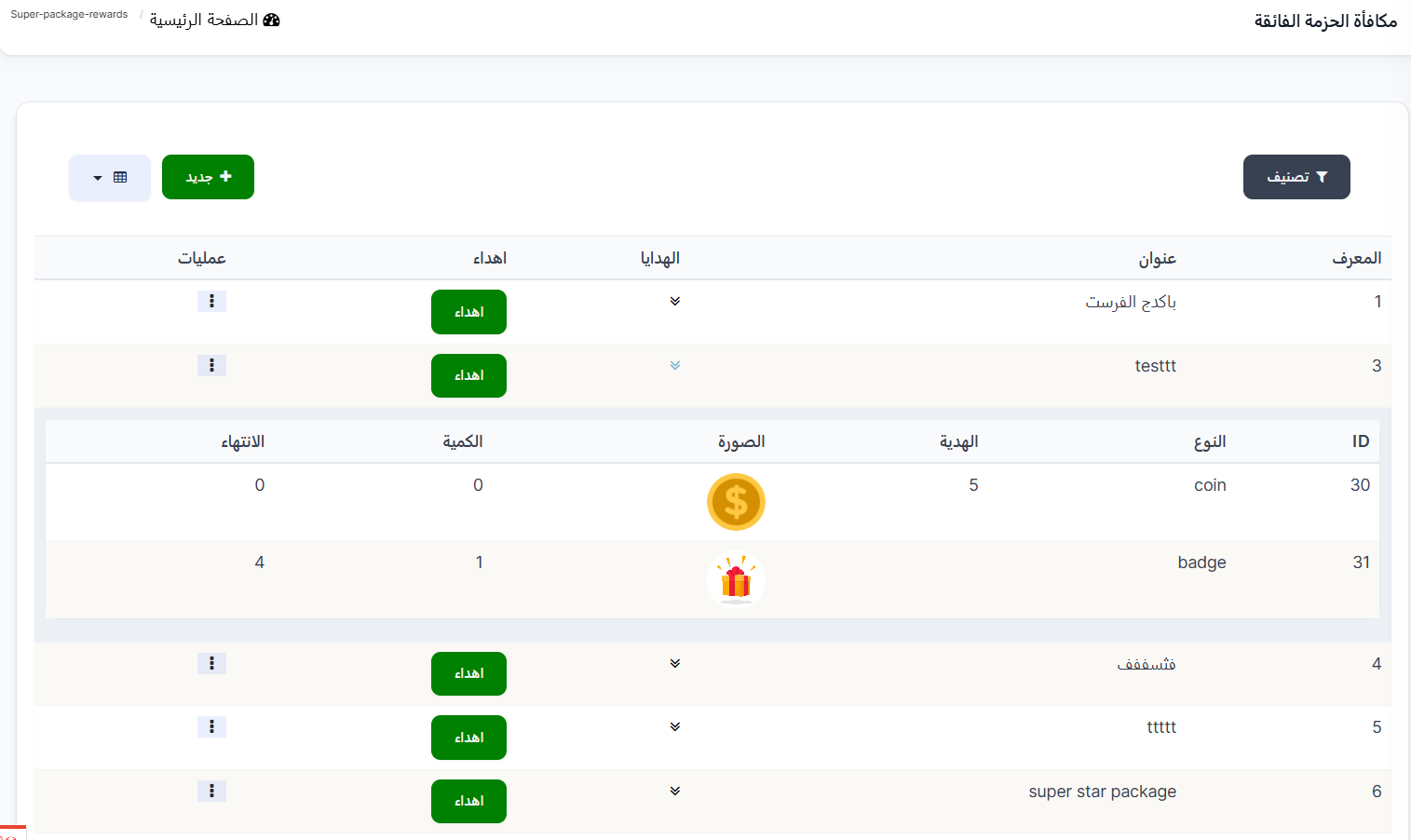
Packages Table:
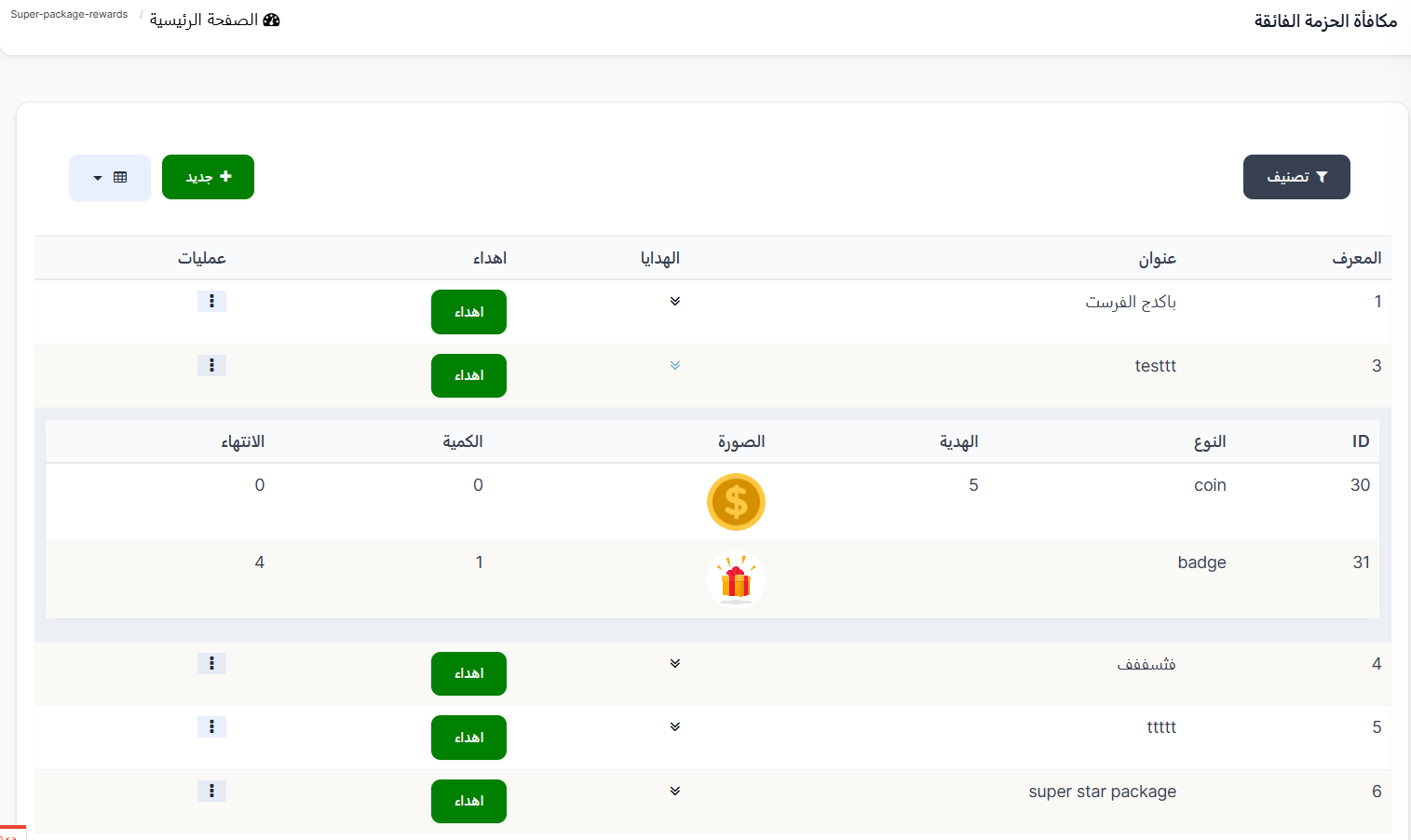
| Column | Description |
|---|---|
| ID | Unique package identifier |
| Title | Package name (example: First Package, testtt, super star package) |
| Gifts | ⟱ icon to show/hide package contents — clicking reveals all rewards inside the package |
| Gift | Green Gift button — to gift the entire package to a country manager |
| Actions | Options menu (⋮) to edit or delete the package |
View Package Contents:
When clicking the ⟱ icon next to any package, the row expands to show the internal rewards table:
| Column | Description |
|---|---|
| ID | Reward identifier |
| Type | Reward type (coin, badge, ware, vip) |
| Gift | Gift value/name |
| Image | Reward icon |
| Quantity | Number of units |
| Expiry | Validity period in days |
Creating a New Package:
Click the green + New button to open the new package creation page.
Package Creation Fields:
First — Reward Data:
| Field | Description | Required |
|---|---|---|
| Type | Dropdown to select reward type | ✅ Yes |
| Rewards | Select the specific reward from the chosen type (Choose button to browse items) | ✅ Yes |
| Expiry | Reward validity period in days (+/- buttons, default: 1) | ❌ No |
| Count | Number of units of this reward (+/- buttons) | ✅ Yes |
Available Reward Types for Package:
| Type | Description |
|---|---|
| Ware | Select a store item (frames, gems, effects, ...) |
| Badge | Select a badge |
| Premium Membership | Select a VIP level |
| Points | Add coins/points |
| Achievement | Add an achievement |
Adding Multiple Rewards to a Package:
After filling in the first reward data, click the green + Add and Continue button to add another reward type to the same package. You can repeat this process to add unlimited different rewards in a single package.
Example: Creating a Package with Multiple Rewards
- Select Type: Ware ← Choose the ware ← Set expiry and count
- Click + Add and Continue
- Select Type: Premium Membership ← Choose VIP 1 ← Set expiry and count
- Click + Add and Continue
- Select Type: Badge ← Choose the badge ← Set expiry and count
- Click Submit to save the final package
Creation Form Buttons:
| Button | Description |
|---|---|
| + Add and Continue | Save current reward and open new form to add another reward to the same package |
| Submit | Save the final package |
| Clear | Clear all fields |
| Continue Editing ☐ | Stay on edit page after saving |
| Continue Creating ☐ | Open new form to create another package after saving |
| View ☐ | View package details after saving |
Gifting a Package to Country Manager:
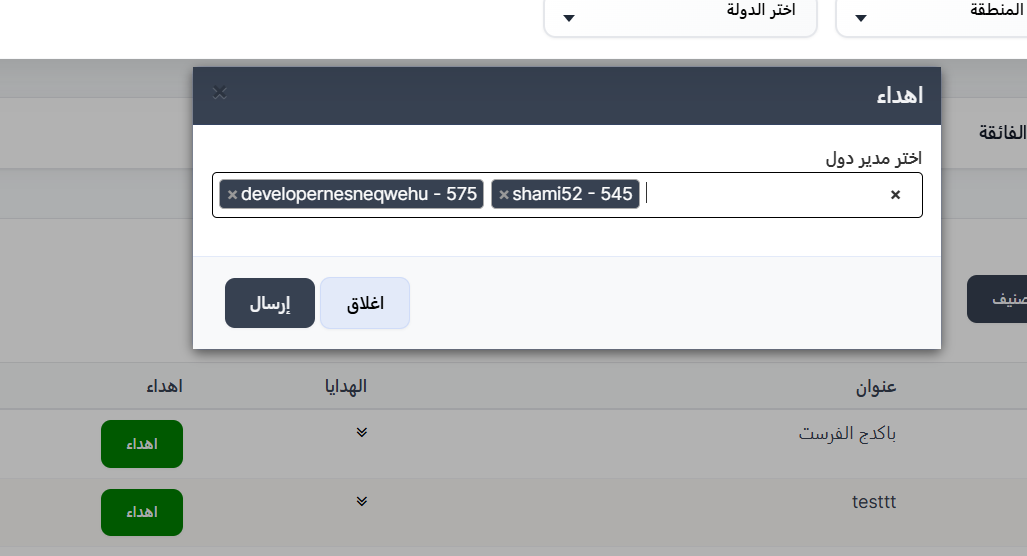
When clicking the Gift button next to any package on the packages page, a Gift dialog appears containing:
| Field | Description |
|---|---|
| Choose Country Manager | Multi-select search field — you can select multiple country managers at once to gift the package to all of them |
Note
You can select multiple country managers at the same time to gift the same package to all of them at once. After receiving, each country manager can re-gift the rewards to users in their country.
Quick Summary:
| Action | Steps |
|---|---|
| Gift VIP Membership | Gift Rewards ← Premium Membership tab ← Choose level ← Gift ← Select recipient ← Send |
| Gift Store Ware | Gift Rewards ← Ware tab ← Choose ware ← Gift ← Select recipient ← Send |
| Gift Badge | Gift Rewards ← Badge tab ← Choose badge ← Gift ← Select recipient ← Send |
| Gift Package | Gift Rewards ← Package tab ← Choose package ← Gift ← Select recipient ← Send |
| View Package Contents | Package tab ← View Rewards |
| Create New Package | Gift Rewards ← Packages ← + New ← Choose type and reward ← + Add and Continue (for more) ← Submit |
| Gift Package to Country Manager | Packages ← Gift ← Choose Country Manager ← Send |
| View Gift History | Any tab ← Records ← Search and filter |