⭐ Weekly Star Events
⭐ Weekly Star Events
Introduction
The Weekly Star Events system is a weekly competition system based on sending gifts inside rooms. The admin creates a weekly event and selects specific gifts, then the top 3 users who sent these gifts in rooms during the week are calculated. At the end of the week, the three winners receive the event prizes.
How Does the System Work?
- Create Event: The admin sets the start date of the week and selects the gifts to be counted.
- Event Period: The event starts from the start date and continues until the end of the week (e.g., Thursday 00:00 to Wednesday 23:59:59 Saudi time).
- Points Calculation: Each selected gift has a specific price (activity points), and when the user sends it in a room, it's counted for them.
- Ranking: Users are ranked by highest total activity points from the specified gifts.
- Prize Distribution: At the end of the week, the top 3 users receive their prizes automatically.
Weekly Star Rules
Official Rules
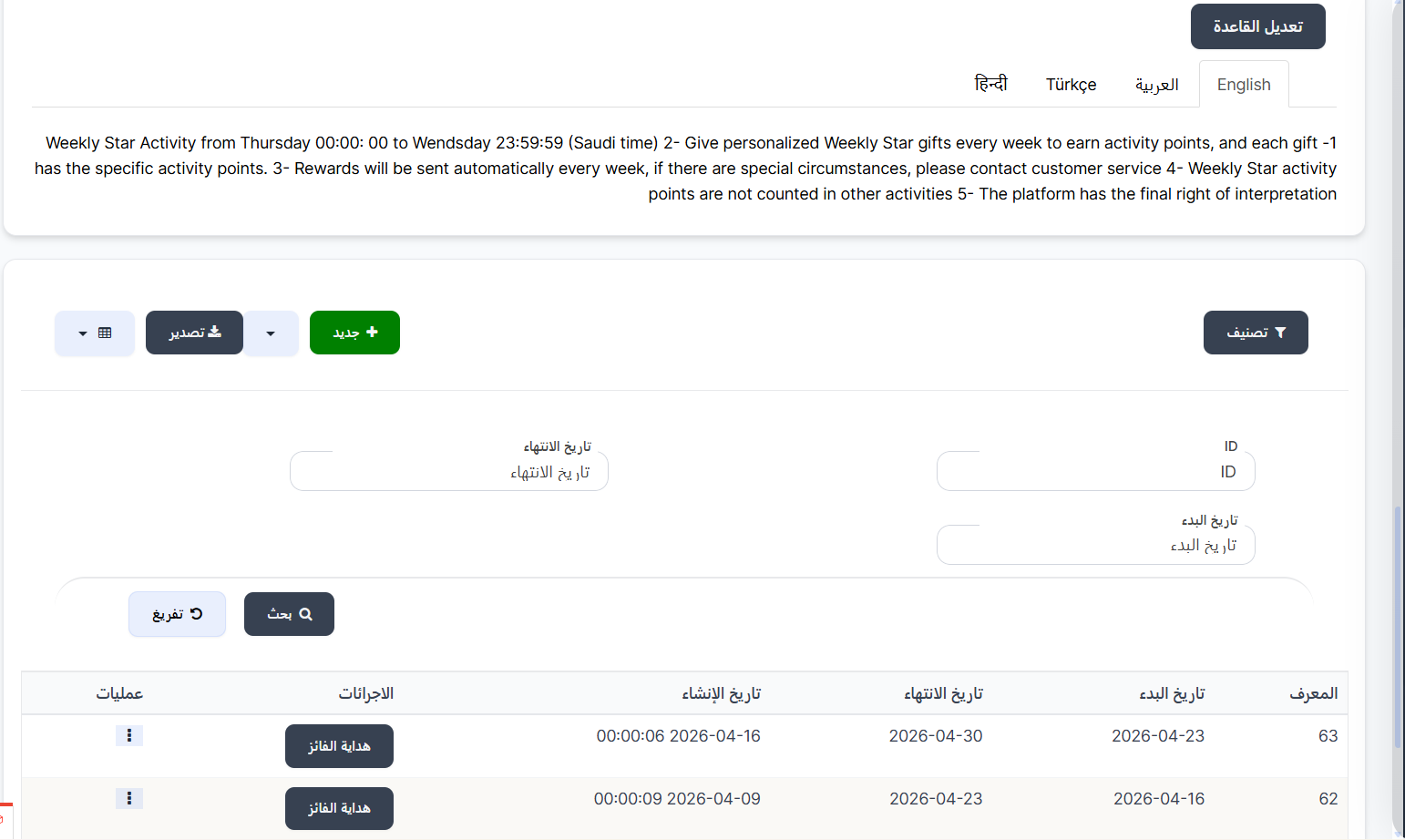
- Weekly Star activity starts from Thursday 00:00 to Wednesday 23:59:59 (Saudi time).
- Send designated Weekly Star gifts each week to earn activity points, each gift has specific activity points.
- Rewards are sent automatically every week. In case of special circumstances, please contact customer service.
- Weekly Star activity points are not counted in other activities.
- The platform has the final right of interpretation.
How to Access
Sidebar Menu → Events → Weekly Star Events
Or via direct link:
⭐ Open Weekly Star Events Page
Weekly Star Events Page
Edit Rules
At the top of the page, there's an "Edit Rules" button to modify the rules text shown to users. The system supports multiple languages:
- English - English
- العربية - Arabic
- Türkçe - Turkish
- हिन्दी - Hindi
Search and Filter Tools
| Field | Description |
|---|---|
| ID | Search by unique event identifier |
| Start Date | Filter by event start date |
| End Date | Filter by event end date |
| Search 🔍 | Execute search with specified criteria |
| Clear 🔄 | Clear search criteria and reset |
Events Table
The table displays all Weekly Star events:
| Column | Description |
|---|---|
| ID | Unique event identifier (e.g., 62, 63) |
| Start Date | Event week start date (e.g., 2026-04-23) |
| End Date | Event week end date (e.g., 2026-04-30) |
| Created Date | Event creation date and time in the system |
| Actions | "Winner Gift" 🟢 button - to manage the three winners' prizes |
| Operations | Actions menu (⋮) to edit or delete the event |
Main Control Buttons
| Button | Description |
|---|---|
| + New 🟢 | Create a new weekly star event |
| Filter 🔘 | Filter and sort displayed events |
| Export 🔵 | Export event data as a file |
Create New Weekly Star Event
To create a new event:
- Click the "+ New" 🟢 button
- The creation page will appear with the following fields:
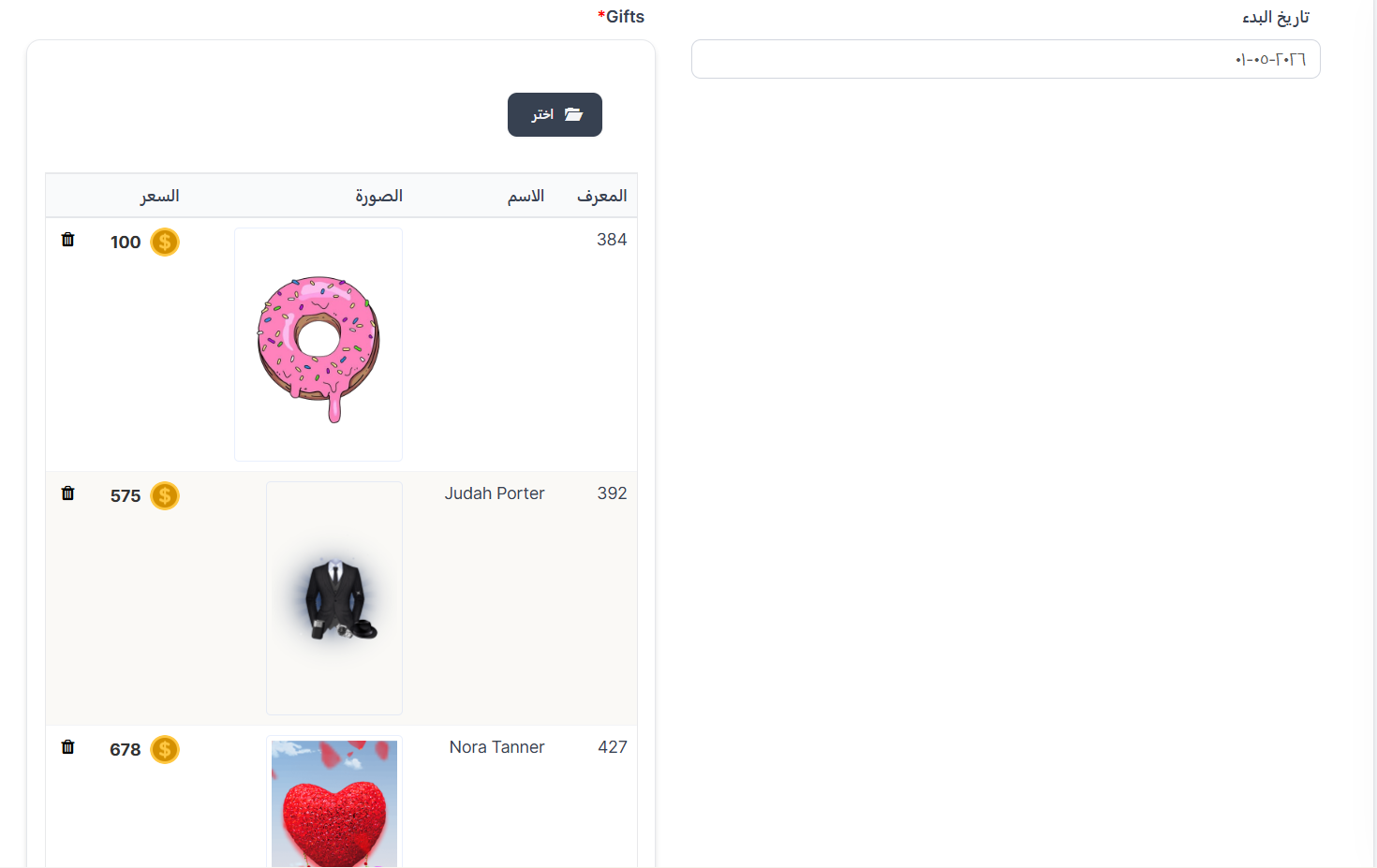
Start Date Field
| Field | Description | Example |
|---|---|---|
| Start Date | Week start date for the event. The system will calculate the end of week automatically | 2026-05-01 |
Gifts Field
This field is required ★ - you must select the gifts to be counted in the competition:
- Click the "Choose" 📁 button to open the gift selection window
- Select the desired gifts from the list
- Selected gifts will appear in a table showing:
| Column | Description |
|---|---|
| ID | Gift identifier (e.g., 384, 392) |
| Name | Gift name (e.g., Judah Porter) |
| Image | Gift image displayed |
| Price 💰 | Gift price/points (e.g., 100, 575) - this is the number of activity points the user gets when sending this gift |
| 🗑️ Delete | Delete button to remove the gift from the list |
Note
The gift price is the number of activity points the user earns when sending this gift in a room. The more gifts a user sends, the more points they get and the higher they rank.
- Click "Submit" to save the event
Managing Winner Prizes
After creating the event, you need to set the prizes for the three winners. Click the "Winner Gift" 🟢 button in the actions column.
A page with 3 sections for winner prizes will appear:
🥇 First Winner Gift
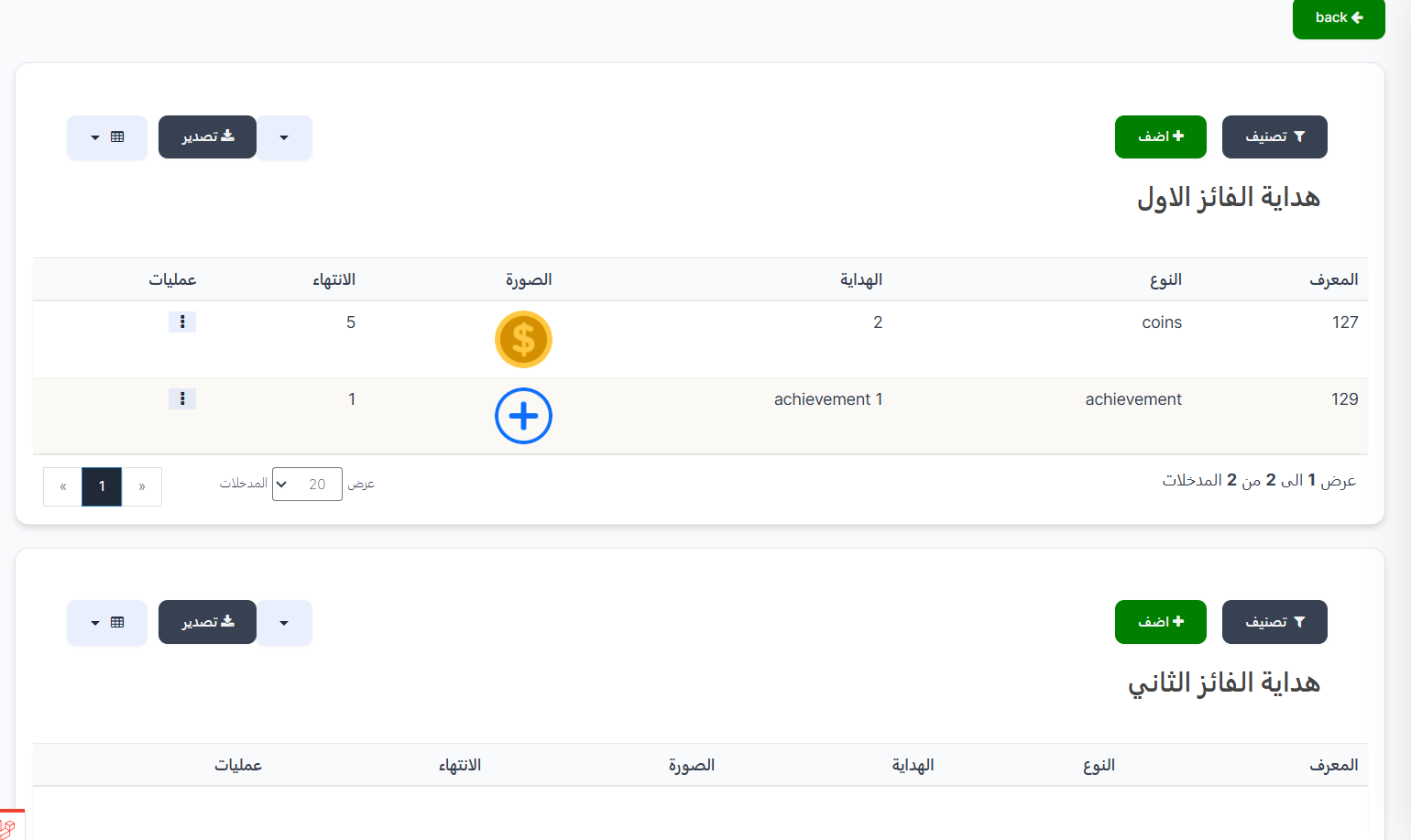
Prize table for the 1st place winner (top user who sent gifts in rooms):
| Column | Description |
|---|---|
| ID | Prize identifier |
| Type | Prize type (coins, achievement, ware, vip, badge) |
| Gift | Prize name/value (e.g., 2 coins, achievement 1) |
| Image | Prize image |
| Expiry | Prize validity period in days |
| Operations | Edit or delete actions |
🥈 Second Winner Gift
Prize table for the 2nd place winner with the same columns.
🥉 Third Winner Gift
Prize table for the 3rd place winner with the same columns.
Adding a Prize to a Winner
- From the desired winner section (1st, 2nd, or 3rd), click "+ Add" 🟢
- Fill in the following fields:
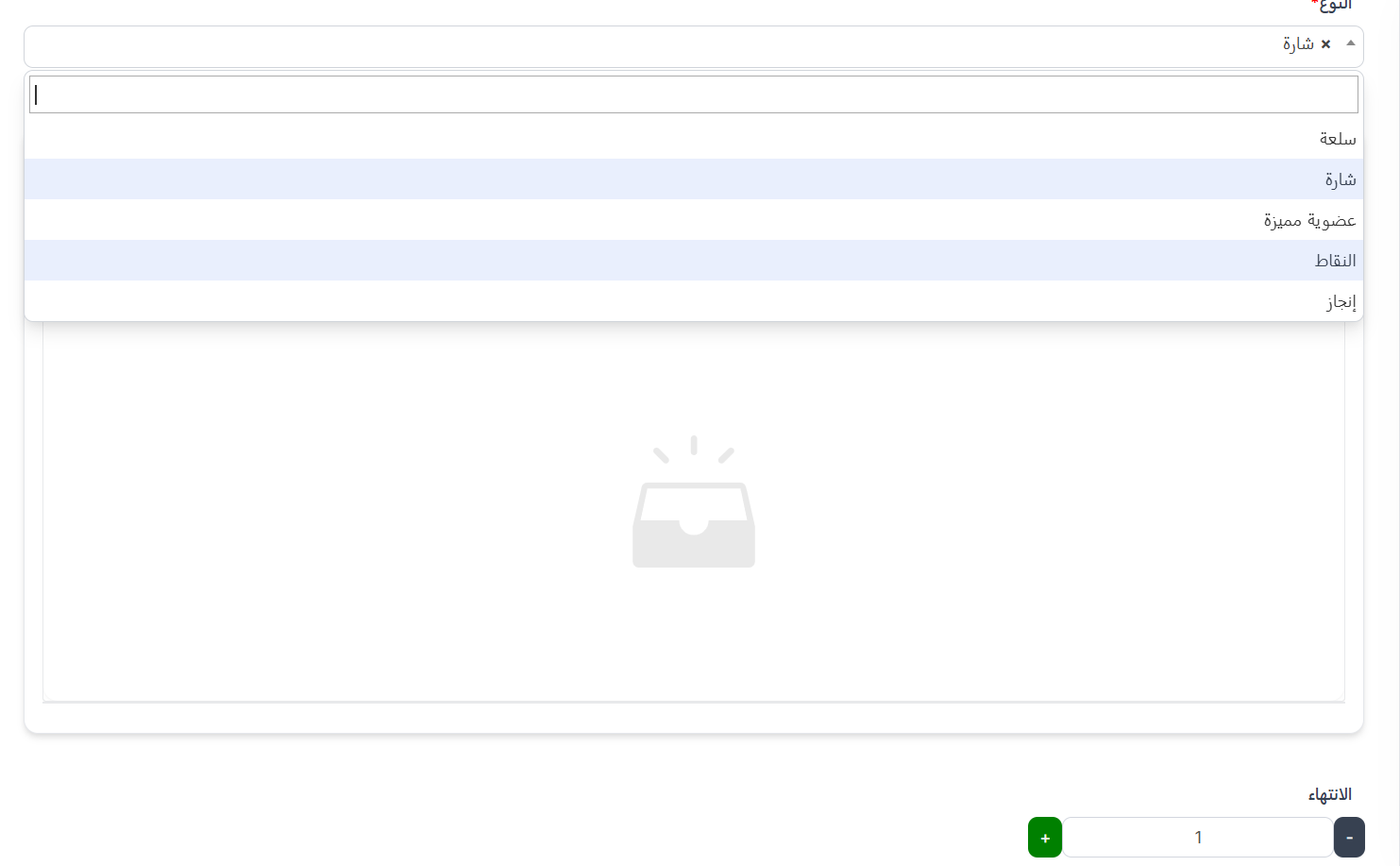
Type Field
Choose the prize type from the dropdown:
| Type | Description |
|---|---|
| Item (ware) | Store item |
| Badge (badge) | Badge displayed on user's profile |
| VIP Membership (vip) | VIP membership |
| Points (coins) | Coins/points added to user's balance |
| Achievement (achievement) | Achievement added to user's record |
Gift Field
After selecting the type, choose the specific prize from the list.
Expiry Field
| Field | Description |
|---|---|
| Expiry | Prize validity period in days. Use + and - buttons or enter the number manually |
- Click "Submit" to save the prize
Tip
You can add more than one prize to the same winner. For example: the 1st winner gets coins + achievement + item.
Practical Example
Scenario: Creating a Star of the Week Competition
Step 1: Create the event
- Start Date: 2026-04-23 (Thursday)
- Counted gifts: Donut gift (100 points) + Suit gift (575 points)
Step 2: Set winner prizes
| Rank | Prize | Type | Expiry |
|---|---|---|---|
| 🥇 1st | 2 coins + achievement 1 | coins + achievement | 5 days + 1 day |
| 🥈 2nd | VIP 3 days | vip | 3 days |
| 🥉 3rd | Special badge | badge | 1 day |
How It Works for the User?
⭐ Start of the week (Thursday 00:00)
    ↓
🎁 Users send the specified gifts in rooms
    ↓
📊 System calculates activity points for each user
    (Example: Ahmed sent 10 donuts = 1,000 points + 2 suits = 1,150 points → Total = 2,150)
    ↓
🏆 User ranking: 1st → 2nd → 3rd
    ↓
📅 End of week (Wednesday 23:59:59)
    ↓
🎉 Prizes distributed automatically to top 3 users
    ↓
🔄 New week begins
Important Notes
Warning
- End date is calculated automatically based on start date (full week).
- Make sure to choose suitable gifts with varied prices to encourage participation.
- Weekly Star points are not counted in other activities and events.
Information
- Prizes are sent automatically at the end of each week.
- Winner prizes for all three must be set before the end of the week to ensure proper distribution.
- You can create consecutive weekly events with different gifts each week.
Warning
When deleting a weekly event, all linked winner prizes will be deleted. Make sure before proceeding.
⭐ Open Weekly Star Events Page