📍 Area Manager Management - Overview
The Area Managers section allows you to manage those responsible for specific geographic areas within your application. Area managers serve as regional representatives who can manage users, agencies, rooms, and charging operations within their assigned countries.
How to Access
Sidebar ← Area System ← Area Manager
Area Managers Table
The main page displays a table of all created area managers with the following columns:
| Column | Description |
|---|---|
| ID | Unique identifier for the area manager |
| Area Manager | Manager's name, profile photo, and UID |
| Username | The login username for the area manager's dashboard |
| The manager's WhatsApp contact number | |
| Countries | List of countries assigned to this manager |
| Points | Current coin balance in the manager's wallet |
| Status | Active or inactive status |
| Actions | Available operations (see below) |
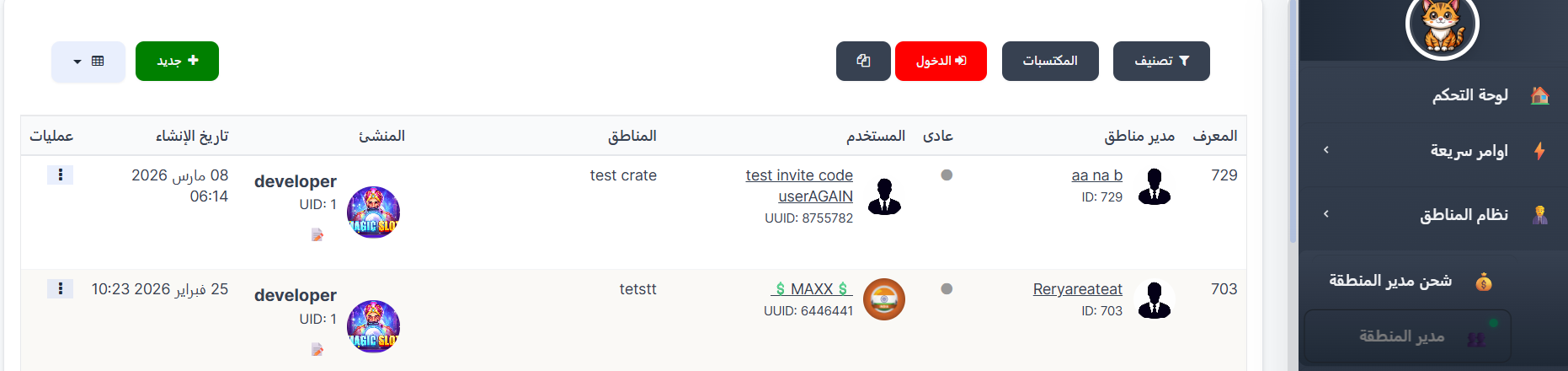
Available Actions
For each area manager, you can perform the following actions from the Actions column:
| Action | Description |
|---|---|
| Edit | Modify the area manager's details (name, password, photo, countries) |
| Delete | Remove the area manager from the system |
| Freeze Wallet | Temporarily freeze the manager's wallet, preventing them from performing any charging operations. Useful when investigating suspicious activity or during account reviews |
| Unfreeze Wallet | Re-enable the manager's wallet after it has been frozen |
| Copy Dashboard Link | Copy the unique dashboard URL for this area manager. Share this link with the manager so they can access their dedicated dashboard |
| Go to Dashboard | Open the area manager's dashboard directly in a new tab to view their interface |
Wallet Freeze Feature
When you freeze an area manager's wallet:
- The manager cannot perform any charging operations (adding or deducting balance for users or agencies)
- The manager can still access their dashboard and view data
- All other permissions remain unchanged
- The freeze remains in effect until you manually unfreeze the wallet
Warning
Freezing a wallet does not affect the manager's current balance — it only prevents new transactions. The existing balance remains intact.
Deleting an Area Manager
When attempting to delete an area manager from the system, the behavior differs depending on the manager type (default or non-default):
1. Default Area Manager
The default area manager cannot be deleted from the system. When you try to delete them, an alert will appear indicating that this is the default manager and cannot be removed.
Important Notice
The default area manager is a core manager in the system and cannot be deleted under any circumstances. This is the manager that receives all orphaned country managers when other area managers are deleted.
2. Non-Default Area Manager
When deleting a non-default area manager, the following operations are automatically performed:
| Operation | Details |
|---|---|
| Area Manager Deleted | The area manager is permanently deleted from the system |
| Country Managers Transferred | All Country Managers belonging to the deleted area manager are automatically transferred to the Default Area Manager |
| Sub Area Managers Deleted | All Sub Area Managers belonging to the deleted area manager are permanently deleted from the system |
Summary of What Happens on Deletion:
Delete Area Manager (non-default)
│
├── ✅ Area Manager ← Permanently deleted
│
├── 🔄 Country Managers ← Transferred to the Default Area Manager
│
└── ❌ Sub Area Managers ← Permanently deleted
Warning
Deletion cannot be undone. Make sure to review all country managers and sub area managers belonging to the area manager before confirming deletion.
Tip
Before deleting an area manager, it is recommended to review their associated country managers and ensure that transferring them to the default area manager will not cause any issues in work organization.
Area Manager Dashboard
Each area manager gets a dedicated dashboard accessible via their unique link. The dashboard includes:
- Overview with statistics (total target, charges, payments, gifts)
- Country Manager management for countries within their area
- User management for users in their assigned countries
- Agency management for agencies in their area
- Room management for rooms in their area
- Charging operations for balance management
- Announcements for sending notifications
- Gift rewards for distributing rewards
The dashboard link can be copied from the Actions column and shared with the area manager. They log in using the username and password set during creation.
Search & Filter
You can search for area managers using the search bar at the top of the page. Filter by:
- Name or Username
- Country assignment
- Status (active/inactive)