📂 Room Categories
The Room Categories page allows you to manage voice room classifications in the app. You can create main (root) categories or subcategories under a specific category, to organize voice rooms and make it easier for users to find them.
How to Access:
Sidebar ← Rooms ← Room Categories
Page Contents:
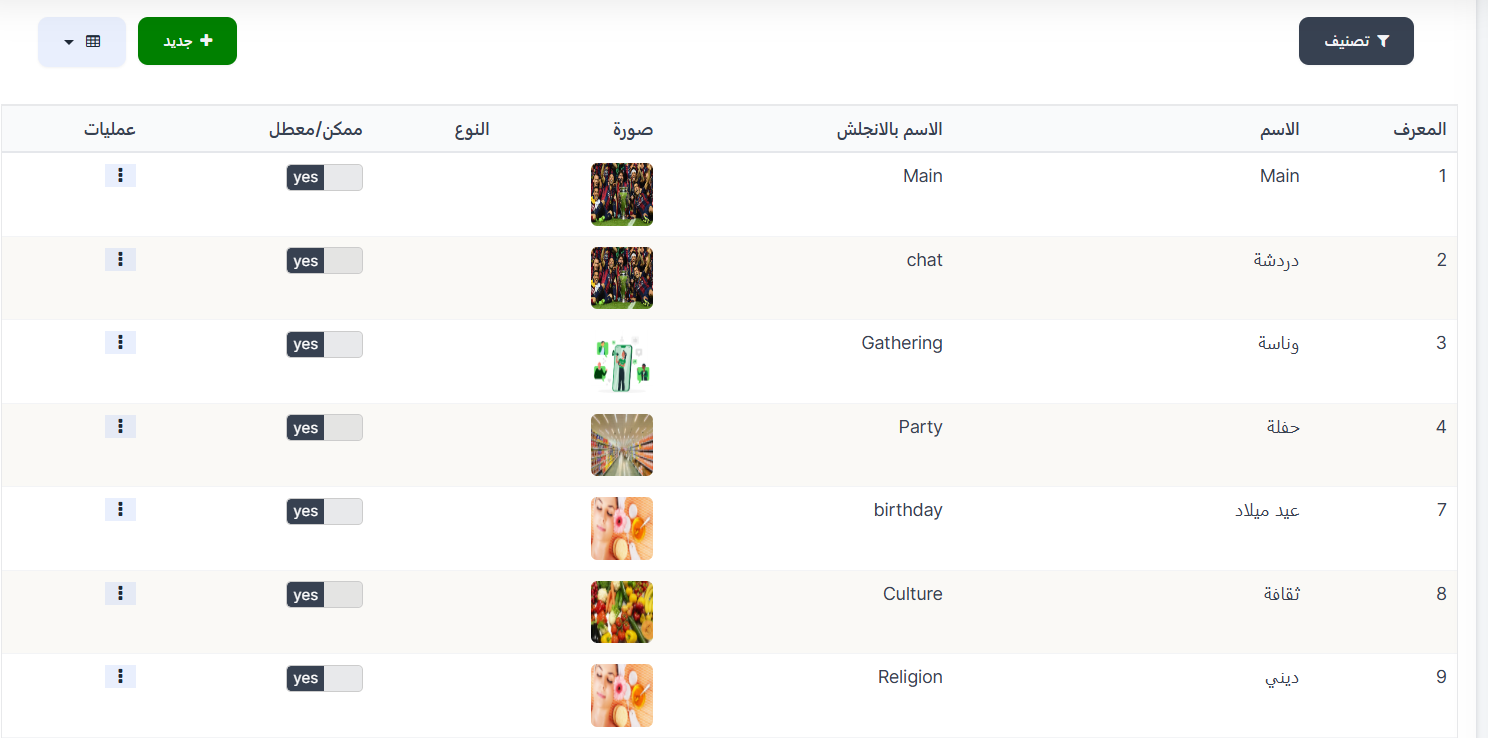
The page contains a toolbar at the top with a filter button and a button to add a new category, and the categories table below.
Toolbar:
| Element | Description |
|---|---|
| 🔍 Filter | Filter button to filter categories |
| + New | Green button to add a new category |
| 📊 View | Toggle display mode (table or grid) |
Categories Table:
The table displays all available room categories with the following information:
| Column | Description |
|---|---|
| ID | Category's unique system identifier |
| Name | Category name in Arabic (e.g., دردشة, وناسة, حفلة) |
| English Name | Category name in English (e.g., chat, Gathering, Party) |
| Image | Category icon/image displayed in the app |
| Type | Category type (empty if it's a regular category) |
| Enabled/Disabled | Category status — yes (enabled and visible in the app) or no (disabled and hidden) |
| Operations | Options menu (⋮) to edit or delete the category |
Available Categories:
Here are examples of categories in the system:
| ID | Name (Arabic) | Name (English) | Status |
|---|---|---|---|
| 1 | Main | Main | ✅ Enabled |
| 2 | دردشة | chat | ✅ Enabled |
| 3 | وناسة | Gathering | ✅ Enabled |
| 4 | حفلة | Party | ✅ Enabled |
| 7 | عيد ميلاد | birthday | ✅ Enabled |
| 8 | ثقافة | Culture | ✅ Enabled |
| 9 | ديني | Religion | ✅ Enabled |
| 10 | 3slya sokrya | love | ✅ Enabled |
Create a New Category:
When you press the green + New button, the Create category form opens:
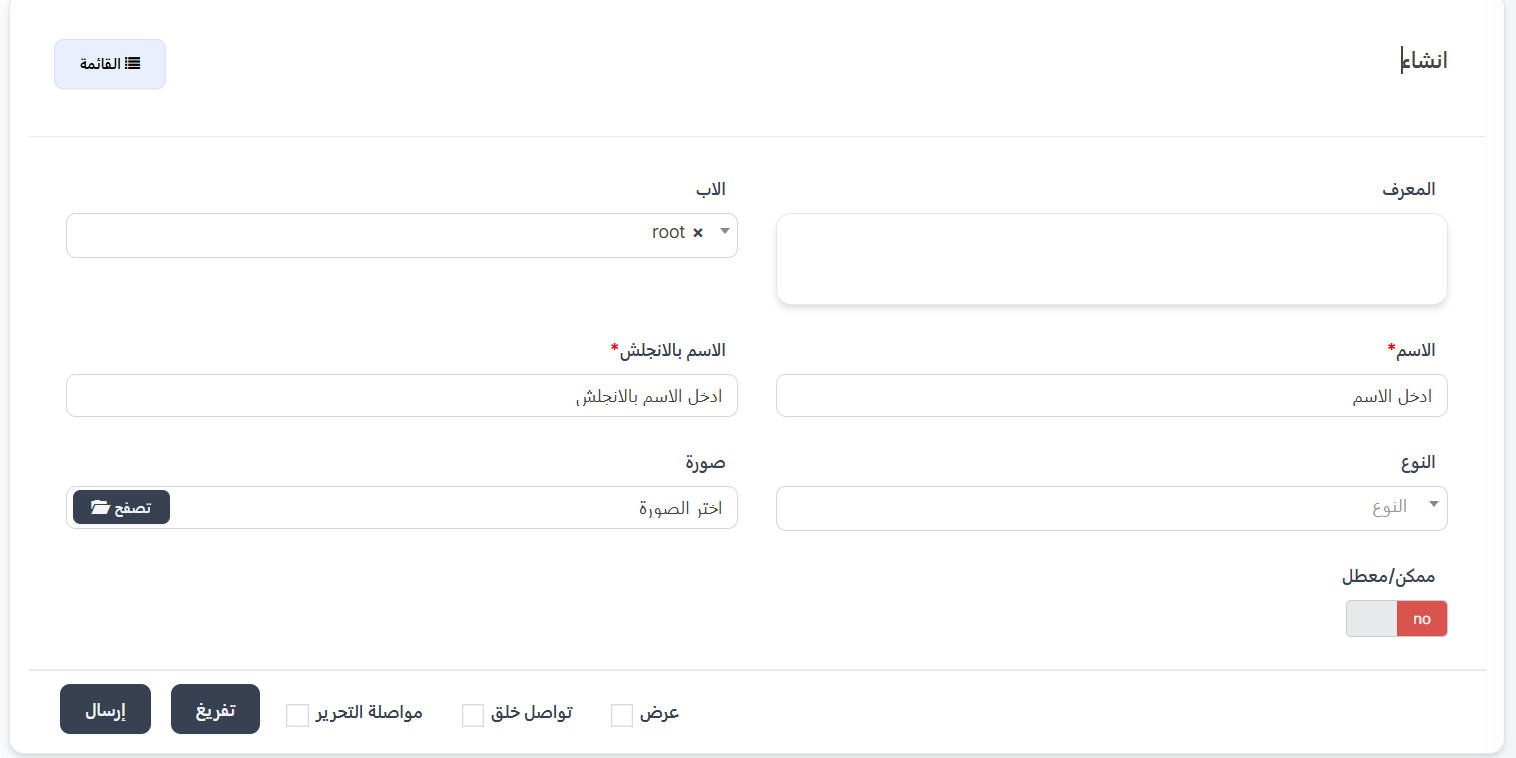
Form Fields:
| Field | Description |
|---|---|
| ID | Category's unique identifier — auto-generated or you can enter it manually |
| Parent | The parent category this category belongs to. Select root if it's a main (top-level) category, or select another category to make it a subcategory |
| Name ⭐ | Category name in Arabic (required field) |
| English Name ⭐ | Category name in English (required field) |
| Type | Category type — select from the dropdown |
| Image | Category icon/image — press 📁 Browse to select an image from your device |
| Enabled/Disabled | Toggle switch — yes (category is enabled and visible in the app) or no (category is disabled and hidden) |
Understanding the "Parent" Field (Hierarchical Classification):
The Parent field is the most important field in the creation form. It determines whether the category is a main (root) or subcategory:
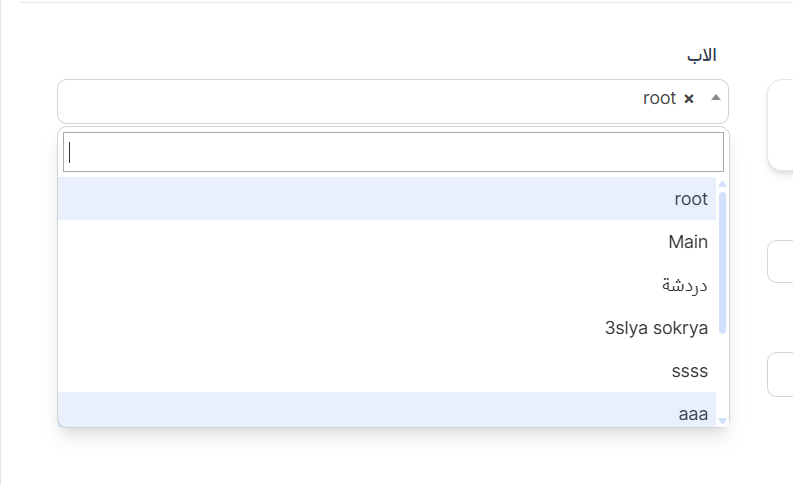
| Value | Meaning |
|---|---|
| root | The category is a main (root) category — appears as an independent category at the top level |
| Main | The category is a subcategory under "Main" |
| دردشة | The category is a subcategory under "دردشة" |
| Any other category | The category is a subcategory under the selected category |
Note on Hierarchical Classification
- Selecting root makes the category a top-level category — it appears at the highest level of the categories list.
- Selecting another category makes it a subcategory — it falls under the selected category and appears as a sub-classification.
- You can build multi-level classification trees (main category ← subcategory ← sub-subcategory).
Hierarchical Classification Example
- Main (root — main category)
- Chat (subcategory under Main)
- Gathering (subcategory under Main)
- Party (root — main category)
- Birthday (subcategory under Party)
Category Status (Enabled/Disabled):
| Status | Color | Meaning |
|---|---|---|
| yes | 🟢 Green | Category is enabled — visible in the app and users can see and select it when creating a room |
| no | 🔴 Red | Category is disabled — not visible in the app and cannot be used |
Form Buttons:
| Button | Function |
|---|---|
| Submit | Save the new category and return to the categories list |
| Reset | Clear all fields and reset to default values |
| Continue Editing ☐ | When enabled, save and stay on the edit page |
| Continue Creating ☐ | When enabled, after saving, a new form opens to create another category |
| View ☐ | When enabled, after saving, display the category details |
| 📋 List | Return to the full categories list |
Available Operations:
When you press the operations menu (⋮) next to any category:
| Operation | Description |
|---|---|
| Edit | Edit category settings (name, image, parent, status) |
| Delete | Delete the category from the system |
Warning
When deleting a main (parent) category, all subcategories under it may be affected. Make sure to move or delete subcategories before deleting the parent category.
Quick Summary:
| Action | Steps |
|---|---|
| View all categories | Rooms ← Room Categories |
| Add a main category | Press + New ← Select root in Parent field ← Enter data ← Submit |
| Add a subcategory | Press + New ← Select parent category in Parent field ← Enter data ← Submit |
| Edit a category | Press ⋮ next to the category ← Edit |
| Delete a category | Press ⋮ next to the category ← Delete |
| Enable/Disable a category | Edit the category ← Change Enabled/Disabled toggle |