🎨 ID Colors
Introduction
The ID Colors page displays special ID colors available. Through this page, you can add and manage different colors used to distinguish special IDs.
How to Access
Sidebar ← Special ID ← ID Colors
🎨 Open ID Colors Page
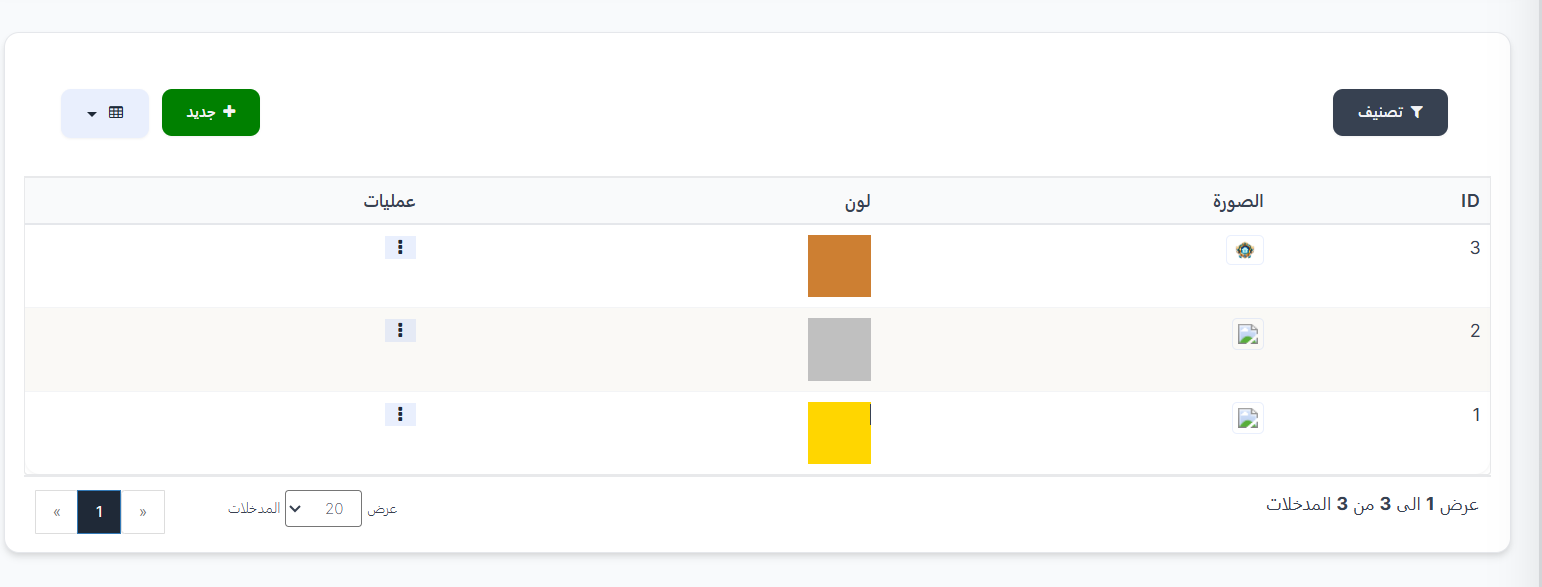
Top Page Buttons
| Button |
Description |
| 🔘 Filter |
Open search and filter options |
| ➕ New |
Add a new ID color |
ID Colors Table
| Column |
Description |
| ID |
Unique color identifier (example: 1, 2, 3) |
| Image |
Thumbnail associated with the color |
| Color |
Color swatch representing the ID color (example: 🟡 Yellow, ⬜ Gray, 🟤 Orange) |
| Operations |
Options menu (⋮) to edit or delete |
Color Examples
| ID |
Image |
Color |
| 1 |
🖼️ |
🟡 Yellow (Gold) |
| 2 |
🖼️ |
⬜ Gray (Silver) |
| 3 |
🖼️ |
🟤 Orange (Bronze) |
Adding a New Color
When clicking ➕ New, the create page appears.
Creation Fields:
| Field |
Description |
| Name |
Color name (example: Gold, Silver, Bronze) |
| Image |
Color image (click "📁 Browse" to select) |
| Color |
Color code or select from color palette |
Creation Steps:
- Click ➕ New.
- Enter the name — color name.
- Upload the image — click "📁 Browse" and select the image file.
- Enter the color — required color code.
- Click Submit ✅ to save, or Clear to reset fields.

Quick Summary
| Action |
Steps |
| View ID colors |
Special ID ← ID Colors |
| Add new color |
➕ New ← Choose color and upload image ← Submit |
| Edit/Delete color |
Click (⋮) ← Edit or Delete |
Next Step
🎮 Games