🌍 Country Settings
Introduction
Country settings allow you to control the countries available within the app. Activating countries directly affects the user experience:
- Search rooms by country: Users can search and filter rooms based on country, making it easier to find rooms that match their interests.
- Users join based on active countries: When registering, users select the country they belong to from the activated countries only. For example, if a user is Egyptian and Egypt is activated, they will be able to select it during registration.
Country Categories (Organize by Continents)
You can organize and classify countries by continents to make browsing and searching easier. When entering the countries page, you will find tabs at the top to filter countries by continent (e.g., All, Africa, Default, Asia).
Managing Country Categories
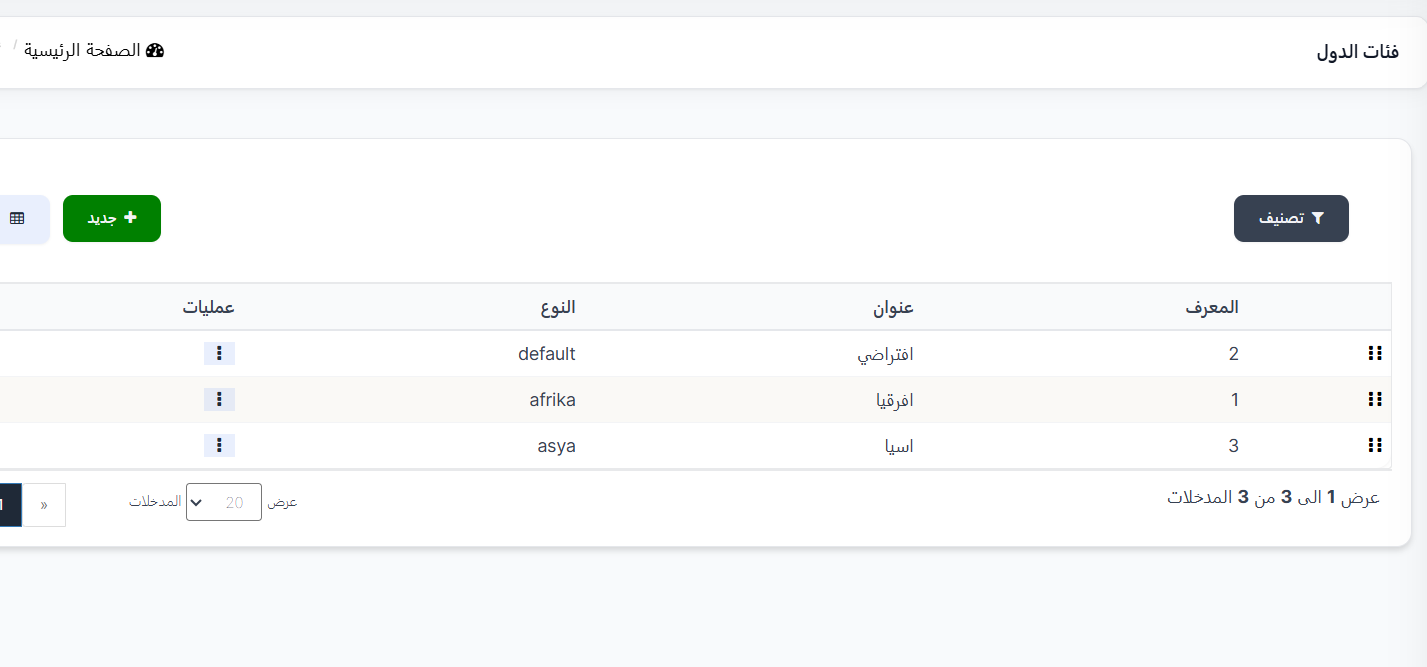
Access the "Country Categories" page to manage continents/categories. A list will appear containing:
| ID | Title | Type | Operations |
|---|---|---|---|
| 2 | Default | default | Edit / Delete |
| 1 | Africa | afrika | Edit / Delete |
| 3 | Asia | asya | Edit / Delete |
Adding a New Category (Continent)
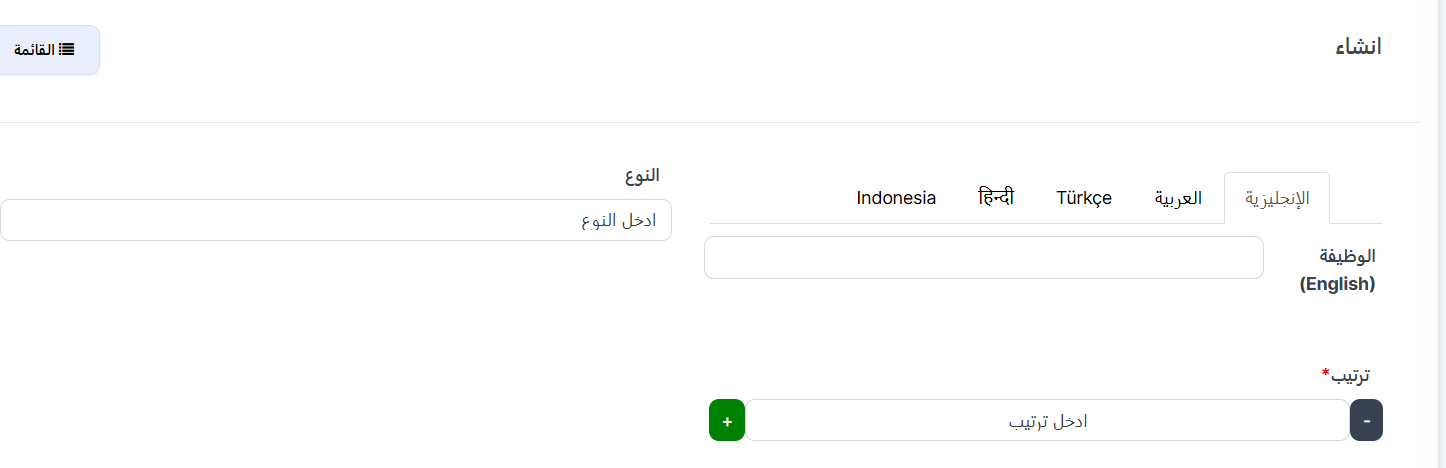
Click the "+ New" button to add a new category. The creation page will appear containing:
- Type: Enter the category type (identifier name in English)
- Function (Title): Enter the continent name in each available language via tabs (English, Arabic, Türkçe, हिन्दी, Indonesia)
- Order*: Set the display order of the continent (required field)
- Click "Submit" to save the new category or "Clear" to reset the fields
Editing or Deleting a Category
- To edit: Click "Operations" next to the category then select "Edit"
- To delete: Click "Operations" next to the category then select "Delete"
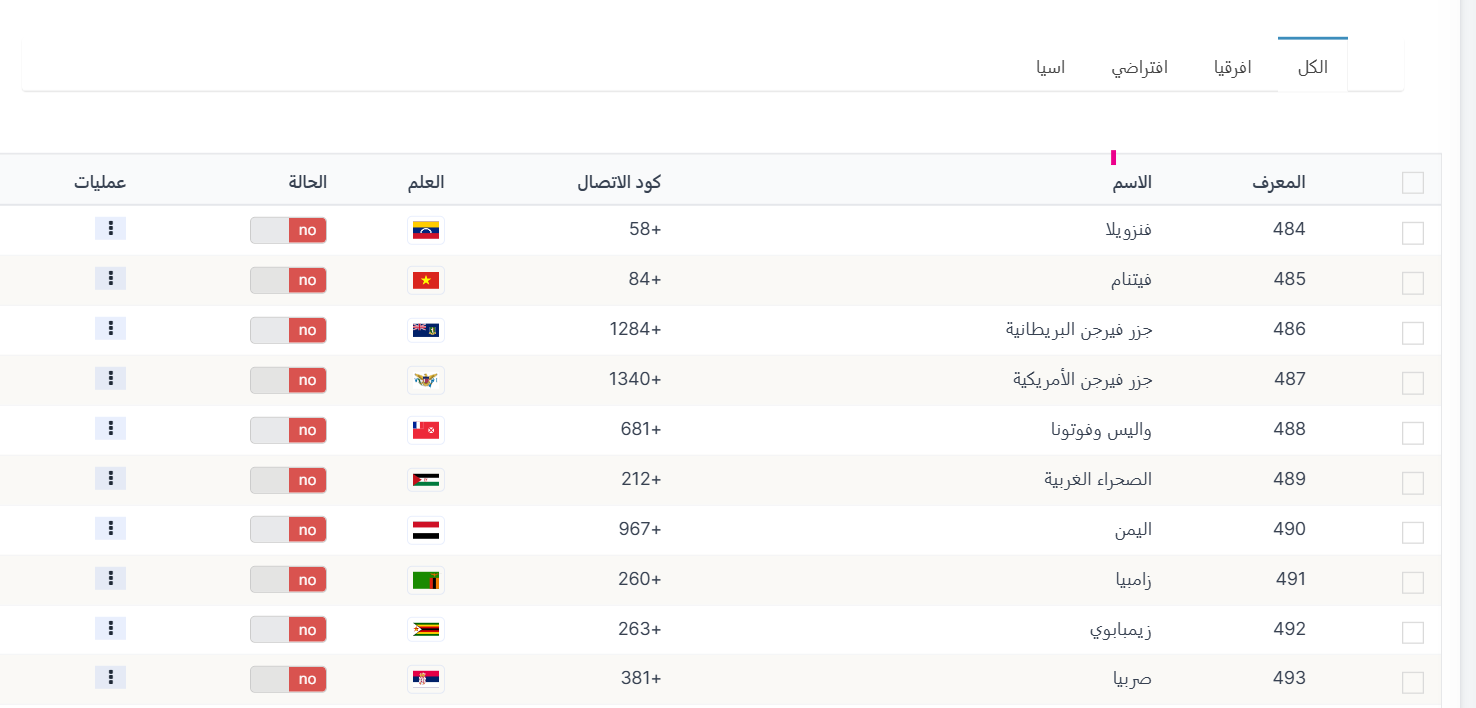
How to Activate a Country
- From the settings panel, select "Countries".
- A list of all available countries will appear containing:
- ID: Country identification number
- Name: Country name
- Calling Code: International calling code (e.g., +20 for Egypt)
- Flag: Country flag
- Status: Activation status (no = not activated)
- Operations: Additional options to control the country
- Change the country status from "no" to "yes" to activate it.
Note: Deactivated countries will not appear to users during registration or when searching for rooms.
Editing Country Data
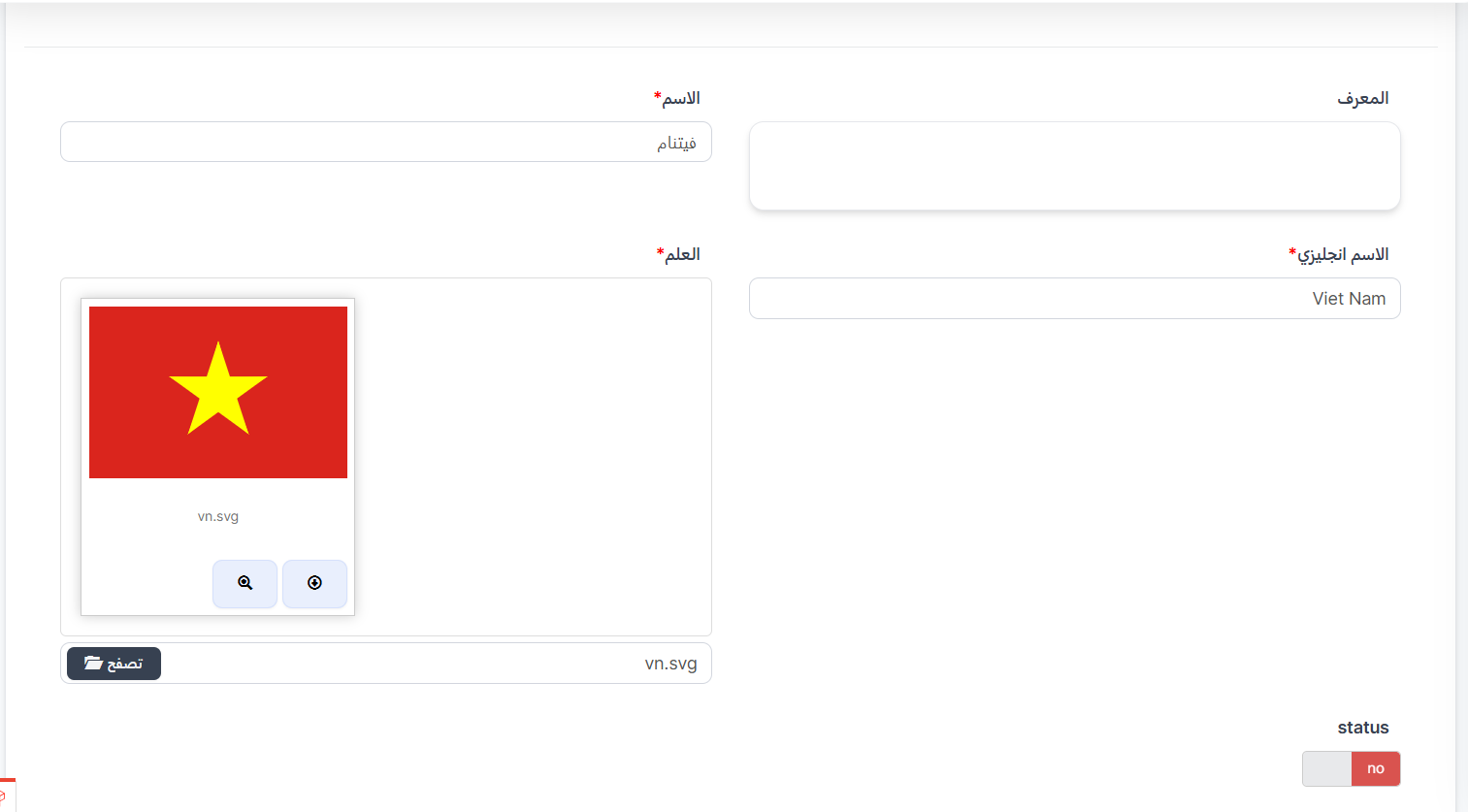
You can edit any country's data by clicking on "Operations" then selecting "Edit". The edit page will appear containing:
- ID: Country identification number (read-only)
- Name*: Country name in Arabic (required field)
- English Name*: Country name in English (required field)
- Flag*: Country flag image with the ability to upload a new image via the "Browse" button (required field)
- Status: Change activation status (no/yes)
Note: Fields marked with (*) are mandatory and must be filled in.
Move a Country to a Continent
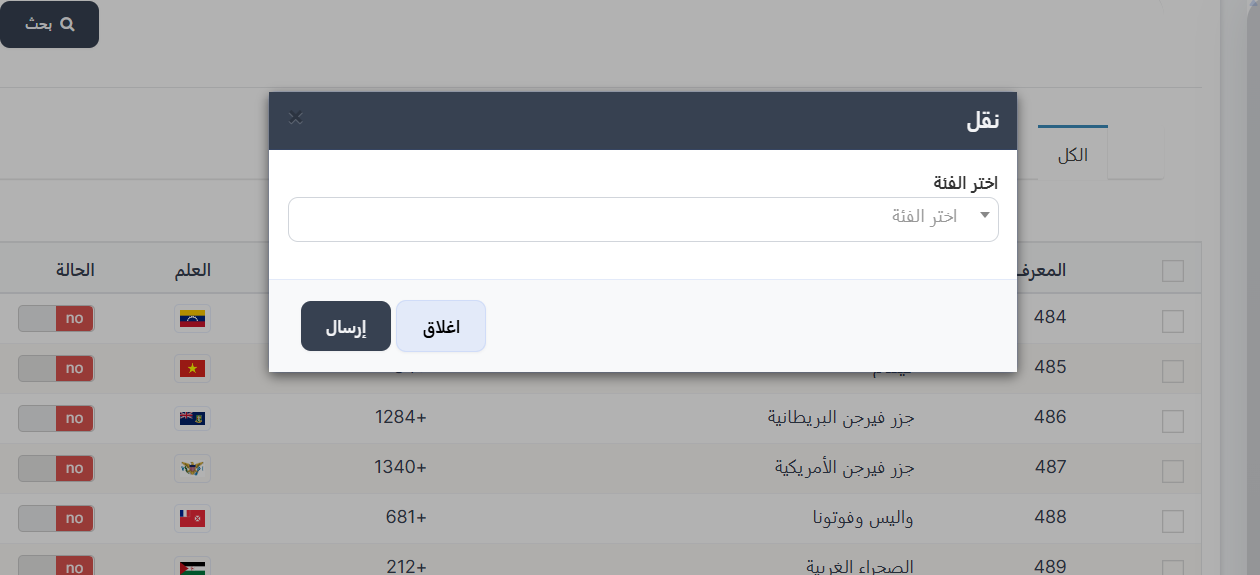
You can move any country to a specific continent/category by clicking "Operations" next to the country then selecting "Move". A dialog box will appear containing:
- Choose Category: A dropdown list to select the continent/category you want to move the country to
- Click "Submit" to confirm the move or "Close" to cancel
Note: After moving, the country will appear under the selected continent tab when filtering countries.