💎 VIP
Introduction
The VIP system is a premium subscription within the app that allows users to purchase VIP membership to gain exclusive features and privileges not available to regular users. When a user purchases VIP membership, they receive a VIP icon displayed next to their name, along with a set of special features that last for the subscription duration.
How Does the VIP System Work?
- Purchase: The user purchases VIP membership from within the app using Coins 💰.
- Activation: Once purchased, VIP membership is activated automatically and the user receives all features.
- VIP Icon: The user receives a VIP icon specific to their subscription level, displayed next to their name in the app.
- Duration: Each VIP level has a specific validity period (in days), and all features last for the same subscription duration.
- Expiration: When the subscription expires, features stop and the VIP icon disappears. The user can renew the subscription.
Important Note
All features the user receives when activating VIP take the same validity period as the VIP subscription. If the VIP duration is 30 days, all associated features also last for 30 days.
How to Access:
Sidebar Menu ← 💎 VIP
VIP Levels
The VIP system consists of multiple levels, each offering different features at different prices. The higher the VIP level, the more features and privileges the user receives.
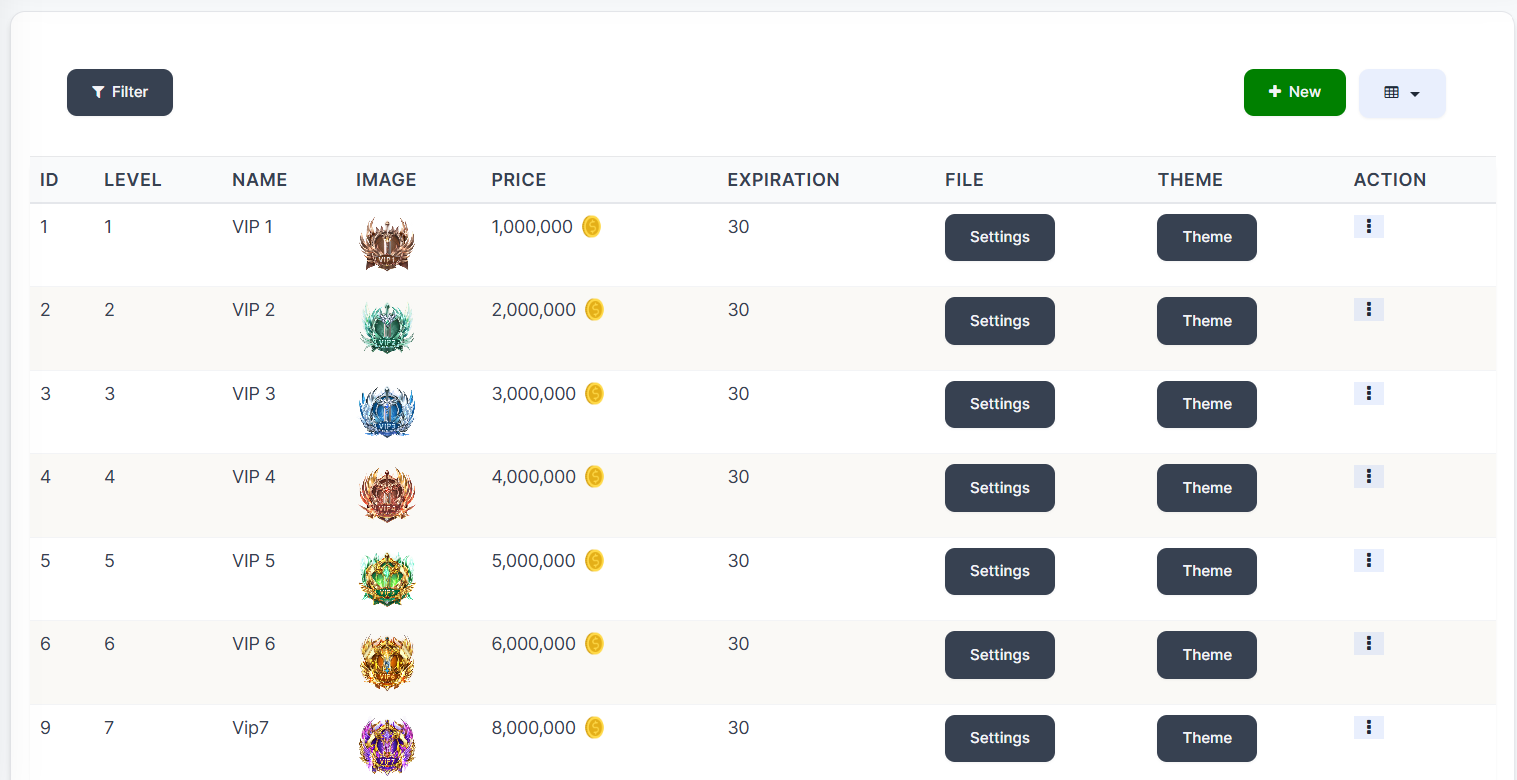
VIP Table Columns:
| Column | Description |
|---|---|
| ID | Unique VIP level identifier |
| Level | VIP level number (1, 2, 3... etc.) |
| Name | VIP level name (e.g., VIP 1, VIP 2... etc.) |
| Image | VIP level icon/image displayed next to the user's name |
| Price | Subscription price in Coins 💰 |
| Expiration | Subscription validity period in days |
| File | Settings file for this level |
| Theme | Custom theme/appearance for VIP level |
| Action | Edit and delete actions |
Available VIP Levels
| Level | Name | Price (Coins) | Duration (Days) |
|---|---|---|---|
| 1 | VIP 1 | 1,000,000 💰 | 30 |
| 2 | VIP 2 | 2,000,000 💰 | 30 |
| 3 | VIP 3 | 3,000,000 💰 | 30 |
| 4 | VIP 4 | 4,000,000 💰 | 30 |
| 5 | VIP 5 | 5,000,000 💰 | 30 |
| 6 | VIP 6 | 6,000,000 💰 | 30 |
| 7 | VIP 7 | 8,000,000 💰 | 30 |
Note
The higher the VIP level, the higher its price and the more features and privileges the user receives.
VIP Features
When a user subscribes to any VIP level, they receive a set of exclusive features, including:
| Feature | Description |
|---|---|
| VIP Icon | A distinctive VIP badge/icon displayed next to the user's name |
| Exclusive VIP Gifts | Ability to send exclusive gifts available only to VIP members |
| Custom Theme | A unique theme/appearance for the VIP level |
| Special Frame | A distinctive frame around the user's profile picture |
| Special Entry | Special entry effects when entering voice rooms |
Warning
All these features are temporary and last only for the VIP subscription validity period. When the subscription expires, all features stop automatically.
VIP Level Settings
How to Access:
💎 VIP ← Settings (next to each VIP level)
When clicking the Settings button next to any VIP level, the settings page opens containing tabs for each feature the user receives when subscribing to this level.
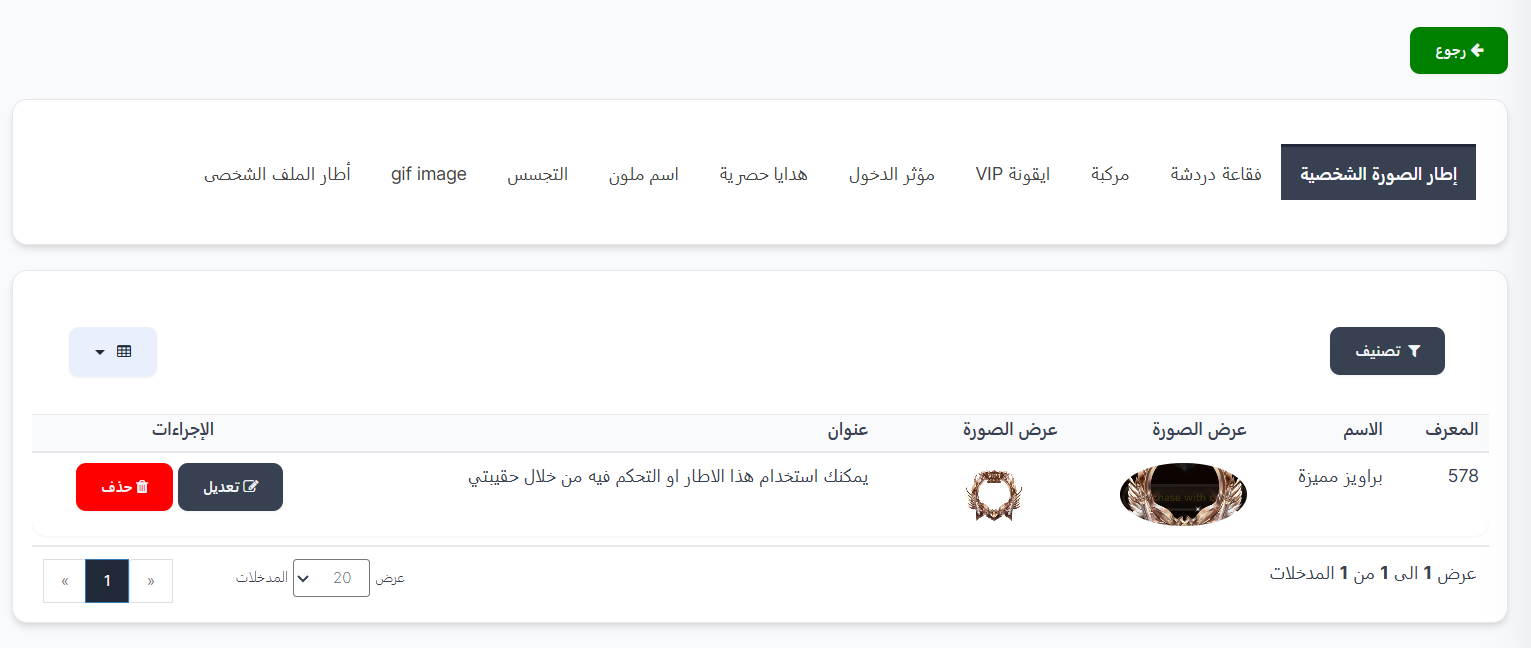
Adding a Property to a Feature:
Important Note
Each feature can contain only one property. For example, the "Profile Picture Frame" tab contains only one frame that the user receives when subscribing to this level.
To add a new property to any feature:
- Select the tab for the desired feature.
- Add the property with name, images, and description.
- Click Save to confirm.
Edit or Delete a Property:
- Edit ✏️: Click the Edit button to change property data (name, images, description).
- Delete 🗑️: Click the Delete button to remove the property from this feature.
Warning
When deleting a property from a feature, subscribers to this level will not receive this feature until a new replacement property is added.
Tips
- Make sure to add a property for each feature in every VIP level to ensure users receive all features.
- Make features graduated between levels (e.g., simple frame for VIP 1 and a more luxurious frame for VIP 7).
- All these features take the same VIP subscription validity period; when the subscription expires, they all stop automatically.
Theme
How to Access:
💎 VIP ← Theme (next to each VIP level)
By clicking the Theme button next to any VIP level, you can add or edit the VIP background for this level. This background appears as a distinctive appearance in the app interface for the subscribed user.
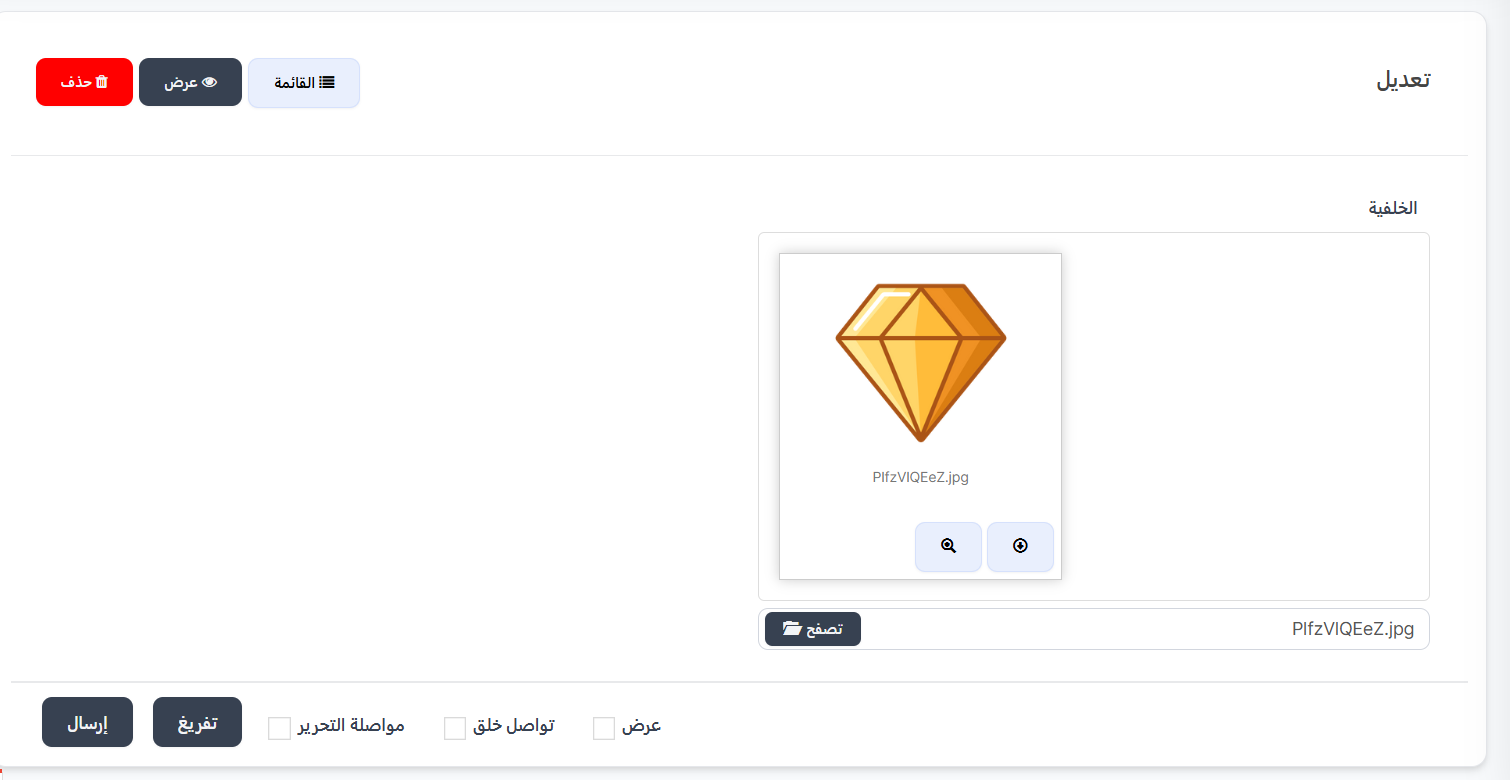
Adding a VIP Background:
When opening the theme page, the edit page appears containing:
| Field | Description |
|---|---|
| Background | The distinctive background image for the VIP level - uploaded by clicking the "Browse" button and selecting the image file |
Steps to Add or Edit Background:
- From the main VIP page, click the Theme button next to the desired level.
- The theme edit page opens.
- In the Background field, click the "Browse" 📁 button to select a background image from your device.
- After selecting the image, a preview of the uploaded image will appear.
- Click the "Submit" button to save the background.
Tip
- Use high-quality, distinctive background images for each VIP level to give a sense of distinction and luxury.
- Make backgrounds graduated in design between different levels to motivate users to upgrade.
Additional Actions
Through the Action menu (⋮) next to each VIP level, you can:
| Action | Description |
|---|---|
| Edit | Edit VIP level data (name, price, duration, image) |
| Delete | Permanently delete VIP level |
| View | View VIP level details |
Tips
- Set graduated and logical prices between levels to motivate users to subscribe to higher levels.
- Ensure each level offers additional features that justify the price difference from the lower level.
- Use distinctive, different icons/images for each level for easy distinction.
- You can adjust the validity period to match your app's pricing strategy.