📩 Complaints
The Complaints page allows you to view all complaints and reports submitted by users from within the app. When a user encounters a problem or wants to report something, they can submit a complaint directly from the app, and it will appear here in the dashboard for review and action.
How to Access:
Sidebar Menu ← Users ← Complaints
Page Contents:
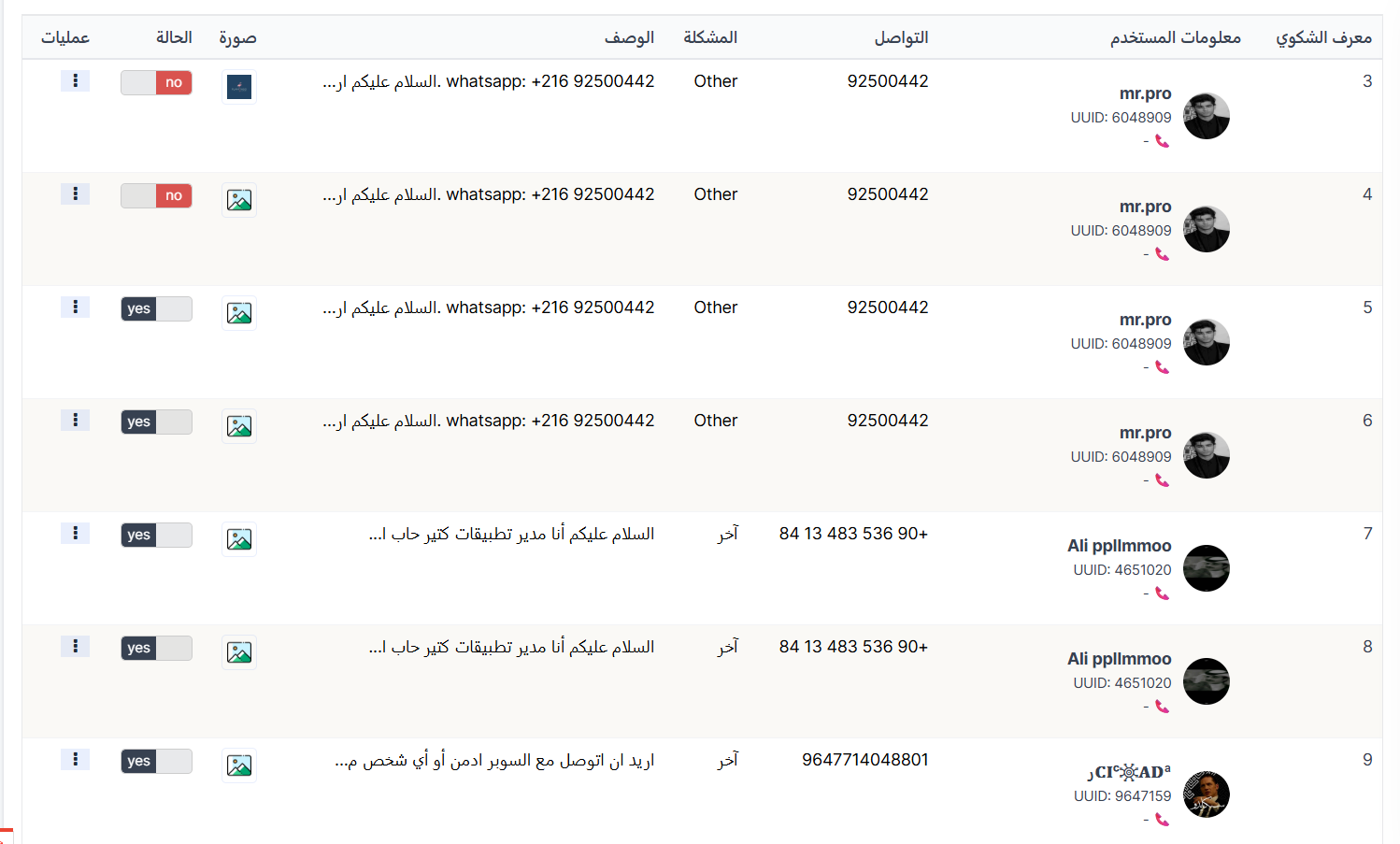
When you open the page, you'll find the complaints table displaying all complaints submitted by users with details for each complaint.
Complaints Table:
The table displays all user-submitted complaints with the following information:
| Column | Description |
|---|---|
| Complaint ID | Unique sequential identifier for the complaint |
| User Information | Complainant's data: name, photo, UUID, and phone number 📞 |
| Contact | Contact number entered by the user for communication regarding the complaint |
| Problem | Problem category/type (e.g., Other) |
| Description | Detailed problem description as written by the user (complaint text) |
| Image | Attached image as evidence of the problem — click to view full size |
| Status | Complaint status: yes 🟢 (reviewed) or no 🔴 (not yet reviewed) — can be toggled by clicking |
| Actions | Options menu (⋮) for additional operations on the complaint |
Complaint Status:
You can update each complaint's status via the status toggle in the table:
| Status | Color | Meaning |
|---|---|---|
| no | 🔴 Red | Complaint not yet reviewed — awaiting response or action |
| yes | 🟢 Green | Complaint reviewed — has been handled or responded to |
Tip
Click the status toggle to switch between yes and no. After reviewing and handling a complaint, change its status to yes 🟢 to easily track pending complaints.
Viewing Complaint Details:
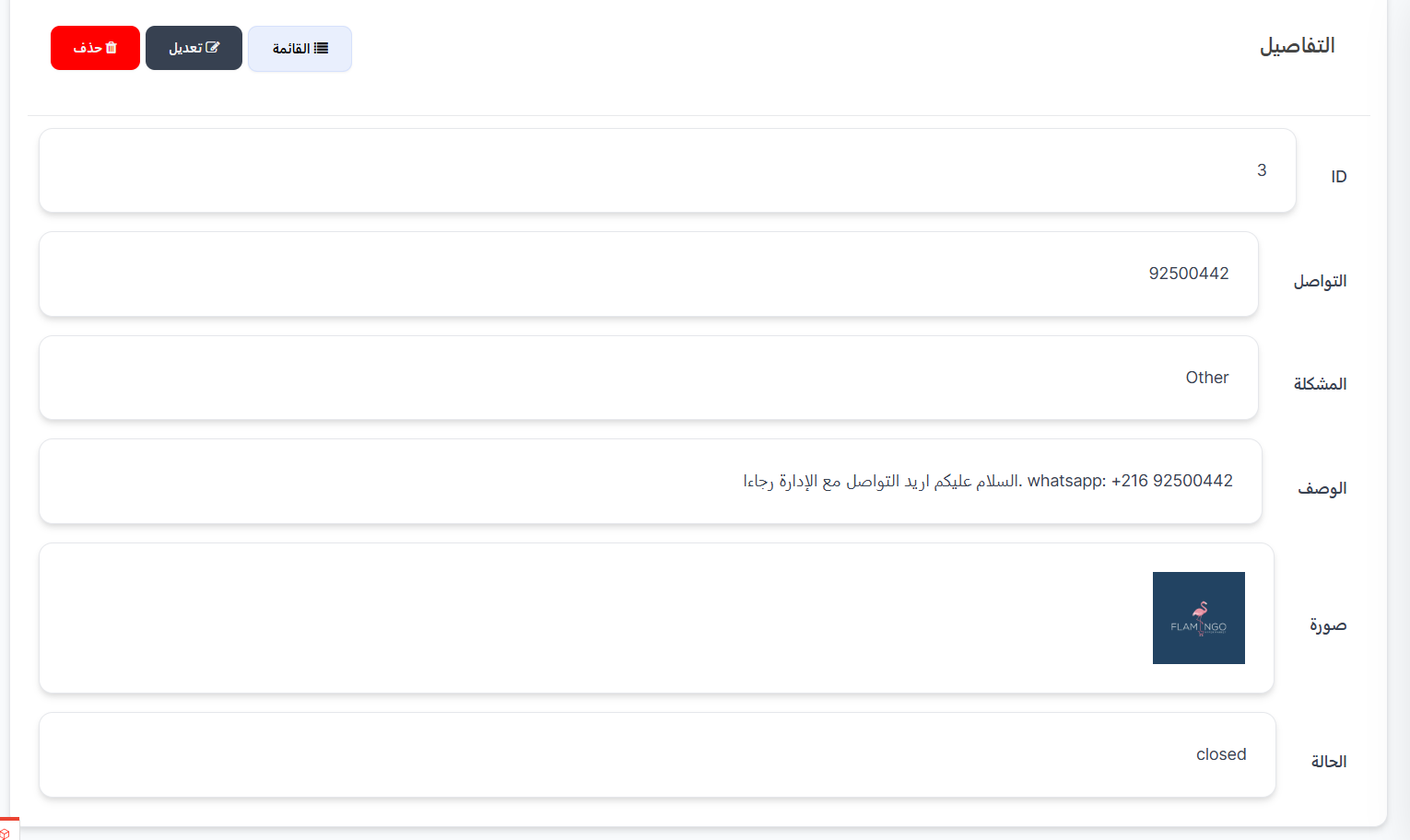
From the Actions column (⋮), click View to open the full details page for the complaint. The page displays all information in separate fields:
| Field | Description |
|---|---|
| ID | Unique identifier number for the complaint |
| Contact | Contact number entered by the user (phone / WhatsApp) |
| Problem | Problem type classification (e.g., Other) |
| Description | Full text of the complaint as written by the user |
| Image | Attached image as evidence of the problem (if any) |
| Status | Current complaint status (open / closed) |
Available Buttons:
| Button | Description |
|---|---|
| 📋 List | Return to the list of all complaints |
| ✏️ Edit | Open the complaint editing page to update status or data |
| 🗑️ Delete | Permanently delete the complaint |
Handling Complaints:
Steps to Review a Complaint:
- Open the Complaints page — Users ← Complaints.
- Review new complaints — Look for complaints with no 🔴 status (not yet reviewed).
- Read the description — Review the problem details in the description column.
- View the attached image (if any) — Click the image to view it full size.
- Contact the user — Use the listed contact number or user information (UUID/phone) to respond.
- Change status to yes 🟢 — After handling the complaint, click the status toggle to update it.
Note
- Complaints come directly from the app — the user submits the complaint from within the app and it appears here automatically.
- Each complaint is linked to user information (name, UUID, phone) making it easy to identify the complainant.
- Users can attach an image as evidence of the problem.
Quick Summary:
| Action | Steps |
|---|---|
| View complaints | Users ← Complaints |
| Review a complaint | Read description ← View image ← Contact user |
| Change complaint status | Click the status toggle (no → yes or yes → no) |