⚙️ Country Manager Settings
This page allows you to customize the permissions and settings for country managers, ensuring that each manager has appropriate access to information and functions related to their country only. You can determine what the country manager can see and control when accessing the dashboard.
How to Access:
Sidebar ← Country System ← Roles ← Country Manager
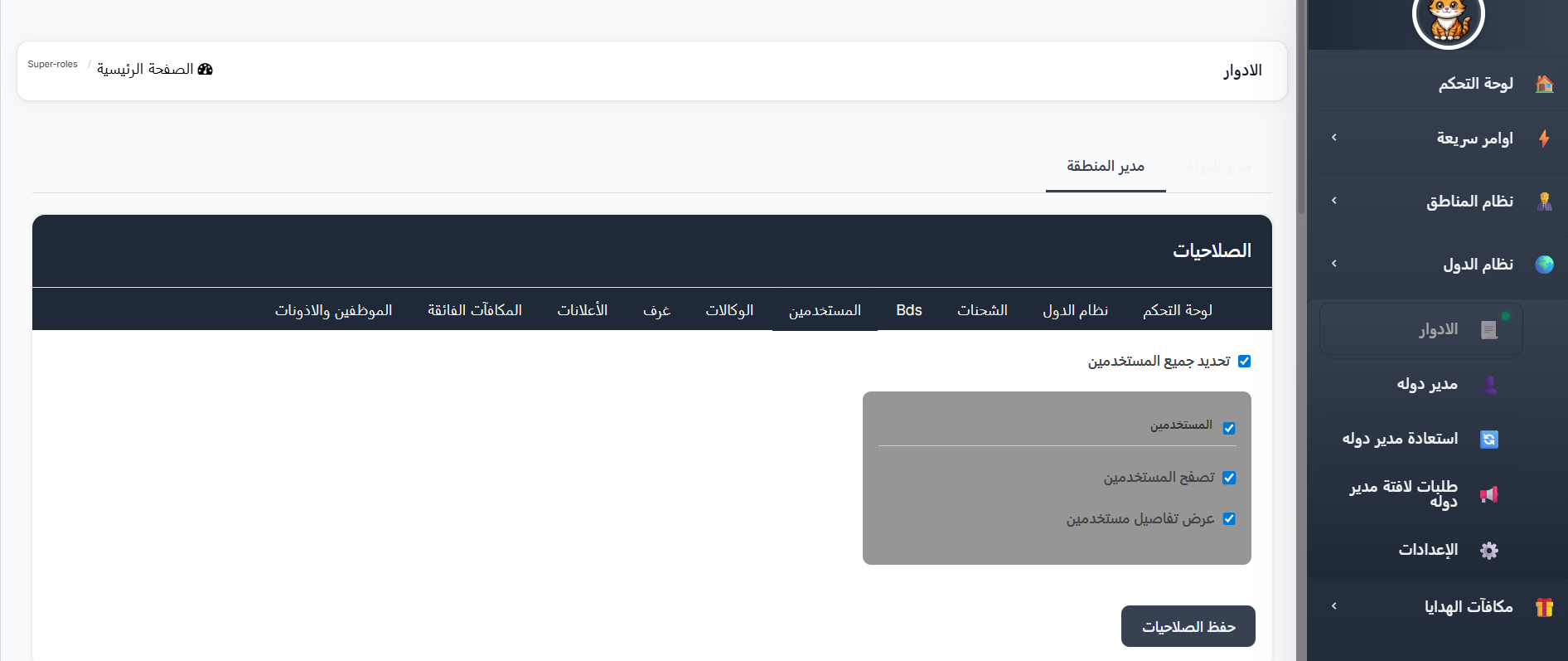
Editing Country Manager Permissions:
When accessing the Roles page and selecting the "Country Manager" tab, you will see the Permissions page containing several tabs, each controlling a specific section of the dashboard.
Permission Sections:
The permissions page is divided into the following tabs:
| Tab | Description |
|---|---|
| Dashboard | Control access permissions to the main dashboard and its elements |
| Country System | Control permissions for managing countries |
| Charges | Control permissions for charging and balance operations |
| Bds | Control permissions for the Bds system |
| Users | Control permissions for managing users and viewing their data |
| Agencies | Control permissions for managing agencies |
| Rooms | Control permissions for managing rooms |
| Announcements | Control permissions for managing announcements |
| Super Rewards | Control permissions for the super rewards system |
| Staff and Permissions | Control permissions for managing staff and permissions |
How to Edit Permissions:
For each of the tabs above, you can control the following permissions:
| Permission Type | Description |
|---|---|
| Select All | Enable or disable all permissions in this section at once |
| Browse | Allow the country manager to browse and view lists |
| View Details | Allow viewing full details of items |
| Create | Allow creating new items (users, rooms, agencies, etc.) |
| Edit | Allow editing existing items |
Steps to Edit Permissions:
- Go to the Roles page: From the Sidebar ← Country System ← Roles.
- Select the "Country Manager" tab from the top of the page.
- Choose the desired tab: Click on the tab whose permissions you want to edit (e.g., Users, Rooms, Agencies, etc.).
- Set permissions: Check ✅ the permissions you want to grant to the country manager, or uncheck to revoke the permission.
- Use "Select All": If you want to enable all permissions in a specific section at once.
- Click "Save Permissions" at the bottom of the page to save changes.
Example
To grant the country manager permission to view user data only without creating or editing:
- Go to the Users tab
- Enable Browse Users ✅
- Enable View User Details ✅
- Leave create and edit permissions disabled
- Click Save Permissions
Warning
Make sure to review permissions carefully before saving. Granting unnecessary permissions may expose sensitive data to the country manager.
Tip
You can customize different permissions for each section independently. For example: allowing browsing users while preventing editing, or allowing full room management while restricting access to charges.
🌍 Open Country Manager Settings Page
Setting a Default Country Manager
This feature allows you to assign a Country Manager as the Default Manager. The default Country Manager becomes the automatic owner of any BD when its assigned Country Manager is deleted.
How to Access:
Sidebar ← Country System ← Settings
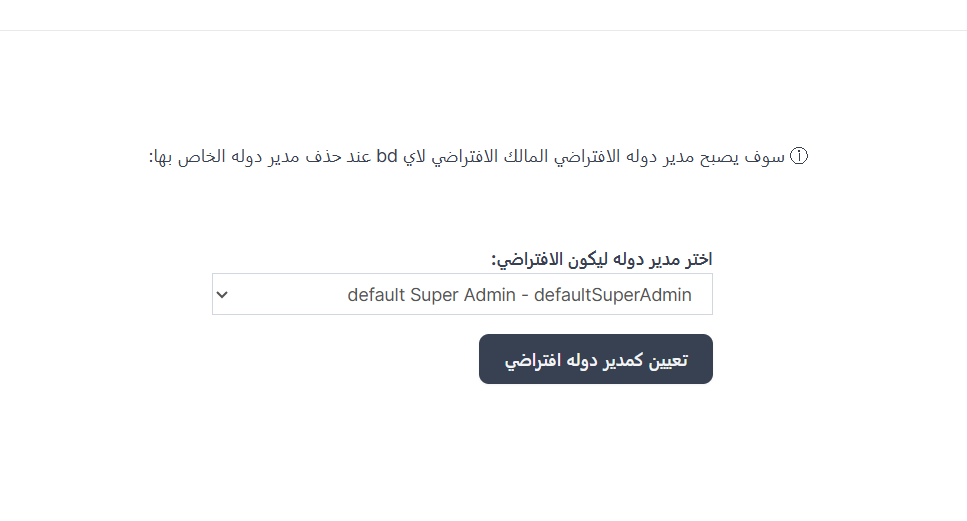
Page Description:
The page contains the following elements:
| Element | Description |
|---|---|
| Informational Note | A message explaining that the default Country Manager will become the default owner for any BD when its Country Manager is deleted |
| Choose a Country Manager to be the default | A dropdown list containing all available Country Managers to select one as the default |
| "Set as Default Country Manager" Button | A button to confirm and save the selection |
Assignment Steps:
- Navigate to Country System ← Settings from the sidebar.
- From the dropdown "Choose a Country Manager to be the default", select the Country Manager you want to assign as the default.
- Click the "Set as Default Country Manager" button to confirm the selection.
What is the role of the Default Manager?
When a specific Country Manager is deleted, ownership of all their BDs is automatically transferred to the Default Country Manager. This ensures that no data or operations are lost when a Country Manager is removed.
Warning
- Make sure to select a trusted Country Manager with appropriate permissions to be the default manager.
- It is always recommended to have a default Country Manager assigned to avoid any issues when deleting Country Managers.
🌍 Open Default Country Manager Settings