💰 Charging (Coins)
The Charging System in the dashboard allows you to manage and charge Coins for various users and managers on the platform. You can add or deduct balance, and track all charging operations through detailed reports.
Available Charging Types:
| Type | Description | Menu Location |
|---|---|---|
| 👥 User Charging | Charge coins directly to regular user accounts | Charging System ← User Charges |
| 🏢 Shipping Agency Charges | Charge coins to shipping agency accounts | Charging System ← Shipping Agency Charges |
| 🌍 Country Manager Charging | Charge coins to country manager accounts | Charging System ← Country Charges |
| 📍 Area Manager Charging | Charge coins to area manager accounts | Area System ← Area Manager Charges |
👥 First: User Charging
This page allows you to manage coin charging for user accounts in the app.
How to Access:
Sidebar ← Charging System ← User Charges
Search Filters:
| Filter | Description |
|---|---|
| ID | Search by user ID |
| Name | Search by user name |
| UUID | Search by user UUID |
User Table Columns:
| Column | Description |
|---|---|
| ID | User's system ID |
| Owner | User name with profile picture and UUID |
| Points | Current coin balance (🪙) |
| Actions | Available action buttons |
Available Actions:
- Add Balance 🟢 — Add or deduct coins from the user's account.
- Charging Reports 🟡 — View all previous charging operations for this user.
How to Add Balance:
When you press Add Balance 🟢, a "Charge Coins" form appears:
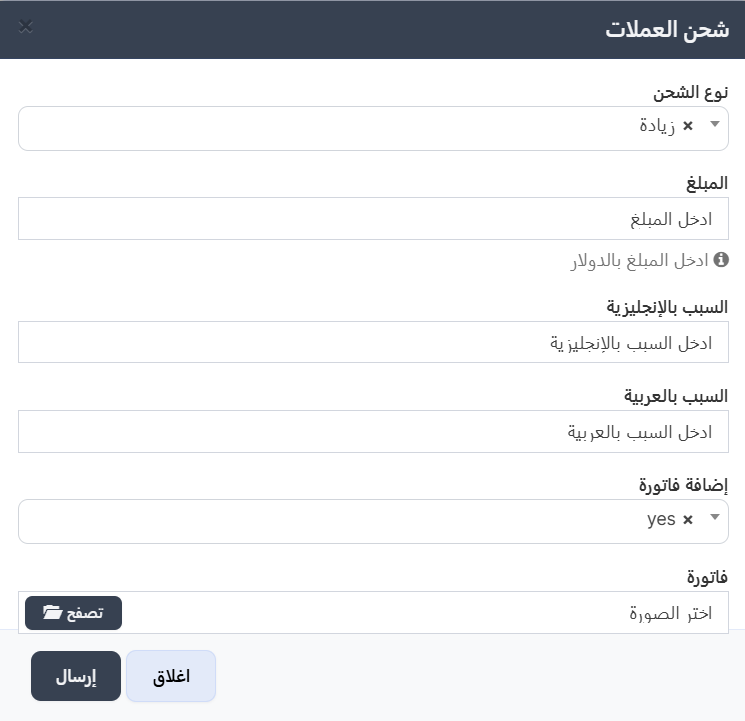
Form Fields:
| Field | Description |
|---|---|
| Charge Type | Select Increase to add balance, or Decrease to deduct balance |
| Amount | Enter the amount in dollars 💵 |
| Reason (English) | Write the reason in English |
| Reason (Arabic) | Write the reason in Arabic |
| Add Invoice | Select yes to attach an invoice image, or no without invoice |
| Invoice | Upload invoice image (appears only when selecting yes) |
Steps:
- Choose charge type — Select Increase ➕ or Decrease ➖.
- Enter amount — The amount will be automatically converted to coins based on the exchange rate.
- Enter reason — Write in both English and Arabic for documentation.
- Attach invoice (optional) — Upload an invoice image if available.
- Press Submit ✅ to confirm.
Important
Make sure to select the correct charge type (Increase or Decrease) before submitting. Operations cannot be undone after confirmation.
Charging Reports:
When you press Charging Reports 🟡, you'll see the charging history for that user.
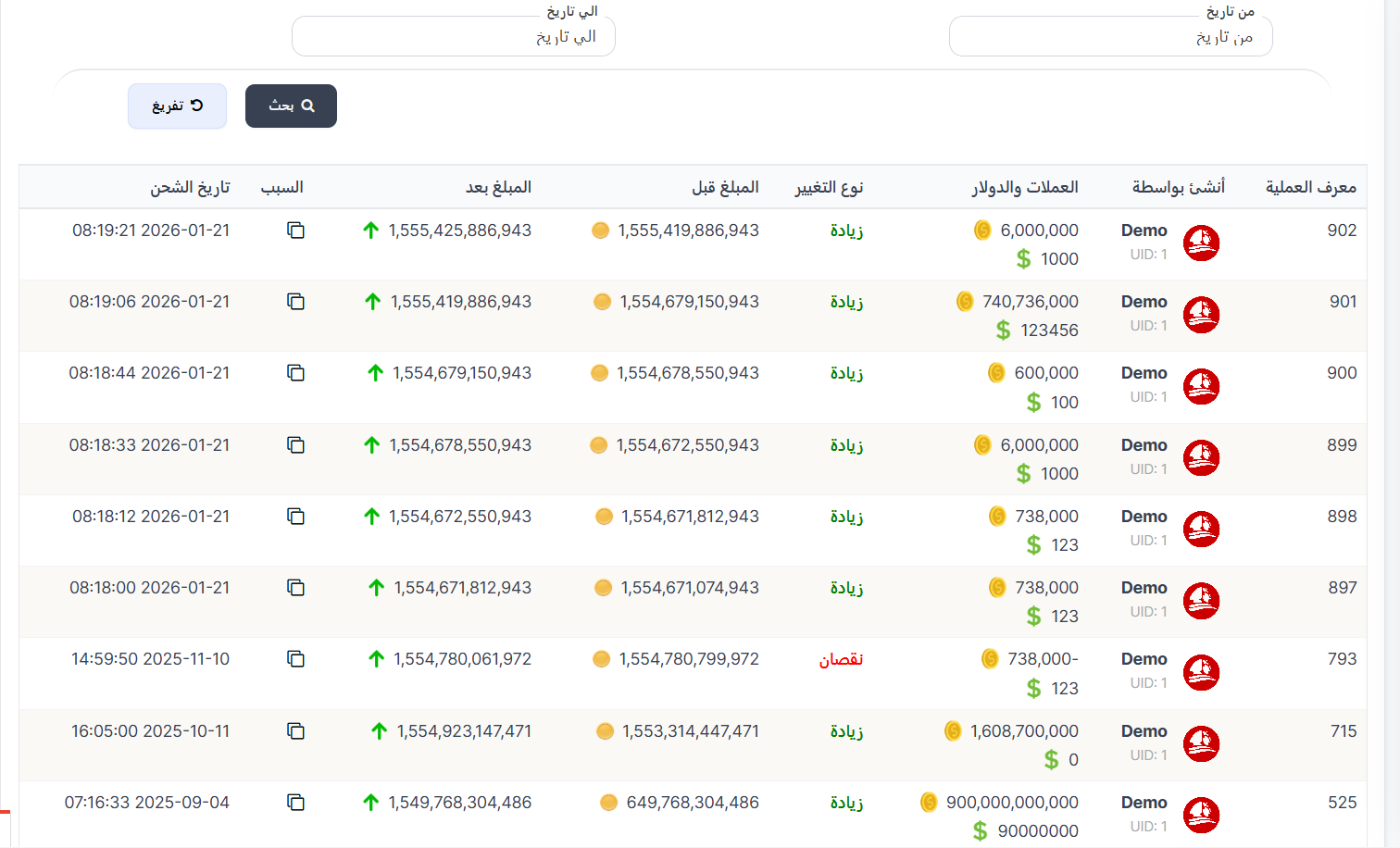
Report Table Columns:
| Column | Description |
|---|---|
| Operation ID | Unique ID for each charging operation |
| Created By | Admin who performed the operation |
| Coins & Dollars | Operation value in coins (🪙) and dollars ($) |
| Change Type | Increase (green ⬆️) or Decrease (red ⬇️) |
| Amount Before | Balance before the operation |
| Amount After | Balance after the operation |
| Reason | Reason entered during charging |
| Charging Date | Date and time of the operation |
🏢 Second: Shipping Agency Charges
This page manages coin charging for shipping agency accounts.
How to Access:
Sidebar ← Charging System ← Shipping Agency Charges
🔗 Open Shipping Agency Charges Page
Agency Table Columns:
| Column | Description |
|---|---|
| ID | Agency system ID |
| Agency | Agency name with logo and ID |
| Owner | Agency owner name with UUID |
| Points | Current coin balance (🪙) |
| Dollars | Current dollar balance ($) |
| Actions | Add Balance 🟢 and Charging Reports 🟡 |
Charging Reports Tabs:
Agency charging reports have two tabs:
- System Charging — Operations performed from the dashboard (by admin).
- App Charging — Operations performed through the app by users or other agencies.
🌍 Third: Country Charges (Country Manager Charging)
This page manages coin charging for country manager accounts.
How to Access:
Sidebar ← Charging System ← Country Charges
Unique Feature — Amount Unit:
The country manager charging form includes an Amount Unit field allowing you to choose between entering the amount in Dollars or Points (coins directly).
📊 Fourth: Charging Reports
The Charging Reports page provides a comprehensive view of all charging operations across the platform.
How to Access:
Sidebar ← Charging System ← Charging Reports
Available Tabs:
| Tab | Description |
|---|---|
| System Charging | All charging operations from the dashboard (admin) |
| Shipping Agency Activity | Shipping agency charging and receiving activity |
| Host Agency Charging | Host agency charging operations |
| Payment Gateways | Charging via payment gateways |
| Self-Recharging | Self-recharging operations |
| Diamond to Coin Conversion | Diamond to coin conversion operations |
Each tab includes statistics cards, advanced search filters, and export to Excel functionality.