📸 Moments
Introduction
The Moments page is an interface for viewing and managing user moments (Moments) published in the application. Moments are posts containing text and images that users share with others. Through this page, you can browse all published moments, search for a specific user's moments, and manage content.
How to Access
Sidebar ← Moments ← Moments
Page Layout
The Moments page is divided into two main sections:
| Section | Description |
|---|---|
| 📋 Users List (Left) | List of all users who have published moments with the count of moments for each user |
| 📰 Moments Browser (Right) | Display of moment content for the selected user with complete details |
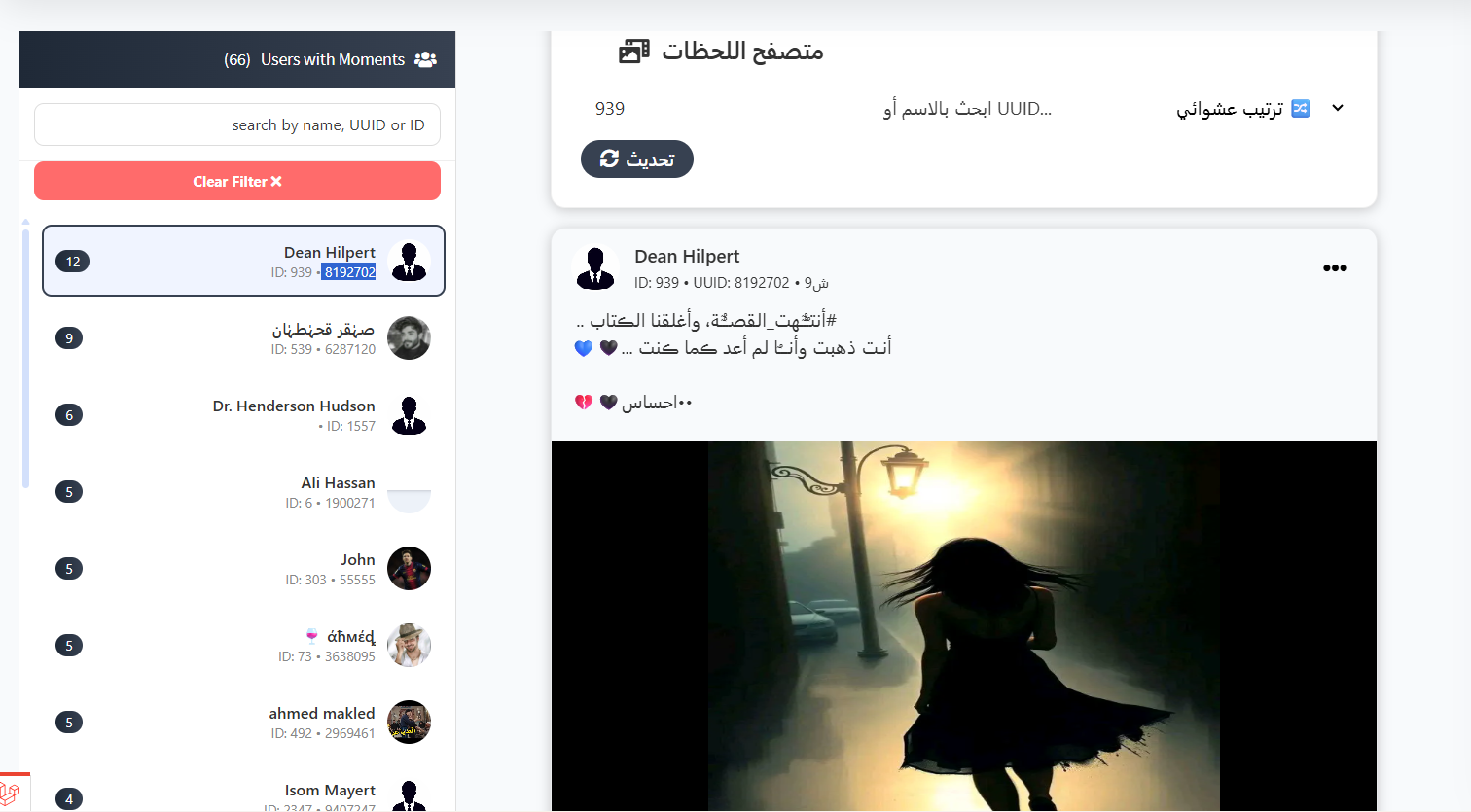
Users List (Left Side)
Header:
Displays at the top the number of users who have published moments (example: 👥 Users with Moments (66)).
Search:
| Field | Description |
|---|---|
| search by name, UUID or ID | Search field to find a user by name, UUID, or ID number |
Clear Filter Button:
| Button | Description |
|---|---|
| Clear Filter ✕ | Red button to clear the search filter and re-display all users |
Users List:
Each user in the list displays the following information:
| Element | Description |
|---|---|
| Moments Count | Number inside a circle showing the count of published moments for the user (example: 12, 9, 6, 5) |
| Username | User's display name in the application |
| ID | User's unique identifier number |
| UUID | User's universal unique identifier |
| User Image | User's avatar |
Note
Users are sorted by moments count from highest to lowest. Click on any user to view their moments in the moments browser.
Moments Browser (Right Side)
When selecting a user from the list, the Moments Browser appears on the right side displaying the selected user's moments.
Top Buttons:
| Element | Description |
|---|---|
| 📸 Moments Browser | Page title |
| Random Order | Dropdown to select how moments are sorted (random or other) |
| Search by name or UUID | Additional search field within the moments browser |
| 🔄 Refresh | Button to refresh and load the latest moments |
Moment Display
Each moment displays the following details:
User Information:
| Element | Description |
|---|---|
| User Image | Avatar of the moment owner |
| Username | Name of the user who published the moment (example: Dean Hilpert) |
| ID | Unique identifier number (example: ID: 939) |
| UUID | Universal unique identifier (example: UUID: 8192702) |
| Moments Count | Total moments count for the user |
| ⋯ Options Menu | Menu with moment management options |
Moment Content:
| Element | Description |
|---|---|
| Text | Text content of the moment with hashtag and emoji support |
| Image | Moment image (if present) at full size |
Moment Options Menu
When clicking the three dots icon ⋯ next to user information in the moment, a management options menu appears:
| Action | Description |
|---|---|
| Delete | Permanently delete the moment from the application |
Warning
Deleting a moment is permanent and cannot be undone. The post (text and image) will be removed from the application immediately.
Quick Summary
| Action | Steps |
|---|---|
| View all users with moments | Sidebar ← Moments ← Moments |
| Search for a user | Enter name, UUID, or ID in the search field |
| View user's moments | Click on the username in the left list |
| Refresh moments | Click the refresh button 🔄 |
| Change sort order | Select sort type from the dropdown |
| Delete a moment | Open the moment ← ⋯ ← Delete |
Useful Tips
- The number next to each user shows their published moments count, helping you identify the most active users.
- Use the search field for quick access to a specific user instead of scrolling through the list.
- In case of inappropriate content (text or images), use the delete option from the ⋯ menu to remove it immediately.
- You can change the moments display order from Random Order to other sorts as needed.
🚨 Moment Reports
Introduction
The Moment Reports page displays all reports submitted by users against other moments due to inappropriate content. Users can report moments containing violent, bullying, pornographic, or any inappropriate content. Through this page, you can review reports and take appropriate actions.
How to Access
Sidebar ← Moments ← Moment Reports
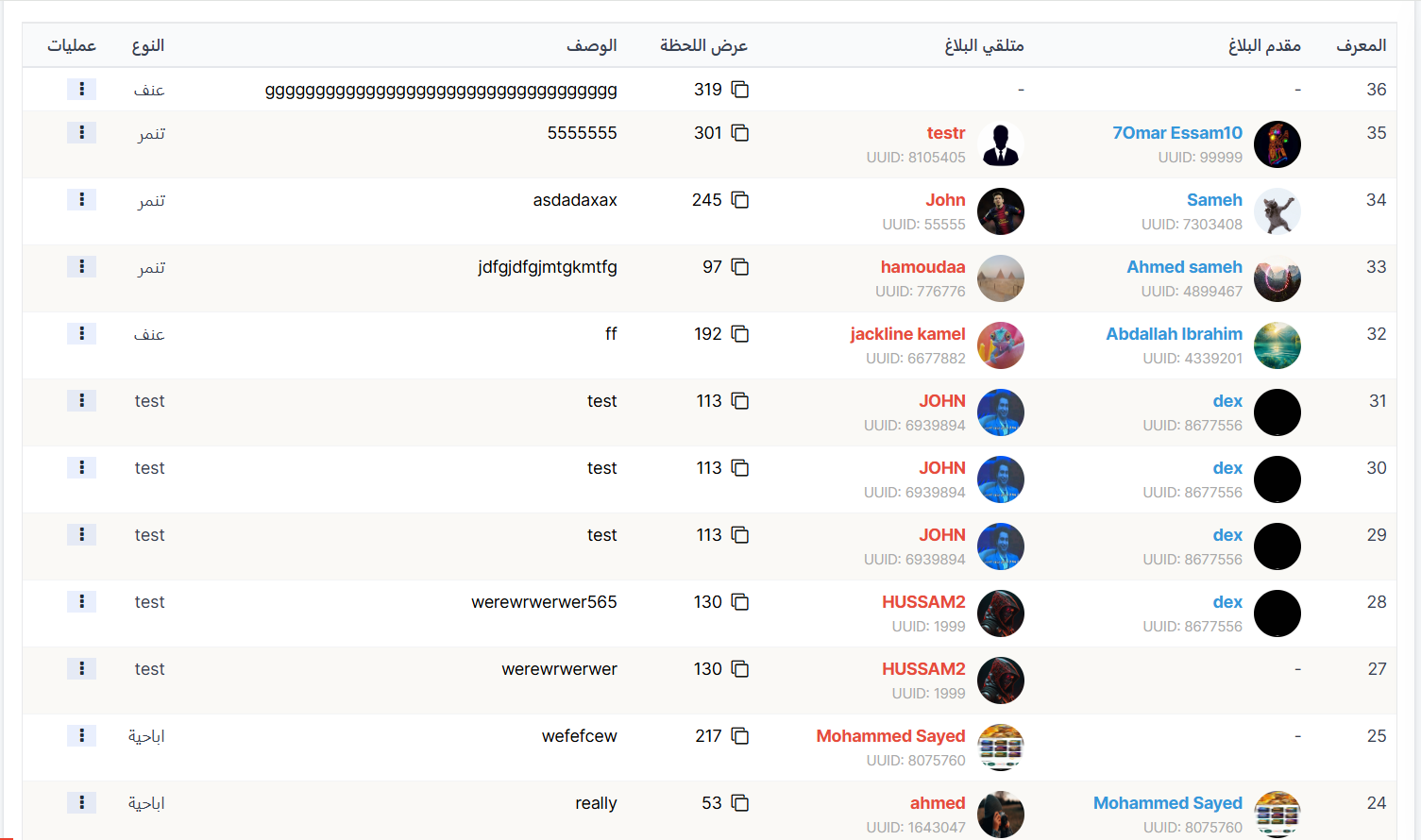
Reports Table
The page displays reports in a table containing the following columns:
| Column | Description |
|---|---|
| ID | Unique sequential number for the report (example: 36, 35, 34...) |
| Reporter | User who submitted the report — shows name, image, and UUID |
| Reported User | User who owns the reported moment — shows name, image, and UUID |
| View Moment | Moment number with a copy button 📋 to copy the moment number and view it |
| Description | Report description written by the reporter |
| Type | Type of violation reported |
| Actions | Available action buttons for managing the report |
Violation Types
Reports are categorized by violation type:
| Type | Description |
|---|---|
| Violence | Content containing violence or incitement to violence |
| Bullying | Content containing bullying or abuse toward other users |
| Pornographic | Pornographic or inappropriate content |
Report Management Actions
When clicking the dots icon ⋮ in the actions column, options appear for managing the report:
| Action | Description |
|---|---|
| Delete Moment | Permanently delete the reported moment |
| Ignore Report | Ignore the report if unjustified |
Warning
When deleting a reported moment, it is deleted permanently from the application and cannot be recovered.
Quick Summary
| Action | Steps |
|---|---|
| View all reports | Sidebar ← Moments ← Moment Reports |
| View reported moment | Click on the moment number in the "View Moment" column |
| Copy moment number | Click the copy icon 📋 next to the moment number |
| Manage report | Click ⋮ in the actions column ← Choose appropriate action |
Useful Tips
- Review reports regularly to ensure the application is free of inappropriate content.
- Watch for repeated reports from the same user, as they may be malicious reports.
- Reports of type Violence and Pornographic should be handled with top priority.
- Verify the moment's content before deciding to delete or ignore.