🏢 Agencies
The Agencies page allows you to manage all host agencies in the app. Through it, you can view all registered agencies, create new agencies, and edit or delete existing ones.
Access:
Sidebar → Agency System → Host Agencies → Agencies
Page Content:

When opening the page, you'll find a search filter at the top and a + New button to create a new agency, and below the agencies table displaying all registered agencies.
Search Filter:
| Filter | Description |
|---|---|
| ID | Search by agency ID |
| Unique ID | Search for a host by UUID |
After entering data, press 🔍 Search to display results, or 🔄 Clear to reset the filter.
Agencies Table:
| Column | Description |
|---|---|
| Agency | Agency name with country flag and ID number |
| Owner | Agency owner: profile image, name, and UUID |
| Phone | Agency WhatsApp phone number |
| Agency Wallet | Agency wallet balance in dollars ($) |
| Freeze Charging | Charging freeze status — no means charging is active, yes means charging is frozen |
| Creator | Who created the agency: profile image, name, and UID |
| Actions | Available actions menu (edit, delete, etc.) |
Available Actions:
From the Actions column in the table, click the ⋮ icon to show the menu:
| Action | Description |
|---|---|
| Edit | Edit agency data (name, owner, phone, status) |
| View | View agency details |
| Delete | Permanently delete the agency |
| Change Agency Members | Transfer all agency members to another agency |
View Agency Details:
When clicking View from the actions menu, the agency details page opens displaying all agency information divided into several sections:
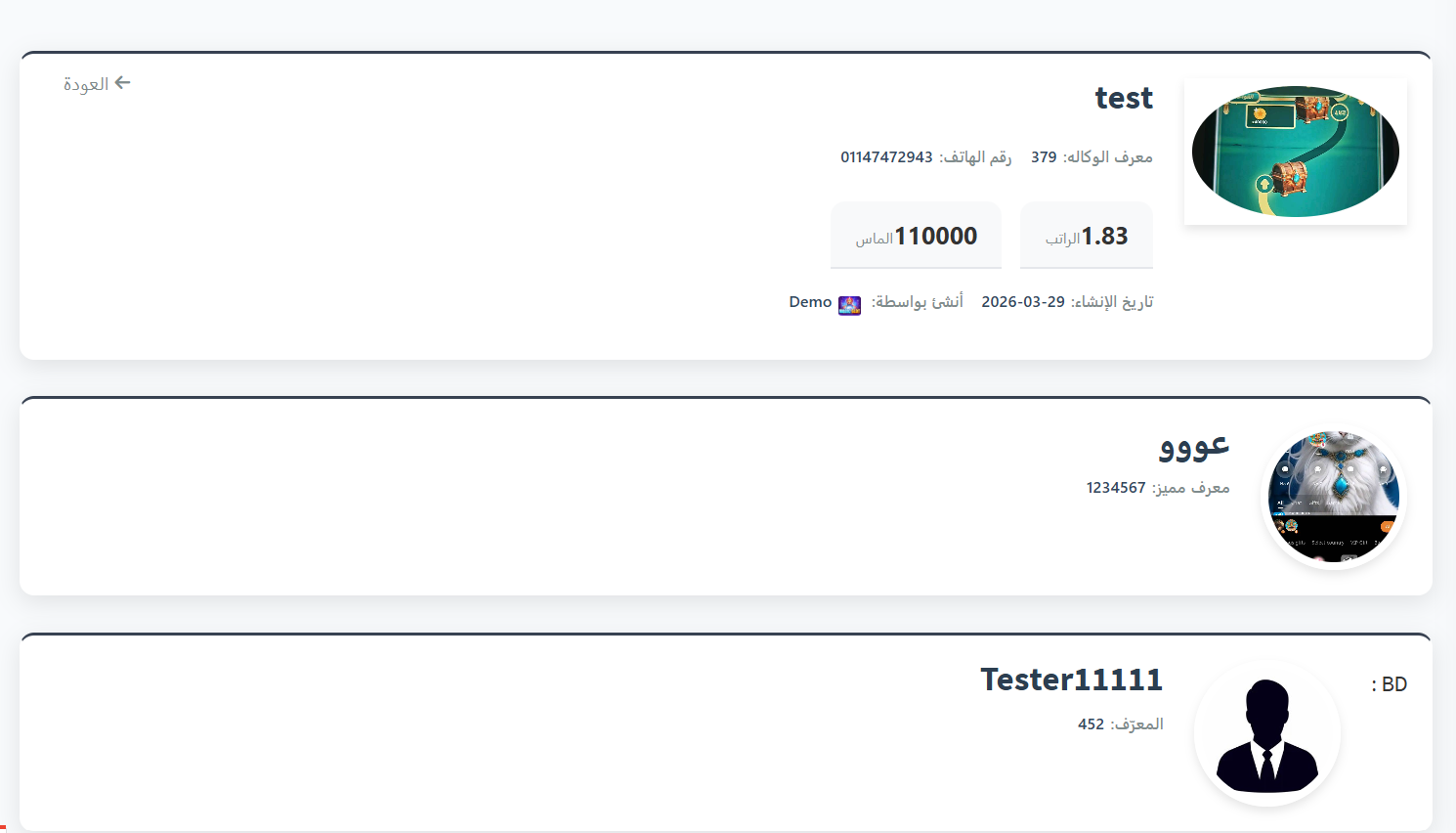
1. Agency Details:
The first section displays basic agency information:
| Field | Description |
|---|---|
| Agency Image | Agency avatar/logo |
| Agency Name | Agency display name |
| Agency ID | Agency identification number (ID) |
| Phone Number | Agency phone number |
| Salary | Agency salary |
| Diamonds | Agency diamond balance |
| Created Date | Agency creation date |
| Created By | Name and image of the user who created the agency |
2. Agency Owner Details:
The second section displays owner information:
| Field | Description |
|---|---|
| Image | Owner profile image |
| Name | Owner name |
| Unique ID | Owner UUID |
3. BD Details:
The third section displays the BD the agency belongs to:
| Field | Description |
|---|---|
| Image | BD image |
| Name | BD name |
| ID | BD identification number (ID) |
4. Agency Admins and Agency Stars:
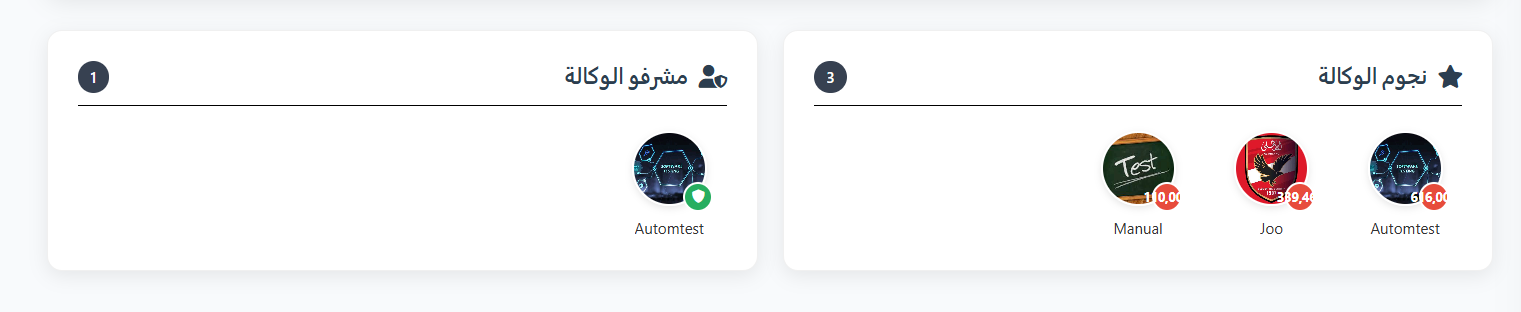
⭐ Agency Stars:
Displays the top performing members (hosts) in the agency ranked by highest diamonds, showing for each star:
- Profile image with diamond count
- Host name
👥 Agency Admins:
Displays the list of Admins assigned to the agency, showing for each admin:
- Profile image with verification badge (if applicable)
- Admin name
Total admin count is shown next to the title. If no admins exist, the message "No admins found" appears.
Tabs:
The agency details page contains a set of tabs at the top to navigate between different sections:
| Tab | Description |
|---|---|
| Members | View all agency members and their roles |
| Charge Log | Agency charging operation records |
| Salary | Monthly salary records for the agency |
| Join Requests | Join requests submitted to the agency |
| Targets | Agency and member monthly targets |
| Gifts | Gift reports sent to agency members |
📋 Members Tab:
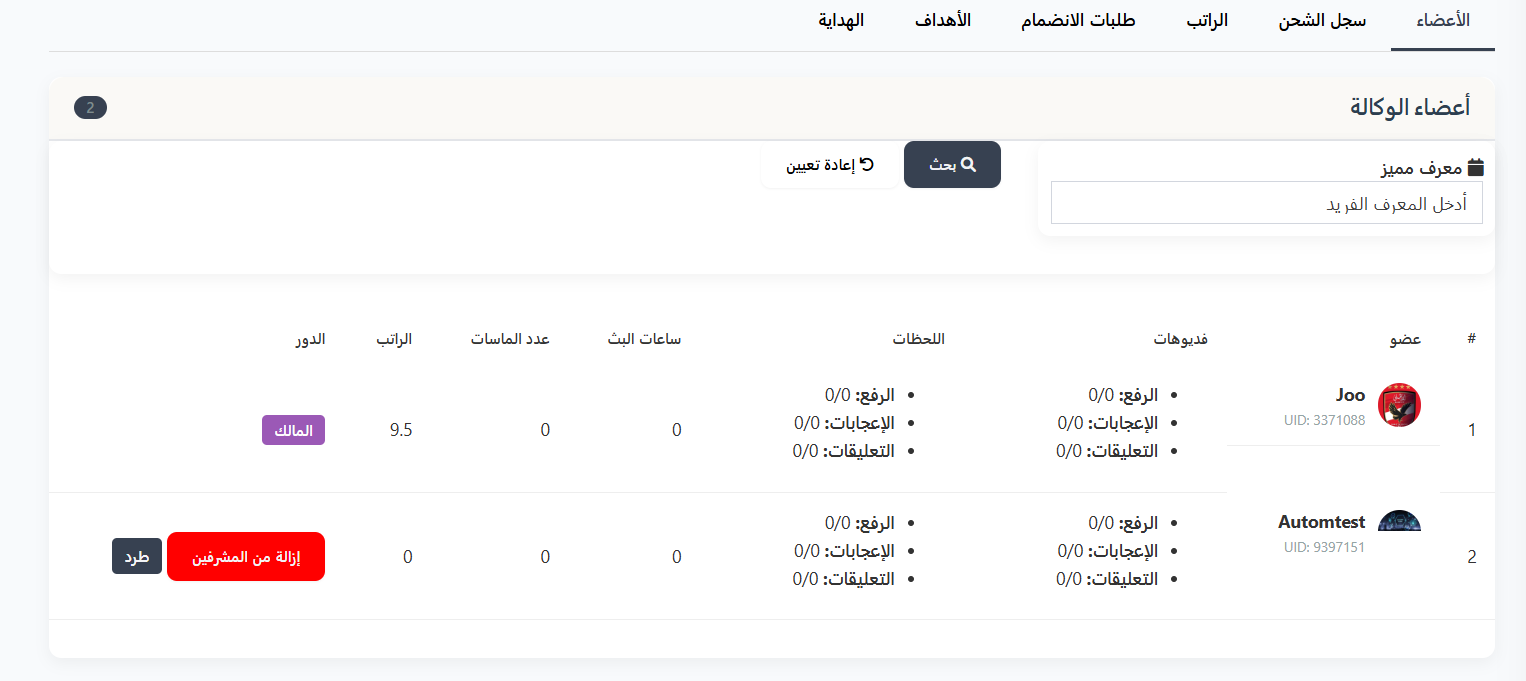
This tab displays all agency members with total count next to the title. You can search for a specific member using Unique ID (UUID).
Table Columns:
| Column | Description |
|---|---|
| # | Sequence number |
| Member | Member image, name, and UID |
| Videos | Video statistics (uploads, likes, comments) |
| Moments | Moment statistics (uploads, likes, comments) |
| Broadcast Hours | Number of live broadcast hours |
| Diamonds Count | Total diamonds earned |
| Salary | Member salary |
| Role | Member role in the agency |
Available Roles:
| Role | Description | Available Actions |
|---|---|---|
| Owner | Agency owner | No actions (cannot be removed or role changed) |
| Admin | Assigned admin in the agency | Remove from admins · Kick from agency |
| Regular Member | Member without admin permissions | Assign as admin · Kick from agency |
Note
- Assign as admin button appears only for regular members to promote them to admins.
- Remove from admins button appears only for admins to demote them back to regular members.
- Kick button permanently removes the member from the agency.
💰 Salary Tab:
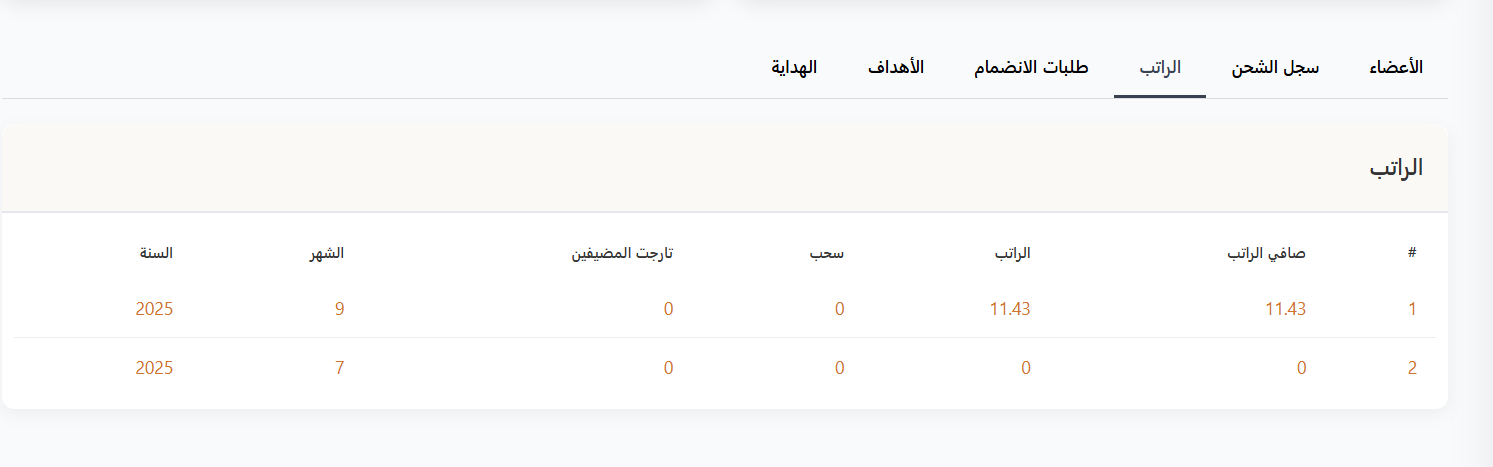
Displays salary records for the agency.
Table Columns:
| Column | Description |
|---|---|
| # | Sequence number |
| Net Salary | Net salary after deductions |
| Salary | Base salary |
| Withdrawal | Withdrawn amounts |
| Host Target | Required host target |
| Month | Month |
| Year | Year |
📩 Join Requests Tab:
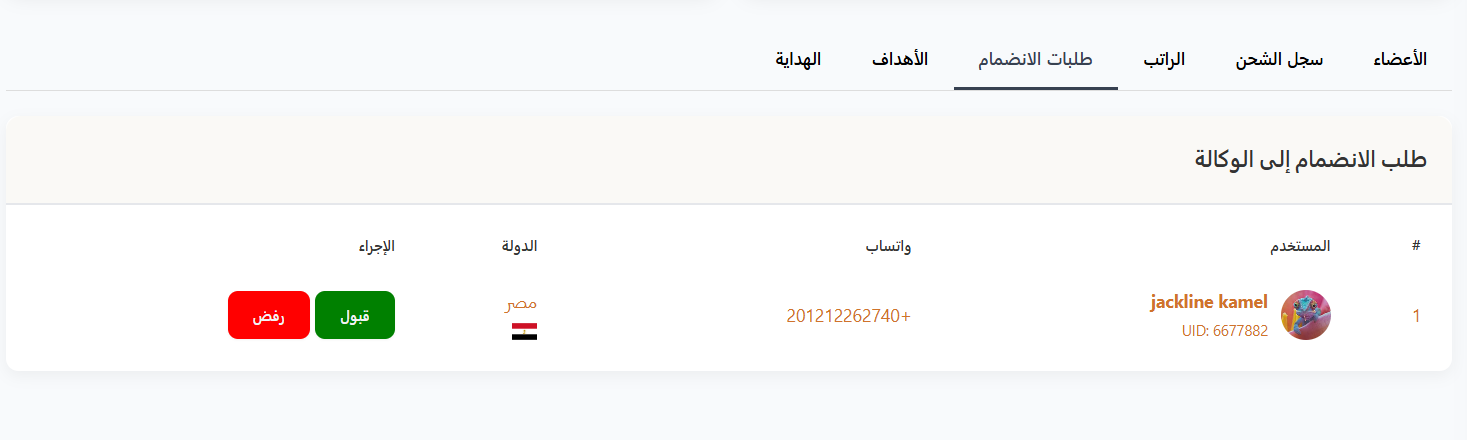
Displays join requests submitted by users to join the agency.
Table Columns:
| Column | Description |
|---|---|
| # | Sequence number |
| User | User image, name, and UID |
| Applicant's WhatsApp number with country code | |
| Country | Applicant's country with flag |
| Action | Accept (green) or Reject (red) buttons |
🎯 Targets Tab:
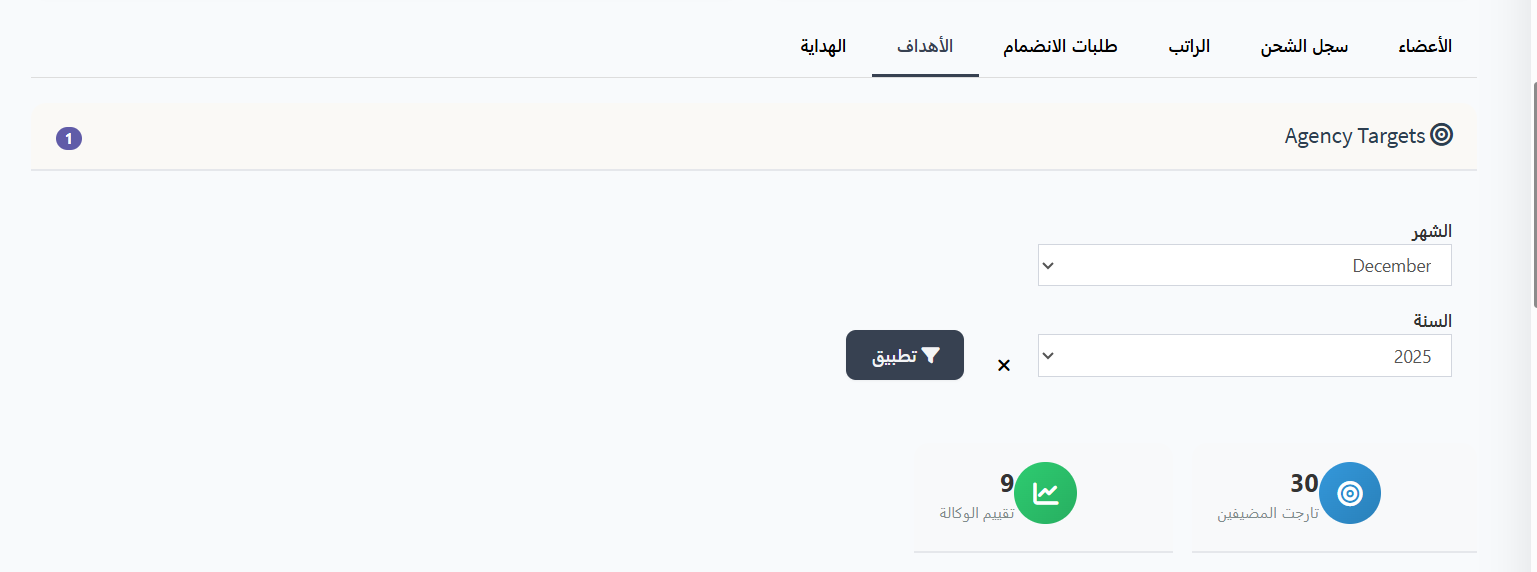

Displays agency targets with filtering by month and year.
Filters:
| Filter | Description |
|---|---|
| Month | Select month from dropdown |
| Year | Select year from dropdown |
After selecting filters, press 🔽 Apply to show results, or ✕ to clear the filter.
Target Summary:
Displays two main cards:
- Host Target: Required target from hosts
- Agency Rating: Agency performance rating
Member Targets Table:
| Column | Description |
|---|---|
| # | Sequence number |
| User | Member image, name, and UUID |
| Diamonds | Diamonds achieved |
| Remaining | Remaining diamonds to reach target |
| Days | Number of broadcast days |
| Hours | Number of broadcast hours |
| Moments | Moment statistics (uploads, likes, comments) |
| Clips | Clip statistics (uploads, likes, comments) |
| Supporters | Supporter statistics (uploads, likes, comments) |
🎁 Gifts Tab:
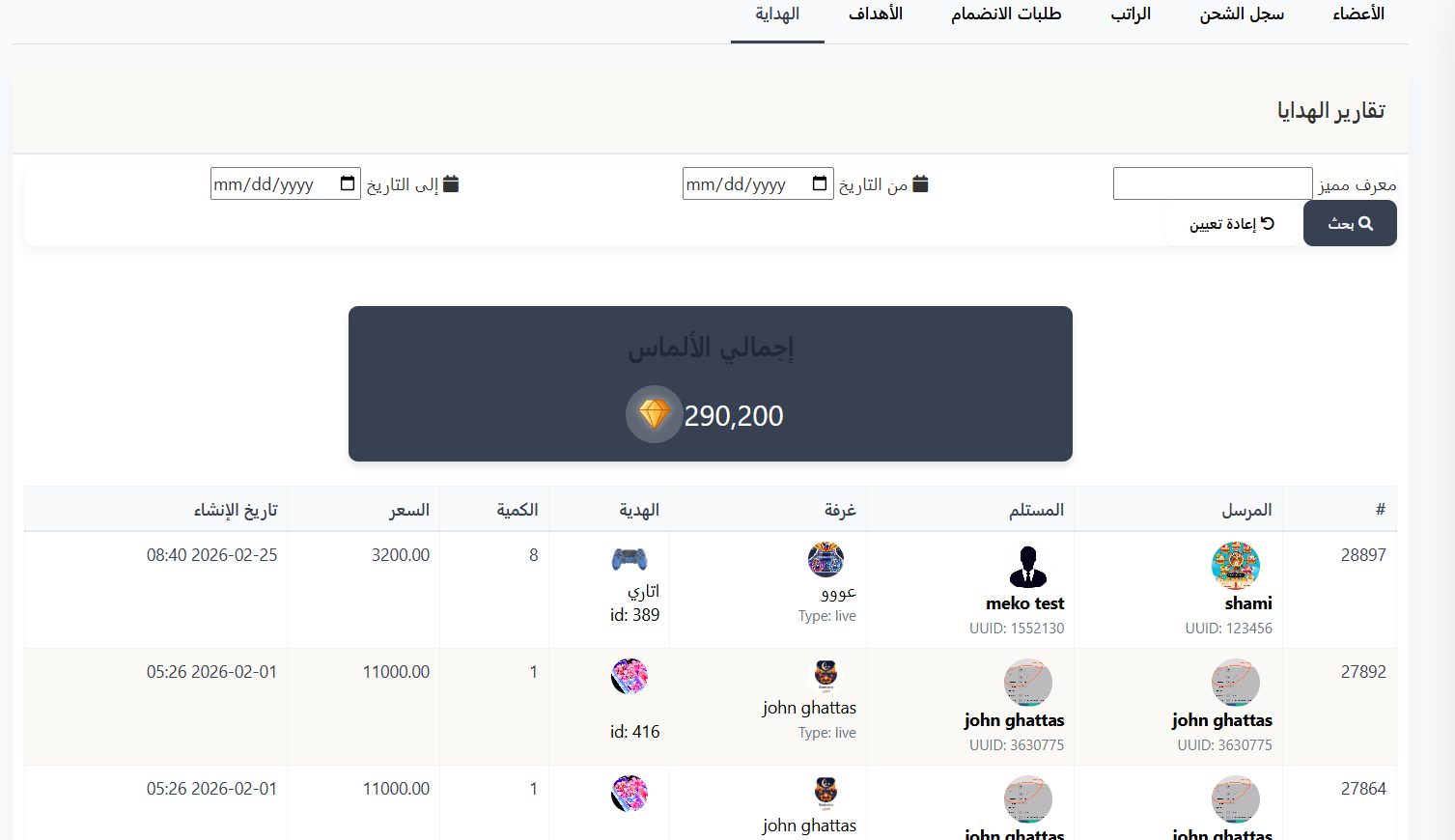
Displays detailed reports about all gifts sent to agency members.
Filters:
| Filter | Description |
|---|---|
| Unique ID | Search by member UUID |
| From Date | Start date of period |
| To Date | End date of period |
After entering filters, press 🔍 Search to display results, or 🔄 Reset to clear the filter.
Total Diamonds:
At the top, a card displays the Total Diamonds 💎 for all gifts in the specified period.
Table Columns:
| Column | Description |
|---|---|
| # | Gift number |
| Sender | Sender image, name, and UUID |
| Receiver | Receiver image, name, and UUID |
| Room | Room image, name, and type (e.g., Type: live) |
| Gift | Gift image, name, and ID |
| Quantity | Number of gifts sent |
| Price | Gift price in diamonds |
| Created Date | Date and time the gift was sent |
Change Agency Members:
This feature allows you to transfer all members from one agency to another in a single step.
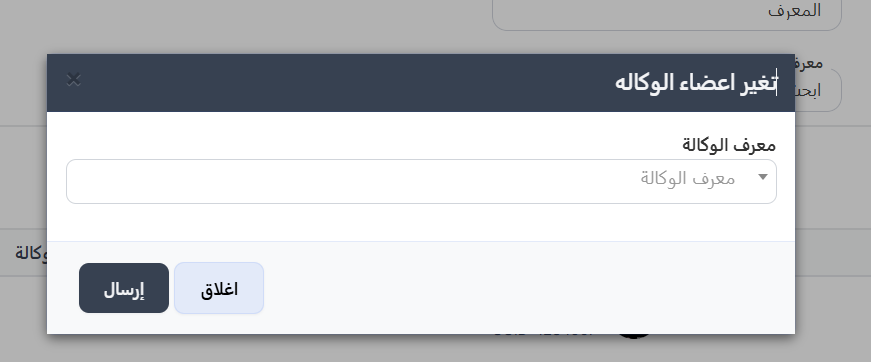
Transfer Steps:
- From the Actions column in the table, click the ⋮ icon next to the agency whose members you want to transfer
- Select Change Agency Members from the menu
- A Change Agency Members dialog will appear containing:
- Agency ID: Dropdown to select the new agency to transfer members to
- Select the new agency from the dropdown
- Click Submit to confirm the transfer, or Close to cancel
Warning
- All members of the current agency will be transferred to the selected new agency.
- Make sure to select the correct agency before clicking Submit.
Create New Agency:
To create a new agency, click the + New button at the top of the page.
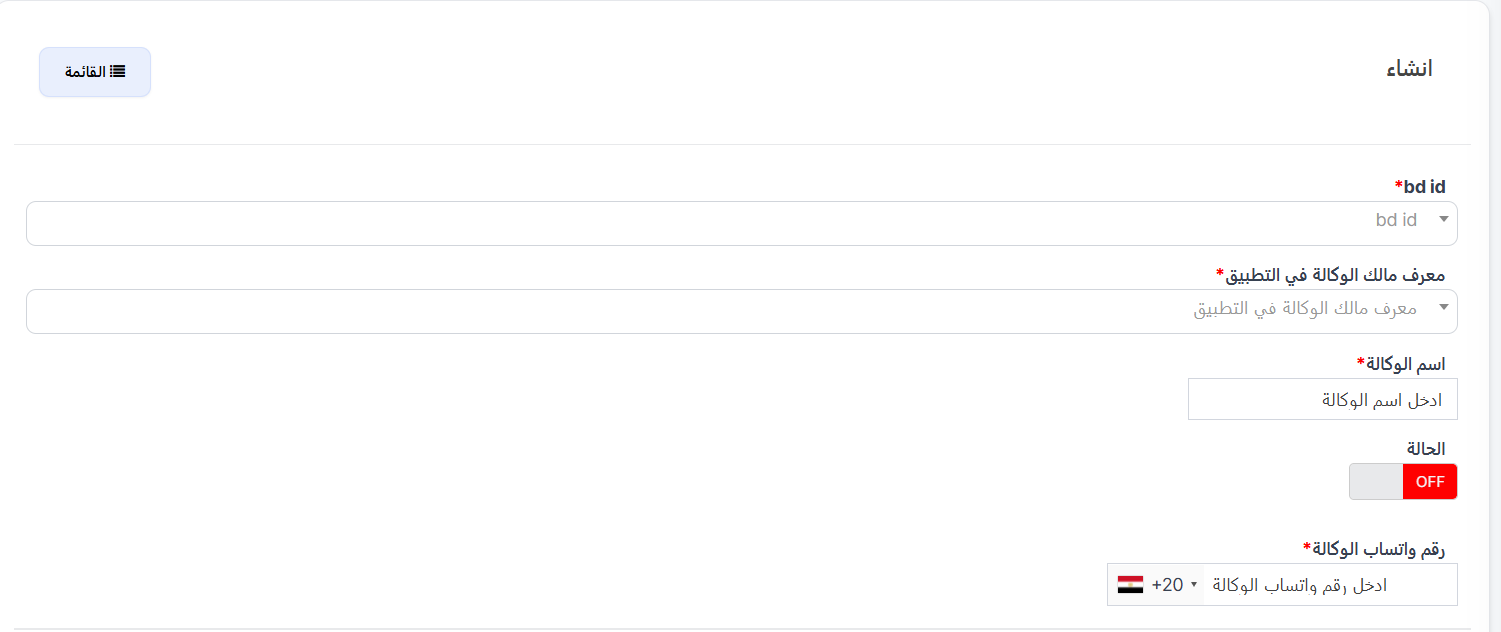
Creation Fields:
| Field | Description | Required |
|---|---|---|
| BD ID | BD identifier for the agency | ✅ Yes |
| Agency Owner ID in App | UUID of the agency owner in the app | ✅ Yes |
| Agency Name | Agency display name | ✅ Yes |
| Status | Enable or disable the agency (ON/OFF) | No |
| Agency WhatsApp Number | Agency WhatsApp phone number with country code | ✅ Yes |
Creation Steps:
- Click the + New button
- Enter the agency's BD ID
- Enter the Agency Owner ID (UUID) in the app
- Enter the Agency Name
- Select the Status (ON to enable or OFF to disable)
- Enter the Agency WhatsApp Number with country code
- Click Submit to save the agency
Note
- The agency owner must be a registered user in the app.
- WhatsApp number must include the country code (e.g., +20 for Egypt).
- You can change the agency status later from the main table.
Quick Summary:
| Action | Steps |
|---|---|
| View all agencies | Agency System → Host Agencies → Agencies |
| Search for an agency | Enter ID or UUID → Search |
| Create new agency | Click + New → Fill data → Submit |
| Edit agency | Click ⋮ in Actions column → Edit |
| View agency details | Click ⋮ in Actions column → View |
| Delete agency | Click ⋮ in Actions column → Delete |
| Change agency members | Click ⋮ in Actions column → Change Agency Members → Select new agency → Submit |