🚫 User Bans
Introduction
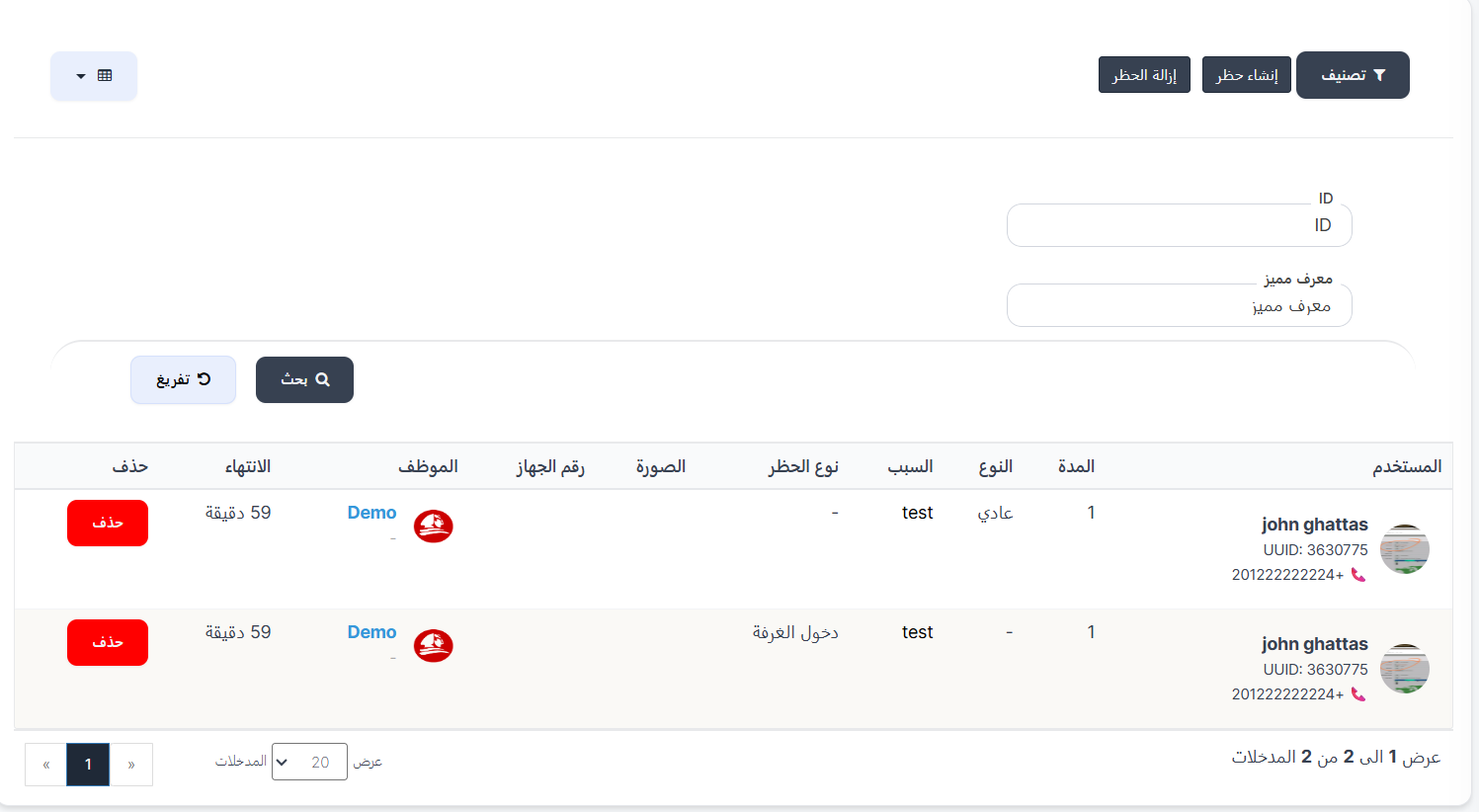
The User Bans page allows you to restrict or prevent violating users from using the app fully or partially. You can create multiple ban types for the same user simultaneously — whether a full ban or a ban from a specific action only (such as preventing room entry or sending gifts).
How to Access
Sidebar ← Users ← Bans
Main Page Buttons
| Button | Description |
|---|---|
| 🔽 Filter | Filter and sort the banned users list |
| Create Ban | Open the new ban creation form |
| Remove Ban | Remove an existing ban from a user |
Search & Filter
| Field | Description |
|---|---|
| ID | Search by user's unique system ID |
| UUID | Search by user's UUID |
Banned Users Table
| Column | Description |
|---|---|
| User | Banned user's name with UUID and phone number |
| Duration | Ban duration (in hours) |
| Type | Ban type: Normal, IP Address, or Device |
| Reason | Ban reason entered during creation |
| Ban Type | Specific banned action (e.g., enter room, send gift) or - for full ban |
| Image | Attached screenshot as evidence (if any) |
| Device ID | Banned device identifier (for device bans) |
| Staff | Admin who executed the ban |
| Expiry | Time remaining until ban expires |
| Delete | Button to remove/cancel the ban |
Creating a New Ban
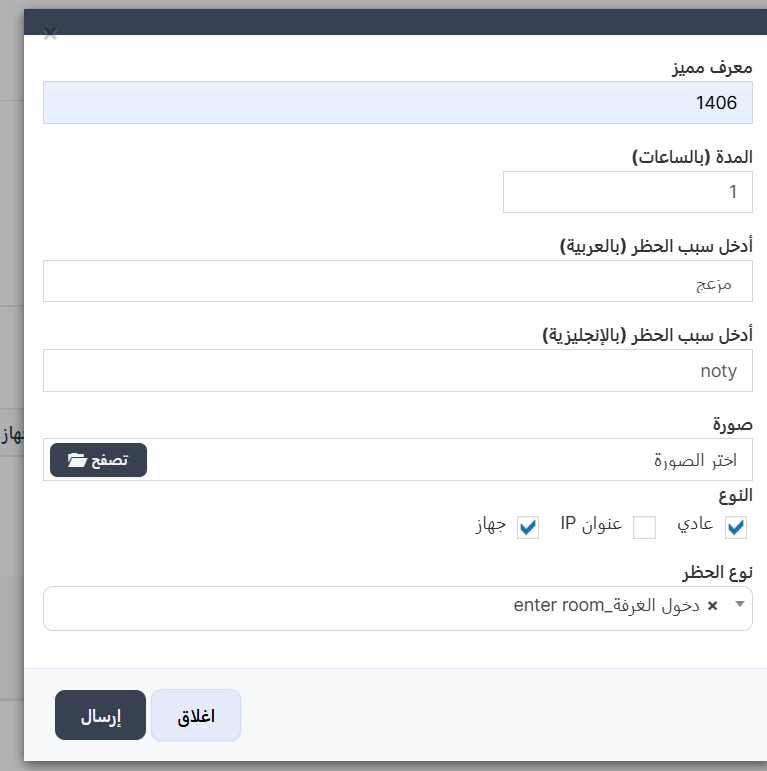
When pressing "Create Ban", a popup form appears:
Required Fields:
| Field | Description | Required |
|---|---|---|
| UUID | User's UUID to ban | ✅ |
| Duration (hours) | Ban duration in hours (e.g., 24 = 1 day, 168 = 1 week) | ✅ |
| Reason (Arabic) | Ban reason in Arabic — shown to user in app | ✅ |
| Reason (English) | Ban reason in English — shown to user in app | ✅ |
| Image | Upload screenshot as evidence (optional) | ⚪ |
| Type | Select ban type (can select multiple) | ✅ |
| Ban Type | Select specific banned action | ⚪ |
Ban Types (Type)
You can select one or more types simultaneously:
| Type | Description | Effect |
|---|---|---|
| ✅ Normal | Account ban | User's account is banned directly |
| ✅ IP Address | IP ban | User's IP address is blocked. Any account using the same IP is affected |
| ✅ Device | Device ban | The device itself is banned. Even with a new account on the same device, the ban persists |
Tip
Combine multiple types for stricter bans: - ✅ Normal + Device = Account + device ban - ✅ Normal + IP + Device = Full ban on all levels
Ban Type (Specific Action Ban)
| Ban Type | Description |
|---|---|
| Send Gift | User cannot send gifts to others |
| Enter Room | User cannot enter any voice/live rooms |
| Up Microphone | User can enter rooms as listener only, cannot use microphone |
| Join Agency Request | User cannot send agency join requests |
| Buy VIP | User cannot buy or renew VIP membership |
| Join Family | User cannot send family join requests |
Leave empty for full ban (user blocked from entire app).
Ban Creation Steps
- Press "Create Ban"
- Enter UUID
- Set duration in hours (24 = 1 day, 168 = 1 week, 720 = 1 month)
- Write reason in Arabic and English
- Upload evidence image (optional)
- Select type (Normal / IP / Device or combination)
- Select specific action to ban (optional — leave empty for full ban)
- Press Submit
Removing a Ban
- Find the user in the banned users table
- Press the "Delete" (red) button next to the ban to remove
- Or use "Remove Ban" button at top to remove all bans from a user
Note
- Deleting one ban does not delete other bans. Each must be deleted separately.
- Bans expire automatically after the specified duration.
🚪 Room Closing
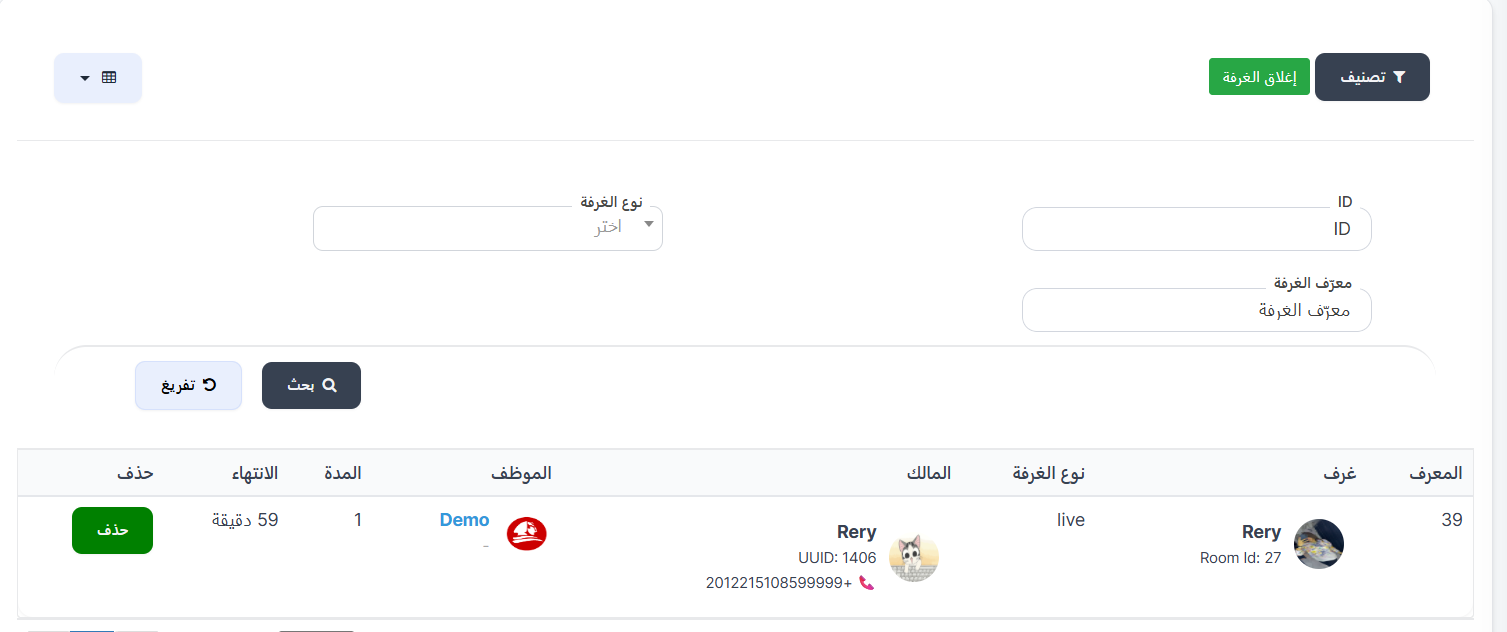
The Room Closing page allows you to close user rooms (voice or live broadcast) for a specified time period.
How to Access:
Sidebar ← Quick Commands ← Room Closing
Room Closing Table:
| Column | Description |
|---|---|
| ID | Unique closing operation ID |
| Room | Room name, image, and Room ID |
| Room Type | live (broadcast) or voice (voice room) |
| Owner | Room owner — name, UUID, phone 📞 |
| Staff | Admin who closed the room |
| Duration | Closing duration (in hours) |
| Expiry | Time remaining until reopening |
| Delete | Button to cancel closing and reopen room |
Closing a New Room:
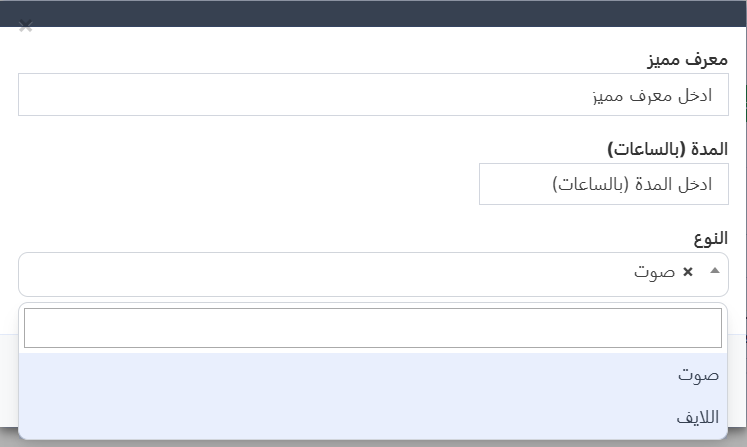
Press 🚪 Close Room and fill in:
| Field | Description | Required |
|---|---|---|
| UUID | Room owner's UUID | ✅ |
| Duration (hours) | Closing duration in hours | ✅ |
| Type | Voice (voice room) or Live (broadcast) | ✅ |
Steps:
- Press "Close Room" 🟢
- Enter owner's UUID
- Enter duration in hours
- Select Voice or Live
- Press Submit ✅
Quick Summary:
| Action | Steps |
|---|---|
| View closed rooms | Users ← Room Closing |
| Close a room | Press "Close Room" ← Enter UUID + duration + type ← Submit |
| Reopen a room | Press "Delete" next to the room |